
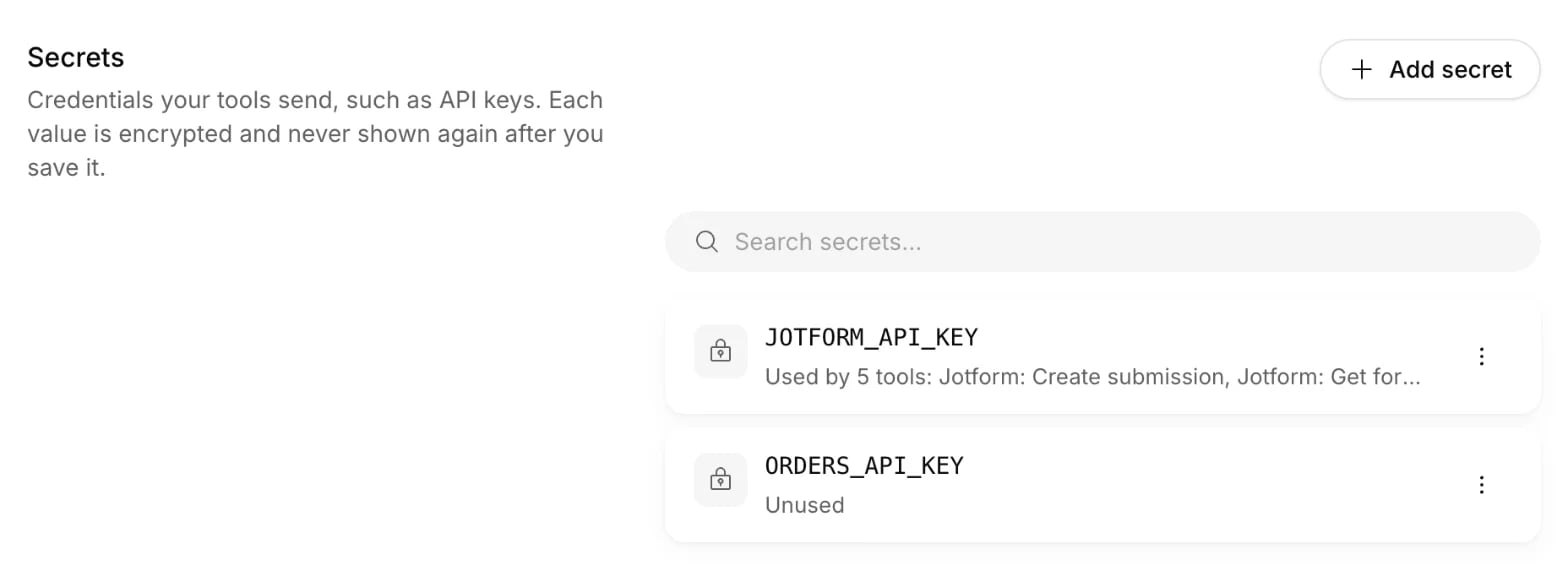
Secrets lists each secret's name and the tools and published agents that send it.
Add a secret
Choose Add secret, give it a name and paste the value, then choose Add secret again.- Name: up to 100 characters, starting with a letter or digit, using letters, digits, spaces, dots, dashes and underscores. Names are unique in the workspace, ignoring case. A workspace keeps up to 100 secrets.
- Value: up to 8,192 characters. Spaces and a line break at either end are dropped, since a pasted key often ends with one. A line break inside the value is refused, because tools send it as a header.
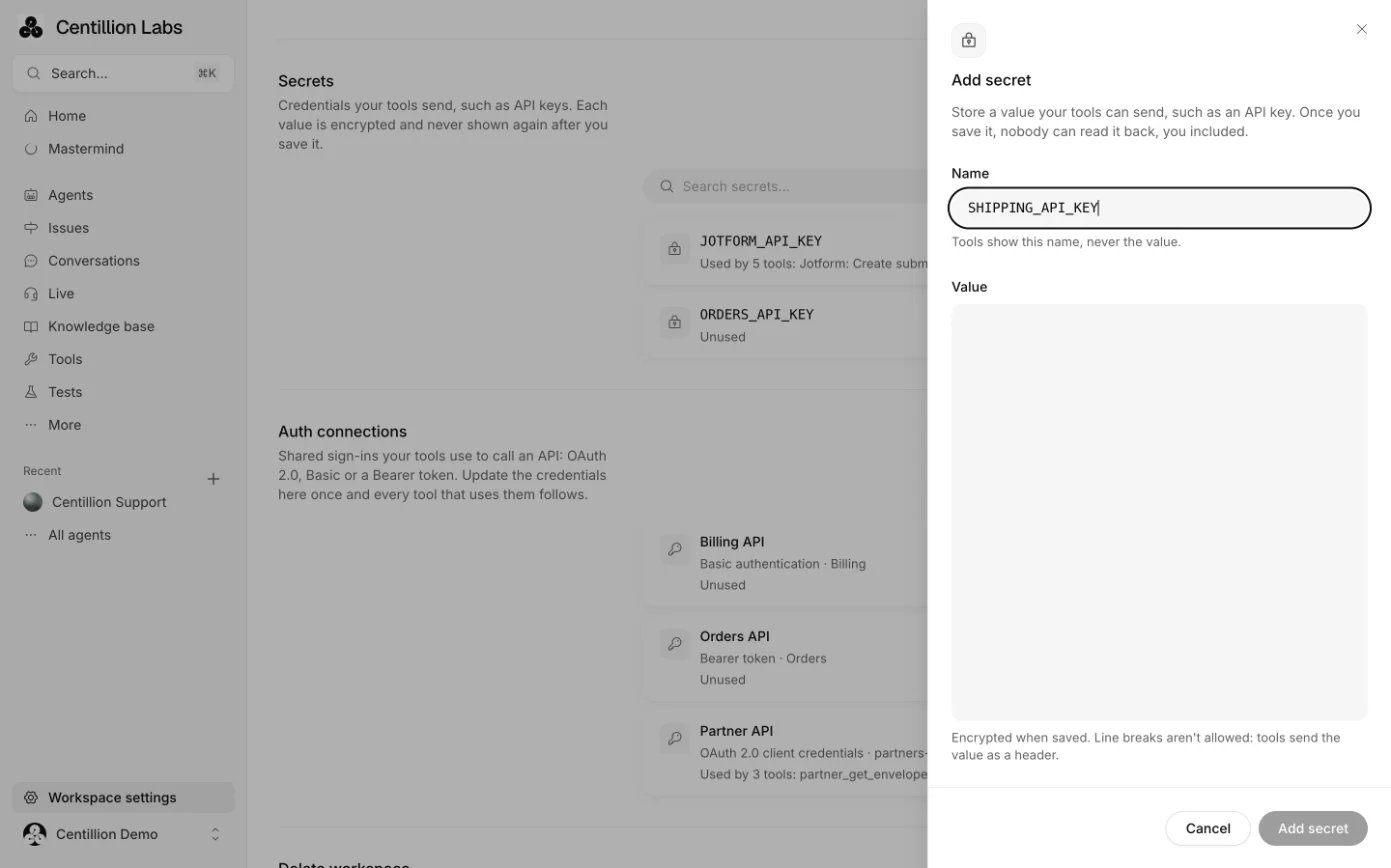
Add secret: the value is encrypted when you save it and never shown again.
Send a secret from a tool
In a webhook tool or an MCP server, under Headers, choose Add header, set Type to Secret, type the header’s name and pick the secret. Choose Create new secret in the list to add one without leaving the tool.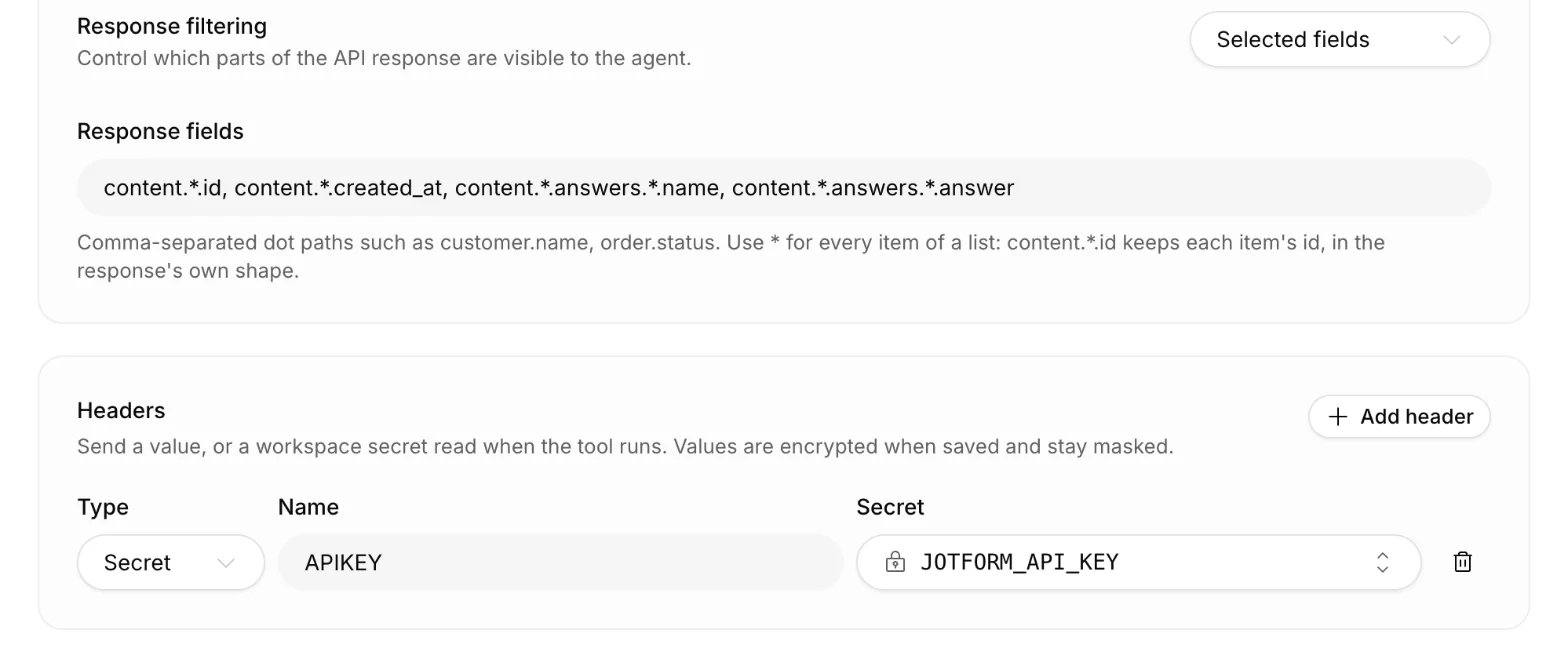
A header whose value is a secret: the tool sends JOTFORM_API_KEY's value as its APIKEY header.
Authorization secret. For OAuth 2.0, Basic or a Bearer token, use an auth
connection rather than a secret. It renews OAuth tokens and builds the header
for you.
That goes for MCP servers too. A secret suits a key that never changes, such
as an x-api-key header. A server that wants a token from an OAuth 2.0 client
credentials grant, which expires after an hour or so, needs a connection
under Authentication instead. A secret would hold one token, and the
server would refuse it once it expired. The server can still send secrets as
its other headers beside the connection.
The secret’s value is read when the tool runs. If an API repeats the value
back in its response, the tool masks it as •••••••• before the agent or the
Tool Logs see it.
Change or rotate a secret
Open the secret’s ⋮ menu and choose Update secret. Rename it, paste a new value, or both; leave Value empty to keep the current one. Tools and published agents that send the secret use the new value from their next call.Delete a secret
Open the secret’s ⋮ menu and choose Delete secret. A secret can’t be deleted while it’s in use: remove it from every tool that sends it, and publish the agents whose live version still sends it. Deleting can’t be undone. If a tool runs after its secret is gone, the call stops and its error names the header, never a value.Who can use a secret
Anyone who can edit a tool can pick any of the workspace’s secrets for it, and so can send that secret to the server the tool calls. Secrets keep values out of the dashboard, the API and the logs; they don’t limit which editors can use them.From the API and AI assistants
The Developer API manages secrets under/secrets, and a tool names a secret
in its secretHeaders. See Workspace secrets.
AI assistants list secrets with list_secrets; see
AI assistants (MCP).