
What you need
- A DocuSign account. Developer (demo) accounts work for testing.
- For texts, an SMS number on your workspace, and for emails, an email channel. Centillion assigns SMS numbers; see SMS.
- Owners and Members change these settings; see workspace roles.
Connect DocuSign
Open Integrations and find Signing and messages. Choose Connect DocuSign, pick the environment, then connect one of two ways:- Sign in with DocuSign connects your account through Centillion’s DocuSign app.
- Your own integration key uses DocuSign’s JWT grant: enter the integration key, the user the workflow acts as, and the RSA private key, which is stored encrypted and never shown again. In DocuSign, grant that key consent for the user first.
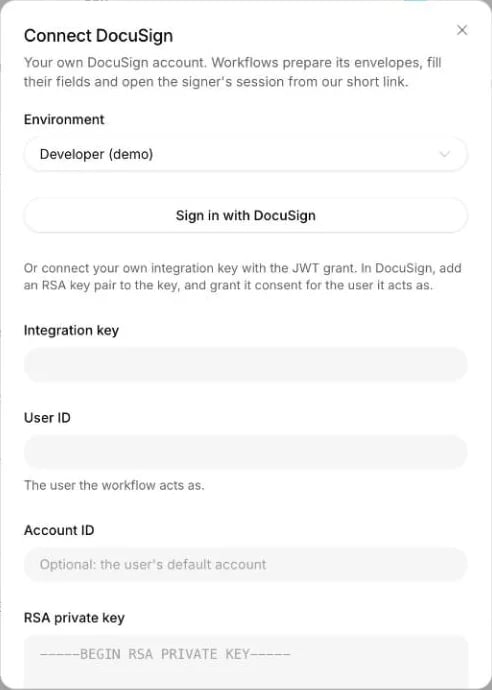
Connect DocuSign: sign in, or enter your own integration key.
Write your message templates
Under Signing and messages → Message templates, choose New template. Each template has a name, a language, the SMS text, and the email subject and text. Every word is yours. Placeholders fill in at send time:{link}: the signing link, or any link the step passes.{first_name}or any workflow variable by its name. Sensitive variables never fill a message.{opt_out}: your opt-out line, set under Opt-out lines for SMS and email. Email adds an unsubscribe link after it.
{opt_out} or your own words. A reply of
STOP always stops your texts, whatever the template says.
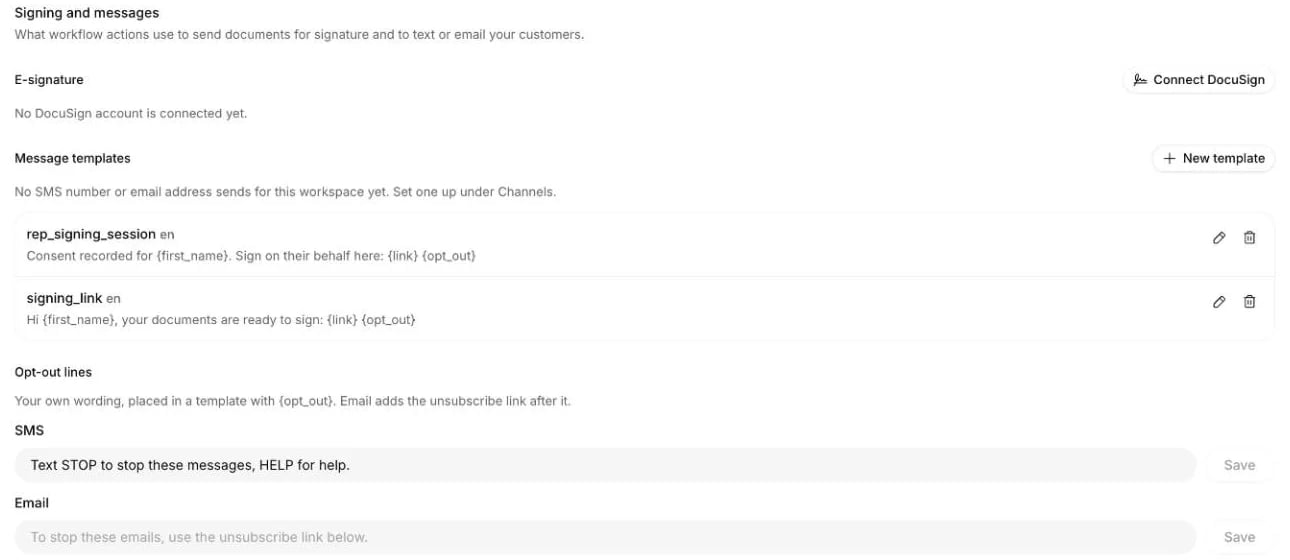
Signing and messages on the Integrations page: DocuSign, your templates and your opt-out lines.
How a signing step usually runs
Most businesses already create their envelopes in their own system. The workflow asks that system for the envelope, then takes it over:- A Tool step runs a webhook tool that calls your endpoint. Your endpoint
creates the envelope in your DocuSign account, or finds the one it already
sent, and answers with its envelope id. A response mapping stores it in a
workflow variable, such as
envelope_id. - A Tool step runs E-signature · Prepare for signature in adopt mode,
with
envelope_idmapped from that variable. It fills the fields from your workflow’s variables and returns the signing link. Each field is Required unless you clear the box: a required field with no value stops the step and nothing is sent, while an optional one, such as an address’s second line, is left blank. - A Tool step texts the link with Messages · Send, or signs on the customer’s behalf with E-signature · Sign on behalf.
- A Wait for event step waits for Signed.
Add connector actions
Open Tools, choose Add tool, then Connector action. Pick the action, then fill in what it needs: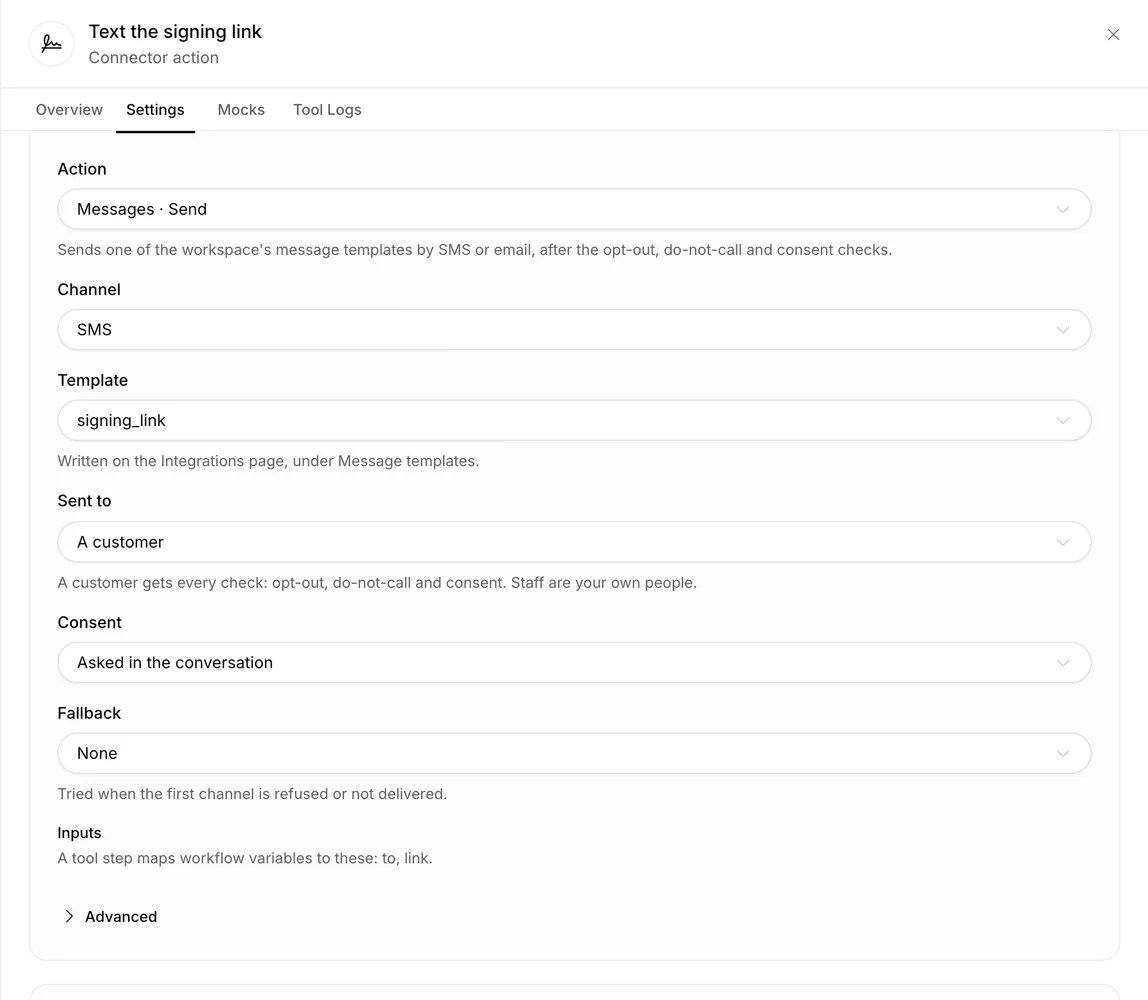
A Messages · Send action: the channel, the template and who it goes to.
to, put them in separate Tool steps so each
gets its own value. A step that is retried sends nothing twice. A conversation that
comes back to the step later, through a loop in the workflow, sends again.
Before every text to a customer, Centillion checks that the number has not
opted out, is not on your do-not-call list, and, when the action asks for it,
has a consent on record. When a text may go out, such as quiet hours where the
customer lives, is yours to decide in the workflow. Before every email, it
checks that the address has not unsubscribed. A refused or undelivered text
tries the fallback channel. Messages to your staff go only to the number or
address set on the action, and skip the consent check, never an opt-out. The first text
a number sends to each customer carries the SMS notice your number was
registered with.
The signing link
Messages carry Centillion’s own short link, never DocuSign’s. It opens a page with an Open the document button; the click asks DocuSign for a fresh signing session. So the link works for as long as you set, and a link preview or a mail scanner neither uses it up nor counts as an open. Each Prepare action chooses how the signer opens the documents:- Our signing link: the action returns the link, and the signer opens the documents from it. DocuSign sends that signer no reminders and no expiration notices, so the workflow sends the link, and any reminder, itself.
- DocuSign’s email: DocuSign invites the signer, with its own reminders and expiration notices, and the action returns no link. Signing on behalf needs our signing link, so it cannot use this choice.
Signing on behalf
DocuSign does not let software sign a document. Sign on behalf records the customer’s verbal consent on the envelope (the time, your consent script’s version, and the conversation, step and try it was given in, as Centillion recorded them), then texts or emails the customer’s signing session to the person you name, who signs for them. The link never goes to the caller in this mode.Wait for an event
Add a Wait for event step after the step that sends the document or the link. Connect one transition per event it waits for, such as Signed or Declined, and one Timeout transition. While it waits, the conversation goes on: the agent follows the step’s While waiting text and answers questions. On a call it says the Check-in line at the interval you set. In a chat or a text conversation, an event that arrives after the customer has gone quiet moves the conversation the next time they write. A call that ends while it waits is over: the next call is a new conversation, which starts from the beginning of the workflow. Use the expand button in While waiting to edit the instructions in a larger editor. Changes stay in the workflow draft until you save.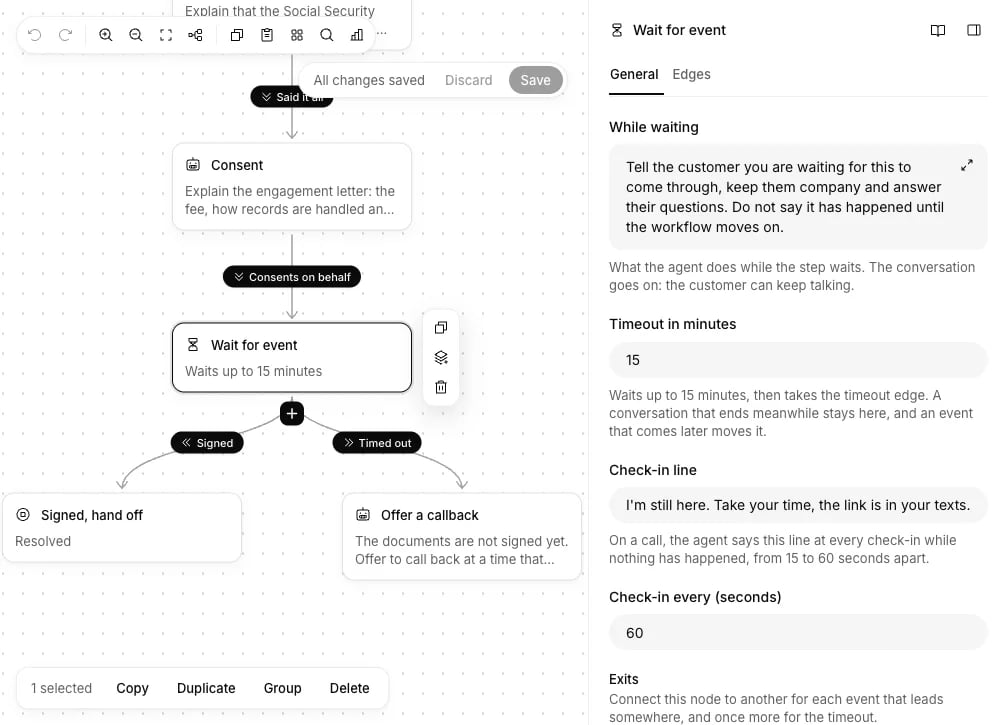
A Wait for event step: what the agent does while it waits, the timeout and the check-in line.
Sensitive values and keypad entry
In the workflow’s Global settings, list the Sensitive variables, such asssn or date_of_birth. They are the workflow’s own variables, the ones an
Update state step, a tool’s response or keypad entry writes; call and
contact details such as contact.phone cannot be listed. Their values are
stored encrypted and shown as •••-••-1234 in transcripts, conversations, the
workflow’s judge and the dashboard, and a message never carries them. Only an
action that needs the value, such as a concealed DocuSign field, reads it.
On a subagent step, turn on Collect by keypad to take a variable from the
caller’s keypad: the fewest and most digits, the key that ends the entry, and
how long to wait after the last key. Ask for it in the step’s goal (“type your
Social Security number, then press pound”). The digits go straight to the
workflow and never reach speech-to-text or the voice model. Keypad entry is for
calls; in chat, give the step another way on, such as an LLM condition.
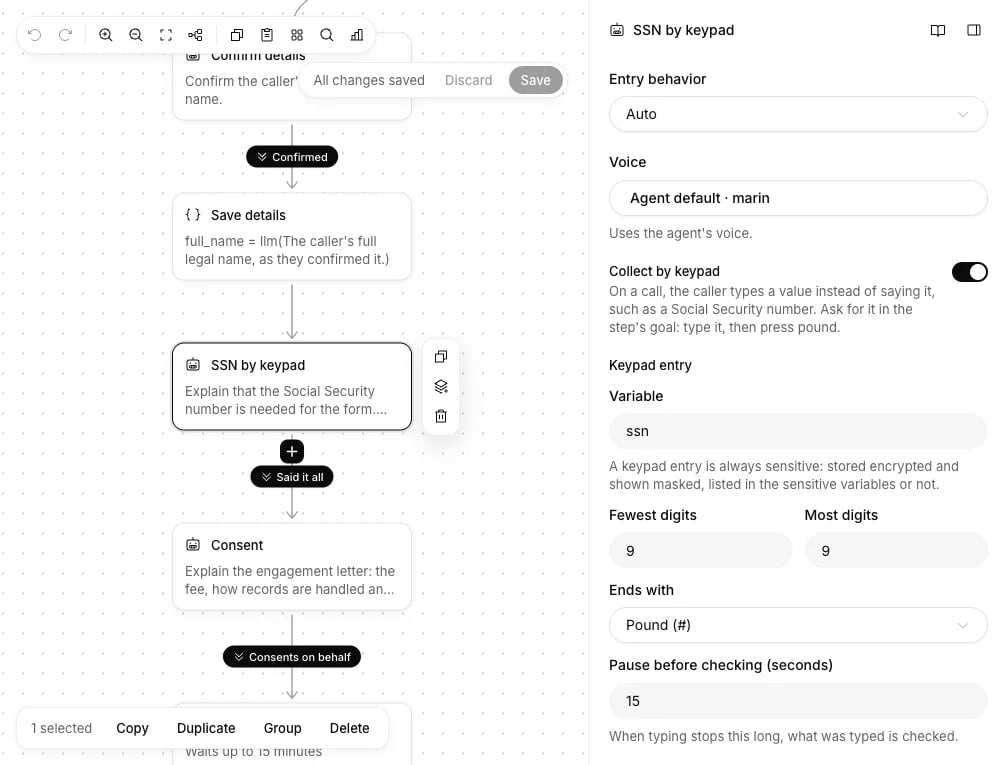
A subagent step that collects the SSN by keypad.