
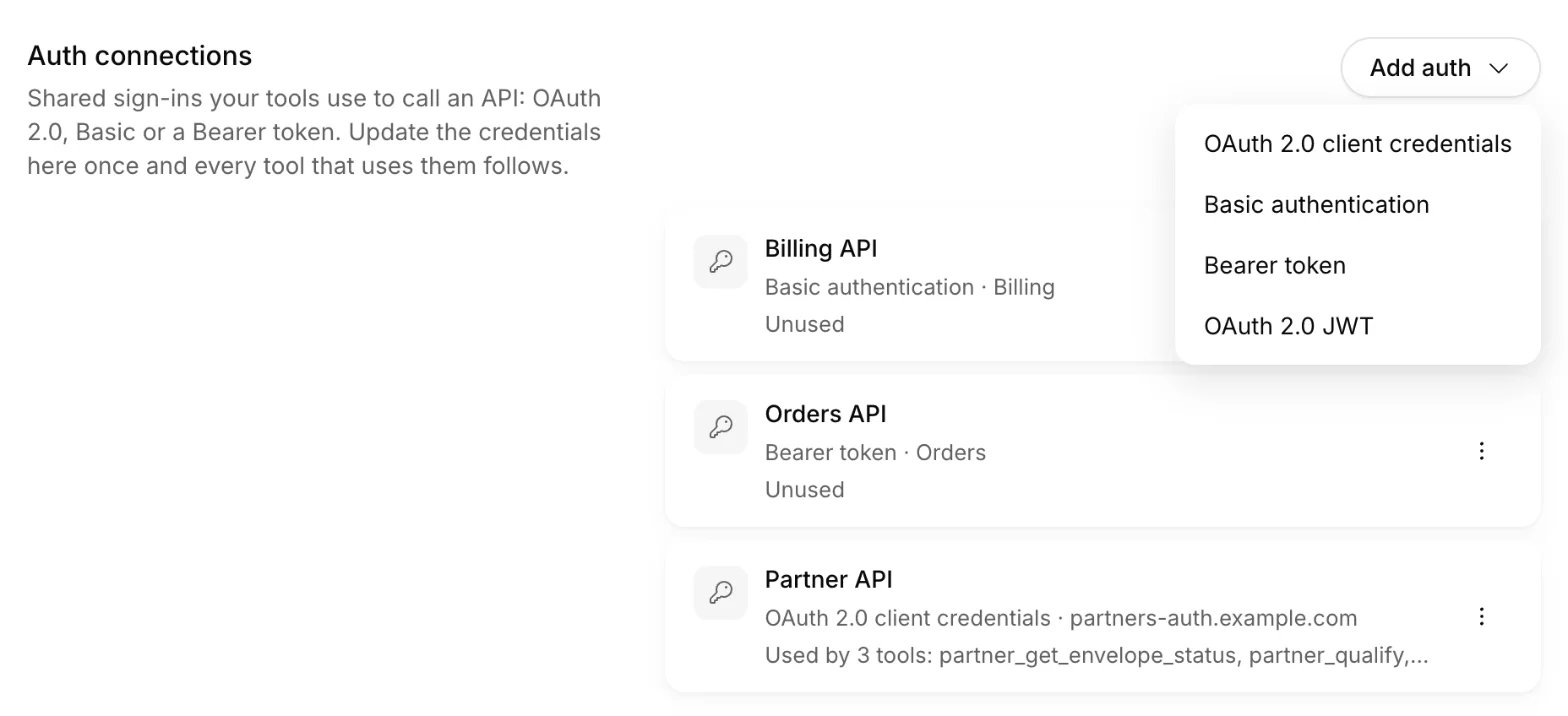
Auth connections lists each connection's type, its provider and the tools and published agents that use it. Add auth starts a new one.
Add a connection
Choose Add auth and pick the type your API uses. Give the connection a Name, unique in the workspace ignoring case, and, if you like, a Provider shown beside it. Then fill in the type’s fields and choose Create auth connection. A workspace keeps up to 50 connections.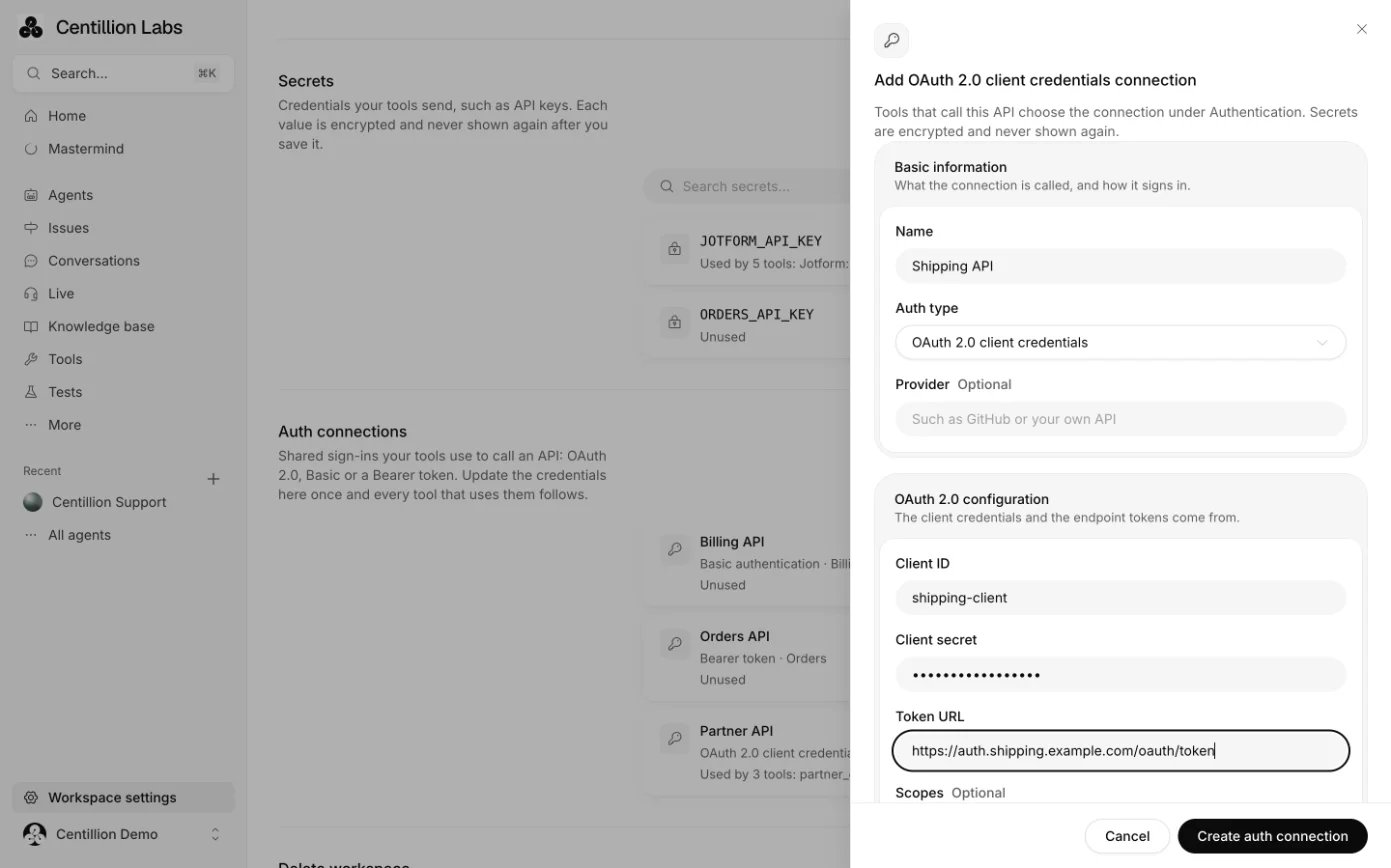
An OAuth 2.0 client credentials connection: the client ID, the secret and the token URL.
OAuth 2.0 client credentials
Before a call, the tool asks the token URL for an access token with
grant_type=client_credentials, then sends it to your API as
Authorization: Bearer <token>, beside the tool’s other headers. The token
is reused until about a minute before the expires_in the token server gave
(an hour when it gives none), and every tool on the connection shares it, so
an API that limits token requests sees one per token, not one per tool or per
call. If your API answers 401, the tool gets a new token and sends the
request once more.
OAuth 2.0 JWT
For APIs that take a signed assertion instead of a client secret (the JWT bearer grant). Enter the Secret key that signs it: a shared secret for the HS algorithms, or a PEM private key for RS and PS. Then the Token URL, optional Scopes, the Token type to send (Access token or ID token from the response), the Algorithm, an optional Key ID sent askid, how long each assertion is valid under Expiration (seconds), and the
claims: Issuer (iss), Audience (aud), Subject (sub) and optional
Extra claims (JSON).
Each token request carries a new assertion, issued at that moment, with
grant_type=urn:ietf:params:oauth:grant-type:jwt-bearer. Tokens are reused
and renewed the same way as client credentials.
Basic authentication
A Username and Password, sent with every request as an HTTP BasicAuthorization header. The username can’t contain a colon.
Bearer token
A Token, such as an API key or a personal access token, sent with every request asAuthorization: Bearer <token>.
An API key that goes in a header of its own, such as x-api-key, belongs in a
secret instead.
Choose a connection in a tool
Open a webhook tool’s Settings. Under URL, set Authentication to the connection. Create new auth connection adds one without leaving the tool and chooses it. A web form tool that gets its link from a request has the same choice under Authentication, below its headers. An MCP server has the choice under Server URL. The connection signs in every request the server gets: Discover tools and each tool call the agent makes. An OAuth token is shared with the webhook tools on the same connection and renewed the same way, so a server whose tokens last an hour keeps working without anyone pasting a new one.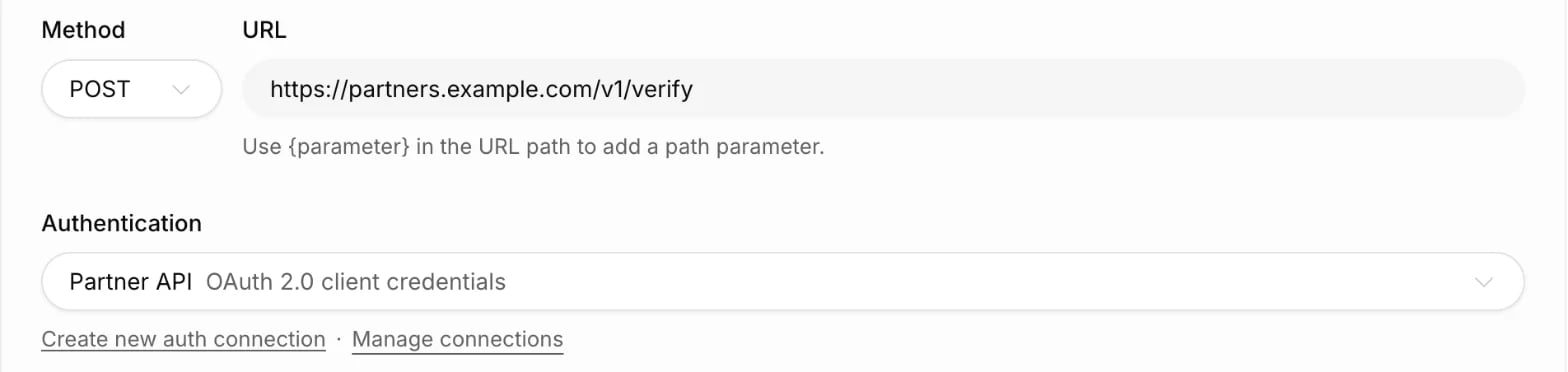
A webhook tool signing in with the Partner API connection.
Authorization header, so the tool can’t also have
an Authorization header or secret of its own. If an API or an MCP server
repeats the token or password back in its response, the tool masks it as
•••••••• before the agent or the Tool Logs see it.
Tools that keep their own OAuth settings
Tools made before auth connections kept their own copy of the OAuth client credentials. While any do, Auth connections names them and offers Move to auth connections. That gives each distinct client one connection, named after the API’s address and keeping the client’s settings and secret, and points every tool that used the client at it. Nobody types the secret again, and a connection that already holds the same client is reused. The move changes the tools, not your agents’ published versions: those keep the copy they were published with, and keep working, until you publish again. Until a tool moves, its Authentication shows This tool’s own OAuth settings with the old fields.Edit or rotate a connection
Open the connection’s ⋮ menu and choose Edit connection. Change any setting, or paste a new secret; leave a secret empty to keep the one saved. A token request header shows its name only; leave its value empty to keep it. A connection keeps its type: to sign in another way, add a new connection and choose it in the tools.Delete a connection
Open the connection’s ⋮ menu and choose Delete connection. A connection can’t be deleted while a tool uses it, or while a published agent’s live version does: choose another connection in those tools and publish the agents first. Deleting can’t be undone. If a tool runs after its connection is gone, the call stops with a message that names no secret.From the API and AI assistants
The Developer API manages connections under/auth-connections, and a
webhook tool or an MCP server names one in authConnectionId. See
Workspace auth connections.
AI assistants list connections with list_auth_connections; see
AI assistants (MCP).