
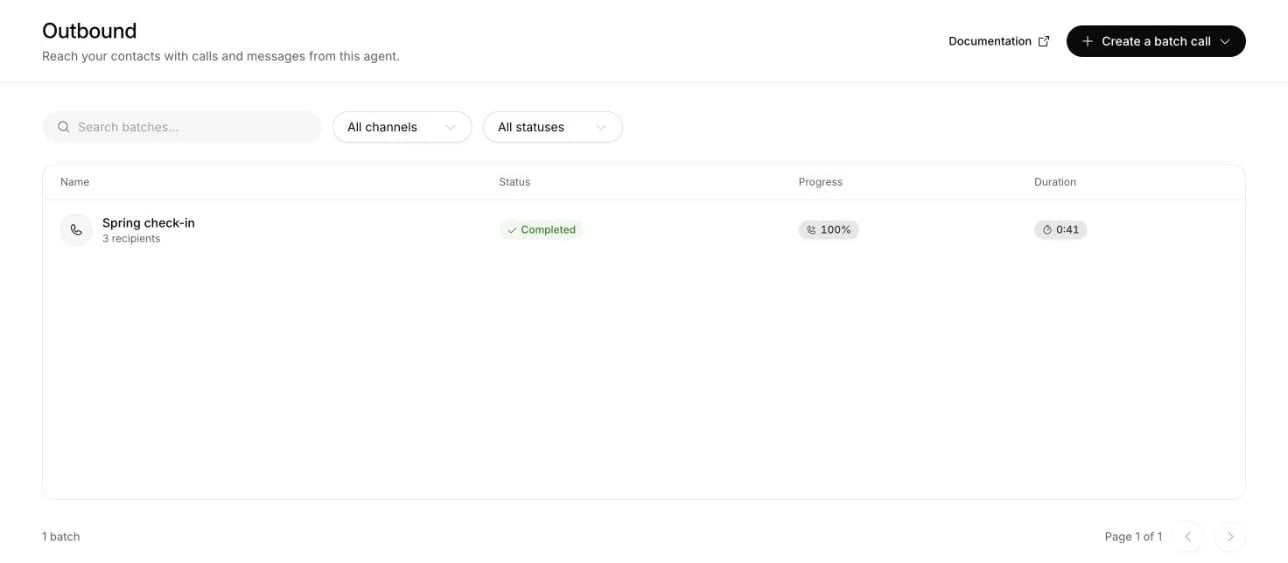
Outbound lists each batch with its recipients, status, progress and duration. Search or filter the list before opening a batch.
What it does
- Imports CSV, XLS or XLSX call lists with recipient variables and optional prompt, first-message, voice and language overrides.
- Starts calls immediately or at a scheduled time, using a chosen published branch or the agent’s traffic split.
- Reaches customers on WhatsApp, with an approved template, or by Voice call, where the agent phones them. Voice works only once outbound calls are set up for the agent.
- Picks the audience from what you know about each contact, up to 50,000 contacts per campaign, and leaves out anyone who opted out.
- Follows one of three goals: win the customer back, learn why they left, or run the agent’s own workflow.
- Keeps to quiet hours, a sending speed, and Meta’s messaging limit.
- Shows a funnel from sent to reactivated, and every contact’s timeline.
What you need
- Standard or above. Chat replies consume message credits; connected voice calls also consume six credits per commenced minute. See plans and credits for allowances and concurrent-call limits.
- Owner or Member role to create and manage campaigns. Viewers can inspect campaigns, audiences and results, but cannot launch or change them. See workspace roles.
- Contacts with a phone number.
- For WhatsApp messages: a connected WhatsApp number and approved templates. For WhatsApp calls, use an account with calling enabled and obtain an active calling permission from each recipient.
- For voice: an outbound-capable number connected under Channels → Phone.
- For batch calls from the dashboard: your agreement to the outbound communications terms, asked once before your first test call or launch.
Create a batch call
1
Choose the agent and calling number
Open Outbound at workspace level or inside an agent, then choose
Create a batch call → Telephony. Name the batch, choose the agent and
select one of its assigned outbound phone numbers. The agent is already
selected when you start from its page, and becomes fixed once you save
the draft.Branch can follow the agent’s traffic split or use a particular
published branch, including one with no traffic assigned. Each call uses
a published version; unpublished editor changes do not reach recipients.
2
Upload and review the recipients
Choose a CSV, XLS or XLSX file, up to 25 MB and 50,000 recipients. For a
workbook, put the list on the first worksheet. Template downloads a
sample CSV. The required
phone_number column includes the country code,
for example +12025550101. Keep phone numbers as text in a spreadsheet.Other columns become dynamic variables. For example, a name column
fills {{name}} in the agent’s instructions. The preview shows the parsed
values before saving. Duplicate phone numbers are excluded, and invalid
rows must be fixed before you can continue. Importing a list does not
overwrite existing contacts’ details or record their call consent.3
Set the calling limits
Ringing timeout is how long to wait for an answer, from 5 to 120
seconds. Leave Concurrency limit empty for Automatic, or enter a
limit within your workspace and agent allowance. Automatic uses
the lower of half the workspace limit and 70% of the agent limit, rounded
down, with at least one call.Concurrency limits calls in progress. New batches start up to 20 calls
per minute automatically, within your workspace’s available capacity.Voicemail behavior comes from the selected agent version. Configure
Tools → Voicemail detection → Customize before publishing that version.
Leave Voicemail message blank to hang up silently, or enter the message
to play after recording begins. Batch recipient variables can fill
placeholders such as
{{name}} in that message.4
Test and schedule
Save draft keeps the settings and uploaded list. Test call calls
a number you control. It lists every variable the published version uses,
filled from the test values in Vars, or from your first recipient once
a file is uploaded, and you can change any of them for that call. You can
also test another branch, and turn off answering machine detection. A
value left blank is sent blank. The first recipient’s overrides apply.
Test calls use normal voice credits. The dialog shows the call’s result,
and says why if it could not be placed.Choose Start immediately, or Schedule with a date, time and
timezone, then click Submit a Batch Call. There is no second
confirmation. A batch set to start immediately places its first calls
within seconds, and Outbound opens with the batch In progress. If
setup is incomplete, the form explains what to fix and links to calling
settings. A batch has no quiet hours and calls at any hour until its list
is done, so schedule it, or pause it, to fit the calling hours where your
recipients are. Available capacity can delay a recipient beyond the
batch’s start time. Recipients
on your do-not-call list, or who asked not to be called again, are
skipped.The first time you choose Test call or submit a batch, the Outbound
communications terms and conditions open. By agreeing, you confirm that
you have the consent and give the disclosures your calls and messages
need, AI disclosures included, and that you alone are responsible for the
laws that apply, such as the TCPA. Tick the box and choose Continue:
the test call or the batch then goes ahead. You agree once per workspace.
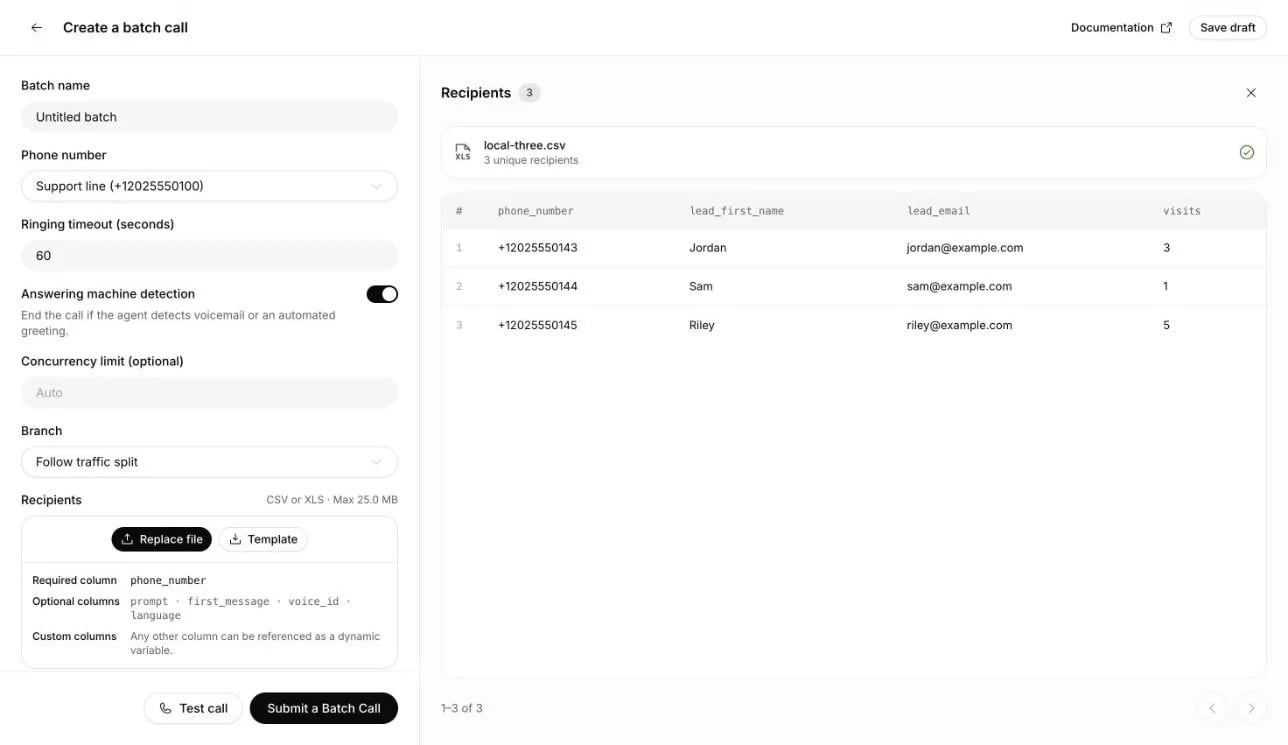
The batch builder keeps calling settings beside the recipient preview and links to setup when a calling number is missing.
WhatsApp batch calls
Choose Create a batch call → WhatsApp to place voice calls inside WhatsApp. Select an active WhatsApp account assigned to the agent. Calling must be enabled on that account, with an active calling permission from each recipient. A messaging opt-in alone does not grant permission for a WhatsApp voice call. The file requireswhatsapp_user_id, with the country code and digits, for
example 12025550101. The preview, variables, overrides, published branch,
schedule, test call, outbound communications terms and results work as they
do for a telephony batch, and the do-not-call list and carrier permissions
apply too. This path requires cloud voice calling on your deployment. An
account without calling permission cannot place the call; reconnect an expired
account under Channels.
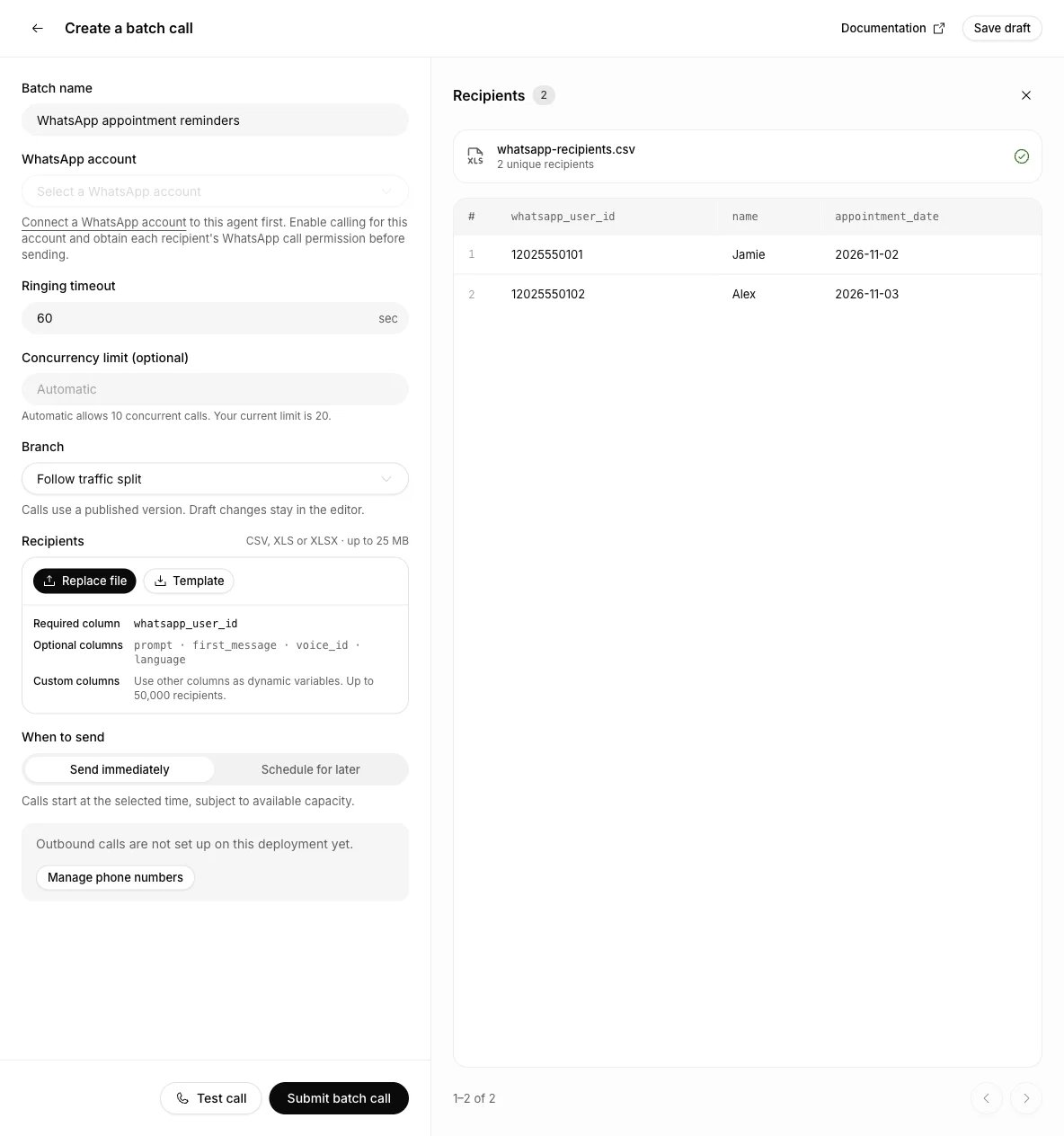
A WhatsApp batch uses a calling account and a recipient list with whatsapp_user_id. Account setup and call permission are required before launch.
Recipient variables and overrides
Use simple variable names such asname and appointment_date. The
system, call, contact and campaign namespaces are reserved, as are names
beginning with __, system__ or secret__. A file cannot replace the call’s
protected system values.
Include any of these optional columns in your file. The builder applies them automatically:
The preview shows these values before you submit. The settings and recipient
values are saved with each call so a retry of the same request cannot silently
change them. Voice IDs must belong to your workspace and use the agent’s
voice provider.
Batch results and controls
Open a submitted batch to see its status, agent, branch, calling number, recipient count, when it went out and the share of calls placed, then a row for each recipient with your file’s columns and the call’s status. A scheduled batch shows when it starts. A call that could not be placed says why. Open a recipient to read that call’s conversation. A call that could not be placed opens its details instead, with its variables, overrides and failure reason. A batch of more than 25 recipients adds search by name or number, a result filter and pages. Result filters stay in the URL; search text stays in the current browser tab. Export CSV downloads the recipients, statuses, outcomes, variables and conversation IDs.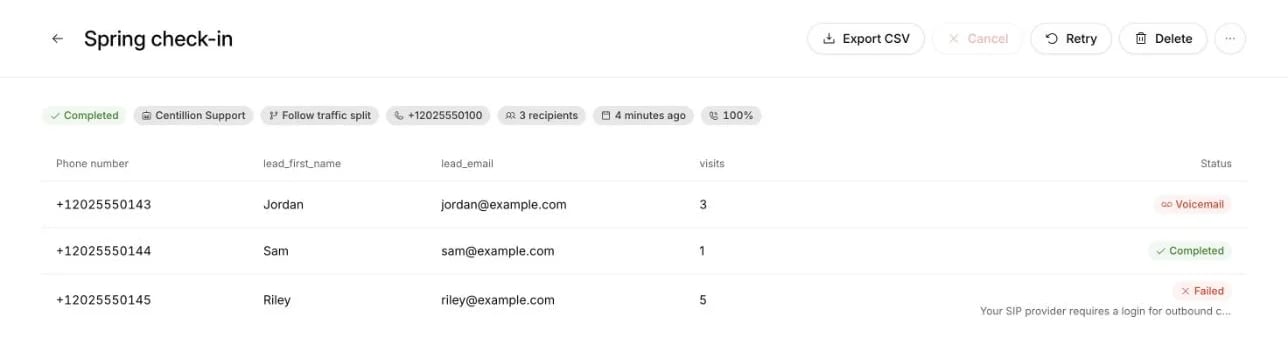
Batch results show the batch's status and details, then each recipient's columns and result.
Batch calling API
The batch calling API can create and update drafts, import recipient lists in chunks, schedule or launch calls, retrieve results, and pause, resume, cancel, retry, duplicate or delete a batch. It uses the same workspace permissions and calling checks as the dashboard. Instead of the outbound communications terms, a batch created through the API confirms the recipients’ consent withconsentConfirmed.
Create a WhatsApp message campaign
1
Open Outbound
Open Outbound in the workspace or the agent’s sidebar and choose
Create a batch call → WhatsApp messages. At workspace level, choose
the agent that will handle replies. You can start a draft before
connecting a number or selecting recipients.
2
Configure the campaign
Under Configuration, pick the Channel, the
sending number, the reply behavior and the content. The preview on the
right updates as you personalize the message. Select from template
opens your approved template library with search and category filters.
Click a variable in the message to map it to a contact field or enter a
static value.
3
Choose who replies
Choose AI replies to let your agent respond, or Human takeover to
create a Helpdesk ticket when a WhatsApp recipient first replies. Human
takeover needs Helpdesk to be enabled. Tickets include the campaign name
and a campaign tag, and a person takes over from the
helpdesk inbox. Once your team closes the ticket or resumes
the AI, the agent answers that customer’s later messages.
4
Pick the audience and confirm consent
Open Audience to select contacts, then confirm their consent. Save
draft keeps unfinished work.
5
Review and send
Send now becomes available once the required settings are complete,
and opens a review before sending. Expand Schedule and sending rules
to schedule a later start or change quiet hours and sending limits.
Use it every day
The Outbound page
The workspace page lists calls and campaigns across its agents. An agent’s page shows only its own batches and campaigns. Search by name, or filter by agent, channel and status. Each row shows its recipient count, progress, creation date and scheduled start, with the schedule’s timezone. Open a row to continue a draft or inspect results. WhatsApp campaigns and existing voice campaigns keep their configuration, audience and results pages. You can also start a campaign from a churn reason group to preselect that audience.Goals
Win the customer back. The agent explains what changed or what is possible now, for example a feature they asked for or a lower price, and walks them through the next step. When they say they will come back, the contact counts as reactivated. Learn why they left. The agent asks why they stopped, listens without pushing, and saves the answer on the contact as three attributes:churn_reason (one of the agent’s
churn categories, such as fees_pricing;
“other” when none fits), churn_reason_detail (the reason in their words)
and churn_reason_at (the date). These are the attributes churn detection
writes, so the answer shows up on the Churn reasons page too, and a reason
older than the one already on the contact does not replace it. The
attributes are created on the Contacts page the first time a reason is
saved, and you can build the next campaign’s audience from them.
Use the agent’s workflow. The campaign decides who is contacted and
when; the agent’s own instructions and workflow decide what it says. On a
voice call, the agent runs its own tools and workflow instead of the fixed
set other campaign calls use. The call’s outcome is one of interested, not
interested, callback requested, not a good time, wrong person, do not call
or no conversation, and no churn reason is read from it.
Audience
Choose individual recipients with the checkboxes, or select All matching contacts. Search by name or phone number, and use Add filter or a custom attribute’s column heading to narrow the audience. Selected contacts must also match every filter. Search only changes the list you see; selections persist across searches and pages. New campaigns start with no contacts selected. Filters support text, number, date and true/false attributes. For example,churn_reason is fees_pricing, or last_active_at is more than 60 days
ago. To reach one group of the Churn reasons page, open the group and choose
Start a campaign: the new campaign starts with churn_reason is that
category as its audience.
A contact is left out if they have no usable phone number (fewer than 8
digits), or if they opted out: they replied STOP to your WhatsApp number,
asked the agent not to be contacted again, or turned off marketing messages
from your business in WhatsApp. Nobody who opted out is contacted by any
campaign. Someone who asked the agent, or turned off marketing messages,
still gets answers from your agent when they write to you; STOP turns those
off too. A WhatsApp opt-out ends when they reply START, from whichever
conversation they write in. A number is recognised in every form WhatsApp
uses for it, such as a Mexican mobile with or without the 1 after +52.
Contacts who share a phone number get one message, sent to the one you added
first, and a contact whose number is changed after launch to one that
already got the message is skipped.
The audience is fixed when you launch, and each contact is checked again
just before their message goes out. Someone whose attributes no longer match
by then, because they came back in the meantime, is skipped.
The WhatsApp message
Choose the number to send from and an approved template. Templates are created and approved in WhatsApp Manager. Campaigns support text headers and body text. Templates that cannot be sent show the reason in the picker. Meta bills template messages to your WhatsApp Business account. Each variable in the template is filled per contact: their first or full name, email, phone, ID, any contact attribute, or fixed text. Give a fallback for variables a contact might not have; a contact with an empty variable and no fallback is skipped rather than sent a message with a hole in it. Before launching you confirm that these contacts agreed to receive WhatsApp messages from you. Automatic replies must be on for the number, so the agent can answer the people who reply.The voice call
Telephony batches use the uploaded list and the agent’s published instructions and workflow. The campaign builder also supports voice campaigns with a contact audience and a campaign playbook, described here. A voice campaign has no template. The agent calls each contact, greets them with its name, checks it is speaking to the right person and follows the playbook. Write what every call must say, such as your business name and that the caller is an AI, into the playbook’s compliance notes. Voice call can be chosen once the agent has an outbound-capable number under Channels → Phone. The builder shows any missing connection. The calling number is one of the agent’s phone numbers. A number bought from Centillion places calls once your business verification is approved. Each contact is called from the agent’s calling number. A contact is skipped when their number has no country code (such as +52), when they asked not to be called again, or when a call on their number reached someone else (see Outbound calls). Numbers on the do-not-call list are left out of the audience from the start. Calls keep to the campaign’s quiet hours: a contact due during them is called once they end. Centillion does not hold calls to each country’s calling hours or count calls per number, so set quiet hours to the calling hours that apply to your contacts. When the agent is at its call limits, the next calls wait a few minutes. A contact whose previous call is still being recorded is tried again later, and skipped after five tries. A busy or unanswered number is called again, up to three calls in all: half an hour after a busy line and three hours after no answer, outside quiet hours. A voicemail, a declined call or a number that does not exist ends it. When the phone network is busy with other calls, the call goes out again a minute later and does not count as one of the three. Before launching you confirm that these contacts agreed to be called by you. Centillion does not check that consent; having it is your responsibility. Outbound AI calls covers what the customer hears, your responsibilities and the do-not-call list.Playbook and guidelines
Write, in your own words, the goal of the campaign, what to say, what never to say, when to hand the conversation to a person, and compliance notes, such as how the agent introduces itself. A playbook is optional for WhatsApp. A voice campaign needs at least the goal in your words or what to say. The agent reads the playbook in every conversation the campaign opened, for 30 days after the template was sent. It never overrides the agent’s guardrails. You can edit it after launch; the change applies to the next reply.Sending rules
- Start. Now, or a date and time you choose.
- Messages per minute (Calls per minute for a voice campaign). How fast templates or calls go out. A voice campaign makes at most 20 calls a minute.
- Meta messaging limit (WhatsApp only). The limit Meta set for your business portfolio in WhatsApp Manager: how many different people you may message outside a customer service window in 24 hours. New portfolios start at 250. Every campaign on the same number shares it; when two of your numbers belong to one portfolio, give each number’s campaigns its share.
- Quiet hours. No message goes out between these times in the contact’s
own timezone, read from a
timezoneattribute such asAmerica/Mexico_City, or the campaign’s default timezone when they have none. A new campaign’s default timezone is where the agent’s calling line is, such asAmerica/Los_Angelesfor a US number with a 650 area code orEurope/Romefor an Italian number, or UTC without a line. Messages due during quiet hours wait until the morning. - Wait for a reply. After this many hours without a reply, the outcome is recorded as no answer.
- Reactivation signal. Optionally, a date attribute such as a last deposit date that your CRM keeps up to date. When it moves past the day the message was sent, the contact counts as reactivated.
Results
Each campaign shows its funnel: sent, delivered, replied, reason collected, reactivated and opted out, with each step as a share of what was sent. Below it, every contact with their status and outcome. Open a contact to see their timeline: when they were added, sent, delivered, read, when they replied, and what was recorded. If WhatsApp rejects the template, the access token or billing, restricts your WhatsApp Business account, or does not confirm that it took a message, the campaign pauses and says why. Fix the cause and resume it. A contact whose message WhatsApp did not confirm is marked for review: check the conversation in WhatsApp before contacting them again. A voice campaign records no answer once a contact’s last call was busy or unanswered, or reached a voicemail. When the customer answered, the outcome is read from the whole call once it ends: reactivated, the reason they left, or that they asked not to be contacted again. A call that fails for a technical reason is tried again a few times, and the contact shows as failed only after the last try. A voice campaign pauses and says why when the agent loses its calling line, its calling number is not registered yet, voice is switched off, or three calls in a row fail for a technical reason; resume it once that is fixed. A contact whose call could not be confirmed as started, or ended without a result, is marked for review: check the agent’s call log before calling them again.Limits and good to know
- Audience size. Up to 50,000 contacts per campaign.
- Templates. WhatsApp campaigns support templates with text headers and body text, approved in WhatsApp Manager first.
- Call speed. A voice campaign makes at most 20 calls a minute.
- Playbook window. The playbook applies for 30 days after the template was sent.
- Opt-outs are shared. Nobody who opted out is contacted by any campaign.
- Human takeover is for WhatsApp campaigns and needs Helpdesk.
Questions
Which channel can I run a campaign on?
WhatsApp, once a number is connected and templates are approved. Voice call becomes available when a calling number is connected under Channels → Phone; until then the builder says what is missing.Why was a contact skipped?
They had no usable phone number, opted out, shared a number with a contact added earlier, had a number that a call reached someone else on, or no longer matched the audience when their turn came. On WhatsApp, a template variable with no value and no fallback also skips the contact. On a voice call, so does a number without its country code.Does Centillion check consent and calling hours?
No. Your workspace is responsible for consent, disclosures, calling hours and how often a number is called; see your responsibilities. Centillion keeps calls off your do-not-call list and away from numbers that reached the wrong person.Does the agent reply on its own when a customer answers?
With AI replies, yes, using the campaign’s playbook for 30 days after the template was sent. With Human takeover, the first reply creates a Helpdesk ticket for your team instead.How do I learn why customers left?
Choose the goal Learn why they left. The agent asks and saves the reason on the contact aschurn_reason, churn_reason_detail and
churn_reason_at, which also shows on the Churn reasons page.
Who pays for the WhatsApp messages?
Meta bills template messages to your WhatsApp Business account. The agent’s replies consume your workspace’s message credits.Can I change a campaign after it starts?
You can edit the playbook and the sending rules after launch, and the change applies to the next reply. You can also pause, resume or stop the campaign. The channel, replies and template are fixed. So is the audience, unless you chose Keep open for new contacts: then contacts your systems send through the developer API join the campaign until you stop it.Try it
Add a few contacts with phone numbers, connect WhatsApp, and draft a campaign to yourself with an approved template. Reply to it from your phone and watch the agent follow your playbook.Start free
Start on the Free plan, or take a seven-day trial of a paid plan. Your agent is live on your site in an afternoon.
Book a demo
Fifteen minutes with the team, on your own use case.
Related
What Centillion is
The product in one page: agents, knowledge, channels and the helpdesk.
Churn reasons
See why customers left and turn a group into a campaign audience.
Connect the number your campaigns send from.