
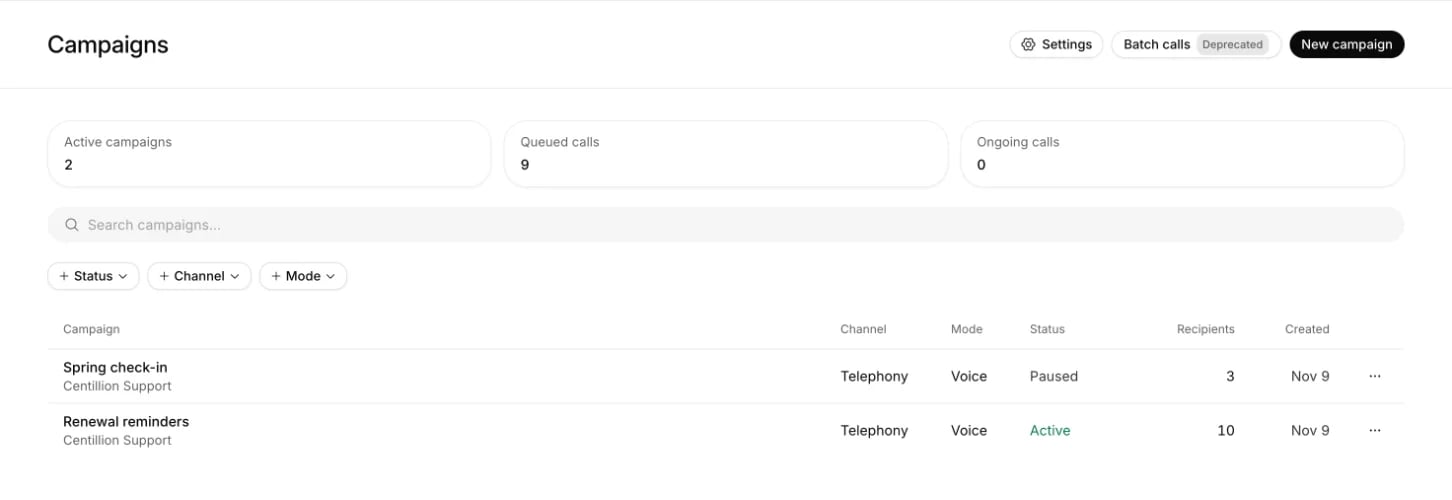
Campaigns lists every campaign with its channel, mode, status and recipients. The counters at the top cover the whole workspace.
What you need
- Any plan. Connected calls use voice credits; see plans and credits.
- Owner or Member role to create, pause or cancel a campaign and to change campaign settings. Viewers can open campaigns and their results.
- An outbound-capable number in the workspace under Channels → Phone (any agent’s: calls back to it reach the agent it is assigned to), or a WhatsApp account assigned to the agent: with calling enabled for Voice mode, or with Enable messaging on and an approved message template for Text mode.
- Your agreement to the outbound communications terms, asked once per person and workspace. Until then, Campaigns shows a Review terms banner.
- For WhatsApp campaigns, your agreement to the outbound communications terms for WhatsApp, asked the first time you choose Test call or Create campaign on a WhatsApp campaign. It repeats the same terms and adds that you comply with Meta’s WhatsApp opt-in requirements and have the opt-in of every person you message or call on WhatsApp. It is a separate agreement: agreeing to the phone terms does not count for WhatsApp, and agreeing to the WhatsApp terms does not count for Telephony campaigns.
Where to find it
Open Deploy → Campaigns in the workspace sidebar to see every agent’s campaigns, or Deploy → Campaigns inside an agent to see only that agent’s. Settings and the workspace counters appear at workspace level only.Set the workspace’s campaign policy
Campaigns → Settings holds the policy every new campaign starts from. Saving changes it for campaigns created afterwards; a campaign keeps the policy it was created with. Until the workspace saves its own, campaigns start from the standard defaults shown on the page. The footer shows the saved version.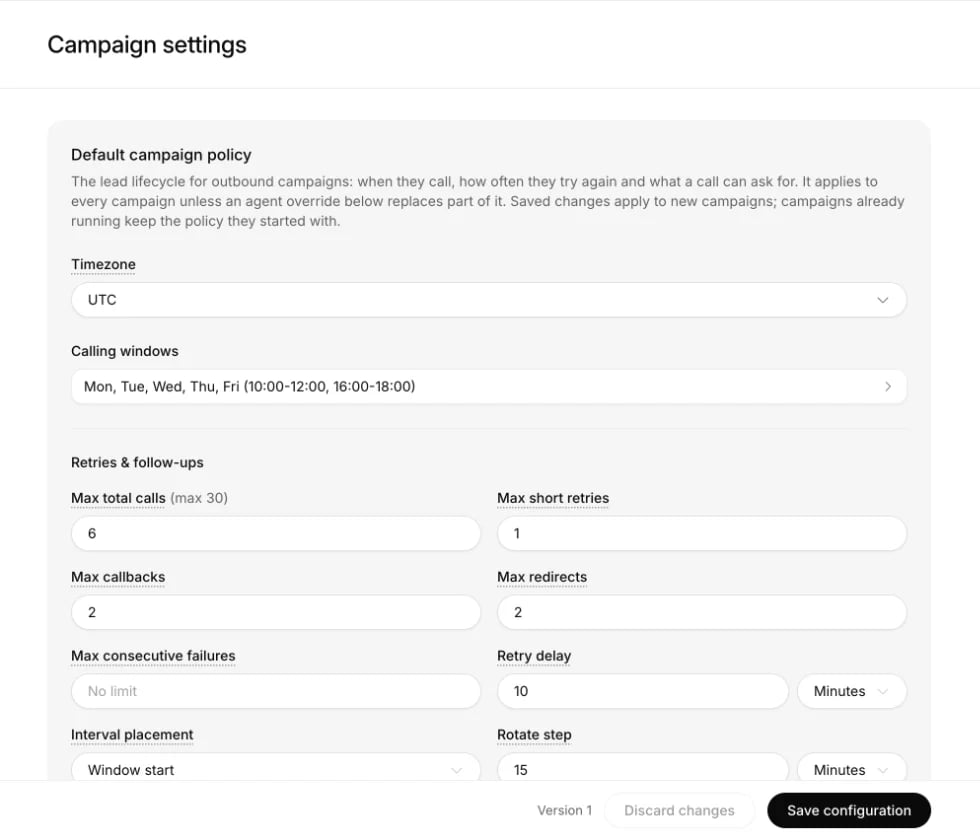
Campaign settings: the default policy, then WhatsApp voice overrides and per-agent overrides.
Recipients in several timezones
A policy has one timezone. When your recipients live in several, create one campaign per timezone, each with its own Timezone and calling windows, and put each recipient in the campaign for where they live. When all you have is a phone number, its area code is a fair guide in the United States and Canada. People keep their mobile numbers when they move, though, so keep the windows an hour inside the hours you may call: someone living one timezone away from their area code is then still called at a permitted time. A number whose area code spans two timezones, or gives none, belongs in the campaign whose windows fall inside permitted hours in both. With the Campaigns API, your system can add each new lead to the open campaign for its timezone.Data collection
Three switches decide what a campaign acts on after an answered call:- Callbacks: the person asked to be called back at a time. The campaign calls them then, even outside the calling windows. A callback held up well past that time, by a pause for example, waits for the next calling window.
- Redirects: the person gave a different number, for example the right contact’s. The campaign calls that number next, in the next calling window, and the new number gets its own retry and callback counts.
- Do not call: the person asked not to be contacted. The campaign stops calling them, and the number goes on your workspace’s do-not-call list.
callback_time as a date and time with its offset,
redirect_phone_number in international format, do_not_call). A time or
number it cannot use ends the recipient as Invalid callback time or
Invalid redirect number under Needs attention.
A call picked up by a voicemail or an answering machine did not reach the
person, even when the agent did not recognize it during the call. When only a
voicemail greeting spoke on the call, or nobody said anything, the campaign
calls the recipient again like after a missed call, and the call shows as
Voicemail or No answer in the recipient’s calls and in Analytics. A
call on which the person said anything themselves counts as answered, however
short it was.
When the person calls back
People often return a missed call before the campaign tries them again. When someone calls the agent’s line from a number a phone campaign is waiting to call again, or from the same contact, Centillion reads that conversation the way it reads an answered campaign call, with the same three switches:- They talked with the agent: the campaign stops calling them, and the recipient finishes as Completed.
- They asked to be called back at a time: the next call moves to that time, as a callback.
- They gave another number: the campaign calls that number next.
- They asked not to be contacted: the recipient finishes as Do not call, and the number goes on your workspace’s do-not-call list.
campaign.lead_finished webhook
as any other. The call the person made does not count toward Max total
calls. A call that reached nobody, or someone else on their phone, changes
nothing, and the campaign calls them as planned. This applies to recipients
the campaign has called at least once, in a running or paused phone campaign
of the same agent, and not on a call at that moment. In the recipient’s
Decision timeline, the entry it adds has a note starting “Called back”.
Dynamic variable mappings carry a data collection
field from a call into the recipient’s later calls as a dynamic variable. A
campaign whose agent does not collect a mapped field cannot be created.
Follow-up context
Every campaign call receives these dynamic variables, so the agent can pick up where the last conversation stopped. Use them in its prompt or first message. The last conversation is the latest call the person answered and talked on: after a missed callback, the retry still gets the call that asked for it. Until someone answers, the threeprevious variables are empty.
Write the agent’s prompt for campaigns
A campaign can only act on what the person says, so the agent has to draw it out. Centillion reads the callback time, the other number and a stop request from the transcript, without data collection fields, but only when the call makes them clear. Add lines like these to the agent’s instructions:WhatsApp voice policy and agent overrides
WhatsApp voice policy changes only the groups you switch on (timezone, calling windows, retries, data collection) for WhatsApp voice campaigns. WhatsApp never takes redirects and allows at most 4 missed calls in a row on a number, because repeated unanswered calls can cost you the contact’s call permission. Agent overrides do the same for one agent: choose the agent, then switch on the groups to replace. An agent’s override applies first, then the WhatsApp groups for a WhatsApp campaign. A card without an agent is not saved.Create a campaign
Choose the channel
Fill in General
- Voice: an optional WhatsApp call permission request template, sent to recipients who have not allowed calls yet (see WhatsApp call permission).
- Text: the Message template every recipient gets. Search the account’s templates, or open Manage message templates to create one in WhatsApp Manager.
{{first_name}} reads the
column with its name until you choose another. A template’s other values
read these columns the same way: header_image_url,
header_video_url or header_document_url for a media header’s public
https:// link, button_1_url_suffix for what replaces {{1}} at the
end of the first button’s link, and button_2_coupon_code for a
copy-code second button, numbered as WhatsApp Manager lists the buttons.Set the delivery
Choose advanced controls
Upload the recipients
phone_number is required, with the country code. Add
phone_number_2 to phone_number_5 for more numbers per person; only
campaigns with advanced controls call them. Every other column becomes a
dynamic variable, and a red banner lists any variable the agent’s
published version needs that the file lacks. The
follow-up context variables need no column: every
call receives them, and a test call gets a first call’s. For WhatsApp, the column is
whatsapp_user_id, which the preview shows as WhatsApp user: a file
without it is refused with “The whatsapp_user_id column is required.
Check your file and upload it again.” The template’s placeholders read
the other columns. A recipient whose row leaves a placeholder empty, or
gives a header link that is not a public https:// link or a coupon code
over 15 characters, is not sent the template and ends as Couldn’t
process.Test and create
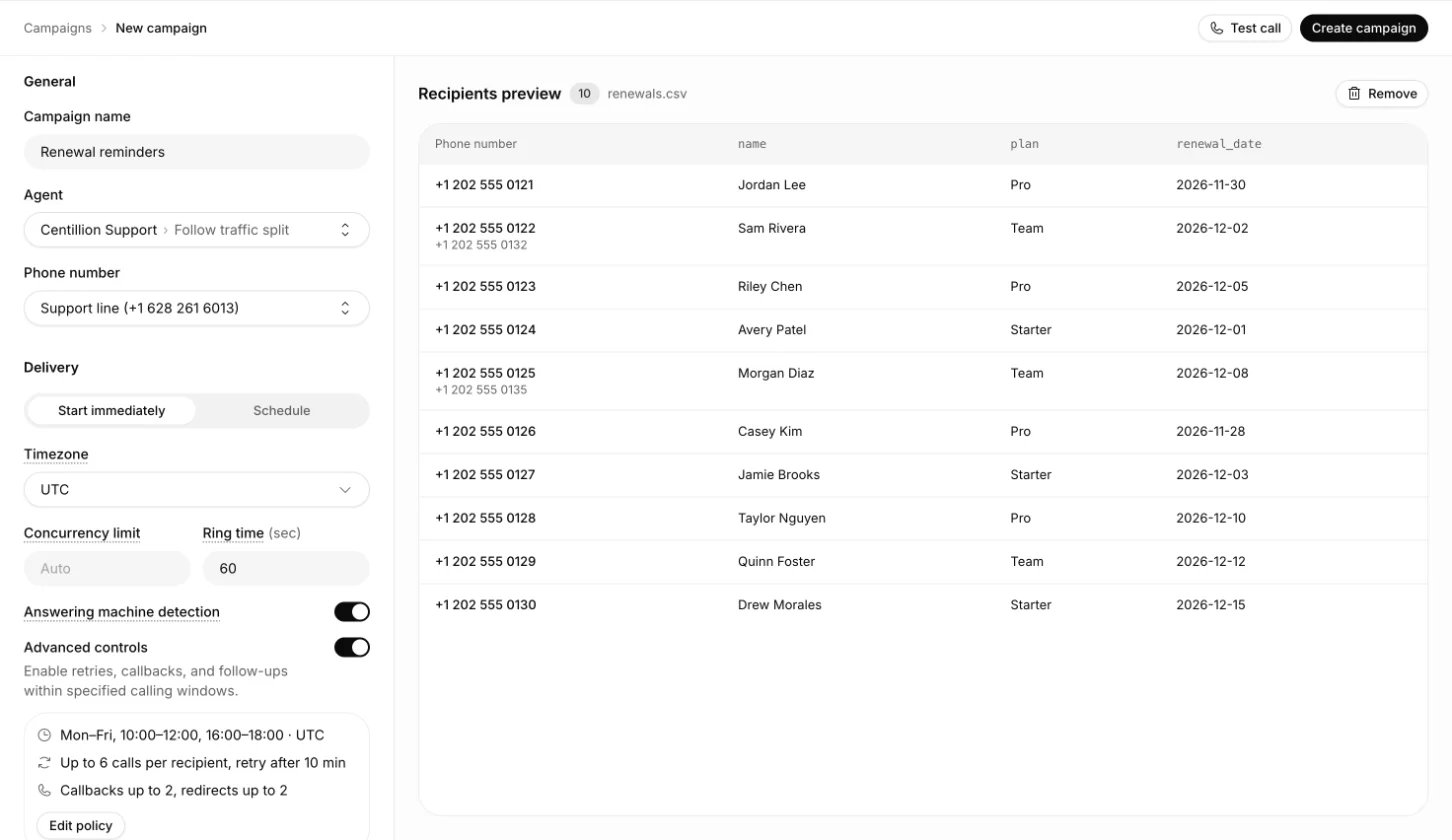
The new campaign form keeps the settings on the left and the recipients preview on the right.
WhatsApp call permission
WhatsApp only lets a business call someone who has allowed it. A WhatsApp Voice campaign asks Meta before each call. When the recipient has not allowed calls:- With a call permission request template, the campaign sends it once, filled from the recipient’s row, and the recipient waits up to a day.
- When they allow calls, the campaign calls them on its next run. When they decline, or a day passes without an answer, they finish as Permission declined or Permission not granted.
- If Meta refuses to deliver the request, they finish as Permission request blocked.
WhatsApp Text campaigns
A Text campaign sends the message template to each recipient in turn, at up to 20 a minute and to at most 250 people a day per WhatsApp number, Meta’s starting messaging limit. A recipient finishes as Completed once Meta accepts their message, Do not call if they opted out, or Couldn’t process when Meta refuses it. When they reply, the agent answers in that WhatsApp conversation with its usual instructions, inside WhatsApp’s 24-hour window, on the campaign’s branch, with the columns of their row as its dynamic variables: a prompt that says{{first_name}}
reads the first_name column. The account’s replies and Enable messaging
must be on when the campaign starts, so someone is there to answer.
A Text campaign’s page
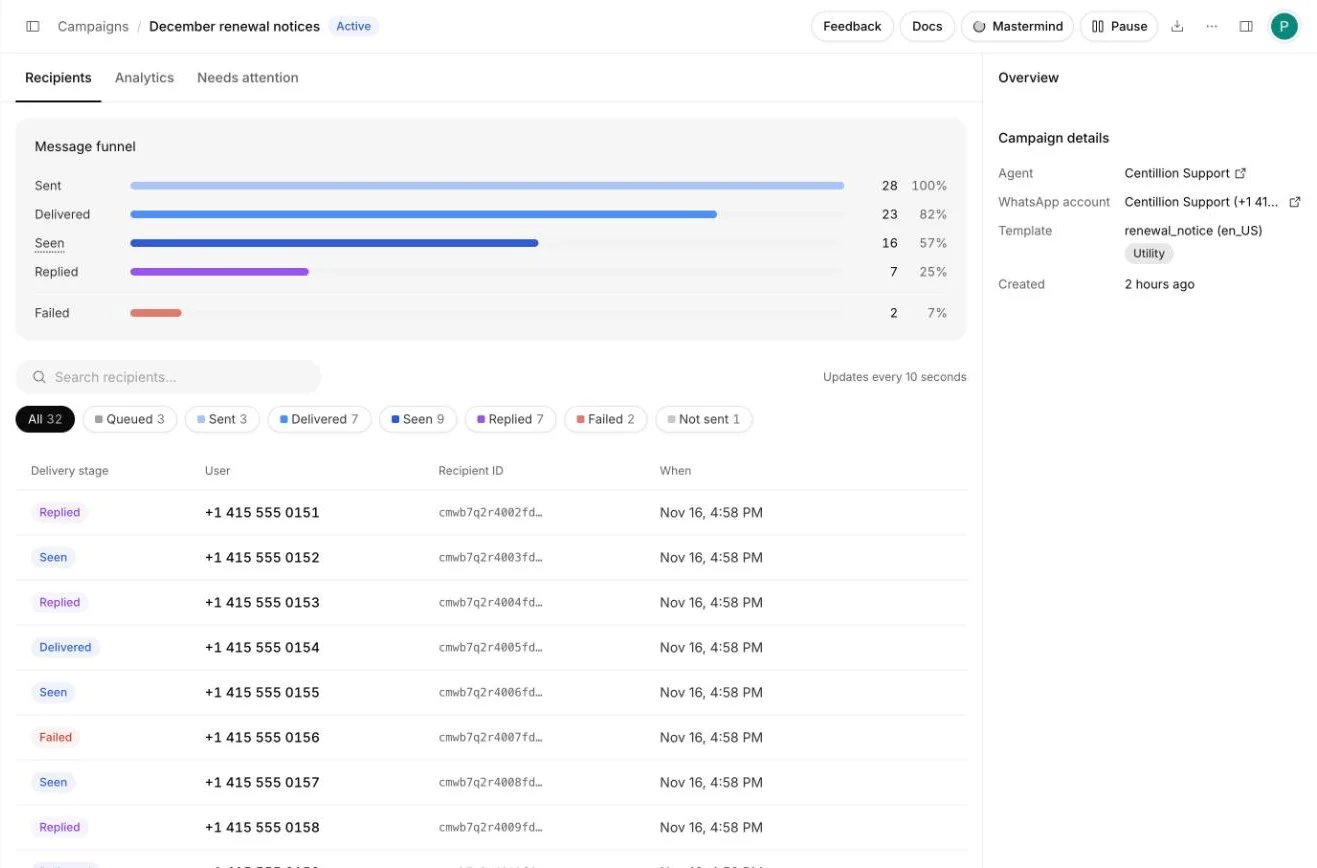
A Text campaign's Recipients tab: the Message funnel, the stage chips with their counts, and each recipient's delivery stage with the chat button for their WhatsApp conversation.
- Recipients opens on the Message funnel: the messages sent, delivered, seen and replied to, each with its share of the messages sent, and below them the ones that failed. A message counts as sent once it went to Meta, a message Meta refused included. A reply shows the lead had the message, so it counts as delivered and seen too: a lead who turned read receipts off counts as seen once they reply. The chips below it filter the table by where each recipient’s message stands now, each with its count: All, Queued, Sent, Delivered, Seen, Replied and Failed, plus Not sent once a recipient finished without a message, such as one who had opted out. The table lists each recipient’s Delivery stage, number, recipient ID and when the message went out. The chat button opens the recipient’s WhatsApp conversation over the campaign page, the person button opens the contact on the Contacts page, and a recipient still waiting can be removed with the trash button. Click a row to open the recipient’s panel.
- Analytics shows the messages sent with how many failed, the delivery, seen and reply rates, and the leads reached: recipients whose message reached their phone, as a share of all of them. Time to each stage gives the median time from sending the template to its delivery, to its read receipt and to the first reply, with the average below, or a dash before any message got there. Reply conversations counts the messages in the conversations where a lead replied (the template included), how long leads took to answer the agent, and the share of those conversations the conversation analysis marked successful, of the ones it has judged. Failed messages lists why Meta couldn’t deliver the template, by Meta’s reason and error code. Meta billing counts the messages Meta charges your WhatsApp Business account for, by pricing category such as Utility or Marketing, and how many were free. It reads the pricing Meta reports with each message’s status, so a message Meta has not reported pricing for yet is left out.
- Overview lists the agent, the WhatsApp account with its number, the template with its language and category, and when the campaign was created. A Text campaign has no policy.
Follow a campaign
Open a campaign to see its recipients, its results and anything that needs you. The page refreshes itself while the campaign runs. A WhatsApp Text campaign’s page shows messages instead of calls; see A Text campaign’s page.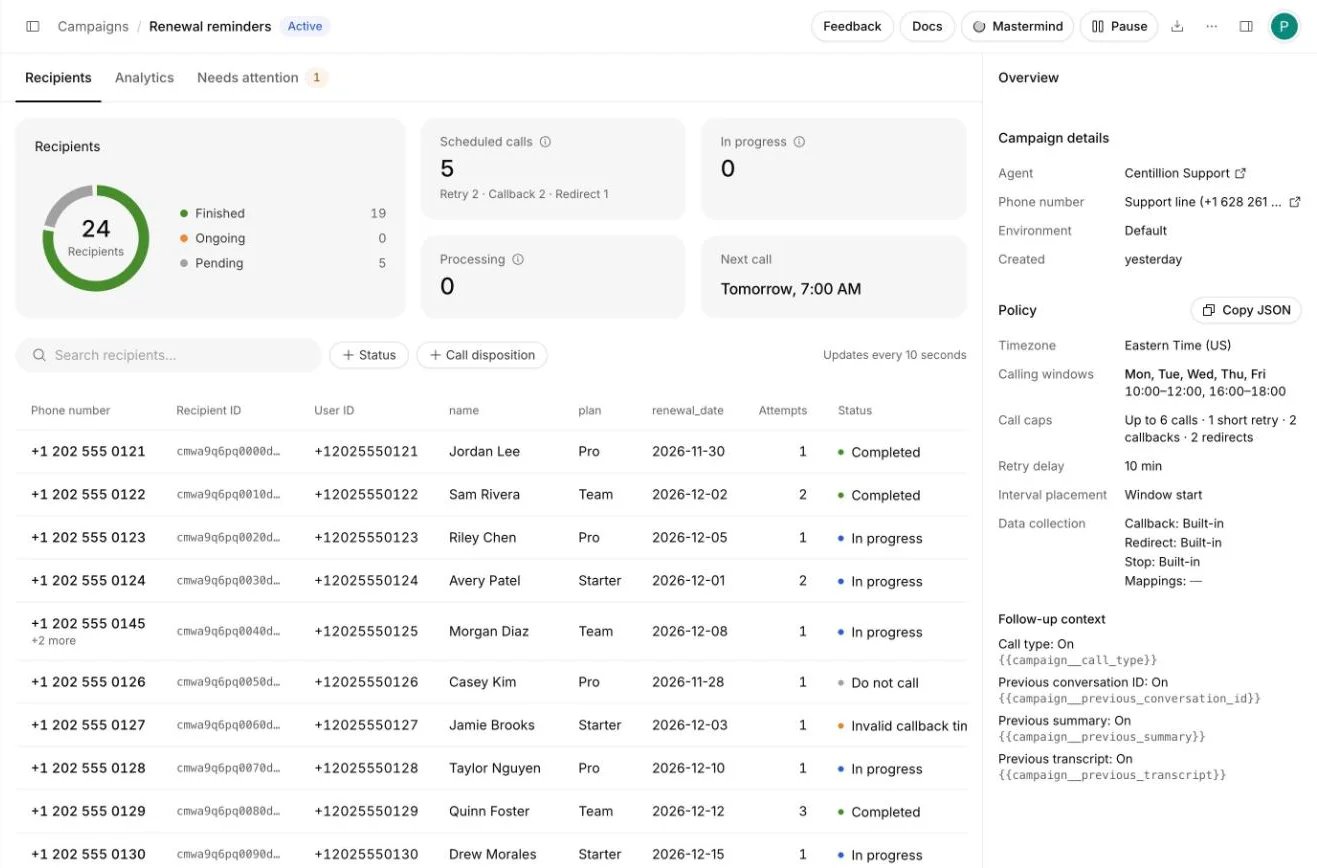
A running campaign: its name, status and actions in the top bar, recipients by state, calls waiting and in progress, the next call, and the campaign's policy on the right.
- Recipients shows how many have finished, are on a call or are still
waiting, the calls waiting by type (for example “Retry 3 · Callback 1”),
calls in progress, calls being settled and when the next call goes out:
Now, a time such as “Today, 9:22 AM” in your own timezone, or
Paused while the campaign is paused. The counters go away once the
campaign has ended. Search by number or name, and filter by Status or
Call disposition. The table lists each recipient’s number (with “+1
more” under it when the file gave alternates), its recipient ID, user ID,
file columns, attempts and status. A lead added through the Campaigns API
with a
recipientIdof your own shows that id as its recipient ID, and search finds it; other recipients show Centillion’s. Remove a recipient who is still waiting with the trash button. - Analytics opens on eight counters: calls placed, the answer rate, the leads dialed and contacted, calls per contact, the average length of answered calls, the early hang-ups (answered calls under 10 seconds) and the opt-out rate. Call results overview shows how calls ended (answered, voicemail, no answer, busy, declined, failed) as a ring; hover a part for its share and count. Call results over time stacks the same results in bars sized to how long the campaign called: a bar a minute for a campaign of a few minutes, up to a bar an hour for two days, and a bar a day past that, in the campaign’s timezone. Hover a bar for its time and each result’s count and share, or switch to Answer rate to see the share answered instead. Below them: the answer rate by attempt (a recipient’s first call and its retries) and by call type, how finished leads ended, the calls that ended with an error with their reasons, and the callbacks and redirects contacts asked for with what came of them (placed, waiting, or not possible). Every chart has Show as table.
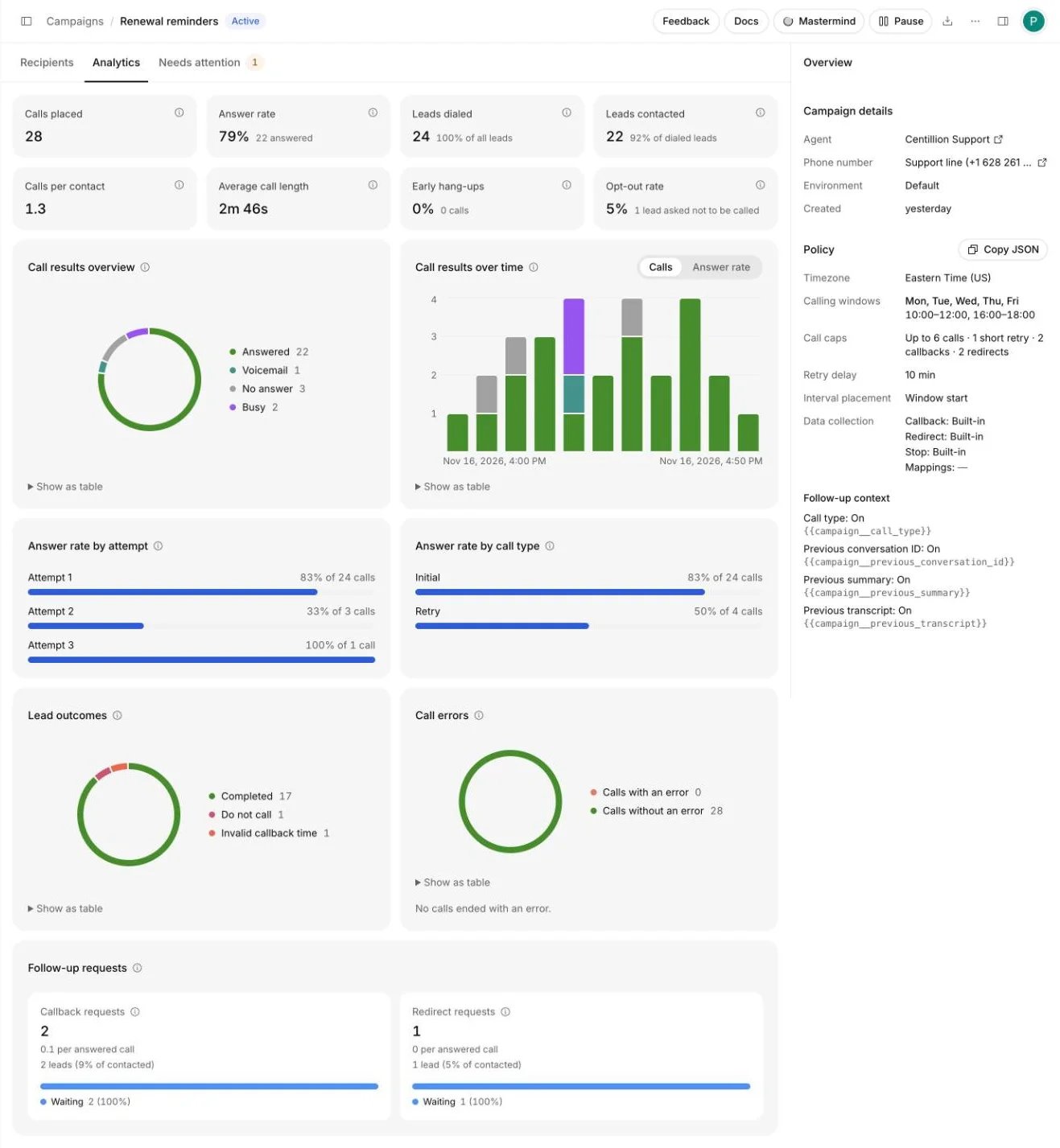
Analytics for a calling campaign: eight counters, how calls ended overall and over time, the answer rate by attempt and by call type, lead outcomes, call errors and follow-up requests.
- Click a recipient to open its panel. Details lists its recipient ID (with the Lead ID the Campaigns API takes, when the recipient ID is your own), user ID and every number on record, with (current) beside the one being called; its attempts (calls placed, failures, redirects, a call in flight, callbacks, last update); its file columns; and the Decision timeline, newest first: each follow-up the campaign queued (Retry queued, Callback queued, Redirect queued) and how the recipient finished (Completed, Do not call and the other dispositions), at your local time. Calls lists every call newest first, with the call that waits on top: its type (initial, retry, callback, redirect), the number dialed and what came of it, for example “Answered · Redirect queued · Attempt 1”. Attempts count a recipient’s first call and its retries; callbacks and redirects are follow-ups. Click a call that reached someone to open its transcript and details over the campaign page; the arrows at the top step through the recipient’s other calls (1 / 2). A call nobody answered has no conversation to open. See Open a conversation from another page. A call that never reached the phone for a technical reason is tried again without counting toward the recipient’s calls: it shows in the timeline, and under Call errors in Analytics.
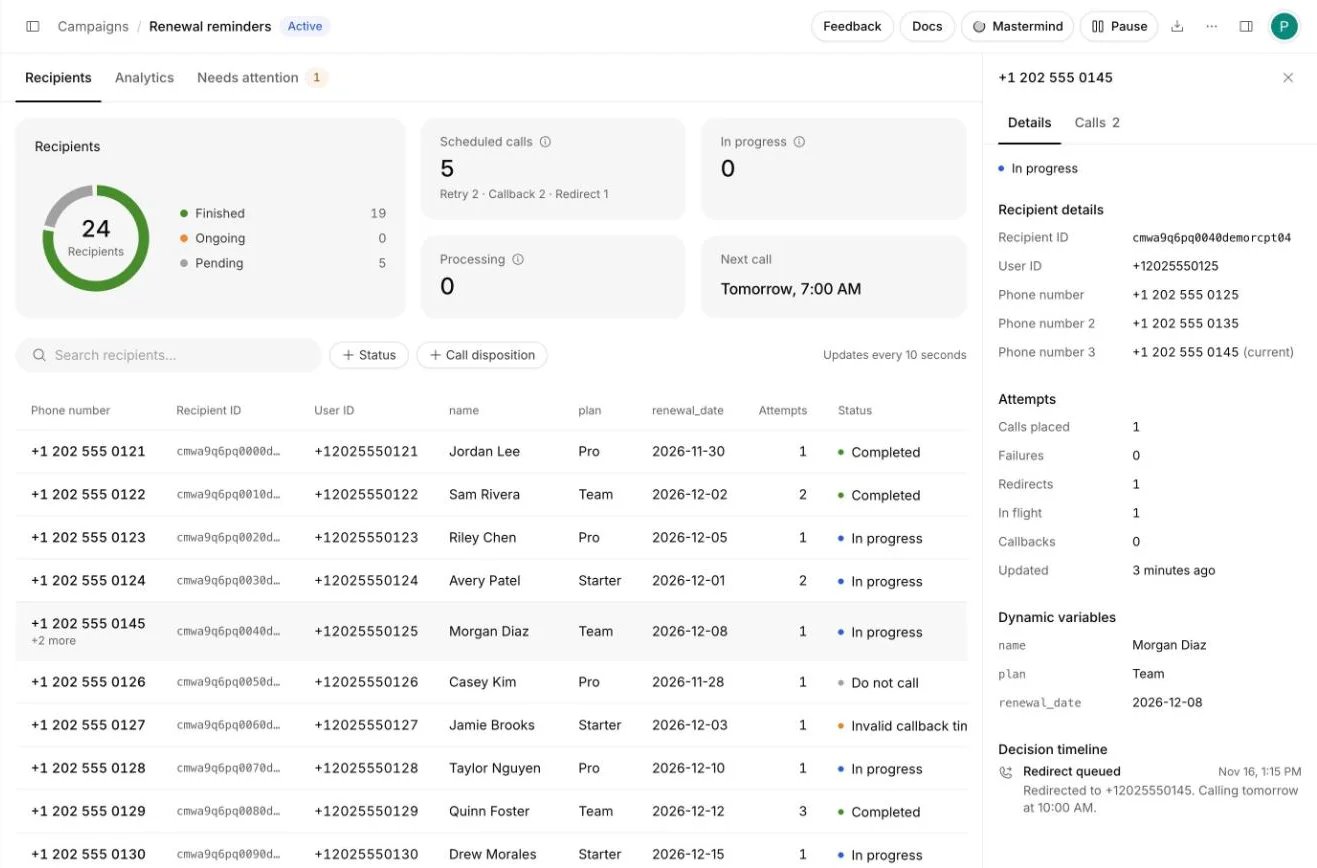
A recipient who gave another number: the panel marks the number being called, counts the redirect, and lists the decision in the timeline.
- Needs attention lists recipients a person should look at, such as a callback time that could not be read, and a campaign paused after repeated technical failures. Mark an item Resolve once handled; Show resolved brings resolved items back.
- Overview lists the agent, number, branch and the exact policy, with Copy JSON. A campaign kept open for new leads shows Open for new leads beside its status, and New leads in the Overview, until it ends. A banner warns when voicemail detection is off on a branch the campaign calls through: the agent then talks to a voicemail as if a person had answered, and leaves no voicemail message.
Statuses and dispositions
Good practice
- Start with a short list and a low Max total calls.
- Set the timezone to where your recipients are, and keep calling windows well inside the hours you may call.
- Tell the agent to ask for a callback time, a better number or a stop request when the person offers one; see Write the agent’s prompt for campaigns.
- Reference
campaign__previous_summaryso follow-up calls continue the conversation instead of starting over. - Prefer a few calls at different times of day to many calls close together: Rotate placement with no short retries spreads a lead’s tries across the day.