
Choose the right option
One agent for inbound and outbound calls
{{system.direction}} reads inbound when someone called you and outbound
when the agent placed the call. Write both cases into the system prompt:
{{reason}} from a column in its recipient list. An inbound call
can leave it empty, because that line doesn’t apply to it. Workflow conditions
read system.direction too, so a workflow can send each direction down its own
path.
The first message is one field for both directions. Choose whichever fits:
- Write an opening that suits both, such as
Hi, this is Maya from Centillion Labs. - Leave First message blank. The agent waits for the person to speak. On a call the agent placed, it opens the call itself if the person answers and stays silent for three seconds.
- Add a
first_messagecolumn to a batch to replace the opening on those calls. Inbound calls keep the agent’s First message. - Have the initiation webhook return
first_messageto replace the opening on one inbound call.
- A recipient’s
first_messagein a batch. - A literal opening message from the active workflow.
- A permitted initiation first-message override for this conversation.
- The First message set for the call’s language under Language presets.
- The agent’s First message.
- Nothing. The agent waits for the person to speak.
first_message: "" keeps that conversation silent
when there is no workflow opening, even if the agent has a First message.
Batch first-message overrides must contain text.
Whatever opens the call, you are responsible for the notices it has to give.
See Disclosure requirements.
Give inbound callers their own start
An agent built for outbound calls usually opens with a step that explains why it called. A caller who rang in needs a different greeting, then the same conversation. Keep one agent and let the initiation webhook choose the step an inbound call starts on:- Point a number at the agent. In Channels → Phone, assign a number to this agent. A number answers for one agent, so reassign it or import another.
- Add the inbound step. In Workflow, add a step for callers, for example “Inbound greeting”, with the same exits as the outbound greeting and wording such as “thanks for calling back” instead of “I’m calling about your form”. Copy its Step ID from the bottom of the step panel, then publish: live calls read the published workflow.
- Allow the overrides. On the Main branch, open Settings → Security and switch on First message and Workflow start node under Overrides. Then switch on Fetch initiation client data from a webhook.
- Set the webhook. Add it in Workspace settings → Webhooks, or add an override for this agent on the same Security tab. Add a secret header so your endpoint can tell the request comes from Centillion Labs.
-
Build the webhook. Check
directionfirst. Forinbound, the caller’s number is incaller_id: look the caller up, and if there is no match, create a record right away so IDs your tools use are real. Return the variables, a greeting and the step:For an unknown caller, ask for their name in the greeting instead, and give the agent a tool that saves it. Never answer with an error: a failed lookup stops the call from starting. If something inside your endpoint fails, return the unknown-caller response. Foroutbound, return the variables withoutstarting_workflow_node_idor a first message, so the call starts and opens as it always has. On those callscaller_idis your own number andcalled_numberis the person called; don’t create a record for it. -
Make the prompt fit both directions. Replace a line such as “Outbound
phone call to a lead” with one that reads
{{system.direction}}.
direction set to outbound (see
When it runs), which is why the webhook checks it.
Test with a real call: Preview does not call the webhook. Open the conversation
and its Workflow tab. It shows the move from Start to the inbound step.
If the conversation started on the outbound greeting instead, the step ID was
not in the published workflow: Centillion Labs starts at the entry rather than
drop the call. A start step the agent has not allowed fails the call instead.
Test both directions in Preview
Preview runs as an inbound conversation and nothing is dialed. To try the outbound path, open Vars in Preview, setsystem.direction to outbound and
start a new conversation. The row is there once the prompt uses the variable.
Fill reason and any other variable the same way.
Dynamic variables
Type{{ in System prompt or First message to add a variable. The list
shows the variables this agent already uses, then the built-in values, with a
description and an example for the highlighted one. Keep typing to filter, and
press Enter or Tab to insert. A name that isn’t on the list reads New and
adds a variable.
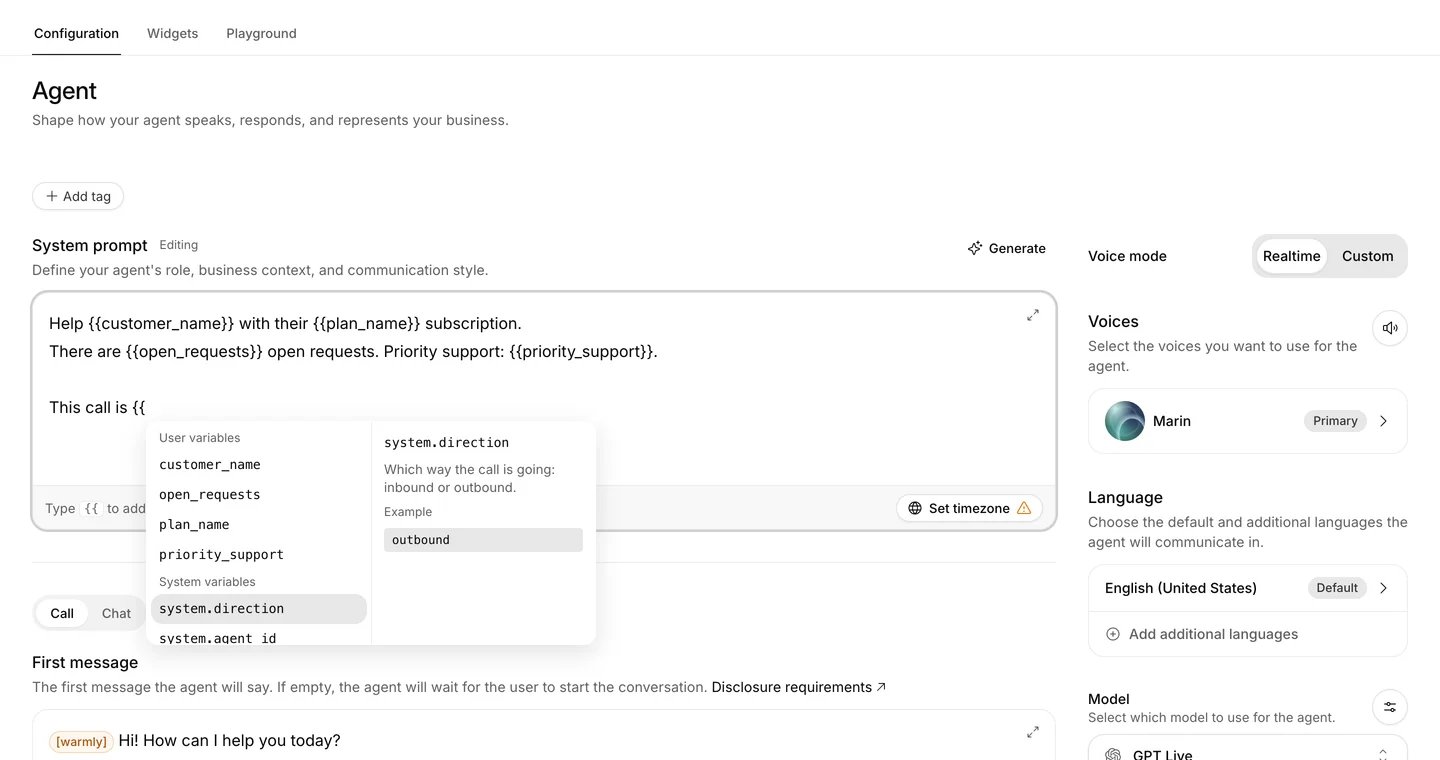
Type {{ to pick a variable the agent already uses or a built-in value.
0, false and an empty
string are values; they do not fall back to test values. Use at most 100
custom variables, with strings up to 12,000 characters. Names use letters,
numbers and underscores, start with a letter or underscore, and contain at most
64 characters. Do not use reserved names such as system, call, contact,
campaign, names beginning with __, or the system__ namespace.
Custom initiation variables keep multiline text in prompts. Imported contact,
batch-recipient, tool-result and workflow values are limited to a single line
of 200 characters, including a tool result that replaces an initiation
variable. Substitution happens once: a value containing {{another_variable}}
is treated as text, not another lookup.
Supplying live values
- Inbound phone calls: return
dynamic_variablesfrom the initiation webhook. - Outbound batches and number test calls: supply the recipient’s
variables. Each extra column in a batch’s recipient list becomes a variable. They use their own batch override permissions. A test call lists each variable the published version uses, starting from Vars, and sends what you see. After you upload a batch file, a notice names any variable it has no column for. - Developer API chat: include
conversation_initiation_client_datain the first request. See the example below.
system.conversation_id, or a value an earlier tool saved. A URL variable cannot
change the tool’s server. Tool-result assignments can update ordinary variables
during the conversation, including ones the conversation started with, and a
workflow condition reads the new value straight away. They cannot replace system
values or initiation secrets.
A live call can’t start on a first message with a missing value. If First
message uses a custom variable and the call has no value for it, the call
ends before anyone hears anything, and a website call shows an error. Batch calls
follow the same rule, and a recipient’s column counts as a value. So use variables
in First message only when every call that speaks it supplies them, for
example from the initiation webhook. A workflow that goes straight
from Start to a Say step replaces the first message, so the first message’s
variables are not required.
A prompt is different. A variable with no value stays in the prompt as written
and the call goes on, so a prompt can hold variables that only some calls fill.
Test values are never live defaults.
Built-in values
These are provided by Centillion Labs and cannot be replaced by the webhook:
A built-in value that isn’t known on a call becomes empty text.
An inbound call’s
caller_id and an outbound call’s called_number identify
the other party. A withheld or unavailable number can be null.
Test values
Vars in the top bar lists the custom variables this branch uses. Enter a value and choose Text, Number or Boolean. Values save to the branch’s draft as you type and need no publish. Preview starts each conversation with them, and a variable with no value stays as written, even in the first message. Vars in Preview, or Overview in its Debugger, changes the values for one conversation and leaves the saved ones alone. Preview does not call the initiation webhook. Use synthetic test data. Secret variables are excluded from test values.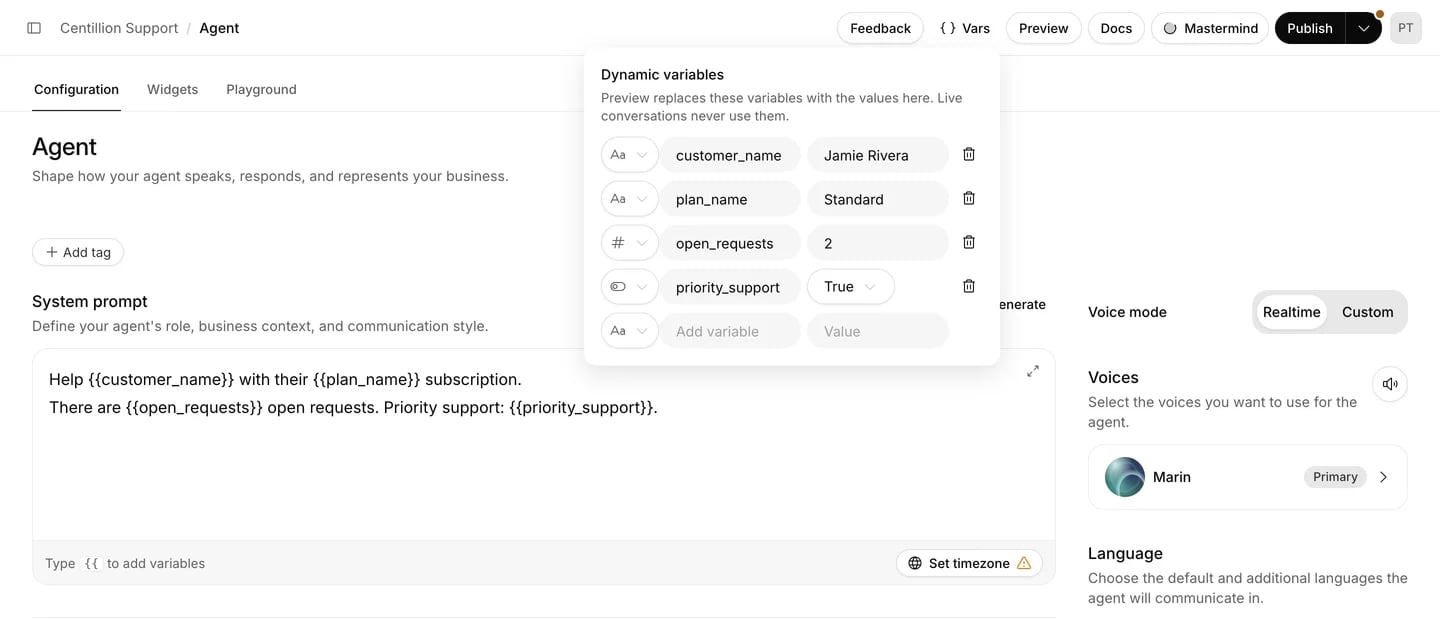
Test values keep their text, number or boolean type and never become live defaults.
Configure an initiation webhook
Workspace default
Open Workspace settings → Webhooks. Under Conversation initiation client data webhook, click Add webhook, enter a public HTTPS URL and add any request headers, then click Add webhook in the panel. This supplies a default endpoint; it does not turn initiation on for any agent. Edit opens the same panel. Remove asks first, because agents that use the workspace webhook cannot start phone calls until you add another or give them an override.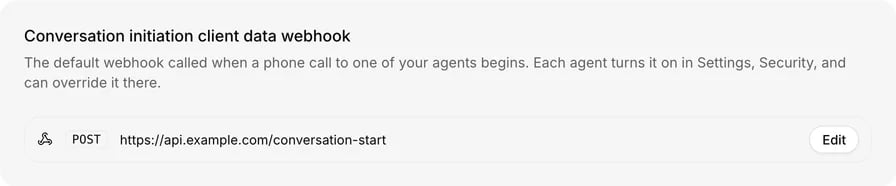
The workspace default stores a public HTTPS endpoint and encrypted request headers.
Agent settings
On the agent’s Main branch, open Settings → Security. Overrides lists every part of the configuration a client can replace when a conversation starts. All start off. Switch on only the ones your endpoint or client should provide; hover a name to see the field it allows, or see Allowed overrides. Dynamic variables need no permission. Conversation initiation client data webhook has one switch, Fetch initiation client data from a webhook:
To set the override, click Add webhook under Initiation data webhook
override, enter the URL and headers, and click Add override. Remove
override goes back to the workspace webhook. Turning the switch off keeps an
override for the next time you turn it on.
Each switch saves as you flip it. These security settings are shared across
the agent’s branches and take effect for new conversations without publishing.
Owners and members can manage them. Header values are encrypted and hidden
after saving. Leave a saved value blank to keep it. Changing the endpoint to a
different origin requires entering its headers again; saved credentials are
not forwarded to a different server.
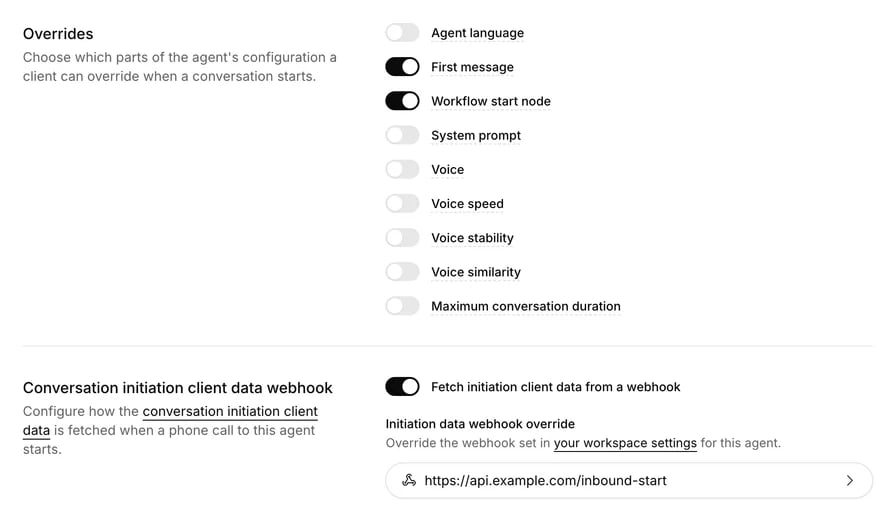
Each agent allows individual overrides, turns the webhook on and can override its endpoint.
When it runs
Request
Centillion Labs sends an HTTPSPOST with Content-Type: application/json
and your configured headers:
call_sid is an empty string when unavailable. call_id is omitted when
unavailable. Use conversation_id as an idempotency key in your backend.
No transcript is sent in this request.
Response
Return a successful HTTP status and this JSON shape:dynamic_variables defaults to an empty object. user_id,
conversation_config_override and starting_workflow_node_id are optional.
user_id supplies context; it does not authenticate the caller or change
conversation ownership.
starting_workflow_node_id starts the conversation on that workflow step
instead of the entry, as if it had just moved there: the step’s own work runs
on the first turn and its exits apply from then on. The conversation’s
Workflow tab shows the move from Start. A step the agent’s published
workflow does not have is ignored, and so is the Start step itself: the
conversation starts at the entry.
Allowed overrides
All override permissions start off. Providing a field that is not allowed fails initialization; it is not silently ignored.
Voice tuning is unavailable in the duplex pipeline and on expressive models
that do not support tuning. Centillion staged voices retain speaking-speed
control when expressive mode is on. An incompatible tuning or voice override
prevents startup. Overrides
cannot change the pipeline, model provider or recording policy. Unsupported
fields are rejected.
The overrides apply only to this conversation. They do not edit the agent or
its published version. A prompt override replaces the agent’s base instructions;
workflow steps and specialist instructions still control their own tasks.
Failures and retries
The endpoint must respond within four seconds after connection resolution. DNS resolution has a separate three-second limit. Responses must fit within 262,144 bytes. Private network addresses, redirects, non-success status codes, invalid JSON, unsupported fields and disallowed overrides fail startup. A successful initialization is reused on retries of the same conversation. A failed lookup is also remembered, so retrying that conversation does not repeatedly call your endpoint. Fix the response or settings, then start a new call. If your lookup finds no customer, return a valid response with safe values for every required variable to use a generic opening.Secret variables
Prefix a credential withsecret__, for example secret__account_token.
It is encrypted for that agent and conversation, and can fill an HTTP or MCP
tool’s header:
[REDACTED]. Exact copies of the secret in public initiation
text, tool results and tool errors are redacted as well. Do not use these
variables for ordinary customer context or put credentials into a public
variable, tool body, first message or test value.
The initiation endpoint belongs to your workspace. For regulated data, use an
endpoint covered by your organization’s agreements and send only the context
the lookup needs.
Developer API chat
Send initialization data only when starting a new conversation:POST /api/v2/agents/{agentId}/chat. Later requests use the
returned conversationId and omit initiation data. Retrying the same initial
requestId must use the same data. Chat accepts agent overrides; voice and
call-duration overrides require a voice conversation. See the
developer API for authentication and responses.