Centillion Helpdesk turns conversations your AI agent cannot finish into tickets. Set up teams, AI drafts and live takeover, and answer from one inbox.
Centillion Helpdesk is an AI helpdesk with human handoff: when your agent cannot
finish a conversation, it becomes a ticket or a live chat that a teammate
answers. Use the Escalations action for a ticket your team can follow up on,
or Centillion live chat when the customer needs someone in the conversation
now. Helpdesk belongs to an agent, so each agent has its own tickets, its own
statuses and its own team.
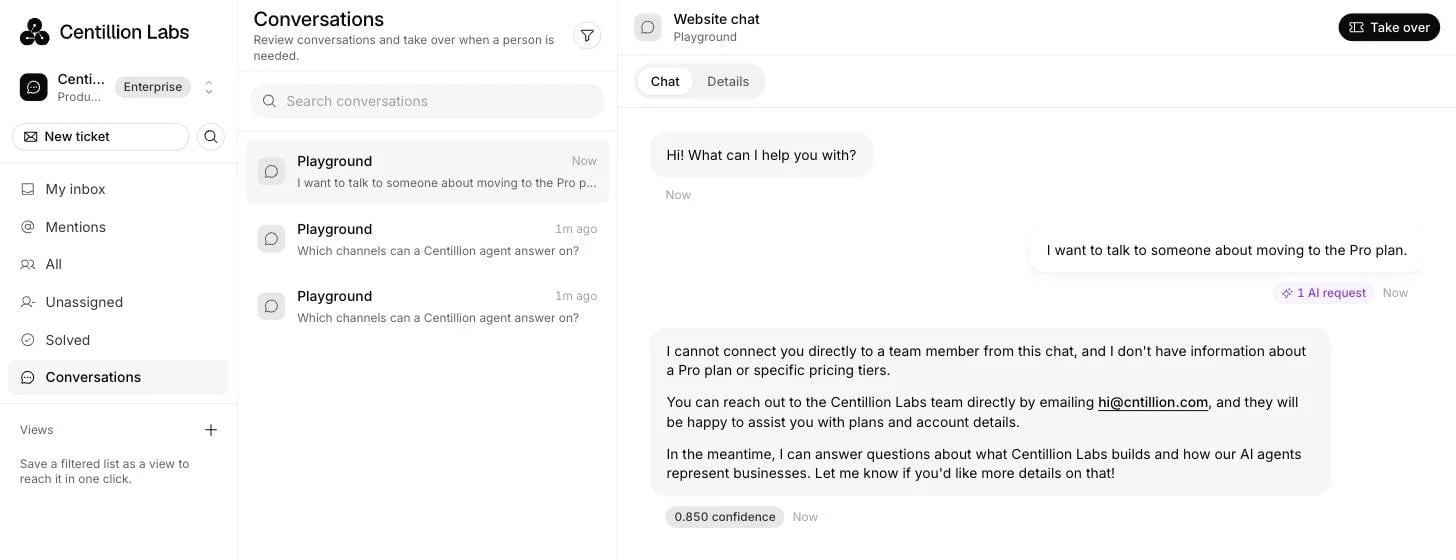
The Helpdesk inbox on Conversations, where a teammate can take over a chat from the agent.
Creates tickets when the agent escalates, when email arrives, when a customer
answers a campaign, when a teammate opens one, or through the API.
Hands a live conversation to a teammate on website chat, the iOS and Android
SDKs, email, WhatsApp, SMS, Messenger and Instagram. The customer stays in the
same chat.
Writes suggested replies for your team. A draft is never sent until a
teammate clicks send, and it spends message credits like any other answer.
Routes tickets to teams by hand, by balanced workload or by round robin, with
an open-ticket cap per teammate.
Runs triggers, macros (up to 300 per agent), tags (up to 500 per agent),
custom fields, saved views, satisfaction surveys and reports.
Lets your team answer WhatsApp, Messenger, Instagram and email handoffs from a
Slack thread, with up to five files of 25 MB each per reply where the channel
accepts files (Instagram and SMS do not).
A workspace on Standard and up. Helpdesk is one of the integrations those
plans add. If you are new to the product, read what Centillion
is first.
The Owner or Member role to turn Helpdesk on and change its configuration.
Owners, Members and Support Associates can handle tickets and conversations.
Support Associates can manage personal views and use saved macros, but only
Owners and Members can change macros, shared views or Helpdesk configuration.
Viewers have read-only access. See workspace roles.
An Escalations or Centillion live chat action, enabled on each channel
where customers should be able to reach a person.
Before your workspace has activity, Helpdesk inbox opens with fictional
tickets, customers, teammates and conversations. Try replying, writing a note,
assigning a ticket or changing its status. These changes stay in the preview;
replies are not delivered and file uploads and AI drafting are unavailable.
You can explore it before creating an agent or enabling Helpdesk.Choose Hide sample data to return to your inbox or Helpdesk setup. This
choice is remembered for this workspace in your browser. Samples also disappear
automatically when the workspace receives real activity. They never become
customer records or contribute to reports, usage or billing.
1
Turn on Helpdesk
Open Helpdesk inbox in the agent’s sidebar. Choose Hide sample data
if the examples are showing, then select Enable
Helpdesk. The same button appears while you configure Escalations or
Centillion live chat in Tools, and on every page under Settings →
Helpdesk while Helpdesk is off. You need the Owner or Member role.
2
Choose the email address
Add and verify company addresses in Settings → Email first. Then open
Settings → Helpdesk → Email to choose your support addresses, the
deliverability alert contact, the display name and the signature.
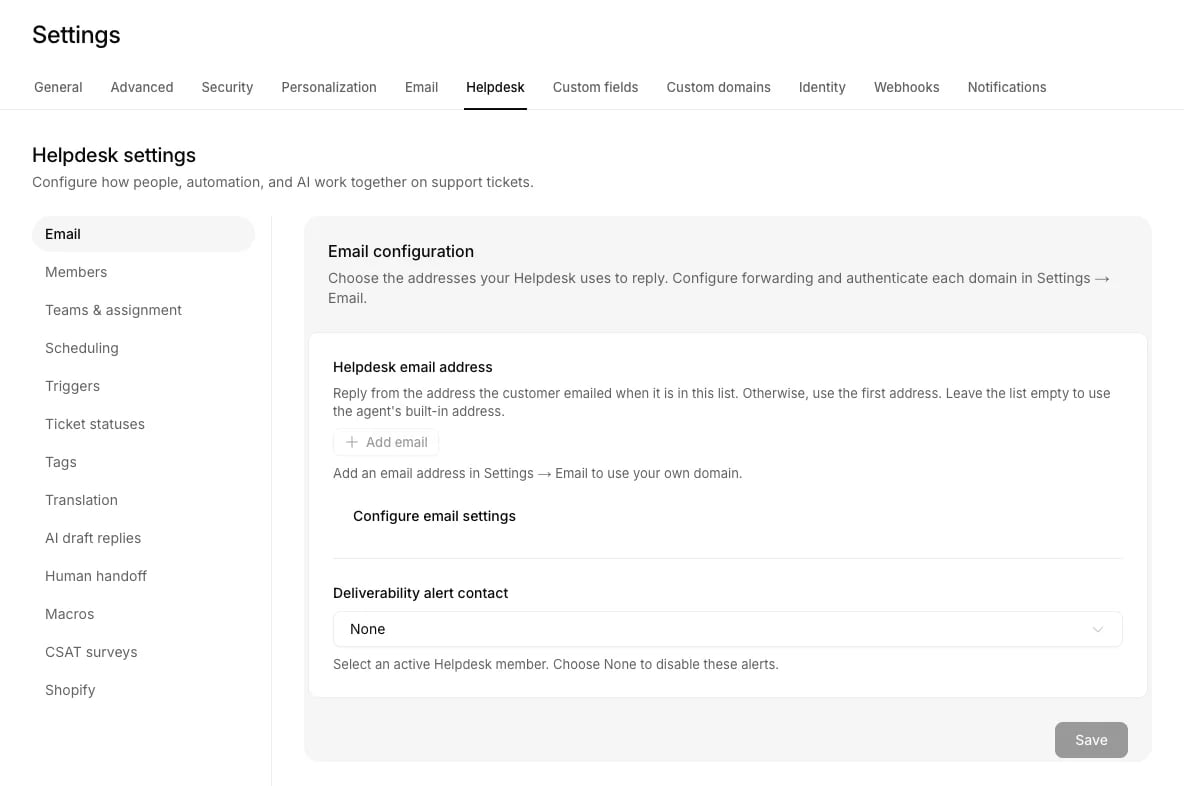
Settings, Helpdesk, Email: the addresses Helpdesk replies from and the deliverability alert contact.
3
Invite members and build teams
Invite teammates from Workspace settings → Members and give support staff
the Support Associate role. Workspace members appear under Settings →
Helpdesk → Members once they have Helpdesk access. Enabling Helpdesk creates
one team called General. Under Teams & assignment, choose Create team
for more, add members, and pick each team’s assignment strategy.
4
Connect the actions customers use
In Tools, configure Escalations for tickets that can wait, or
Centillion live chat for someone to join now. Select the channels and
choose Save & enable. You can save either action as a draft before
Helpdesk is ready. Save & enable requires Helpdesk to be enabled and at
least one channel selected.
Helpdesk is off until you switch it on. Support Associates and Viewers can ask
an Owner or Member to enable it.Enabling it creates six statuses, one team called General and a trigger called
Route to default team, which puts each new ticket without a team in General.
Tickets stay unassigned until someone claims them. Translation and AI drafts
start switched on. All of that is yours to change. Turning Helpdesk off and on
again keeps what you set up instead of creating it a second time.Under Settings → Helpdesk, a section with nothing in it yet shows its own
list with a button to add the first item, such as New trigger. Shopify is the
exception: until a store is connected, its page explains what the connection is
for and offers one button to start.
Open Settings → Helpdesk → Human handoff and enable Human-first
conversations to send new chat bubble, help page, iOS and Android
conversations straight to your team before AI answers. No escalation action is
required. This also selects Pause AI when a ticket is created and turns off
Resume AI when all tickets close. A teammate must choose Allow AI replies
to hand a conversation back to AI. Existing conversations with tickets keep
their state.
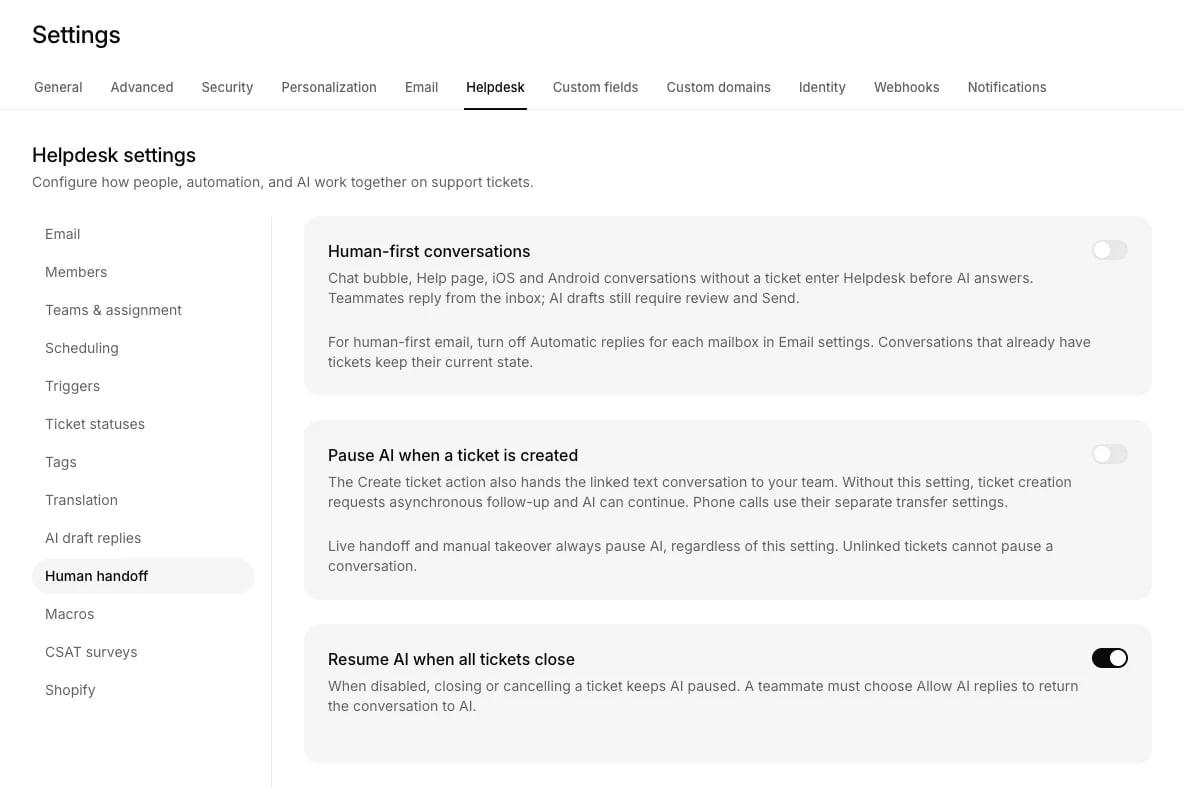
Settings, Helpdesk, Human handoff: human-first conversations and when AI pauses or resumes.
For email, turn off Automatic replies for each mailbox in
Email settings. Voice, generic API chat and other
connected channels keep their separate controls.Live handoff and manual takeover always pause AI. Creating a ticket normally
requests asynchronous follow-up; the pause-on-ticket setting makes the Create
ticket action pause its linked text conversation too. With automatic
resumption enabled, AI can return only after the last open ticket closes.
AI draft replies remain drafts until a teammate reviews and sends them.Track bugs affecting several customers with product issues in
Notion. Resolving a product issue never resumes AI or
closes its linked support tickets.
The agent escalates. The agent has a tool for creating a ticket and decides
when to use it. By default it does so when a customer asks for a person, or when
it does not know an answer and the customer confirms they want help. It collects
an email address first, explains that support will be in touch, and only then
creates the ticket. It is told never to claim it made a ticket unless it really
did. When the customer’s contact came from a
connected CRM with write-back on, every
escalation adds a note to the CRM record (a completed task in Salesforce) with
the ticket number, the subject and description of that request, and a link to
the ticket.You control when this happens under Tools → Escalations, where you write the
policy in plain language, choose which channels it applies to, and pick which
details to collect.The customer requests live support. With Centillion live chat enabled,
the agent can hand the current conversation to your team. It creates or reuses a
ticket labeled Live chat, keeps the conversation history, and stops AI
replies while your team handles it.A teammate opens one. The New ticket button, for a conversation that
started somewhere else. You choose whether replies go out by email or WhatsApp.
The description becomes a private note, and the team’s assignment strategy
chooses the owner. A Manual team leaves the ticket unassigned.Email arrives. Mail to a connected mailbox or to the Helpdesk address becomes
a ticket. See Email.A customer replies to a campaign. Choose Human takeover in an
Outbound WhatsApp campaign to send each recipient’s first reply
to your team. Helpdesk must be enabled before you launch. The reply creates or
reuses a ticket for the conversation and adds a campaign tag; new tickets use
the campaign name in their subject. AI replies pause while your team handles
the conversation. Closing its last open ticket or choosing Allow AI replies
hands later messages back to the agent. If Helpdesk is turned off after launch,
the agent answers as usual.Your own systems. A ticket can be created over the API. See the API
reference.
When a customer is mid-conversation with the agent and needs a person, open
Conversations in the Helpdesk inbox, find the conversation and choose Take
over. The agent stops answering that conversation immediately and you write
the replies. Taking over opens a ticket for the conversation, assigned to you,
or reuses the one already open for it. The customer stays exactly where they
are, on the website or in WhatsApp, and never learns a new address.Takeover works on website chat, including Center Stage, the iOS and Android
SDKs, email, WhatsApp, text messages (SMS), Messenger and Instagram. Slack
conversations cannot be taken over. To stop the agent answering a Slack thread,
open the conversation under the agent’s Logs, choose Pause
conversation from its menu, and reply in Slack yourself.On the website, the customer is told who joined: your first name and your
profile photo, in their language. An app built on the iOS or Android SDK gets
the same first name and photo, and shows them as its developers chose. On a
messaging channel there is no announcement, so say hello, because to them the
conversation has just gone quiet.If an email reply is waiting for its reply delay, takeover asks you to confirm
that the pending reply will be cancelled. Confirming removes unsent automatic
drafts. Your manual replies send immediately.When you are done, Allow AI replies in the ticket’s menu hands the
conversation back to the agent and closes the ticket.You can also take over from the agent’s Logs. Select a chat log and choose
Take over to open its Helpdesk ticket in a new tab. The log then shows
Taken over and View ticket. If your browser blocks the new tab, use
View ticket to open it. The link remains available after AI replies resume.Saved Playground conversations support manual takeover too. Taking one over
pauses its AI replies, including an answer still being generated. The ordinary
Pause conversation and Resume conversation controls cannot change an
active takeover; use Allow AI replies in its ticket instead. Ended
conversations cannot be taken over.A live chat handoff that nobody has joined yet shows Waiting for an agent in
Conversations, and the ticket shows a banner while AI replies are paused. Choose
Join live chat in either place to take the conversation. It reuses the
ticket the handoff created rather than opening a second one.
Only enable live chat when teammates are available to reply. For requests that
can wait for follow-up, configure Escalations instead.
Open Tools and configure Centillion live chat.
Enable Centillion Helpdesk if it is still off.
Give the action a name and write When to use instructions, such as urgent
billing issues or an explicit request to speak to a person now. The default
instructions ask the agent to try common questions first and confirm the
customer wants live support.
Select the channels, then choose Save & enable. Save keeps a draft.
If a procedure should control the handoff, turn on Only use in procedures
and reference the action in an active procedure available on that channel.Live chat supports Chat bubble, Help page, Center Stage, iOS
SDK, Android SDK, Email, Instagram direct messages, Messenger
direct messages and WhatsApp. The three website channels are selected by
default. Connected channels still need setup, and you choose which ones may use
the action. API, phone, Slack, SMS and public social comments cannot invoke this
live-chat action.After a successful handoff, the customer sees:
Your conversation has been sent to our support team. A teammate will join
shortly. You can keep sending messages here while you wait.
The customer continues in the same chat while AI replies stay paused. Your team
opens the Live chat ticket in the inbox, reads the existing thread and
replies there. Assignment rules apply, and teammates can add internal notes and
change the status as with other tickets. When live alerts are
on, a website handoff also alerts your team, and a handoff on WhatsApp,
Messenger, Instagram or email is posted to your Slack channel, where your team
can answer it from the thread.Test on a supported customer channel by asking to speak to someone now. Confirm
that the inbox shows a Live chat ticket, send a reply from Helpdesk, and
check it reaches the customer in the original conversation.
Enabled when Helpdesk is first turned on. The agent writes a suggested reply and
waits. It is never sent automatically. A teammate reads it, edits it, and clicks
send. Drafts and AI Compose use the agent’s selected model and spend message
credits like any other answer. The workspace allowance and the agent’s optional
credit limit both apply. An owner can recharge the workspace or adjust an
agent’s limit; otherwise, wait for the monthly reset.
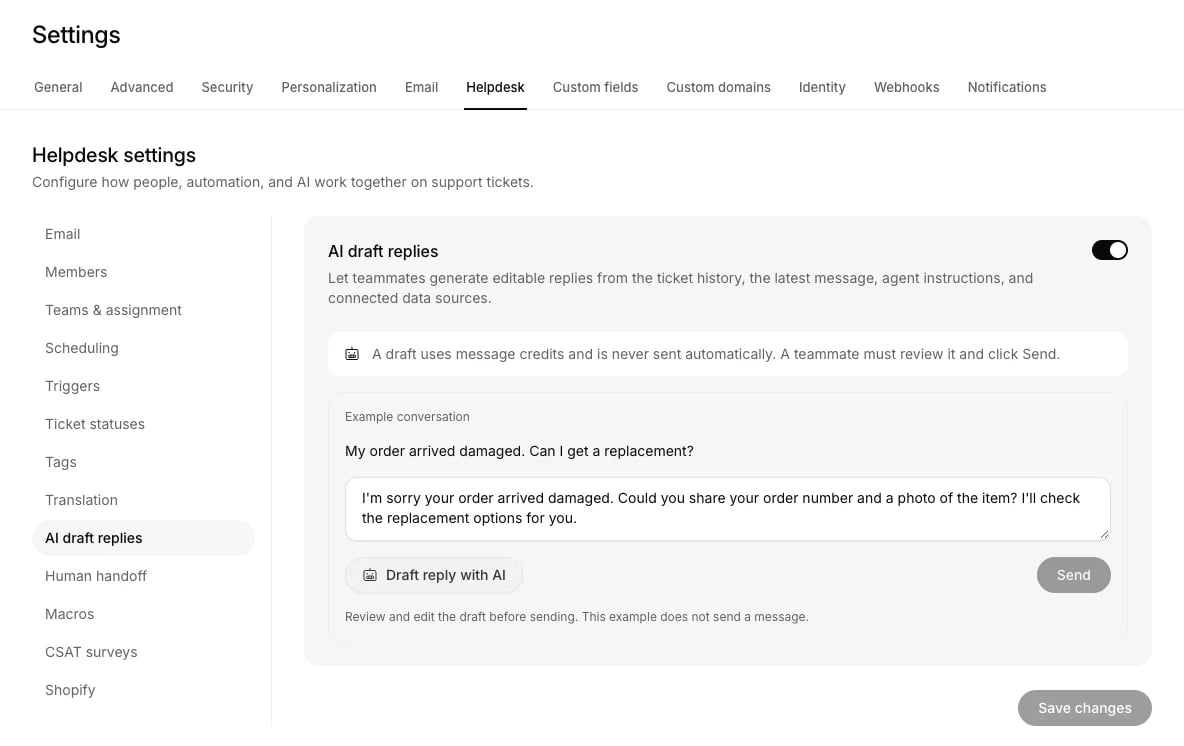
Settings, Helpdesk, AI draft replies: try a sample draft before teammates use it on tickets.
Translation starts enabled. Helpdesk detects the latest customer message’s
language and offers translation when it differs from your preferred language.
You can also translate explicitly while reading a ticket.
A message goes to the customer. A note is internal and never leaves
Helpdesk. The timeline records everything that happened and who did it, and it
survives people leaving the workspace.Use the formatting toolbar for bold, italic, links, lists and text colors in
replies and notes. Email replies keep the formatting; channels that accept
only plain text receive the text without formatting.
Drop files anywhere on the reply or note composer, or use the attachment button.
Up to five files per reply or note, 25 MB each, 125 MB in total. Email, WhatsApp
and private Messenger replies can carry them out to the customer. Instagram
direct messages, Slack, text messages, and public comments on Facebook or
Instagram cannot, so send a link there instead. Note attachments stay internal
whatever the channel.The composer accepts all file types. The customer’s channel can impose lower
size limits or reject a file type, so check delivery before sending the file
again.Files a website visitor attaches in the chat widget come with their messages:
they appear on the conversation in Conversations, and on the ticket’s
timeline once the conversation becomes a ticket or you take it over. See
Files from visitors.
A ticket’s Customer history lists every ticket for the same Contact, on any
channel and in any queue, newest first. A verified website visitor keeps the
Contact their identity names. A
WhatsApp or text message (SMS) from a number already on one Contact joins that
Contact, so its tickets appear in the same history. If two Contacts share the
number, the message still reaches the agent but starts a separate Contact until
you correct the duplicates. Taking over that conversation asks you to correct
them first.
You can add your own. Each one you add has to map onto one of those six kinds,
so that automation keeps working when you rename things to suit your team.
Under Settings → Helpdesk → Ticket statuses, edit the internal label,
customer label, color and description. Each category keeps one default and at
least one active status. Archived statuses remain visible on existing tickets
but cannot be selected for new status changes.Tickets also have a priority. See Priority and tags.
There are no SLA timers.
Three ways to hand a ticket to someone, set per team:
Manual. Tickets stay unassigned until a teammate claims them. This is the
default.
Balanced. The available teammate with the fewest open tickets.
Round robin. The available teammate who has waited longest for one.
New teammates start Away. Manual availability is set on Members; scheduled
teammates follow their shift hours and time off. Automatic assignment considers
available members of the ticket’s team and respects the team’s open-ticket cap.
Closed and Cancelled tickets do not count toward that cap. Balanced assignment
breaks a workload tie by choosing the member least recently assigned a ticket.If nobody is eligible, the ticket stays unassigned. Assign to next available
shift can instead choose a scheduled member whose shift starts soonest,
excluding members currently on time off. Coming online does not automatically
assign queued tickets. With Unassign on reply enabled, a customer reply
retries assignment for an unassigned ticket or replaces an unavailable owner;
an available owner stays assigned. Closed and Cancelled tickets are skipped.Manual assignment can choose a teammate regardless of availability or capacity.
Reassigning a ticket keeps its status.
Every ticket has a priority, from No priority through Low, Normal
and High to Urgent, set from the ticket details. Tags label tickets for
filtering. Add up to 20 per ticket from the details panel. Admins can create a
tag there by typing a new name.Admins manage tags under Settings → Helpdesk → Tags. Names use lowercase
letters, numbers, hyphens and underscores, and each tag shows how many tickets
carry it. Archive retires a tag without removing it from past tickets, and
Restore brings it back. An agent can hold up to 500 tags, archived ones
included.The ticket list can show Priority and Tags columns, sort by priority,
and filter on either. The tag filter includes Untagged. Select several
tickets to change their status together.The Create ticket action can also tag the tickets it creates. In the action’s
details, add up to five tags and tell the AI when each one applies. If the
escalation lands on a ticket that already exists, the tags are added to it.
Custom fields let you record things the standard ticket does not have, such as
an order number or a plan. Seven kinds, including text, number, date and a list
you define.Saved views are filters you keep. Five come with Helpdesk, and you can build
your own for yourself or share them with your team. Views can include the
priority and tag columns and sort by priority.Filter by a custom field using the controls for its type, such as text matching,
number comparisons, date ranges or selected options. These filters can be saved
in a view. Support Associates can edit personal views; Owners and Members can
also edit shared views.
Macros are shared replies. Owners and Members create them under Settings →
Helpdesk → Macros. Teammates who can handle tickets can insert one from the
lightning button above the reply box. The formatted text lands in the reply or
note for you to edit before sending.A macro can include variables such as {{customer.first_name}},
{{ticket.number}} or {{human_agent.name}}. Add a fallback after a bar,
{{customer.first_name | there}}, for when the value is missing. A variable
Centillion does not recognize stays in the text as written. A macro can also add
tags to the ticket when you insert it. Each agent can hold up to 300 macros.Attach up to five files to a macro, within the attachment limits.
Inserting the macro copies those files into the ticket’s editable draft.
Conversations lists the newest first. Filters narrows them by channel,
status, sentiment, dates, a word the conversation contains, the agent’s
confidence, thumbs-up or thumbs-down feedback, or voice sessions only. Filters
search every conversation, not only the ones on screen, and Load more
conversations pages back through older matches. Confidence, feedback and
voice apply to website and API chats only.On a ticket, View conversation opens the original transcript beside the
ticket, including replies from your team, without leaving the queue. Choose
View full conversation to open it in Conversations.
Under the agent’s Logs tab, Search messages matches message text and contact
details in the loaded chat logs. Press / to focus search and Escape to clear
it. Filter conversations → Conversation state narrows the list to ongoing,
paused, taken over, waiting, or ended chats, alongside the channel, date,
confidence, feedback, and contact filters.The Details tab links to the contact search and any linked ticket, and lets
you copy the conversation ID. Use a conversation’s menu to export its transcript
as JSON, CSV, or PDF. Export all uses the filtered list; Select lets you
choose several conversations to export together. PDF export downloads the
transcripts directly.
In the workspace or agent’s Conversations, open a
transcript and choose Flag issue beside a message. Describe what needs
attention, then choose Add to Helpdesk. This adds the original message and
your notes to the linked open ticket, or creates an internal review ticket when
there is no open ticket.Flagging an issue does not pause AI, take over the conversation, send a customer
message or run ticket automations. Helpdesk must be enabled, and your role must
allow managing it.
Your team can be told the moment a visitor is chatting in the website widget,
so someone can join while they are still there. Open Settings →
Notifications and, under Live alerts, choose when to alert:
Every new conversation: as soon as a visitor starts chatting.
Only escalations: when the agent hands a visitor to a person.
Alerts are off until you choose one. Each goes to two places:
The dashboard. Anyone in the workspace with the dashboard open sees a
card in the corner with a Join button. It disappears once someone has
joined.
Slack, if the agent has a Slack connection. Pick the workspace and the
channel, then invite the agent’s Slack app to that channel: in Slack, open
the channel and type /invite followed by the app’s name. Send test alert
checks it works. Without a Slack connection, the settings link to Channels.
Either setting also posts a conversation on WhatsApp, Messenger, Instagram or
email to Slack when the agent hands it to your team. Those conversations raise
no alert when they start, and their handoffs go to Slack only. Your team can
answer the customer from there, as Answering a handoff from
Slack explains.An alert shows the visitor’s first message, the page they are on, their
language, and their name or email if they have given one. Join opens the
conversation in the dashboard and takes it over in one click, after signing in
if you need to. Only members of the workspace can join. If a teammate got there
first, you see who, and the Slack message is updated to say who joined.Joining needs the Helpdesk to be on for the agent.
A customer on WhatsApp, Messenger, Instagram or email has no chat window for
a teammate to join. When the agent hands one of those conversations to your
team with Centillion live chat, Centillion posts the handoff to the Slack
channel chosen under Live alerts. That happens when alerts are set to
Every new conversation or Only escalations and a Slack workspace and
channel are picked. These handoffs go to Slack only and show no card in the
dashboard.The message shows what the customer wrote, the agent’s summary of the request,
the customer’s name, email and phone when Centillion has them, the ticket number,
and an Open ticket button. While your team has the conversation, whatever
the customer writes next is added to the message’s thread, including what
they sent in the seconds after asking for a person. On email this needs a
Helpdesk address: an email sent to a connected Gmail or Outlook mailbox during
a handoff is not added to the thread.To answer, reply in the thread and tag the app, for example @Centillion;
the handoff message shows the tag to use. Your reply goes to the customer on
their channel with the files you add to it, without the tag, and it appears in
the ticket under your name, the same as a reply typed in Helpdesk. A mention
of a person or a channel is written out as plain words, a link keeps its
address, and an emoji is sent as the emoji. Messages without the tag stay in
Slack, so the team can talk about the case in the same thread. The channel’s
own rules still apply, including the 24-hour window on WhatsApp, Messenger and
Instagram.Nothing is posted back when a reply goes through. When one is not sent, or
Centillion cannot confirm that it was, the thread says so.
Troubleshooting
lists what it can say.
Answering from the thread needs more Slack permissions than posting. Once a
Slack workspace is picked, the Live alerts card says whether replies are
allowed. If they are not, it shows Allow replies from Slack, and each
handoff message tells your team to answer from the Helpdesk. A handoff posted
that way stays that way: once replies are allowed, a reply in its thread is
still not sent, and the thread says to answer that one from the Helpdesk.
Handoffs posted afterwards are answered from their thread.Until replies are allowed, you choose the channel by its id. Afterwards you
pick it from a list of public channels. To use a private channel, enter its id
before allowing replies.An Owner or Member chooses Allow replies from Slack and approves the extra
permissions on Slack’s page. This reconnects Slack, so the agent stops
answering mentions until you turn Automatic replies back on for the Slack
connection under Channels. Slack lists the
permissions and what Centillion receives once they are granted.Sending files takes one more permission, to read them. A workspace that allowed
replies before Centillion sent files sees Allow files from Slack on the same
card, which reconnects Slack the same way. Until an Owner or Member chooses it,
a reply with a file is not sent, and the thread says so.
Who can reply. Centillion recognises the person replying by the email
address on their Slack profile. It has to match the email of an active
member of this agent’s Helpdesk, which is the address they have in your
Centillion workspace. A reply from anyone else is not sent, and the thread
tells them so.
Only a tagged reply is sent. A message in the thread reaches the
customer only when it tags the app. Everything else stays in Slack: it is not
sent and not added to the ticket’s notes, and the thread says nothing about
it.
Files go with the reply. The limits are the Helpdesk’s: up to five
files, 25 MB each and 125 MB together, of the kinds the composer takes. The
customer’s channel can be stricter: WhatsApp takes JPEG and PNG images up to
5 MB, MP4 videos and audio up to 16 MB, and documents, while text messages
(SMS) and Instagram take no files. When a file breaks one of these limits,
or Slack has nothing to download for it, none of the reply is sent and the
thread says which file and why. The text and each file reach the customer as
separate messages, so a send that fails partway can leave them part of the
reply: the thread then says the delivery could not be confirmed, so check
the ticket before sending it again.
Edits change nothing. Editing or deleting a reply in Slack changes
nothing for the customer, and the thread says nothing about it.
Custom emoji arrive as their names. An emoji you added to your Slack
workspace has no character to send, so the customer reads its name, such as
:partyparrot:.
The agent does not answer in the thread. Tagging the app there sends
your reply to the customer. The agent does not read it as a question, even
while Automatic replies are on for the Slack connection.
Replies from Helpdesk stay in Helpdesk. The thread shows the customer’s
messages. A reply a colleague sends from the ticket does not appear there,
so check the ticket before answering twice.
The thread ends with the handoff. After Allow AI replies on the
ticket, replies in the thread are no longer sent. If the agent hands the
conversation over again, it opens a new thread and the old one stays
closed. A teammate joining the chat from Helpdesk does not end the thread.
One Slack workspace, one agent. A Slack workspace connects to a single
agent. Connect it to the agent that owns the WhatsApp number, the Facebook
Page, the Instagram account or the mailbox.
Website alerts work differently. A reply in the thread of a website
alert is not sent to the visitor. Use Join there.
You can select several support addresses under Settings → Helpdesk → Email.
Replies use the selected address the customer wrote to, then the first selected
address if there is no match, or the generated agent address if none is
selected. A support-associate display name uses the teammate who writes the
reply; a custom name stays the same for the whole team. The saved signature
applies to AI and teammate emails.See Helpdesk email settings for the address checks,
preview, and complete setup. Email channel settings control
spam detection, blocked senders, the AI disclaimer, and the automatic reply
delay.
Under Settings → Helpdesk → CSAT surveys, turn on surveys to email the
customer after a ticket closes. Choose thumbs, five stars or five smileys, and
customize the positive and negative labels. The email links to a page where
customers can rate the reply and add a comment. Opening the link never
records a rating on its own, so mail scanners cannot answer for the customer.
Links work for 30 days.Edit the email canvas to preview the logo, formatted introduction, rating
choices and footer together. Thumbs have positive and negative labels; stars
and smileys have labels at the low and high ends. Sent surveys keep the rating
scale and presentation they were sent with when you later edit the settings.Choose a delay between 1 minute and 30 days after closing, a verified sender
address, an optional logo, and the subject, introduction and footer. The
introduction supports Markdown. A ticket is not surveyed when it is reopened
before sending, has no customer email, came from WhatsApp, Messenger or
Instagram, never got a reply, carries an excluded tag, or is outside the
activity window. The same address is not surveyed again within the cool-down
period.Results appear on the ticket, under Satisfaction, and in Dashboards →
Helpdesk → Open detailed Helpdesk analytics under Customer satisfaction.
It shows the CSAT score, response
rate and coverage against the previous period, why tickets were not surveyed,
and paginated responses with the teammate who handled each ticket. Thumbs-only
results show the percentage of positive responses. Results that include stars
or smileys show the average on a five-point scale. A positive thumbs rating or
a score of 4 or 5 counts as a positive response.
Dashboards → Helpdesk → Open detailed Helpdesk analytics reports, for the
period you pick, tickets created and
solved, the unsolved backlog at the end of each day, tickets by channel, and
the median first response time, response time and time to close. Each figure
is compared with the period of the same length just before it. Filter by
channel, assignee or team.Response times count replies from your team, not the agent’s. A ticket that
was closed, reopened and closed again counts once in the period’s solved total,
though the daily chart shows each day it closed. Dates are in UTC.Choose a preset or custom date range and show the previous period on comparison
charts. Team performance lists solved tickets, tickets replied to, replies
sent, CSAT and median response times for each teammate, with team totals.
Connect a Shopify custom app under Settings → Helpdesk → Shopify with your
store’s myshopify.com domain and an Admin API access token. The app needs the
read_orders and read_customers scopes. Shopify shows orders older than 60
days only after it approves protected customer data and read_all_orders.Tickets then show the customer’s orders, matched by email or phone. Look up a
different email or phone from the panel when the customer wrote from another
address. Open an order for its items, totals, shipping address and tracking.
Macros can insert details from the latest order, such as
{{shopify.last_order.number}} or {{shopify.last_order.tracking_url}}.
Under Helpdesk settings, rules that run on a ticket after it exists. Conditions
can check status, assignee, team, channel, priority or tags. Actions can set a
status or priority, add or remove tags, assign someone, add a note, send an
email or Slack notification, or call a webhook.For email, choose the requester, assignee, assigned team, a specific teammate or
team, or a custom address. Set the subject and formatted message, and insert
ticket variables where needed. For Slack, choose a connected workspace and a
channel, or enter a channel ID. Temporary delivery failures retry automatically;
invalid destinations and other permanent failures stop retrying.Enabling Helpdesk creates an active Route to default team trigger for new
tickets without a team. It uses the current default team’s assignment strategy.
Escalation creates the ticket; Helpdesk triggers run after creation or an update.
Helpdesk can post ticket data to a URL of yours, with your own headers and body
format.A webhook fires because a trigger’s action names it. There is no list of events
to subscribe to, so the trigger is where you decide when it goes out.A body template picks values with placeholders such as {{ticket.priority}}
or {{ticket.customer.externalId}}. To send the whole report, use
{"deliveryId": "{{deliveryId}}", "ticket": {{ticket}}}. Under ticket you
get:
id, number, subject, channel, statusId, and messageText, the
customer’s latest message.
url, the ticket in your inbox, and conversationUrl, the conversation in
Conversations, when the ticket came from one.
priority (none, low, normal, high or urgent), statusCategory,
description, createdAt and updatedAt, as the
Helpdesk API returns them,
and tags, the names of the ticket’s tags. When a trigger changes the
priority, the status or the tags, the webhook it sends carries the new values.
customer: id, externalId, name, email, phoneNumber,
attributes, and verified, which is true when a signed identity proved who
the customer is (see Identity verification).
fields: each custom field with its id, label, type and value, in
the order of your fields. A choice field gives the chosen option’s name, an
image field a link.
attachments: the files the customer sent, the latest 50, each with
name, contentType, size and url.
Links to attachments and the dashboard open only for signed-in members of
your Helpdesk. An attachment link opens while this workspace is the one
selected in the dashboard. An image field filled with an outside URL keeps
that URL.Each delivery is signed. The request carries X-Centillion-Signature, a
delivery ID, a timestamp and an idempotency key, so you can verify it came from
Centillion and ignore a repeat.A delivery gets up to five attempts in total, spaced a minute, five minutes,
half an hour and two hours apart. A Retry-After header from your endpoint is
honoured, up to six hours.Only failures worth repeating are retried: a connection that never landed, a
timeout, a rate limit, or a 500 from your side. A 400 or a 404 is taken at face
value and not sent again, so a webhook pointing at the wrong path fails once
rather than four more times.
The Escalations card lists Centillion Helpdesk, Zendesk, Salesforce, Intercom,
Zoho Desk, Freshdesk, HubSpot, Help Scout, Gorgias and Odoo. Choose Centillion
Helpdesk to configure ticket creation in your inbox.For Zendesk email support, create or edit a Create ticket action and choose
Zendesk under Helpdesk destination. For an internal or self-managed
deployment, connect an administrator-owned confidential OAuth client from your
own Zendesk account. Centillion pauses the email conversation while your team
answers the Zendesk ticket, then resumes when it is Solved or Closed. Follow
Zendesk email handoff for setup and a complete test.Salesforce supports the case and live chat actions described below. The other
external platforms use a Contact us dialog. Contact the Centillion team to
arrange their connection and ticket routing.
Connect Channels → Salesforce, then choose Salesforce as the destination in
Tools → Create ticket. Set its name, usage instructions, and channels, then
save and enable it. Centillion Helpdesk retains the conversation while
Salesforce receives a case with the customer details and transcript. Slack,
Zendesk Messaging, Instagram and Messenger are incompatible with this ticket
destination. Previews do not create remote cases.On the Salesforce channel, the same action marks the existing case Escalated
for human review and stops automatic replies. It keeps the case and owner;
clear Escalated after review to allow new automatic responses. Draft mode
does not execute escalation or other actions.Salesforce live chat hands Chat bubble, Help page and Center Stage
conversations to Salesforce Enhanced Chat and Omni-Channel. Enter the deployment
URL, DeveloperName and OrganizationId in its action builder, using the org
connected to the agent. Both Salesforce support actions accept Only use in
procedures when an active procedure should control execution.Live chat transfers the text history, pauses AI replies, and synchronizes text
messages in both directions. End Chat in Salesforce resumes AI replies.
Attachments and interactive Salesforce message components are not rendered.
Follow the Salesforce setup guide for the
package, signing-key configuration, permissions and a live test.
On the website, the customer sees your first name and profile photo, in their
language. Apps built on the iOS or Android SDK get the same name and photo. On a
messaging channel there is no announcement, so say hello.
Allow AI replies in the ticket’s menu hands the conversation back and closes
the ticket. With Resume AI when all tickets close on, AI also returns once
the last open ticket closes. Human-first conversations turn that setting off, so
a teammate has to choose Allow AI replies.
Can my team answer from Slack instead of the inbox?
Yes, for handoffs on WhatsApp, Messenger, Instagram and email. Reply in the
handoff’s thread and tag the app. The reply reaches the customer on their
channel and appears in the ticket under your name.
Yes. Drafts and AI Compose use the agent’s selected model and spend message
credits like any other answer. The workspace allowance and the agent’s credit
limit both apply.
Turn on Helpdesk for one agent, enable Centillion live chat on your website,
and ask to speak to someone. A Live chat ticket opens in the inbox, and
your reply reaches the customer in the same chat.
Start free
Start on the Free plan, or take a seven-day trial of a paid plan. Your agent is live on your site in an afternoon.
Book a demo
Fifteen minutes with the team, on your own use case.
How the agent, its channels and the helpdesk fit together.
Website chat
Put the agent on your site and let customers reach your team from it.
Helpdesk email settings
Support addresses, address checks, preview and signature.
Last modified on October 26, 2026
⌘I
{"docsConfig":{"theme":"maple","$schema":"https://mintlify.com/docs.json","name":"Centillion","description":"How to build a Centillion AI agent, give it your knowledge, and put it on your website, WhatsApp, Messenger, Instagram, Slack and email.","colors":{"primary":"#0a0a0a","light":"#f5f5f5","dark":"#0a0a0a"},"logo":{"light":"https://mintcdn.com/centillion/YMwlBbzdENjtfSuJ/logo/centillion-labs-logo-horizontal.svg?fit=max\u0026auto=format\u0026n=YMwlBbzdENjtfSuJ\u0026q=85\u0026s=a390a5bdca5c0720e1871afbf09b1f18","dark":"https://mintcdn.com/centillion/YMwlBbzdENjtfSuJ/logo/centillion-labs-logo-horizontal.svg?fit=max\u0026auto=format\u0026n=YMwlBbzdENjtfSuJ\u0026q=85\u0026s=a390a5bdca5c0720e1871afbf09b1f18","href":"https://cntillion.com"},"favicon":"https://mintcdn.com/centillion/OVR3XViKbG9zMitv/favicon.svg?fit=max\u0026auto=format\u0026n=OVR3XViKbG9zMitv\u0026q=85\u0026s=a6656501072b111f976d6229cbbd73ad","appearance":{"default":"light","strict":true},"background":{"color":{"light":"#ffffff","dark":"#0a0a0a"}},"navbar":{"links":[{"href":"https://cntillion.com/pricing","label":"Pricing"},{"href":"https://cntillion.com/support","label":"Contact"}],"primary":{"type":"button","label":"Open Centillion","href":"https://app.cntillion.com"}},"footer":{"links":[{"header":"Centillion","items":[{"label":"Home","href":"https://cntillion.com"},{"label":"Pricing","href":"https://cntillion.com/pricing"},{"label":"Contact","href":"https://cntillion.com/support"},{"label":"Sign in","href":"https://app.cntillion.com/sign-in"}]}]},"search":{"prompt":"Search the Centillion docs"},"seo":{"metatags":{"og:site_name":"Centillion Docs"},"organization":{"name":"Centillion","url":"https://cntillion.com"},"indexing":"navigable"},"fonts":{"family":"Inter"},"metadata":{"timestamp":true},"styling":{"latex":true},"navigation":{"pages":[]}},"deployment":{"deploymentMetadataValue":{"subdomain":"centillion","hasAudioNarration":false,"actualSubdomain":"centillion","customDomains":["cntillion.com"],"gitSource":{"type":"github","owner":"centillion-labs","repo":"conversational-agents-for-cx","deployBranch":"master","contentDirectory":"apps/docs","isPrivate":true,"mountPath":"","label":""},"chroma":{"latestBuiltDeploymentHistoryId":"6ae95d6935b55ff31612f7a7","collectionId":"27832044-5e72-44ea-8577-5c209cbfb879","liveDeploymentHistoryId":"6ae95d6935b55ff31612f7a7","schemaVersion":"v3"},"entitlements":{"AI_CHAT":{"status":"DISABLED"},"WEB_MCP":{"status":"DISABLED"},"NARRATION":{"status":"DISABLED"}},"buildId":"6ae96f717e64ded297ae851c","clientVersion":"0.0.4045","searchFilterCounts":[{"language":"default","tag":"Reach your customers","count":19},{"language":"default","tag":"Build your agent","count":14},{"language":"default","tag":"Guides","count":8},{"language":"default","tag":"Workspace","count":7},{"language":"default","tag":"API documentation","count":6},{"language":"default","tag":"Support","count":6},{"language":"default","tag":"Customer data","count":5},{"language":"default","tag":"Website development","count":2},{"language":"default","tag":"Get started","count":2},{"language":"default","tag":"Helpdesk API","count":1}]},"assistantConfig":{"enableAskAiButton":false,"enableStarterQuestions":false,"enableContextualStarterQuestions":false,"enableAskAiSearchBar":true},"basePath":"/docs","hasChatPermissions":false,"hasWebMcpPermissions":false,"toggles":[{"name":"kill-isr","enabled":true,"variant":{"name":"disabled","enabled":false,"feature_enabled":true},"impressionData":false},{"name":"agent-mintlify-slack","enabled":true,"variant":{"name":"disabled","enabled":false,"feature_enabled":true},"impressionData":false},{"name":"agent-integrations-settings","enabled":true,"variant":{"name":"disabled","enabled":false,"feature_enabled":true},"impressionData":false},{"name":"automations-pr-grouping","enabled":true,"variant":{"name":"disabled","enabled":false,"feature_enabled":true},"impressionData":false},{"name":"custom-prefix","enabled":true,"variant":{"name":"disabled","enabled":false,"feature_enabled":true},"impressionData":false},{"name":"analytics-v7","enabled":true,"variant":{"name":"disabled","enabled":false,"feature_enabled":true},"impressionData":false},{"name":"user-flows-analytics","enabled":true,"variant":{"name":"disabled","enabled":false,"feature_enabled":true},"impressionData":false},{"name":"no-publish-flow","enabled":true,"variant":{"name":"disabled","enabled":false,"feature_enabled":true},"impressionData":false},{"name":"workos-onboarding","enabled":true,"variant":{"name":"disabled","enabled":false,"feature_enabled":true},"impressionData":false},{"name":"llms-txt-v2","enabled":true,"variant":{"name":"disabled","enabled":false,"feature_enabled":true},"impressionData":false},{"name":"snapshot-serving-live","enabled":true,"variant":{"name":"disabled","enabled":false,"feature_enabled":true},"impressionData":false},{"name":"stripTemperatureMiddleware","enabled":true,"variant":{"name":"disabled","enabled":false,"feature_enabled":true},"impressionData":false},{"name":"support-platform-pylon-zendesk","enabled":true,"variant":{"name":"disabled","enabled":false,"feature_enabled":true},"impressionData":false},{"name":"snapshot-serving","enabled":true,"variant":{"name":"disabled","enabled":false,"feature_enabled":true},"impressionData":false},{"name":"instant-rollback","enabled":true,"variant":{"name":"disabled","enabled":false,"feature_enabled":true},"impressionData":false},{"name":"granular-notifications-server","enabled":true,"variant":{"name":"disabled","enabled":false,"feature_enabled":true},"impressionData":false},{"name":"granular-notifications","enabled":true,"variant":{"name":"disabled","enabled":false,"feature_enabled":true},"impressionData":false},{"name":"automations-fable","enabled":true,"variant":{"name":"disabled","enabled":false,"feature_enabled":true},"impressionData":false},{"name":"fixed-ai-action-pricing","enabled":true,"variant":{"name":"disabled","enabled":false,"feature_enabled":true},"impressionData":false},{"name":"automation-resolve-merge-conflict","enabled":true,"variant":{"name":"disabled","enabled":false,"feature_enabled":true},"impressionData":false},{"name":"scoped-publishing","enabled":true,"variant":{"name":"disabled","enabled":false,"feature_enabled":true},"impressionData":false},{"name":"mintql","enabled":true,"variant":{"name":"disabled","enabled":false,"feature_enabled":true},"impressionData":false},{"name":"page-level-analytics","enabled":true,"variant":{"name":"disabled","enabled":false,"feature_enabled":true},"impressionData":false},{"name":"editor-version-history-v2","enabled":true,"variant":{"name":"disabled","enabled":false,"feature_enabled":true},"impressionData":false},{"name":"billing-page-v2","enabled":true,"variant":{"name":"disabled","enabled":false,"feature_enabled":true},"impressionData":false},{"name":"full-page-search","enabled":true,"variant":{"name":"disabled","enabled":false,"feature_enabled":true},"impressionData":false},{"name":"workspace-projects","enabled":true,"variant":{"name":"disabled","enabled":false,"feature_enabled":true},"impressionData":false},{"name":"assistant-v5","enabled":true,"variant":{"name":"disabled","enabled":false,"feature_enabled":true},"impressionData":false},{"name":"byok-sep-25","enabled":true,"variant":{"name":"disabled","enabled":false,"feature_enabled":true},"impressionData":false},{"name":"fork-pr-previews","enabled":true,"variant":{"name":"disabled","enabled":false,"feature_enabled":true},"impressionData":false},{"name":"revalidation-jwt","enabled":true,"variant":{"name":"disabled","enabled":false,"feature_enabled":true},"impressionData":false},{"name":"vite-origin","enabled":true,"variant":{"name":"disabled","enabled":false,"feature_enabled":true},"impressionData":false},{"name":"billing-updated-9-15","enabled":true,"variant":{"name":"disabled","enabled":false,"feature_enabled":true},"impressionData":false},{"name":"workos-sso-scim","enabled":true,"variant":{"name":"disabled","enabled":false,"feature_enabled":true},"impressionData":false},{"name":"hobby-abuse-scan","enabled":true,"variant":{"name":"disabled","enabled":false,"feature_enabled":true},"impressionData":false},{"name":"dashboard-inbox","enabled":true,"variant":{"name":"disabled","enabled":false,"feature_enabled":true},"impressionData":false},{"name":"workos-signup","enabled":true,"variant":{"name":"disabled","enabled":false,"feature_enabled":true},"impressionData":false},{"name":"turbopuffer-dual-write","enabled":true,"variant":{"name":"disabled","enabled":false,"feature_enabled":true},"impressionData":false},{"name":"workos-enabled","enabled":true,"variant":{"name":"disabled","enabled":false,"feature_enabled":true},"impressionData":false},{"name":"approve-review-flow","enabled":true,"variant":{"name":"disabled","enabled":false,"feature_enabled":true},"impressionData":false},{"name":"sso-setup-deadline-banner","enabled":true,"variant":{"name":"disabled","enabled":false,"feature_enabled":true},"impressionData":false}],"googleFontsInlined":false},"customCss":[{"filePath":"style.css","content":":root{--bg-subtle:#f6f6f6;--ink:#0a0a0a;--ink-2:#353535;--ink-3:#626262;--ink-4:#a1a1a1;--ink-5:#c7c7c7;--amber:#db8831;--amber-text:#9f5f1c;--amber-tint:#fbf4ec;--radius-lg:16px;--radius-xl:24px;--radius-pill:9999px;--glow-lavender:#ebeaf7;--glow-pink:#f2e4e2;--glow-peach:#f5e6dd;--glow-sky:#e6ecf4;--glow-mint:#e9f4ef}#page-title{font-size:40px;font-weight:500;line-height:46px;color:var(--ink);letter-spacing:-.02em}#content>h2,#content>h3,#content>h4{font-size:20px;font-weight:500;line-height:26px;color:var(--ink);letter-spacing:-.01em}#content>h3,#content>h4{font-size:18px;line-height:24px}#content>h4{font-size:16px;line-height:22px;letter-spacing:0}#header .eyebrow,#search-bar-entry,#search-bar-entry-mobile{font-size:14px;font-weight:400;line-height:20px;color:var(--ink-3)}#search-bar-entry,#search-bar-entry-mobile{height:36px;padding:0 16px;color:var(--ink-4);background-color:var(--bg-subtle);border-radius:var(--radius-pill);box-shadow:none}#search-bar-entry svg,#search-bar-entry-mobile svg{color:var(--ink-4)}#search-bar-entry>span{font-size:12px;font-weight:400;line-height:16px;color:var(--ink-4)}#search-bar-entry-mobile:focus-visible,#search-bar-entry:focus-visible{outline:2px solid var(--ink);outline-offset:2px}#content .card{background-color:var(--bg-subtle);border:0;border-radius:var(--radius-lg);box-shadow:none}#content .card [data-component-part=card-content-container]{padding:20px}#content .card [data-component-part=card-icon] svg{background-color:var(--ink-3)}#content .card [data-component-part=card-content-container]>a>div.absolute{color:var(--ink-5)}#content .card [data-component-part=card-title]{font-size:16px;font-weight:500;line-height:22px;color:var(--ink)}#content .card [data-component-part=card-content]{font-size:14px;font-weight:400;line-height:20px;color:var(--ink-3)}#content .card [data-component-part=card-content]>span{color:inherit}#content-area:has(.centillion-hero)>#header{display:none}.centillion-hero{display:flex;flex-direction:column;gap:20px;padding:28px;margin-bottom:24px;background-color:var(--bg-subtle);background-image:radial-gradient(38% 80% at 96% 0%,var(--glow-lavender) 0%,transparent 100%),radial-gradient(30% 70% at 84% 48%,var(--glow-pink) 0%,transparent 100%),radial-gradient(34% 70% at 90% 100%,var(--glow-peach) 0%,transparent 100%),radial-gradient(28% 64% at 66% 58%,var(--glow-sky) 0%,transparent 100%),radial-gradient(26% 56% at 62% 0%,var(--glow-mint) 0%,transparent 100%);border-radius:var(--radius-xl)}.centillion-hero .centillion-hero-eyebrow{margin:0;font-size:14px;font-weight:400;line-height:20px;color:var(--ink-3)}.centillion-hero .centillion-hero-title{max-width:720px;margin:0;font-size:40px;font-weight:500;line-height:46px;color:var(--ink);letter-spacing:-.02em;text-wrap:balance}.centillion-hero .centillion-muted{color:var(--ink-3)}#content .callout{padding:16px 20px;font-size:14px;line-height:20px;border:0;border-radius:var(--radius-lg)}#content .callout[data-callout-type=warning]{background-color:var(--amber-tint)}#content .callout[data-callout-type=warning] [data-component-part=callout-icon] svg{color:var(--amber)}#content .callout[data-callout-type=warning] [data-component-part=callout-content]{color:var(--amber-text)}#content .callout[data-callout-type=note]{background-color:var(--bg-subtle)}#content .callout[data-callout-type=note] [data-component-part=callout-icon] svg{color:var(--ink-3)}#content .callout[data-callout-type=note] [data-component-part=callout-content]{color:var(--ink-2)}"}],"page":{"pagePath":"helpdesk","slug":"/helpdesk","pageMetadata":{"title":"AI helpdesk with human handoff","description":"Centillion Helpdesk turns conversations your AI agent cannot finish into tickets. Set up teams, AI drafts and live takeover, and answer from one inbox.","sidebarTitle":"Helpdesk","keywords":["AI helpdesk with human handoff","AI ticketing inbox","AI draft replies","live chat takeover","support ticket automation"],"href":"/helpdesk"},"description":{"compiledSource":"\"use strict\";\nconst {jsx: _jsx} = arguments[0];\nconst {useMDXComponents: _provideComponents} = arguments[0];\nfunction _createMdxContent(props) {\n const _components = {\n p: \"p\",\n ..._provideComponents(),\n ...props.components\n };\n return _jsx(_components.p, {\n children: \"Centillion Helpdesk turns conversations your AI agent cannot finish into tickets. Set up teams, AI drafts and live takeover, and answer from one inbox.\"\n });\n}\nfunction MDXContent(props = {}) {\n const {wrapper: MDXLayout} = {\n ..._provideComponents(),\n ...props.components\n };\n return MDXLayout ? _jsx(MDXLayout, {\n ...props,\n children: _jsx(_createMdxContent, {\n ...props\n })\n }) : _createMdxContent(props);\n}\nreturn {\n default: MDXContent\n};\n","frontmatter":{},"scope":{}},"pageType":"default","mdx":{"mdxSource":{"compiledSource":"\"use strict\";const{Fragment:_Fragment,jsx:_jsx,jsxs:_jsxs}=arguments[0];const{useMDXComponents:_provideComponents}=arguments[0];function _createMdxContent(props){const _components={a:`a`,blockquote:`blockquote`,code:`code`,li:`li`,ol:`ol`,p:`p`,strong:`strong`,ul:`ul`,..._provideComponents(),...props.components},{Card,CardGroup,Frame,Heading,OptimizedImage,Step,Steps}=_components;if(!Card)_missingMdxReference(`Card`,true);if(!CardGroup)_missingMdxReference(`CardGroup`,true);if(!Frame)_missingMdxReference(`Frame`,true);if(!Heading)_missingMdxReference(`Heading`,true);if(!OptimizedImage)_missingMdxReference(`OptimizedImage`,true);if(!Step)_missingMdxReference(`Step`,true);if(!Steps)_missingMdxReference(`Steps`,true);return _jsxs(_Fragment,{children:[_jsxs(_components.p,{children:[`Centillion Helpdesk is an AI helpdesk with human handoff: when your agent cannot\nfinish a conversation, it becomes a ticket or a live chat that a teammate\nanswers. Use the `,_jsx(_components.strong,{children:`Escalations`}),` action for a ticket your team can follow up on,\nor `,_jsx(_components.strong,{children:`Centillion live chat`}),` when the customer needs someone in the conversation\nnow. Helpdesk belongs to an agent, so each agent has its own tickets, its own\nstatuses and its own team.`]}),`\n`,_jsx(Frame,{caption:`The Helpdesk inbox on Conversations, where a teammate can take over a chat from the agent.`,children:_jsx(OptimizedImage,{src:`https://mintcdn.com/centillion/OVR3XViKbG9zMitv/images/helpdesk/helpdesk-01-inbox.webp?fit=max\u0026auto=format\u0026n=OVR3XViKbG9zMitv\u0026q=85\u0026s=084801439edcd4cc9495ae957f0bb9bc`,alt:`Helpdesk inbox on the Conversations view with a website chat open and the Take over button`,\"data-og-width\":`1456`,width:`1456`,\"data-og-height\":`560`,height:`560`,\"data-path\":`images/helpdesk/helpdesk-01-inbox.webp`,\"data-optimize\":`true`,\"data-opv\":`3`,srcset:`https://mintcdn.com/centillion/OVR3XViKbG9zMitv/images/helpdesk/helpdesk-01-inbox.webp?w=280\u0026fit=max\u0026auto=format\u0026n=OVR3XViKbG9zMitv\u0026q=85\u0026s=d2c01da910aed647c62906a21e236b4d 280w, https://mintcdn.com/centillion/OVR3XViKbG9zMitv/images/helpdesk/helpdesk-01-inbox.webp?w=560\u0026fit=max\u0026auto=format\u0026n=OVR3XViKbG9zMitv\u0026q=85\u0026s=db2a4cec0b315f19800f52581626ed20 560w, https://mintcdn.com/centillion/OVR3XViKbG9zMitv/images/helpdesk/helpdesk-01-inbox.webp?w=840\u0026fit=max\u0026auto=format\u0026n=OVR3XViKbG9zMitv\u0026q=85\u0026s=965b963d5045a20aa6beb2327d0b17b9 840w, https://mintcdn.com/centillion/OVR3XViKbG9zMitv/images/helpdesk/helpdesk-01-inbox.webp?w=1100\u0026fit=max\u0026auto=format\u0026n=OVR3XViKbG9zMitv\u0026q=85\u0026s=bb5f1e4b53422ce651c83bc9a210422e 1100w, https://mintcdn.com/centillion/OVR3XViKbG9zMitv/images/helpdesk/helpdesk-01-inbox.webp?w=1650\u0026fit=max\u0026auto=format\u0026n=OVR3XViKbG9zMitv\u0026q=85\u0026s=0fe5bff4a2c6fcb75db8b037887a4d85 1650w, https://mintcdn.com/centillion/OVR3XViKbG9zMitv/images/helpdesk/helpdesk-01-inbox.webp?w=2500\u0026fit=max\u0026auto=format\u0026n=OVR3XViKbG9zMitv\u0026q=85\u0026s=f024c3bcd7eb6f243b179ab5c78fcd82 2500w`})}),`\n`,_jsx(Heading,{level:`2`,id:`what-it-does`,children:`What it does`}),`\n`,_jsxs(_components.ul,{children:[`\n`,_jsx(_components.li,{children:`Creates tickets when the agent escalates, when email arrives, when a customer\nanswers a campaign, when a teammate opens one, or through the API.`}),`\n`,_jsx(_components.li,{children:`Hands a live conversation to a teammate on website chat, the iOS and Android\nSDKs, email, WhatsApp, SMS, Messenger and Instagram. The customer stays in the\nsame chat.`}),`\n`,_jsx(_components.li,{children:`Writes suggested replies for your team. A draft is never sent until a\nteammate clicks send, and it spends message credits like any other answer.`}),`\n`,_jsx(_components.li,{children:`Routes tickets to teams by hand, by balanced workload or by round robin, with\nan open-ticket cap per teammate.`}),`\n`,_jsx(_components.li,{children:`Runs triggers, macros (up to 300 per agent), tags (up to 500 per agent),\ncustom fields, saved views, satisfaction surveys and reports.`}),`\n`,_jsx(_components.li,{children:`Lets your team answer WhatsApp, Messenger, Instagram and email handoffs from a\nSlack thread, with up to five files of 25 MB each per reply where the channel\naccepts files (Instagram and SMS do not).`}),`\n`]}),`\n`,_jsx(Heading,{level:`2`,id:`what-you-need`,children:`What you need`}),`\n`,_jsxs(_components.ul,{children:[`\n`,_jsxs(_components.li,{children:[`A workspace on Standard and up. Helpdesk is one of the integrations those\nplans add. If you are new to the product, read `,_jsx(_components.a,{href:`/introduction`,children:`what Centillion\nis`}),` first.`]}),`\n`,_jsxs(_components.li,{children:[`The Owner or Member role to turn Helpdesk on and change its configuration.\nOwners, Members and Support Associates can handle tickets and conversations.\nSupport Associates can manage personal views and use saved macros, but only\nOwners and Members can change macros, shared views or Helpdesk configuration.\nViewers have read-only access. See `,_jsx(_components.a,{href:`/workspaces/members`,children:`workspace roles`}),`.`]}),`\n`,_jsxs(_components.li,{children:[`An `,_jsx(_components.strong,{children:`Escalations`}),` or `,_jsx(_components.strong,{children:`Centillion live chat`}),` action, enabled on each channel\nwhere customers should be able to reach a person.`]}),`\n`]}),`\n`,_jsx(Heading,{level:`2`,id:`set-it-up`,children:`Set it up`}),`\n`,_jsx(Heading,{level:`3`,id:`explore-a-sample-inbox`,children:`Explore a sample inbox`}),`\n`,_jsxs(_components.p,{children:[`Before your workspace has activity, `,_jsx(_components.strong,{children:`Helpdesk inbox`}),` opens with fictional\ntickets, customers, teammates and conversations. Try replying, writing a note,\nassigning a ticket or changing its status. These changes stay in the preview;\nreplies are not delivered and file uploads and AI drafting are unavailable.\nYou can explore it before creating an agent or enabling Helpdesk.`]}),`\n`,_jsxs(_components.p,{children:[`Choose `,_jsx(_components.strong,{children:`Hide sample data`}),` to return to your inbox or Helpdesk setup. This\nchoice is remembered for this workspace in your browser. Samples also disappear\nautomatically when the workspace receives real activity. They never become\ncustomer records or contribute to reports, usage or billing.`]}),`\n`,_jsxs(Steps,{children:[_jsx(Step,{title:`Turn on Helpdesk`,children:_jsxs(_components.p,{children:[`Open `,_jsx(_components.strong,{children:`Helpdesk inbox`}),` in the agent’s sidebar. Choose `,_jsx(_components.strong,{children:`Hide sample data`}),`\nif the examples are showing, then select `,_jsx(_components.strong,{children:`Enable\nHelpdesk`}),`. The same button appears while you configure `,_jsx(_components.strong,{children:`Escalations`}),` or\n`,_jsx(_components.strong,{children:`Centillion live chat`}),` in `,_jsx(_components.strong,{children:`Tools`}),`, and on every page under `,_jsx(_components.strong,{children:`Settings →\nHelpdesk`}),` while Helpdesk is off. You need the Owner or Member role.`]})}),_jsxs(Step,{title:`Choose the email address`,children:[_jsxs(_components.p,{children:[`Add and verify company addresses in `,_jsx(_components.strong,{children:`Settings → Email`}),` first. Then open\n`,_jsx(_components.strong,{children:`Settings → Helpdesk → Email`}),` to choose your support addresses, the\ndeliverability alert contact, the display name and the signature.`]}),_jsx(Frame,{caption:`Settings, Helpdesk, Email: the addresses Helpdesk replies from and the deliverability alert contact.`,children:_jsx(OptimizedImage,{src:`https://mintcdn.com/centillion/hWC-069gfv-5h1TN/images/helpdesk/helpdesk-04-settings-email.webp?fit=max\u0026auto=format\u0026n=hWC-069gfv-5h1TN\u0026q=85\u0026s=e11a6e745d2b836593bc10842b810fa8`,alt:`Helpdesk email configuration with the reply address list, Add email and the deliverability alert contact`,\"data-og-width\":`1184`,width:`1184`,\"data-og-height\":`786`,height:`786`,\"data-path\":`images/helpdesk/helpdesk-04-settings-email.webp`,\"data-optimize\":`true`,\"data-opv\":`3`,srcset:`https://mintcdn.com/centillion/hWC-069gfv-5h1TN/images/helpdesk/helpdesk-04-settings-email.webp?w=280\u0026fit=max\u0026auto=format\u0026n=hWC-069gfv-5h1TN\u0026q=85\u0026s=b47f527b7ca12775d860fb836ae2e452 280w, https://mintcdn.com/centillion/hWC-069gfv-5h1TN/images/helpdesk/helpdesk-04-settings-email.webp?w=560\u0026fit=max\u0026auto=format\u0026n=hWC-069gfv-5h1TN\u0026q=85\u0026s=2f0b59baee396106af3ce08a1579e9bf 560w, https://mintcdn.com/centillion/hWC-069gfv-5h1TN/images/helpdesk/helpdesk-04-settings-email.webp?w=840\u0026fit=max\u0026auto=format\u0026n=hWC-069gfv-5h1TN\u0026q=85\u0026s=1ce5560a068d20f932dd09aa14f9b80d 840w, https://mintcdn.com/centillion/hWC-069gfv-5h1TN/images/helpdesk/helpdesk-04-settings-email.webp?w=1100\u0026fit=max\u0026auto=format\u0026n=hWC-069gfv-5h1TN\u0026q=85\u0026s=1ca9b9e37ea3685221d2e7c7399390bf 1100w, https://mintcdn.com/centillion/hWC-069gfv-5h1TN/images/helpdesk/helpdesk-04-settings-email.webp?w=1650\u0026fit=max\u0026auto=format\u0026n=hWC-069gfv-5h1TN\u0026q=85\u0026s=9239fe5e44ece05be7fb1ec0ce67cbc6 1650w, https://mintcdn.com/centillion/hWC-069gfv-5h1TN/images/helpdesk/helpdesk-04-settings-email.webp?w=2500\u0026fit=max\u0026auto=format\u0026n=hWC-069gfv-5h1TN\u0026q=85\u0026s=bdc60d0dfd5f5cb4bffa33174b2a71b4 2500w`})})]}),_jsx(Step,{title:`Invite members and build teams`,children:_jsxs(_components.p,{children:[`Invite teammates from `,_jsx(_components.strong,{children:`Workspace settings → Members`}),` and give support staff\nthe Support Associate role. Workspace members appear under `,_jsx(_components.strong,{children:`Settings →\nHelpdesk → Members`}),` once they have Helpdesk access. Enabling Helpdesk creates\none team called General. Under `,_jsx(_components.strong,{children:`Teams \u0026 assignment`}),`, choose `,_jsx(_components.strong,{children:`Create team`}),`\nfor more, add members, and pick each team’s assignment strategy.`]})}),_jsx(Step,{title:`Connect the actions customers use`,children:_jsxs(_components.p,{children:[`In `,_jsx(_components.strong,{children:`Tools`}),`, configure `,_jsx(_components.strong,{children:`Escalations`}),` for tickets that can wait, or\n`,_jsx(_components.strong,{children:`Centillion live chat`}),` for someone to join now. Select the channels and\nchoose `,_jsx(_components.strong,{children:`Save \u0026 enable`}),`. You can save either action as a draft before\nHelpdesk is ready. `,_jsx(_components.strong,{children:`Save \u0026 enable`}),` requires Helpdesk to be enabled and at\nleast one channel selected.`]})})]}),`\n`,_jsx(Heading,{level:`3`,id:`turning-it-on`,children:`Turning it on`}),`\n`,_jsx(_components.p,{children:`Helpdesk is off until you switch it on. Support Associates and Viewers can ask\nan Owner or Member to enable it.`}),`\n`,_jsxs(_components.p,{children:[`Enabling it creates six statuses, one team called General and a trigger called\n`,_jsx(_components.strong,{children:`Route to default team`}),`, which puts each new ticket without a team in General.\nTickets stay unassigned until someone claims them. Translation and AI drafts\nstart switched on. All of that is yours to change. Turning Helpdesk off and on\nagain keeps what you set up instead of creating it a second time.`]}),`\n`,_jsxs(_components.p,{children:[`Under `,_jsx(_components.strong,{children:`Settings → Helpdesk`}),`, a section with nothing in it yet shows its own\nlist with a button to add the first item, such as `,_jsx(_components.strong,{children:`New trigger`}),`. Shopify is the\nexception: until a store is connected, its page explains what the connection is\nfor and offers one button to start.`]}),`\n`,_jsx(Heading,{level:`3`,id:`start-with-human-support`,children:`Start with human support`}),`\n`,_jsxs(_components.p,{children:[`Open `,_jsx(_components.strong,{children:`Settings → Helpdesk → Human handoff`}),` and enable `,_jsx(_components.strong,{children:`Human-first\nconversations`}),` to send new chat bubble, help page, iOS and Android\nconversations straight to your team before AI answers. No escalation action is\nrequired. This also selects `,_jsx(_components.strong,{children:`Pause AI when a ticket is created`}),` and turns off\n`,_jsx(_components.strong,{children:`Resume AI when all tickets close`}),`. A teammate must choose `,_jsx(_components.strong,{children:`Allow AI replies`}),`\nto hand a conversation back to AI. Existing conversations with tickets keep\ntheir state.`]}),`\n`,_jsx(Frame,{caption:`Settings, Helpdesk, Human handoff: human-first conversations and when AI pauses or resumes.`,children:_jsx(OptimizedImage,{src:`https://mintcdn.com/centillion/hWC-069gfv-5h1TN/images/helpdesk/helpdesk-03-human-handoff.webp?fit=max\u0026auto=format\u0026n=hWC-069gfv-5h1TN\u0026q=85\u0026s=2dc0727432adc22ee0300acdc116f302`,alt:`Human handoff settings with switches for human-first conversations and pausing AI on new tickets`,\"data-og-width\":`1184`,width:`1184`,\"data-og-height\":`788`,height:`788`,\"data-path\":`images/helpdesk/helpdesk-03-human-handoff.webp`,\"data-optimize\":`true`,\"data-opv\":`3`,srcset:`https://mintcdn.com/centillion/hWC-069gfv-5h1TN/images/helpdesk/helpdesk-03-human-handoff.webp?w=280\u0026fit=max\u0026auto=format\u0026n=hWC-069gfv-5h1TN\u0026q=85\u0026s=aa503dfb03228ce5a5194f27c6a0dadf 280w, https://mintcdn.com/centillion/hWC-069gfv-5h1TN/images/helpdesk/helpdesk-03-human-handoff.webp?w=560\u0026fit=max\u0026auto=format\u0026n=hWC-069gfv-5h1TN\u0026q=85\u0026s=f0278119c9e293a9f9da3e68e251edf3 560w, https://mintcdn.com/centillion/hWC-069gfv-5h1TN/images/helpdesk/helpdesk-03-human-handoff.webp?w=840\u0026fit=max\u0026auto=format\u0026n=hWC-069gfv-5h1TN\u0026q=85\u0026s=05e9a1cbc8f6370a2c9137ac7b7dc3ee 840w, https://mintcdn.com/centillion/hWC-069gfv-5h1TN/images/helpdesk/helpdesk-03-human-handoff.webp?w=1100\u0026fit=max\u0026auto=format\u0026n=hWC-069gfv-5h1TN\u0026q=85\u0026s=0fb3525e1a0cb56916068dad99e55e80 1100w, https://mintcdn.com/centillion/hWC-069gfv-5h1TN/images/helpdesk/helpdesk-03-human-handoff.webp?w=1650\u0026fit=max\u0026auto=format\u0026n=hWC-069gfv-5h1TN\u0026q=85\u0026s=a31b52bef11c63e122c19a5ff8fc8f31 1650w, https://mintcdn.com/centillion/hWC-069gfv-5h1TN/images/helpdesk/helpdesk-03-human-handoff.webp?w=2500\u0026fit=max\u0026auto=format\u0026n=hWC-069gfv-5h1TN\u0026q=85\u0026s=5ce0e88289bb9d1e1d5c6885e9b138c5 2500w`})}),`\n`,_jsxs(_components.p,{children:[`For email, turn off `,_jsx(_components.strong,{children:`Automatic replies`}),` for each mailbox in\n`,_jsx(_components.a,{href:`/helpdesk/email-settings`,children:`Email settings`}),`. Voice, generic API chat and other\nconnected channels keep their separate controls.`]}),`\n`,_jsx(_components.p,{children:`Live handoff and manual takeover always pause AI. Creating a ticket normally\nrequests asynchronous follow-up; the pause-on-ticket setting makes the Create\nticket action pause its linked text conversation too. With automatic\nresumption enabled, AI can return only after the last open ticket closes.\nAI draft replies remain drafts until a teammate reviews and sends them.`}),`\n`,_jsxs(_components.p,{children:[`Track bugs affecting several customers with `,_jsx(_components.a,{href:`/helpdesk/product-issues`,children:`product issues in\nNotion`}),`. Resolving a product issue never resumes AI or\ncloses its linked support tickets.`]}),`\n`,_jsx(Heading,{level:`2`,id:`use-it-every-day`,children:`Use it every day`}),`\n`,_jsx(Heading,{level:`3`,id:`where-tickets-come-from`,children:`Where tickets come from`}),`\n`,_jsxs(_components.p,{children:[_jsx(_components.strong,{children:`The agent escalates.`}),` The agent has a tool for creating a ticket and decides\nwhen to use it. By default it does so when a customer asks for a person, or when\nit does not know an answer and the customer confirms they want help. It collects\nan email address first, explains that support will be in touch, and only then\ncreates the ticket. It is told never to claim it made a ticket unless it really\ndid. When the customer’s contact came from a\n`,_jsx(_components.a,{href:`/customer-data/crm-integrations`,children:`connected CRM`}),` with write-back on, every\nescalation adds a note to the CRM record (a completed task in Salesforce) with\nthe ticket number, the subject and description of that request, and a link to\nthe ticket.`]}),`\n`,_jsxs(_components.p,{children:[`You control when this happens under `,_jsx(_components.strong,{children:`Tools → Escalations`}),`, where you write the\npolicy in plain language, choose which channels it applies to, and pick which\ndetails to collect.`]}),`\n`,_jsxs(_components.p,{children:[_jsx(_components.strong,{children:`The customer requests live support.`}),` With `,_jsx(_components.strong,{children:`Centillion live chat`}),` enabled,\nthe agent can hand the current conversation to your team. It creates or reuses a\nticket labeled `,_jsx(_components.strong,{children:`Live chat`}),`, keeps the conversation history, and stops AI\nreplies while your team handles it.`]}),`\n`,_jsxs(_components.p,{children:[_jsx(_components.strong,{children:`A teammate opens one.`}),` The `,_jsx(_components.strong,{children:`New ticket`}),` button, for a conversation that\nstarted somewhere else. You choose whether replies go out by email or WhatsApp.\nThe description becomes a private note, and the team’s assignment strategy\nchooses the owner. A Manual team leaves the ticket unassigned.`]}),`\n`,_jsxs(_components.p,{children:[_jsx(_components.strong,{children:`Email arrives.`}),` Mail to a connected mailbox or to the Helpdesk address becomes\na ticket. See `,_jsx(_components.a,{href:`/channels/email`,children:`Email`}),`.`]}),`\n`,_jsxs(_components.p,{children:[_jsx(_components.strong,{children:`A customer replies to a campaign.`}),` Choose `,_jsx(_components.strong,{children:`Human takeover`}),` in an\n`,_jsx(_components.a,{href:`/campaigns`,children:`Outbound WhatsApp campaign`}),` to send each recipient’s first reply\nto your team. Helpdesk must be enabled before you launch. The reply creates or\nreuses a ticket for the conversation and adds a campaign tag; new tickets use\nthe campaign name in their subject. AI replies pause while your team handles\nthe conversation. Closing its last open ticket or choosing `,_jsx(_components.strong,{children:`Allow AI replies`}),`\nhands later messages back to the agent. If Helpdesk is turned off after launch,\nthe agent answers as usual.`]}),`\n`,_jsxs(_components.p,{children:[_jsx(_components.strong,{children:`Your own systems.`}),` A ticket can be created over the API. See the `,_jsx(_components.a,{href:`/api-reference/introduction`,children:`API\nreference`}),`.`]}),`\n`,_jsx(Heading,{level:`3`,id:`taking-over-a-conversation`,children:`Taking over a conversation`}),`\n`,_jsxs(_components.p,{children:[`When a customer is mid-conversation with the agent and needs a person, open\n`,_jsx(_components.strong,{children:`Conversations`}),` in the Helpdesk inbox, find the conversation and choose `,_jsx(_components.strong,{children:`Take\nover`}),`. The agent stops answering that conversation immediately and you write\nthe replies. Taking over opens a ticket for the conversation, assigned to you,\nor reuses the one already open for it. The customer stays exactly where they\nare, on the website or in WhatsApp, and never learns a new address.`]}),`\n`,_jsxs(_components.p,{children:[`Takeover works on website chat, including Center Stage, the iOS and Android\nSDKs, email, WhatsApp, text messages (SMS), Messenger and Instagram. Slack\nconversations cannot be taken over. To stop the agent answering a Slack thread,\nopen the conversation under the agent’s `,_jsx(_components.strong,{children:`Logs`}),`, choose `,_jsx(_components.strong,{children:`Pause\nconversation`}),` from its menu, and reply in Slack yourself.`]}),`\n`,_jsx(_components.p,{children:`On the website, the customer is told who joined: your first name and your\nprofile photo, in their language. An app built on the iOS or Android SDK gets\nthe same first name and photo, and shows them as its developers chose. On a\nmessaging channel there is no announcement, so say hello, because to them the\nconversation has just gone quiet.`}),`\n`,_jsx(_components.p,{children:`If an email reply is waiting for its reply delay, takeover asks you to confirm\nthat the pending reply will be cancelled. Confirming removes unsent automatic\ndrafts. Your manual replies send immediately.`}),`\n`,_jsxs(_components.p,{children:[`When you are done, `,_jsx(_components.strong,{children:`Allow AI replies`}),` in the ticket’s menu hands the\nconversation back to the agent and closes the ticket.`]}),`\n`,_jsxs(_components.p,{children:[`You can also take over from the agent’s `,_jsx(_components.strong,{children:`Logs`}),`. Select a chat log and choose\n`,_jsx(_components.strong,{children:`Take over`}),` to open its Helpdesk ticket in a new tab. The log then shows\n`,_jsx(_components.strong,{children:`Taken over`}),` and `,_jsx(_components.strong,{children:`View ticket`}),`. If your browser blocks the new tab, use\n`,_jsx(_components.strong,{children:`View ticket`}),` to open it. The link remains available after AI replies resume.`]}),`\n`,_jsxs(_components.p,{children:[`Saved Playground conversations support manual takeover too. Taking one over\npauses its AI replies, including an answer still being generated. The ordinary\n`,_jsx(_components.strong,{children:`Pause conversation`}),` and `,_jsx(_components.strong,{children:`Resume conversation`}),` controls cannot change an\nactive takeover; use `,_jsx(_components.strong,{children:`Allow AI replies`}),` in its ticket instead. Ended\nconversations cannot be taken over.`]}),`\n`,_jsxs(_components.p,{children:[`A live chat handoff that nobody has joined yet shows `,_jsx(_components.strong,{children:`Waiting for an agent`}),` in\nConversations, and the ticket shows a banner while AI replies are paused. Choose\n`,_jsx(_components.strong,{children:`Join live chat`}),` in either place to take the conversation. It reuses the\nticket the handoff created rather than opening a second one.`]}),`\n`,_jsx(Heading,{level:`3`,id:`centillion-live-chat`,children:`Centillion live chat`}),`\n`,_jsx(_components.p,{children:`Only enable live chat when teammates are available to reply. For requests that\ncan wait for follow-up, configure Escalations instead.`}),`\n`,_jsxs(_components.ol,{children:[`\n`,_jsxs(_components.li,{children:[`Open `,_jsx(_components.strong,{children:`Tools`}),` and configure `,_jsx(_components.strong,{children:`Centillion live chat`}),`.`]}),`\n`,_jsx(_components.li,{children:`Enable Centillion Helpdesk if it is still off.`}),`\n`,_jsxs(_components.li,{children:[`Give the action a name and write `,_jsx(_components.strong,{children:`When to use`}),` instructions, such as urgent\nbilling issues or an explicit request to speak to a person now. The default\ninstructions ask the agent to try common questions first and confirm the\ncustomer wants live support.`]}),`\n`,_jsxs(_components.li,{children:[`Select the channels, then choose `,_jsx(_components.strong,{children:`Save \u0026 enable`}),`. `,_jsx(_components.strong,{children:`Save`}),` keeps a draft.`]}),`\n`]}),`\n`,_jsxs(_components.p,{children:[`If a procedure should control the handoff, turn on `,_jsx(_components.strong,{children:`Only use in procedures`}),`\nand reference the action in an active procedure available on that channel.`]}),`\n`,_jsxs(_components.p,{children:[`Live chat supports `,_jsx(_components.strong,{children:`Chat bubble`}),`, `,_jsx(_components.strong,{children:`Help page`}),`, `,_jsx(_components.strong,{children:`Center Stage`}),`, `,_jsx(_components.strong,{children:`iOS\nSDK`}),`, `,_jsx(_components.strong,{children:`Android SDK`}),`, `,_jsx(_components.strong,{children:`Email`}),`, `,_jsx(_components.strong,{children:`Instagram`}),` direct messages, `,_jsx(_components.strong,{children:`Messenger`}),`\ndirect messages and `,_jsx(_components.strong,{children:`WhatsApp`}),`. The three website channels are selected by\ndefault. Connected channels still need setup, and you choose which ones may use\nthe action. API, phone, Slack, SMS and public social comments cannot invoke this\nlive-chat action.`]}),`\n`,_jsx(_components.p,{children:`After a successful handoff, the customer sees:`}),`\n`,_jsxs(_components.blockquote,{children:[`\n`,_jsx(_components.p,{children:`Your conversation has been sent to our support team. A teammate will join\nshortly. You can keep sending messages here while you wait.`}),`\n`]}),`\n`,_jsxs(_components.p,{children:[`The customer continues in the same chat while AI replies stay paused. Your team\nopens the `,_jsx(_components.strong,{children:`Live chat`}),` ticket in the inbox, reads the existing thread and\nreplies there. Assignment rules apply, and teammates can add internal notes and\nchange the status as with other tickets. When `,_jsx(_components.a,{href:`#live-alerts`,children:`live alerts`}),` are\non, a website handoff also alerts your team, and a handoff on WhatsApp,\nMessenger, Instagram or email is posted to your Slack channel, where your team\ncan `,_jsx(_components.a,{href:`#answering-a-handoff-from-slack`,children:`answer it from the thread`}),`.`]}),`\n`,_jsxs(_components.p,{children:[`Test on a supported customer channel by asking to speak to someone now. Confirm\nthat the inbox shows a `,_jsx(_components.strong,{children:`Live chat`}),` ticket, send a reply from Helpdesk, and\ncheck it reaches the customer in the original conversation.`]}),`\n`,_jsx(Heading,{level:`3`,id:`drafts-written-by-the-agent`,children:`Drafts written by the agent`}),`\n`,_jsx(_components.p,{children:`Enabled when Helpdesk is first turned on. The agent writes a suggested reply and\nwaits. It is never sent automatically. A teammate reads it, edits it, and clicks\nsend. Drafts and AI Compose use the agent’s selected model and spend message\ncredits like any other answer. The workspace allowance and the agent’s optional\ncredit limit both apply. An owner can recharge the workspace or adjust an\nagent’s limit; otherwise, wait for the monthly reset.`}),`\n`,_jsx(Frame,{caption:`Settings, Helpdesk, AI draft replies: try a sample draft before teammates use it on tickets.`,children:_jsx(OptimizedImage,{src:`https://mintcdn.com/centillion/hWC-069gfv-5h1TN/images/helpdesk/helpdesk-02-ai-draft-replies.webp?fit=max\u0026auto=format\u0026n=hWC-069gfv-5h1TN\u0026q=85\u0026s=82ff52b96403f57436e2a67720c4d97b`,alt:`AI draft replies settings switched on, with an example question, a generated draft reply and the Draft reply with AI button`,\"data-og-width\":`1184`,width:`1184`,\"data-og-height\":`746`,height:`746`,\"data-path\":`images/helpdesk/helpdesk-02-ai-draft-replies.webp`,\"data-optimize\":`true`,\"data-opv\":`3`,srcset:`https://mintcdn.com/centillion/hWC-069gfv-5h1TN/images/helpdesk/helpdesk-02-ai-draft-replies.webp?w=280\u0026fit=max\u0026auto=format\u0026n=hWC-069gfv-5h1TN\u0026q=85\u0026s=c8087219206988c122f23faecaf7cf8b 280w, https://mintcdn.com/centillion/hWC-069gfv-5h1TN/images/helpdesk/helpdesk-02-ai-draft-replies.webp?w=560\u0026fit=max\u0026auto=format\u0026n=hWC-069gfv-5h1TN\u0026q=85\u0026s=99f2e86df54c3d0ad011b61fad977e00 560w, https://mintcdn.com/centillion/hWC-069gfv-5h1TN/images/helpdesk/helpdesk-02-ai-draft-replies.webp?w=840\u0026fit=max\u0026auto=format\u0026n=hWC-069gfv-5h1TN\u0026q=85\u0026s=8f71e208321795a94fe5ab69fd5f4856 840w, https://mintcdn.com/centillion/hWC-069gfv-5h1TN/images/helpdesk/helpdesk-02-ai-draft-replies.webp?w=1100\u0026fit=max\u0026auto=format\u0026n=hWC-069gfv-5h1TN\u0026q=85\u0026s=2d55ca65f7c25d63e3d7bd73fd314685 1100w, https://mintcdn.com/centillion/hWC-069gfv-5h1TN/images/helpdesk/helpdesk-02-ai-draft-replies.webp?w=1650\u0026fit=max\u0026auto=format\u0026n=hWC-069gfv-5h1TN\u0026q=85\u0026s=729f88a0ae4f1ed7409fec13142e8176 1650w, https://mintcdn.com/centillion/hWC-069gfv-5h1TN/images/helpdesk/helpdesk-02-ai-draft-replies.webp?w=2500\u0026fit=max\u0026auto=format\u0026n=hWC-069gfv-5h1TN\u0026q=85\u0026s=5179b43090d4cede26878abd2fa70533 2500w`})}),`\n`,_jsx(Heading,{level:`3`,id:`translation`,children:`Translation`}),`\n`,_jsx(_components.p,{children:`Translation starts enabled. Helpdesk detects the latest customer message’s\nlanguage and offers translation when it differs from your preferred language.\nYou can also translate explicitly while reading a ticket.`}),`\n`,_jsx(Heading,{level:`3`,id:`notes-messages-and-the-timeline`,children:`Notes, messages and the timeline`}),`\n`,_jsxs(_components.p,{children:[`A `,_jsx(_components.strong,{children:`message`}),` goes to the customer. A `,_jsx(_components.strong,{children:`note`}),` is internal and never leaves\nHelpdesk. The timeline records everything that happened and who did it, and it\nsurvives people leaving the workspace.`]}),`\n`,_jsx(_components.p,{children:`Use the formatting toolbar for bold, italic, links, lists and text colors in\nreplies and notes. Email replies keep the formatting; channels that accept\nonly plain text receive the text without formatting.`}),`\n`,_jsx(Heading,{level:`4`,id:`attachments`,children:`Attachments`}),`\n`,_jsx(_components.p,{children:`Drop files anywhere on the reply or note composer, or use the attachment button.\nUp to five files per reply or note, 25 MB each, 125 MB in total. Email, WhatsApp\nand private Messenger replies can carry them out to the customer. Instagram\ndirect messages, Slack, text messages, and public comments on Facebook or\nInstagram cannot, so send a link there instead. Note attachments stay internal\nwhatever the channel.`}),`\n`,_jsx(_components.p,{children:`The composer accepts all file types. The customer’s channel can impose lower\nsize limits or reject a file type, so check delivery before sending the file\nagain.`}),`\n`,_jsxs(_components.p,{children:[`Files a website visitor attaches in the chat widget come with their messages:\nthey appear on the conversation in `,_jsx(_components.strong,{children:`Conversations`}),`, and on the ticket’s\ntimeline once the conversation becomes a ticket or you take it over. See\n`,_jsx(_components.a,{href:`/channels/website#files-from-visitors`,children:`Files from visitors`}),`.`]}),`\n`,_jsx(Heading,{level:`3`,id:`customer-history`,children:`Customer history`}),`\n`,_jsxs(_components.p,{children:[`A ticket’s `,_jsx(_components.strong,{children:`Customer history`}),` lists every ticket for the same Contact, on any\nchannel and in any queue, newest first. A verified website visitor keeps the\nContact their `,_jsx(_components.a,{href:`/customer-data/identity-verification`,children:`identity`}),` names. A\nWhatsApp or text message (SMS) from a number already on one Contact joins that\nContact, so its tickets appear in the same history. If two Contacts share the\nnumber, the message still reaches the agent but starts a separate Contact until\nyou correct the duplicates. Taking over that conversation asks you to correct\nthem first.`]}),`\n`,_jsx(Heading,{level:`3`,id:`statuses`,children:`Statuses`}),`\n`,_jsx(_components.p,{children:`Six to start with:`}),`\n`,_jsxs(_components.ul,{children:[`\n`,_jsxs(_components.li,{children:[_jsx(_components.strong,{children:`New`}),`: nobody has looked yet.`]}),`\n`,_jsxs(_components.li,{children:[_jsx(_components.strong,{children:`On You`}),`: waiting on your team.`]}),`\n`,_jsxs(_components.li,{children:[_jsx(_components.strong,{children:`On Customer`}),`: waiting on them.`]}),`\n`,_jsxs(_components.li,{children:[_jsx(_components.strong,{children:`On Hold`}),`: parked.`]}),`\n`,_jsxs(_components.li,{children:[_jsx(_components.strong,{children:`Closed`}),`: done.`]}),`\n`,_jsxs(_components.li,{children:[_jsx(_components.strong,{children:`Cancelled`}),`: not going to be done.`]}),`\n`]}),`\n`,_jsxs(_components.p,{children:[`You can add your own. Each one you add has to map onto one of those six kinds,\nso that automation keeps working when you rename things to suit your team.\nUnder `,_jsx(_components.strong,{children:`Settings → Helpdesk → Ticket statuses`}),`, edit the internal label,\ncustomer label, color and description. Each category keeps one default and at\nleast one active status. Archived statuses remain visible on existing tickets\nbut cannot be selected for new status changes.`]}),`\n`,_jsxs(_components.p,{children:[`Tickets also have a priority. See `,_jsx(_components.a,{href:`#priority-and-tags`,children:`Priority and tags`}),`.\nThere are no SLA timers.`]}),`\n`,_jsx(Heading,{level:`3`,id:`assigning-work`,children:`Assigning work`}),`\n`,_jsx(_components.p,{children:`Three ways to hand a ticket to someone, set per team:`}),`\n`,_jsxs(_components.ul,{children:[`\n`,_jsxs(_components.li,{children:[_jsx(_components.strong,{children:`Manual.`}),` Tickets stay unassigned until a teammate claims them. This is the\ndefault.`]}),`\n`,_jsxs(_components.li,{children:[_jsx(_components.strong,{children:`Balanced.`}),` The available teammate with the fewest open tickets.`]}),`\n`,_jsxs(_components.li,{children:[_jsx(_components.strong,{children:`Round robin.`}),` The available teammate who has waited longest for one.`]}),`\n`]}),`\n`,_jsxs(_components.p,{children:[`New teammates start Away. Manual availability is set on `,_jsx(_components.strong,{children:`Members`}),`; scheduled\nteammates follow their shift hours and time off. Automatic assignment considers\navailable members of the ticket’s team and respects the team’s open-ticket cap.\nClosed and Cancelled tickets do not count toward that cap. Balanced assignment\nbreaks a workload tie by choosing the member least recently assigned a ticket.`]}),`\n`,_jsxs(_components.p,{children:[`If nobody is eligible, the ticket stays unassigned. `,_jsx(_components.strong,{children:`Assign to next available\nshift`}),` can instead choose a scheduled member whose shift starts soonest,\nexcluding members currently on time off. Coming online does not automatically\nassign queued tickets. With `,_jsx(_components.strong,{children:`Unassign on reply`}),` enabled, a customer reply\nretries assignment for an unassigned ticket or replaces an unavailable owner;\nan available owner stays assigned. Closed and Cancelled tickets are skipped.`]}),`\n`,_jsx(_components.p,{children:`Manual assignment can choose a teammate regardless of availability or capacity.\nReassigning a ticket keeps its status.`}),`\n`,_jsx(Heading,{level:`3`,id:`priority-and-tags`,children:`Priority and tags`}),`\n`,_jsxs(_components.p,{children:[`Every ticket has a priority, from `,_jsx(_components.strong,{children:`No priority`}),` through `,_jsx(_components.strong,{children:`Low`}),`, `,_jsx(_components.strong,{children:`Normal`}),`\nand `,_jsx(_components.strong,{children:`High`}),` to `,_jsx(_components.strong,{children:`Urgent`}),`, set from the ticket details. Tags label tickets for\nfiltering. Add up to 20 per ticket from the details panel. Admins can create a\ntag there by typing a new name.`]}),`\n`,_jsxs(_components.p,{children:[`Admins manage tags under `,_jsx(_components.strong,{children:`Settings → Helpdesk → Tags`}),`. Names use lowercase\nletters, numbers, hyphens and underscores, and each tag shows how many tickets\ncarry it. `,_jsx(_components.strong,{children:`Archive`}),` retires a tag without removing it from past tickets, and\n`,_jsx(_components.strong,{children:`Restore`}),` brings it back. An agent can hold up to 500 tags, archived ones\nincluded.`]}),`\n`,_jsxs(_components.p,{children:[`The ticket list can show `,_jsx(_components.strong,{children:`Priority`}),` and `,_jsx(_components.strong,{children:`Tags`}),` columns, sort by priority,\nand filter on either. The tag filter includes `,_jsx(_components.strong,{children:`Untagged`}),`. Select several\ntickets to change their status together.`]}),`\n`,_jsx(_components.p,{children:`The Create ticket action can also tag the tickets it creates. In the action’s\ndetails, add up to five tags and tell the AI when each one applies. If the\nescalation lands on a ticket that already exists, the tags are added to it.`}),`\n`,_jsx(Heading,{level:`3`,id:`custom-fields-and-saved-views`,children:`Custom fields and saved views`}),`\n`,_jsx(_components.p,{children:`Custom fields let you record things the standard ticket does not have, such as\nan order number or a plan. Seven kinds, including text, number, date and a list\nyou define.`}),`\n`,_jsx(_components.p,{children:`Saved views are filters you keep. Five come with Helpdesk, and you can build\nyour own for yourself or share them with your team. Views can include the\npriority and tag columns and sort by priority.`}),`\n`,_jsx(_components.p,{children:`Filter by a custom field using the controls for its type, such as text matching,\nnumber comparisons, date ranges or selected options. These filters can be saved\nin a view. Support Associates can edit personal views; Owners and Members can\nalso edit shared views.`}),`\n`,_jsx(Heading,{level:`3`,id:`macros`,children:`Macros`}),`\n`,_jsxs(_components.p,{children:[`Macros are shared replies. Owners and Members create them under `,_jsx(_components.strong,{children:`Settings →\nHelpdesk → Macros`}),`. Teammates who can handle tickets can insert one from the\nlightning button above the reply box. The formatted text lands in the reply or\nnote for you to edit before sending.`]}),`\n`,_jsxs(_components.p,{children:[`A macro can include variables such as `,_jsx(_components.code,{children:`{{customer.first_name}}`}),`,\n`,_jsx(_components.code,{children:`{{ticket.number}}`}),` or `,_jsx(_components.code,{children:`{{human_agent.name}}`}),`. Add a fallback after a bar,\n`,_jsx(_components.code,{children:`{{customer.first_name | there}}`}),`, for when the value is missing. A variable\nCentillion does not recognize stays in the text as written. A macro can also add\ntags to the ticket when you insert it. Each agent can hold up to 300 macros.`]}),`\n`,_jsxs(_components.p,{children:[`Attach up to five files to a macro, within the `,_jsx(_components.a,{href:`#attachments`,children:`attachment limits`}),`.\nInserting the macro copies those files into the ticket’s editable draft.`]}),`\n`,_jsx(Heading,{level:`3`,id:`finding-a-conversation`,children:`Finding a conversation`}),`\n`,_jsxs(_components.p,{children:[_jsx(_components.strong,{children:`Conversations`}),` lists the newest first. `,_jsx(_components.strong,{children:`Filters`}),` narrows them by channel,\nstatus, sentiment, dates, a word the conversation contains, the agent’s\nconfidence, thumbs-up or thumbs-down feedback, or voice sessions only. Filters\nsearch every conversation, not only the ones on screen, and `,_jsx(_components.strong,{children:`Load more\nconversations`}),` pages back through older matches. Confidence, feedback and\nvoice apply to website and API chats only.`]}),`\n`,_jsxs(_components.p,{children:[`On a ticket, `,_jsx(_components.strong,{children:`View conversation`}),` opens the original transcript beside the\nticket, including replies from your team, without leaving the queue. Choose\n`,_jsx(_components.strong,{children:`View full conversation`}),` to open it in Conversations.`]}),`\n`,_jsx(Heading,{level:`4`,id:`conversation-logs`,children:`Conversation logs`}),`\n`,_jsxs(_components.p,{children:[`Under the agent’s `,_jsx(_components.strong,{children:`Logs`}),` tab, `,_jsx(_components.strong,{children:`Search messages`}),` matches message text and contact\ndetails in the loaded chat logs. Press `,_jsx(_components.code,{children:`/`}),` to focus search and Escape to clear\nit. `,_jsx(_components.strong,{children:`Filter conversations → Conversation state`}),` narrows the list to ongoing,\npaused, taken over, waiting, or ended chats, alongside the channel, date,\nconfidence, feedback, and contact filters.`]}),`\n`,_jsxs(_components.p,{children:[`The `,_jsx(_components.strong,{children:`Details`}),` tab links to the contact search and any linked ticket, and lets\nyou copy the conversation ID. Use a conversation’s menu to export its transcript\nas JSON, CSV, or PDF. `,_jsx(_components.strong,{children:`Export all`}),` uses the filtered list; `,_jsx(_components.strong,{children:`Select`}),` lets you\nchoose several conversations to export together. PDF export downloads the\ntranscripts directly.`]}),`\n`,_jsx(Heading,{level:`4`,id:`flag-an-issue-for-review`,children:`Flag an issue for review`}),`\n`,_jsxs(_components.p,{children:[`In the workspace or agent’s `,_jsx(_components.a,{href:`/workspaces/conversations`,children:`Conversations`}),`, open a\ntranscript and choose `,_jsx(_components.strong,{children:`Flag issue`}),` beside a message. Describe what needs\nattention, then choose `,_jsx(_components.strong,{children:`Add to Helpdesk`}),`. This adds the original message and\nyour notes to the linked open ticket, or creates an internal review ticket when\nthere is no open ticket.`]}),`\n`,_jsx(_components.p,{children:`Flagging an issue does not pause AI, take over the conversation, send a customer\nmessage or run ticket automations. Helpdesk must be enabled, and your role must\nallow managing it.`}),`\n`,_jsx(Heading,{level:`3`,id:`live-alerts`,children:`Live alerts`}),`\n`,_jsxs(_components.p,{children:[`Your team can be told the moment a visitor is chatting in the website widget,\nso someone can join while they are still there. Open `,_jsx(_components.strong,{children:`Settings →\nNotifications`}),` and, under `,_jsx(_components.strong,{children:`Live alerts`}),`, choose when to alert:`]}),`\n`,_jsxs(_components.ul,{children:[`\n`,_jsxs(_components.li,{children:[_jsx(_components.strong,{children:`Every new conversation`}),`: as soon as a visitor starts chatting.`]}),`\n`,_jsxs(_components.li,{children:[_jsx(_components.strong,{children:`Only escalations`}),`: when the agent hands a visitor to a person.`]}),`\n`]}),`\n`,_jsx(_components.p,{children:`Alerts are off until you choose one. Each goes to two places:`}),`\n`,_jsxs(_components.ul,{children:[`\n`,_jsxs(_components.li,{children:[_jsx(_components.strong,{children:`The dashboard.`}),` Anyone in the workspace with the dashboard open sees a\ncard in the corner with a `,_jsx(_components.strong,{children:`Join`}),` button. It disappears once someone has\njoined.`]}),`\n`,_jsxs(_components.li,{children:[_jsx(_components.strong,{children:`Slack`}),`, if the agent has a Slack connection. Pick the workspace and the\nchannel, then invite the agent’s Slack app to that channel: in Slack, open\nthe channel and type `,_jsx(_components.code,{children:`/invite`}),` followed by the app’s name. `,_jsx(_components.strong,{children:`Send test alert`}),`\nchecks it works. Without a Slack connection, the settings link to Channels.`]}),`\n`]}),`\n`,_jsxs(_components.p,{children:[`Either setting also posts a conversation on WhatsApp, Messenger, Instagram or\nemail to Slack when the agent hands it to your team. Those conversations raise\nno alert when they start, and their handoffs go to Slack only. Your team can\nanswer the customer from there, as `,_jsx(_components.a,{href:`#answering-a-handoff-from-slack`,children:`Answering a handoff from\nSlack`}),` explains.`]}),`\n`,_jsxs(_components.p,{children:[`An alert shows the visitor’s first message, the page they are on, their\nlanguage, and their name or email if they have given one. `,_jsx(_components.strong,{children:`Join`}),` opens the\nconversation in the dashboard and takes it over in one click, after signing in\nif you need to. Only members of the workspace can join. If a teammate got there\nfirst, you see who, and the Slack message is updated to say who joined.`]}),`\n`,_jsx(_components.p,{children:`Joining needs the Helpdesk to be on for the agent.`}),`\n`,_jsx(Heading,{level:`3`,id:`answering-a-handoff-from-slack`,children:`Answering a handoff from Slack`}),`\n`,_jsxs(_components.p,{children:[`A customer on WhatsApp, Messenger, Instagram or email has no chat window for\na teammate to join. When the agent hands one of those conversations to your\nteam with `,_jsx(_components.strong,{children:`Centillion live chat`}),`, Centillion posts the handoff to the Slack\nchannel chosen under `,_jsx(_components.strong,{children:`Live alerts`}),`. That happens when alerts are set to\n`,_jsx(_components.strong,{children:`Every new conversation`}),` or `,_jsx(_components.strong,{children:`Only escalations`}),` and a Slack workspace and\nchannel are picked. These handoffs go to Slack only and show no card in the\ndashboard.`]}),`\n`,_jsxs(_components.p,{children:[`The message shows what the customer wrote, the agent’s summary of the request,\nthe customer’s name, email and phone when Centillion has them, the ticket number,\nand an `,_jsx(_components.strong,{children:`Open ticket`}),` button. While your team has the conversation, whatever\nthe customer writes next is added to the message’s thread, including what\nthey sent in the seconds after asking for a person. On email this needs a\nHelpdesk address: an email sent to a connected Gmail or Outlook mailbox during\na handoff is not added to the thread.`]}),`\n`,_jsxs(_components.p,{children:[`To answer, reply in the thread and tag the app, for example `,_jsx(_components.strong,{children:`@Centillion`}),`;\nthe handoff message shows the tag to use. Your reply goes to the customer on\ntheir channel with the files you add to it, without the tag, and it appears in\nthe ticket under your name, the same as a reply typed in Helpdesk. A mention\nof a person or a channel is written out as plain words, a link keeps its\naddress, and an emoji is sent as the emoji. Messages without the tag stay in\nSlack, so the team can talk about the case in the same thread. The channel’s\nown rules still apply, including the 24-hour window on WhatsApp, Messenger and\nInstagram.`]}),`\n`,_jsxs(_components.p,{children:[`Nothing is posted back when a reply goes through. When one is not sent, or\nCentillion cannot confirm that it was, the thread says so.\n`,_jsx(_components.a,{href:`/troubleshooting#a-reply-in-the-slack-thread-was-not-sent`,children:`Troubleshooting`}),`\nlists what it can say.`]}),`\n`,_jsx(Heading,{level:`4`,id:`allowing-replies-from-slack`,children:`Allowing replies from Slack`}),`\n`,_jsxs(_components.p,{children:[`Answering from the thread needs more Slack permissions than posting. Once a\nSlack workspace is picked, the `,_jsx(_components.strong,{children:`Live alerts`}),` card says whether replies are\nallowed. If they are not, it shows `,_jsx(_components.strong,{children:`Allow replies from Slack`}),`, and each\nhandoff message tells your team to answer from the Helpdesk. A handoff posted\nthat way stays that way: once replies are allowed, a reply in its thread is\nstill not sent, and the thread says to answer that one from the Helpdesk.\nHandoffs posted afterwards are answered from their thread.`]}),`\n`,_jsx(_components.p,{children:`Until replies are allowed, you choose the channel by its id. Afterwards you\npick it from a list of public channels. To use a private channel, enter its id\nbefore allowing replies.`}),`\n`,_jsxs(_components.p,{children:[`An Owner or Member chooses `,_jsx(_components.strong,{children:`Allow replies from Slack`}),` and approves the extra\npermissions on Slack’s page. This reconnects Slack, so the agent stops\nanswering mentions until you turn `,_jsx(_components.strong,{children:`Automatic replies`}),` back on for the Slack\nconnection under `,_jsx(_components.strong,{children:`Channels`}),`. `,_jsx(_components.a,{href:`/channels/slack#permissions`,children:`Slack`}),` lists the\npermissions and what Centillion receives once they are granted.`]}),`\n`,_jsxs(_components.p,{children:[`Sending files takes one more permission, to read them. A workspace that allowed\nreplies before Centillion sent files sees `,_jsx(_components.strong,{children:`Allow files from Slack`}),` on the same\ncard, which reconnects Slack the same way. Until an Owner or Member chooses it,\na reply with a file is not sent, and the thread says so.`]}),`\n`,_jsx(Heading,{level:`4`,id:`slack-reply-limits`,children:`Slack reply limits`}),`\n`,_jsxs(_components.ul,{children:[`\n`,_jsxs(_components.li,{children:[_jsx(_components.strong,{children:`Who can reply.`}),` Centillion recognises the person replying by the email\naddress on their Slack profile. It has to match the email of an active\nmember of this agent’s Helpdesk, which is the address they have in your\nCentillion workspace. A reply from anyone else is not sent, and the thread\ntells them so.`]}),`\n`,_jsxs(_components.li,{children:[_jsx(_components.strong,{children:`Only a tagged reply is sent.`}),` A message in the thread reaches the\ncustomer only when it tags the app. Everything else stays in Slack: it is not\nsent and not added to the ticket’s notes, and the thread says nothing about\nit.`]}),`\n`,_jsxs(_components.li,{children:[_jsx(_components.strong,{children:`Files go with the reply.`}),` The limits are the Helpdesk’s: up to five\nfiles, 25 MB each and 125 MB together, of the kinds the composer takes. The\ncustomer’s channel can be stricter: WhatsApp takes JPEG and PNG images up to\n5 MB, MP4 videos and audio up to 16 MB, and documents, while text messages\n(SMS) and Instagram take no files. When a file breaks one of these limits,\nor Slack has nothing to download for it, none of the reply is sent and the\nthread says which file and why. The text and each file reach the customer as\nseparate messages, so a send that fails partway can leave them part of the\nreply: the thread then says the delivery could not be confirmed, so check\nthe ticket before sending it again.`]}),`\n`,_jsxs(_components.li,{children:[_jsx(_components.strong,{children:`Edits change nothing.`}),` Editing or deleting a reply in Slack changes\nnothing for the customer, and the thread says nothing about it.`]}),`\n`,_jsxs(_components.li,{children:[_jsx(_components.strong,{children:`Custom emoji arrive as their names.`}),` An emoji you added to your Slack\nworkspace has no character to send, so the customer reads its name, such as\n`,_jsx(_components.code,{children:`:partyparrot:`}),`.`]}),`\n`,_jsxs(_components.li,{children:[_jsx(_components.strong,{children:`The agent does not answer in the thread.`}),` Tagging the app there sends\nyour reply to the customer. The agent does not read it as a question, even\nwhile `,_jsx(_components.strong,{children:`Automatic replies`}),` are on for the Slack connection.`]}),`\n`,_jsxs(_components.li,{children:[_jsx(_components.strong,{children:`Replies from Helpdesk stay in Helpdesk.`}),` The thread shows the customer’s\nmessages. A reply a colleague sends from the ticket does not appear there,\nso check the ticket before answering twice.`]}),`\n`,_jsxs(_components.li,{children:[_jsx(_components.strong,{children:`The thread ends with the handoff.`}),` After `,_jsx(_components.strong,{children:`Allow AI replies`}),` on the\nticket, replies in the thread are no longer sent. If the agent hands the\nconversation over again, it opens a new thread and the old one stays\nclosed. A teammate joining the chat from Helpdesk does not end the thread.`]}),`\n`,_jsxs(_components.li,{children:[_jsx(_components.strong,{children:`One Slack workspace, one agent.`}),` A Slack workspace connects to a single\nagent. Connect it to the agent that owns the WhatsApp number, the Facebook\nPage, the Instagram account or the mailbox.`]}),`\n`,_jsxs(_components.li,{children:[_jsx(_components.strong,{children:`Website alerts work differently.`}),` A reply in the thread of a website\nalert is not sent to the visitor. Use `,_jsx(_components.strong,{children:`Join`}),` there.`]}),`\n`]}),`\n`,_jsx(Heading,{level:`3`,id:`email-addresses-and-presentation`,children:`Email addresses and presentation`}),`\n`,_jsxs(_components.p,{children:[`You can select several support addresses under `,_jsx(_components.strong,{children:`Settings → Helpdesk → Email`}),`.\nReplies use the selected address the customer wrote to, then the first selected\naddress if there is no match, or the generated agent address if none is\nselected. A support-associate display name uses the teammate who writes the\nreply; a custom name stays the same for the whole team. The saved signature\napplies to AI and teammate emails.`]}),`\n`,_jsxs(_components.p,{children:[`See `,_jsx(_components.a,{href:`/helpdesk/email-settings`,children:`Helpdesk email settings`}),` for the address checks,\npreview, and complete setup. `,_jsx(_components.a,{href:`/channels/email`,children:`Email channel settings`}),` control\nspam detection, blocked senders, the AI disclaimer, and the automatic reply\ndelay.`]}),`\n`,_jsx(Heading,{level:`3`,id:`satisfaction-surveys`,children:`Satisfaction surveys`}),`\n`,_jsxs(_components.p,{children:[`Under `,_jsx(_components.strong,{children:`Settings → Helpdesk → CSAT surveys`}),`, turn on surveys to email the\ncustomer after a ticket closes. Choose thumbs, five stars or five smileys, and\ncustomize the positive and negative labels. The email links to a page where\ncustomers can rate the reply and add a comment. Opening the link never\nrecords a rating on its own, so mail scanners cannot answer for the customer.\nLinks work for 30 days.`]}),`\n`,_jsx(_components.p,{children:`Edit the email canvas to preview the logo, formatted introduction, rating\nchoices and footer together. Thumbs have positive and negative labels; stars\nand smileys have labels at the low and high ends. Sent surveys keep the rating\nscale and presentation they were sent with when you later edit the settings.`}),`\n`,_jsx(_components.p,{children:`Choose a delay between 1 minute and 30 days after closing, a verified sender\naddress, an optional logo, and the subject, introduction and footer. The\nintroduction supports Markdown. A ticket is not surveyed when it is reopened\nbefore sending, has no customer email, came from WhatsApp, Messenger or\nInstagram, never got a reply, carries an excluded tag, or is outside the\nactivity window. The same address is not surveyed again within the cool-down\nperiod.`}),`\n`,_jsxs(_components.p,{children:[`Results appear on the ticket, under `,_jsx(_components.strong,{children:`Satisfaction`}),`, and in `,_jsx(_components.strong,{children:`Dashboards →\nHelpdesk → Open detailed Helpdesk analytics`}),` under `,_jsx(_components.strong,{children:`Customer satisfaction`}),`.\nIt shows the CSAT score, response\nrate and coverage against the previous period, why tickets were not surveyed,\nand paginated responses with the teammate who handled each ticket. Thumbs-only\nresults show the percentage of positive responses. Results that include stars\nor smileys show the average on a five-point scale. A positive thumbs rating or\na score of 4 or 5 counts as a positive response.`]}),`\n`,_jsx(Heading,{level:`3`,id:`analytics`,children:`Analytics`}),`\n`,_jsxs(_components.p,{children:[_jsx(_components.strong,{children:`Dashboards → Helpdesk → Open detailed Helpdesk analytics`}),` reports, for the\nperiod you pick, tickets created and\nsolved, the unsolved backlog at the end of each day, tickets by channel, and\nthe median first response time, response time and time to close. Each figure\nis compared with the period of the same length just before it. Filter by\nchannel, assignee or team.`]}),`\n`,_jsx(_components.p,{children:`Response times count replies from your team, not the agent’s. A ticket that\nwas closed, reopened and closed again counts once in the period’s solved total,\nthough the daily chart shows each day it closed. Dates are in UTC.`}),`\n`,_jsxs(_components.p,{children:[`Choose a preset or custom date range and show the previous period on comparison\ncharts. `,_jsx(_components.strong,{children:`Team performance`}),` lists solved tickets, tickets replied to, replies\nsent, CSAT and median response times for each teammate, with team totals.`]}),`\n`,_jsx(Heading,{level:`3`,id:`shopify-orders`,children:`Shopify orders`}),`\n`,_jsxs(_components.p,{children:[`Connect a Shopify custom app under `,_jsx(_components.strong,{children:`Settings → Helpdesk → Shopify`}),` with your\nstore’s `,_jsx(_components.code,{children:`myshopify.com`}),` domain and an Admin API access token. The app needs the\n`,_jsx(_components.code,{children:`read_orders`}),` and `,_jsx(_components.code,{children:`read_customers`}),` scopes. Shopify shows orders older than 60\ndays only after it approves protected customer data and `,_jsx(_components.code,{children:`read_all_orders`}),`.`]}),`\n`,_jsxs(_components.p,{children:[`Tickets then show the customer’s orders, matched by email or phone. Look up a\ndifferent email or phone from the panel when the customer wrote from another\naddress. Open an order for its items, totals, shipping address and tracking.\nMacros can insert details from the latest order, such as\n`,_jsx(_components.code,{children:`{{shopify.last_order.number}}`}),` or `,_jsx(_components.code,{children:`{{shopify.last_order.tracking_url}}`}),`.`]}),`\n`,_jsx(Heading,{level:`3`,id:`triggers`,children:`Triggers`}),`\n`,_jsx(_components.p,{children:`Under Helpdesk settings, rules that run on a ticket after it exists. Conditions\ncan check status, assignee, team, channel, priority or tags. Actions can set a\nstatus or priority, add or remove tags, assign someone, add a note, send an\nemail or Slack notification, or call a webhook.`}),`\n`,_jsx(_components.p,{children:`For email, choose the requester, assignee, assigned team, a specific teammate or\nteam, or a custom address. Set the subject and formatted message, and insert\nticket variables where needed. For Slack, choose a connected workspace and a\nchannel, or enter a channel ID. Temporary delivery failures retry automatically;\ninvalid destinations and other permanent failures stop retrying.`}),`\n`,_jsxs(_components.p,{children:[`Enabling Helpdesk creates an active `,_jsx(_components.strong,{children:`Route to default team`}),` trigger for new\ntickets without a team. It uses the current default team’s assignment strategy.\nEscalation creates the ticket; Helpdesk triggers run after creation or an update.`]}),`\n`,_jsx(Heading,{level:`3`,id:`webhooks`,children:`Webhooks`}),`\n`,_jsx(_components.p,{children:`Helpdesk can post ticket data to a URL of yours, with your own headers and body\nformat.`}),`\n`,_jsx(_components.p,{children:`A webhook fires because a trigger’s action names it. There is no list of events\nto subscribe to, so the trigger is where you decide when it goes out.`}),`\n`,_jsxs(_components.p,{children:[`A body template picks values with placeholders such as `,_jsx(_components.code,{children:`{{ticket.priority}}`}),`\nor `,_jsx(_components.code,{children:`{{ticket.customer.externalId}}`}),`. To send the whole report, use\n`,_jsx(_components.code,{children:`{\"deliveryId\": \"{{deliveryId}}\", \"ticket\": {{ticket}}}`}),`. Under `,_jsx(_components.code,{children:`ticket`}),` you\nget:`]}),`\n`,_jsxs(_components.ul,{children:[`\n`,_jsxs(_components.li,{children:[_jsx(_components.code,{children:`id`}),`, `,_jsx(_components.code,{children:`number`}),`, `,_jsx(_components.code,{children:`subject`}),`, `,_jsx(_components.code,{children:`channel`}),`, `,_jsx(_components.code,{children:`statusId`}),`, and `,_jsx(_components.code,{children:`messageText`}),`, the\ncustomer’s latest message.`]}),`\n`,_jsxs(_components.li,{children:[_jsx(_components.code,{children:`url`}),`, the ticket in your inbox, and `,_jsx(_components.code,{children:`conversationUrl`}),`, the conversation in\nConversations, when the ticket came from one.`]}),`\n`,_jsxs(_components.li,{children:[_jsx(_components.code,{children:`priority`}),` (none, low, normal, high or urgent), `,_jsx(_components.code,{children:`statusCategory`}),`,\n`,_jsx(_components.code,{children:`description`}),`, `,_jsx(_components.code,{children:`createdAt`}),` and `,_jsx(_components.code,{children:`updatedAt`}),`, as the\n`,_jsx(_components.a,{href:`/api-reference/endpoint/create-helpdesk-ticket`,children:`Helpdesk API`}),` returns them,\nand `,_jsx(_components.code,{children:`tags`}),`, the names of the ticket’s tags. When a trigger changes the\npriority, the status or the tags, the webhook it sends carries the new values.`]}),`\n`,_jsxs(_components.li,{children:[_jsx(_components.code,{children:`customer`}),`: `,_jsx(_components.code,{children:`id`}),`, `,_jsx(_components.code,{children:`externalId`}),`, `,_jsx(_components.code,{children:`name`}),`, `,_jsx(_components.code,{children:`email`}),`, `,_jsx(_components.code,{children:`phoneNumber`}),`,\n`,_jsx(_components.code,{children:`attributes`}),`, and `,_jsx(_components.code,{children:`verified`}),`, which is true when a signed identity proved who\nthe customer is (see `,_jsx(_components.a,{href:`/customer-data/identity-verification`,children:`Identity verification`}),`).`]}),`\n`,_jsxs(_components.li,{children:[_jsx(_components.code,{children:`fields`}),`: each custom field with its `,_jsx(_components.code,{children:`id`}),`, `,_jsx(_components.code,{children:`label`}),`, `,_jsx(_components.code,{children:`type`}),` and `,_jsx(_components.code,{children:`value`}),`, in\nthe order of your fields. A choice field gives the chosen option’s name, an\nimage field a link.`]}),`\n`,_jsxs(_components.li,{children:[_jsx(_components.code,{children:`attachments`}),`: the files the customer sent, the latest 50, each with\n`,_jsx(_components.code,{children:`name`}),`, `,_jsx(_components.code,{children:`contentType`}),`, `,_jsx(_components.code,{children:`size`}),` and `,_jsx(_components.code,{children:`url`}),`.`]}),`\n`]}),`\n`,_jsx(_components.p,{children:`Links to attachments and the dashboard open only for signed-in members of\nyour Helpdesk. An attachment link opens while this workspace is the one\nselected in the dashboard. An image field filled with an outside URL keeps\nthat URL.`}),`\n`,_jsxs(_components.p,{children:[`Each delivery is signed. The request carries `,_jsx(_components.code,{children:`X-Centillion-Signature`}),`, a\ndelivery ID, a timestamp and an idempotency key, so you can verify it came from\nCentillion and ignore a repeat.`]}),`\n`,_jsxs(_components.p,{children:[`A delivery gets up to five attempts in total, spaced a minute, five minutes,\nhalf an hour and two hours apart. A `,_jsx(_components.code,{children:`Retry-After`}),` header from your endpoint is\nhonoured, up to six hours.`]}),`\n`,_jsx(_components.p,{children:`Only failures worth repeating are retried: a connection that never landed, a\ntimeout, a rate limit, or a 500 from your side. A 400 or a 404 is taken at face\nvalue and not sent again, so a webhook pointing at the wrong path fails once\nrather than four more times.`}),`\n`,_jsx(Heading,{level:`3`,id:`escalation-platforms`,children:`Escalation platforms`}),`\n`,_jsx(_components.p,{children:`The Escalations card lists Centillion Helpdesk, Zendesk, Salesforce, Intercom,\nZoho Desk, Freshdesk, HubSpot, Help Scout, Gorgias and Odoo. Choose Centillion\nHelpdesk to configure ticket creation in your inbox.`}),`\n`,_jsxs(_components.p,{children:[`For Zendesk email support, create or edit a `,_jsx(_components.strong,{children:`Create ticket`}),` action and choose\n`,_jsx(_components.strong,{children:`Zendesk`}),` under `,_jsx(_components.strong,{children:`Helpdesk destination`}),`. For an internal or self-managed\ndeployment, connect an administrator-owned confidential OAuth client from your\nown Zendesk account. Centillion pauses the email conversation while your team\nanswers the Zendesk ticket, then resumes when it is Solved or Closed. Follow\n`,_jsx(_components.a,{href:`/helpdesk/zendesk-email`,children:`Zendesk email handoff`}),` for setup and a complete test.`]}),`\n`,_jsxs(_components.p,{children:[`Salesforce supports the case and live chat actions described below. The other\nexternal platforms use a `,_jsx(_components.strong,{children:`Contact us`}),` dialog. Contact the Centillion team to\narrange their connection and ticket routing.`]}),`\n`,_jsx(Heading,{level:`3`,id:`salesforce-support`,children:`Salesforce support`}),`\n`,_jsxs(_components.p,{children:[`Connect `,_jsx(_components.strong,{children:`Channels → Salesforce`}),`, then choose Salesforce as the destination in\n`,_jsx(_components.strong,{children:`Tools → Create ticket`}),`. Set its name, usage instructions, and channels, then\nsave and enable it. Centillion Helpdesk retains the conversation while\nSalesforce receives a case with the customer details and transcript. Slack,\nZendesk Messaging, Instagram and Messenger are incompatible with this ticket\ndestination. Previews do not create remote cases.`]}),`\n`,_jsxs(_components.p,{children:[`On the Salesforce channel, the same action marks the existing case `,_jsx(_components.strong,{children:`Escalated`}),`\nfor human review and stops automatic replies. It keeps the case and owner;\nclear `,_jsx(_components.strong,{children:`Escalated`}),` after review to allow new automatic responses. Draft mode\ndoes not execute escalation or other actions.`]}),`\n`,_jsxs(_components.p,{children:[_jsx(_components.strong,{children:`Salesforce live chat`}),` hands Chat bubble, Help page and Center Stage\nconversations to Salesforce Enhanced Chat and Omni-Channel. Enter the deployment\nURL, DeveloperName and OrganizationId in its action builder, using the org\nconnected to the agent. Both Salesforce support actions accept `,_jsx(_components.strong,{children:`Only use in\nprocedures`}),` when an active procedure should control execution.`]}),`\n`,_jsxs(_components.p,{children:[`Live chat transfers the text history, pauses AI replies, and synchronizes text\nmessages in both directions. `,_jsx(_components.strong,{children:`End Chat`}),` in Salesforce resumes AI replies.\nAttachments and interactive Salesforce message components are not rendered.\nFollow the `,_jsx(_components.a,{href:`/channels/salesforce#live-chat`,children:`Salesforce setup guide`}),` for the\npackage, signing-key configuration, permissions and a live test.`]}),`\n`,_jsx(Heading,{level:`2`,id:`limits-and-good-to-know`,children:`Limits and good to know`}),`\n`,_jsxs(_components.ul,{children:[`\n`,_jsx(_components.li,{children:`There are no SLA timers.`}),`\n`,_jsx(_components.li,{children:`Surveys are sent by email only, and never for WhatsApp, Messenger or\nInstagram tickets.`}),`\n`,_jsx(_components.li,{children:`Shopify is read-only: orders cannot be edited, refunded or cancelled from\nHelpdesk.`}),`\n`,_jsx(_components.li,{children:`Slack conversations cannot be taken over, and API, phone, Slack, SMS and\npublic social comments cannot invoke the live-chat action.`}),`\n`,_jsxs(_components.li,{children:[`Human-first conversations cover the chat bubble, the help page and the iOS\nand Android SDKs. Email uses each mailbox’s `,_jsx(_components.strong,{children:`Automatic replies`}),` switch.`]}),`\n`,_jsx(_components.li,{children:`A reply or note carries up to five files, 25 MB each and 125 MB in total. A\nticket takes up to 20 tags.`}),`\n`,_jsx(_components.li,{children:`An agent holds up to 500 tags and 300 macros.`}),`\n`,_jsx(_components.li,{children:`Analytics dates are in UTC, and response times count your team’s replies\nonly.`}),`\n`]}),`\n`,_jsx(Heading,{level:`2`,id:`questions`,children:`Questions`}),`\n`,_jsx(Heading,{level:`3`,id:`does-the-agent-ever-send-a-draft-reply-by-itself`,children:`Does the agent ever send a draft reply by itself?`}),`\n`,_jsx(_components.p,{children:`No. An AI draft waits on the ticket until a teammate reads it, edits it and\nclicks send. This holds with human-first conversations too.`}),`\n`,_jsx(Heading,{level:`3`,id:`will-the-customer-know-a-person-has-joined`,children:`Will the customer know a person has joined?`}),`\n`,_jsx(_components.p,{children:`On the website, the customer sees your first name and profile photo, in their\nlanguage. Apps built on the iOS or Android SDK get the same name and photo. On a\nmessaging channel there is no announcement, so say hello.`}),`\n`,_jsx(Heading,{level:`3`,id:`when-does-the-ai-start-answering-again`,children:`When does the AI start answering again?`}),`\n`,_jsxs(_components.p,{children:[_jsx(_components.strong,{children:`Allow AI replies`}),` in the ticket’s menu hands the conversation back and closes\nthe ticket. With `,_jsx(_components.strong,{children:`Resume AI when all tickets close`}),` on, AI also returns once\nthe last open ticket closes. Human-first conversations turn that setting off, so\na teammate has to choose `,_jsx(_components.strong,{children:`Allow AI replies`}),`.`]}),`\n`,_jsx(Heading,{level:`3`,id:`which-plan-includes-helpdesk`,children:`Which plan includes Helpdesk?`}),`\n`,_jsx(_components.p,{children:`Standard and up. Helpdesk configuration, enabling escalation actions and the\nHelpdesk API all check for it.`}),`\n`,_jsx(Heading,{level:`3`,id:`can-my-team-answer-from-slack-instead-of-the-inbox`,children:`Can my team answer from Slack instead of the inbox?`}),`\n`,_jsx(_components.p,{children:`Yes, for handoffs on WhatsApp, Messenger, Instagram and email. Reply in the\nhandoff’s thread and tag the app. The reply reaches the customer on their\nchannel and appears in the ticket under your name.`}),`\n`,_jsx(Heading,{level:`3`,id:`can-i-take-over-a-slack-conversation`,children:`Can I take over a Slack conversation?`}),`\n`,_jsxs(_components.p,{children:[`No. Open the conversation under the agent’s `,_jsx(_components.strong,{children:`Logs`}),`, choose `,_jsx(_components.strong,{children:`Pause\nconversation`}),`, and reply in Slack yourself.`]}),`\n`,_jsx(Heading,{level:`3`,id:`do-ai-drafts-cost-credits`,children:`Do AI drafts cost credits?`}),`\n`,_jsx(_components.p,{children:`Yes. Drafts and AI Compose use the agent’s selected model and spend message\ncredits like any other answer. The workspace allowance and the agent’s credit\nlimit both apply.`}),`\n`,_jsx(Heading,{level:`2`,id:`try-it`,children:`Try it`}),`\n`,_jsxs(_components.p,{children:[`Turn on Helpdesk for one agent, enable `,_jsx(_components.strong,{children:`Centillion live chat`}),` on your website,\nand ask to speak to someone. A `,_jsx(_components.strong,{children:`Live chat`}),` ticket opens in the inbox, and\nyour reply reaches the customer in the same chat.`]}),`\n`,_jsxs(CardGroup,{cols:2,children:[_jsx(Card,{title:`Start free`,icon:`rocket`,href:`https://app.cntillion.com/sign-up?utm_source=docs\u0026utm_medium=article\u0026utm_campaign=helpdesk`,children:_jsx(_components.p,{children:`Start on the Free plan, or take a seven-day trial of a paid plan. Your agent is live on your site in an afternoon.`})}),_jsx(Card,{title:`Book a demo`,icon:`calendar`,href:`https://cal.com/patrick-turricelli-smgfks/15min?utm_source=docs\u0026utm_medium=article\u0026utm_campaign=helpdesk`,children:_jsx(_components.p,{children:`Fifteen minutes with the team, on your own use case.`})})]}),`\n`,_jsx(_components.p,{children:`Or ask the assistant on this page.`}),`\n`,_jsx(Heading,{level:`2`,id:`related`,children:`Related`}),`\n`,_jsxs(CardGroup,{cols:3,children:[_jsx(Card,{title:`What Centillion is`,icon:`compass`,href:`/introduction`,children:_jsx(_components.p,{children:`How the agent, its channels and the helpdesk fit together.`})}),_jsx(Card,{title:`Website chat`,icon:`message`,href:`/channels/website`,children:_jsx(_components.p,{children:`Put the agent on your site and let customers reach your team from it.`})}),_jsx(Card,{title:`Helpdesk email settings`,icon:`envelope`,href:`/helpdesk/email-settings`,children:_jsx(_components.p,{children:`Support addresses, address checks, preview and signature.`})})]})]})}function MDXContent(props={}){const{wrapper:MDXLayout}={..._provideComponents(),...props.components};return MDXLayout?_jsx(MDXLayout,{...props,children:_jsx(_createMdxContent,{...props})}):_createMdxContent(props)}return{default:MDXContent};function _missingMdxReference(id,component){throw new Error(`Expected `+(component?`component`:`object`)+\" `\"+id+\"` to be defined: you likely forgot to import, pass, or provide it.\")}","frontmatter":{},"scope":{"config":{},"pageMetadata":{"title":"AI helpdesk with human handoff","description":"Centillion Helpdesk turns conversations your AI agent cannot finish into tickets. Set up teams, AI drafts and live takeover, and answer from one inbox.","sidebarTitle":"Helpdesk","keywords":["AI helpdesk with human handoff","AI ticketing inbox","AI draft replies","live chat takeover","support ticket automation"],"href":"/helpdesk"}}},"mdxSourceWithNoJs":null},"mdxExtracts":{"tableOfContents":[{"title":"What it does","slug":"what-it-does","depth":2,"children":[]},{"title":"What you need","slug":"what-you-need","depth":2,"children":[]},{"title":"Set it up","slug":"set-it-up","depth":2,"children":[{"title":"Explore a sample inbox","slug":"explore-a-sample-inbox","depth":3,"children":[]},{"title":"Turning it on","slug":"turning-it-on","depth":3,"children":[]},{"title":"Start with human support","slug":"start-with-human-support","depth":3,"children":[]}]},{"title":"Use it every day","slug":"use-it-every-day","depth":2,"children":[{"title":"Where tickets come from","slug":"where-tickets-come-from","depth":3,"children":[]},{"title":"Taking over a conversation","slug":"taking-over-a-conversation","depth":3,"children":[]},{"title":"Centillion live chat","slug":"centillion-live-chat","depth":3,"children":[]},{"title":"Drafts written by the agent","slug":"drafts-written-by-the-agent","depth":3,"children":[]},{"title":"Translation","slug":"translation","depth":3,"children":[]},{"title":"Notes, messages and the timeline","slug":"notes-messages-and-the-timeline","depth":3,"children":[]},{"title":"Attachments","slug":"attachments","depth":4,"children":[]},{"title":"Customer history","slug":"customer-history","depth":3,"children":[]},{"title":"Statuses","slug":"statuses","depth":3,"children":[]},{"title":"Assigning work","slug":"assigning-work","depth":3,"children":[]},{"title":"Priority and tags","slug":"priority-and-tags","depth":3,"children":[]},{"title":"Custom fields and saved views","slug":"custom-fields-and-saved-views","depth":3,"children":[]},{"title":"Macros","slug":"macros","depth":3,"children":[]},{"title":"Finding a conversation","slug":"finding-a-conversation","depth":3,"children":[]},{"title":"Conversation logs","slug":"conversation-logs","depth":4,"children":[]},{"title":"Flag an issue for review","slug":"flag-an-issue-for-review","depth":4,"children":[]},{"title":"Live alerts","slug":"live-alerts","depth":3,"children":[]},{"title":"Answering a handoff from Slack","slug":"answering-a-handoff-from-slack","depth":3,"children":[]},{"title":"Allowing replies from Slack","slug":"allowing-replies-from-slack","depth":4,"children":[]},{"title":"Slack reply limits","slug":"slack-reply-limits","depth":4,"children":[]},{"title":"Email addresses and presentation","slug":"email-addresses-and-presentation","depth":3,"children":[]},{"title":"Satisfaction surveys","slug":"satisfaction-surveys","depth":3,"children":[]},{"title":"Analytics","slug":"analytics","depth":3,"children":[]},{"title":"Shopify orders","slug":"shopify-orders","depth":3,"children":[]},{"title":"Triggers","slug":"triggers","depth":3,"children":[]},{"title":"Webhooks","slug":"webhooks","depth":3,"children":[]},{"title":"Escalation platforms","slug":"escalation-platforms","depth":3,"children":[]},{"title":"Salesforce support","slug":"salesforce-support","depth":3,"children":[]}]},{"title":"Limits and good to know","slug":"limits-and-good-to-know","depth":2,"children":[]},{"title":"Questions","slug":"questions","depth":2,"children":[{"title":"Does the agent ever send a draft reply by itself?","slug":"does-the-agent-ever-send-a-draft-reply-by-itself","depth":3,"children":[]},{"title":"Will the customer know a person has joined?","slug":"will-the-customer-know-a-person-has-joined","depth":3,"children":[]},{"title":"When does the AI start answering again?","slug":"when-does-the-ai-start-answering-again","depth":3,"children":[]},{"title":"Which plan includes Helpdesk?","slug":"which-plan-includes-helpdesk","depth":3,"children":[]},{"title":"Can my team answer from Slack instead of the inbox?","slug":"can-my-team-answer-from-slack-instead-of-the-inbox","depth":3,"children":[]},{"title":"Can I take over a Slack conversation?","slug":"can-i-take-over-a-slack-conversation","depth":3,"children":[]},{"title":"Do AI drafts cost credits?","slug":"do-ai-drafts-cost-credits","depth":3,"children":[]}]},{"title":"Try it","slug":"try-it","depth":2,"children":[]},{"title":"Related","slug":"related","depth":2,"children":[]}],"codeExamples":{}},"jsLinks":[],"subdomain":"centillion","siteName":"Centillion","title":"AI helpdesk with human handoff - Centillion","navMaps":{"firstHrefInVersion":{},"firstHrefInLanguage":{}},"lastModified":"2026-10-31T05:17:34.410Z","gitLastModified":"2026-10-26T01:55:37.000Z","originalFileLocation":"helpdesk.mdx"},"headHtml":"\u003cscript data-mint-head>(function(){var d=document.documentElement,p=\"light\";if(!p){try{p=localStorage.getItem(\"isDarkMode\")}catch(e){}if(p==='true')p='dark';else if(p==='false')p='light';if(p!=='light'\u0026\u0026p!=='dark'\u0026\u0026p!=='system')p=\"light\"}var r=p==='system'?(matchMedia(\"(prefers-color-scheme: dark)\").matches?'dark':'light'):p;d.classList.remove(r==='dark'?'light':'dark');d.classList.add(r);d.setAttribute(\"data-theme-preference\",p)})();\u003c/script>\u003cmeta data-mint-head name=\"description\" content=\"Centillion Helpdesk turns conversations your AI agent cannot finish into tickets. Set up teams, AI drafts and live takeover, and answer from one inbox.\">\u003cmeta data-mint-head name=\"application-name\" content=\"Centillion\">\u003cmeta data-mint-head name=\"generator\" content=\"Mintlify\">\u003clink data-mint-head rel=\"icon\" type=\"image/png\" sizes=\"192x192\" href=\"/docs/mintlify-assets/_mintlify/favicons/centillion/BF_fLDJvZi3ny4fj/_generated/favicon/android-chrome-192x192.png\" media=\"(prefers-color-scheme: light)\">\u003clink data-mint-head rel=\"apple-touch-icon\" type=\"image/png\" sizes=\"180x180\" href=\"/docs/mintlify-assets/_mintlify/favicons/centillion/BF_fLDJvZi3ny4fj/_generated/favicon/apple-touch-icon.png\">\u003clink data-mint-head rel=\"icon\" type=\"image/png\" sizes=\"16x16\" href=\"/docs/mintlify-assets/_mintlify/favicons/centillion/BF_fLDJvZi3ny4fj/_generated/favicon/favicon-16x16.png\" media=\"(prefers-color-scheme: light)\">\u003clink data-mint-head rel=\"icon\" type=\"image/png\" sizes=\"32x32\" href=\"/docs/mintlify-assets/_mintlify/favicons/centillion/BF_fLDJvZi3ny4fj/_generated/favicon/favicon-32x32.png\" media=\"(prefers-color-scheme: light)\">\u003clink data-mint-head rel=\"shortcut icon\" type=\"image/x-icon\" href=\"/docs/mintlify-assets/_mintlify/favicons/centillion/BF_fLDJvZi3ny4fj/_generated/favicon/favicon.ico\" media=\"(prefers-color-scheme: light)\">\u003clink data-mint-head rel=\"icon\" type=\"image/png\" sizes=\"192x192\" href=\"/docs/mintlify-assets/_mintlify/favicons/centillion/BF_fLDJvZi3ny4fj/_generated/favicon-dark/android-chrome-192x192.png\" media=\"(prefers-color-scheme: dark)\">\u003clink data-mint-head rel=\"icon\" type=\"image/png\" sizes=\"16x16\" href=\"/docs/mintlify-assets/_mintlify/favicons/centillion/BF_fLDJvZi3ny4fj/_generated/favicon-dark/favicon-16x16.png\" media=\"(prefers-color-scheme: dark)\">\u003clink data-mint-head rel=\"icon\" type=\"image/png\" sizes=\"32x32\" href=\"/docs/mintlify-assets/_mintlify/favicons/centillion/BF_fLDJvZi3ny4fj/_generated/favicon-dark/favicon-32x32.png\" media=\"(prefers-color-scheme: dark)\">\u003clink data-mint-head rel=\"shortcut icon\" type=\"image/x-icon\" href=\"/docs/mintlify-assets/_mintlify/favicons/centillion/BF_fLDJvZi3ny4fj/_generated/favicon-dark/favicon.ico\" media=\"(prefers-color-scheme: dark)\">\u003cmeta data-mint-head property=\"og:title\" content=\"AI helpdesk with human handoff - Centillion\">\u003cmeta data-mint-head property=\"og:description\" content=\"Centillion Helpdesk turns conversations your AI agent cannot finish into tickets. Set up teams, AI drafts and live takeover, and answer from one inbox.\">\u003cmeta data-mint-head property=\"og:site_name\" content=\"Centillion Docs\">\u003cmeta data-mint-head property=\"og:url\" content=\"https://cntillion.com/docs/helpdesk\">\u003cmeta data-mint-head property=\"og:type\" content=\"website\">\u003cmeta data-mint-head property=\"og:image\" content=\"https://centillion.mintlify.app/_mintlify/api/og/v2?division=Support\u0026amp;title=AI+helpdesk+with+human+handoff\u0026amp;description=Centillion+Helpdesk+turns+conversations+your+AI+agent+cannot+finish+into+tickets.+Set+up+teams%2C+AI+drafts+and+live+takeover%2C+and+answer+from+one+inbox.\u0026amp;theme=a486c6eed2424799fd7a38ab\u0026amp;signature=785cadb9c3a1b2d0b725bd0a8fa294780e5edcaae166c5e3fc1e166bbc7e1c8f\">\u003cmeta data-mint-head property=\"og:image:width\" content=\"1200\">\u003cmeta data-mint-head property=\"og:image:height\" content=\"630\">\u003cmeta data-mint-head name=\"twitter:card\" content=\"summary_large_image\">\u003cmeta data-mint-head name=\"twitter:title\" content=\"AI helpdesk with human handoff - Centillion\">\u003cmeta data-mint-head name=\"twitter:description\" content=\"Centillion Helpdesk turns conversations your AI agent cannot finish into tickets. Set up teams, AI drafts and live takeover, and answer from one inbox.\">\u003cmeta data-mint-head name=\"twitter:image\" content=\"https://centillion.mintlify.app/_mintlify/api/og/v2?division=Support\u0026amp;title=AI+helpdesk+with+human+handoff\u0026amp;description=Centillion+Helpdesk+turns+conversations+your+AI+agent+cannot+finish+into+tickets.+Set+up+teams%2C+AI+drafts+and+live+takeover%2C+and+answer+from+one+inbox.\u0026amp;theme=a486c6eed2424799fd7a38ab\u0026amp;signature=785cadb9c3a1b2d0b725bd0a8fa294780e5edcaae166c5e3fc1e166bbc7e1c8f\">\u003cmeta data-mint-head name=\"twitter:image:width\" content=\"1200\">\u003cmeta data-mint-head name=\"twitter:image:height\" content=\"630\">\u003cmeta data-mint-head name=\"msapplication-config\" content=\"/docs/mintlify-assets/_mintlify/favicons/centillion/BF_fLDJvZi3ny4fj/_generated/favicon/browserconfig.xml\">\u003cmeta data-mint-head name=\"apple-mobile-web-app-title\" content=\"Centillion\">\u003cmeta data-mint-head name=\"msapplication-TileColor\" content=\"#0a0a0a\">\u003clink data-mint-head rel=\"canonical\" href=\"https://cntillion.com/docs/helpdesk\">\u003clink data-mint-head rel=\"alternate\" type=\"application/xml\" href=\"/docs/sitemap.xml\">\u003clink data-mint-head rel=\"alternate\" type=\"text/markdown\" href=\"/docs/helpdesk.md\">\u003cscript data-mint-head type=\"application/ld+json\">{\"@context\":\"https://schema.org\",\"@graph\":[{\"@type\":\"Organization\",\"@id\":\"https://cntillion.com/#organization\",\"name\":\"Centillion\",\"url\":\"https://cntillion.com\",\"logo\":{\"@type\":\"ImageObject\",\"url\":\"https://mintcdn.com/centillion/YMwlBbzdENjtfSuJ/logo/centillion-labs-logo-horizontal.svg?fit=max\u0026auto=format\u0026n=YMwlBbzdENjtfSuJ\u0026q=85\u0026s=a390a5bdca5c0720e1871afbf09b1f18\"}},{\"@type\":\"WebSite\",\"@id\":\"https://cntillion.com/docs#website\",\"name\":\"Centillion\",\"url\":\"https://cntillion.com/docs\",\"publisher\":{\"@id\":\"https://cntillion.com/#organization\"}},{\"@type\":\"WebPage\",\"@id\":\"https://cntillion.com/docs/helpdesk#webpage\",\"url\":\"https://cntillion.com/docs/helpdesk\",\"name\":\"AI helpdesk with human handoff\",\"description\":\"Centillion Helpdesk turns conversations your AI agent cannot finish into tickets. Set up teams, AI drafts and live takeover, and answer from one inbox.\",\"dateModified\":\"2026-10-26T01:55:37.000Z\",\"isPartOf\":{\"@id\":\"https://cntillion.com/docs#website\"},\"breadcrumb\":{\"@id\":\"https://cntillion.com/docs/helpdesk#breadcrumb\"}},{\"@type\":\"BreadcrumbList\",\"@id\":\"https://cntillion.com/docs/helpdesk#breadcrumb\",\"itemListElement\":[{\"@type\":\"ListItem\",\"position\":1,\"name\":\"Centillion\",\"item\":\"https://cntillion.com/docs\"},{\"@type\":\"ListItem\",\"position\":2,\"name\":\"AI helpdesk with human handoff\",\"item\":\"https://cntillion.com/docs/helpdesk\"}]},{\"@type\":[\"Article\",\"TechArticle\"],\"@id\":\"https://cntillion.com/docs/helpdesk#article\",\"headline\":\"AI helpdesk with human handoff\",\"name\":\"AI helpdesk with human handoff\",\"description\":\"Centillion Helpdesk turns conversations your AI agent cannot finish into tickets. Set up teams, AI drafts and live takeover, and answer from one inbox.\",\"url\":\"https://cntillion.com/docs/helpdesk\",\"mainEntityOfPage\":{\"@id\":\"https://cntillion.com/docs/helpdesk#webpage\"},\"dateModified\":\"2026-10-26T01:55:37.000Z\",\"keywords\":\"AI helpdesk with human handoff, AI ticketing inbox, AI draft replies, live chat takeover, support ticket automation\",\"publisher\":{\"@id\":\"https://cntillion.com/#organization\"},\"isPartOf\":{\"@id\":\"https://cntillion.com/docs#website\"}}]}\u003c/script>\u003cscript data-mint-head type=\"application/ld+json\">{\"@context\":\"https://schema.org\",\"@type\":\"WebSite\",\"name\":\"Centillion\",\"creator\":{\"@type\":\"Organization\",\"name\":\"Mintlify\",\"url\":\"https://mintlify.com\"}}\u003c/script>","siteName":"Centillion","nav":{"global":null,"groups":[{"group":"Get started","pages":[{"title":"What Centillion is","href":"/introduction"},{"title":"Quickstart","href":"/quickstart"}]},{"group":"Build your agent","pages":[{"title":"Build an AI customer support agent","sidebarTitle":"Creating an agent","href":"/agents/create-an-agent"},{"title":"Manage an AI agent in plain language","sidebarTitle":"Mastermind","href":"/agents/mastermind"},{"title":"Train an AI agent on your website and docs","sidebarTitle":"Adding knowledge","href":"/agents/knowledge"},{"title":"Training and publishing","href":"/agents/training-and-publishing"},{"title":"Releases, shared tools and workflows","href":"/agents/releases-and-workflows"},{"title":"Personalization","href":"/agents/personalization"},{"title":"Disclosure requirements","href":"/agents/disclosure-requirements"},{"title":"Procedures","href":"/agents/procedures"},{"title":"Signatures, texts and waiting in workflows","sidebarTitle":"Signatures and texts","href":"/agents/signatures-and-texts"},{"title":"Test an AI agent with simulated customers","sidebarTitle":"Tests","href":"/agents/tests"},{"title":"Agent dashboards, Pulse, topics and sentiment","sidebarTitle":"Dashboards","href":"/analytics"},{"title":"AI agent custom tools: call your API","sidebarTitle":"Custom tools","href":"/agents/custom-actions"},{"title":"System tools: end calls, transfer and more","sidebarTitle":"System tools","href":"/agents/system-tools"},{"title":"AI chatbot lead capture forms and data","sidebarTitle":"Collect data","href":"/agents/collect-data"}]},{"group":"Reach your customers","pages":[{"title":"AI chat widget for your website","sidebarTitle":"Installing the chat on your website","href":"/channels/website"},{"title":"UTM tracking","href":"/channels/utm-tracking"},{"title":"Shopify AI customer support chatbot","sidebarTitle":"Shopify","href":"/channels/shopify"},{"title":"iOS and Android SDKs","href":"/channels/mobile-sdk"},{"title":"Connecting a channel","href":"/channels/overview"},{"title":"WhatsApp AI agent for customer support","sidebarTitle":"WhatsApp","href":"/channels/whatsapp"},{"title":"AI text message support for US businesses","sidebarTitle":"Text messages (SMS)","href":"/channels/sms"},{"title":"Phone numbers for your AI agent","sidebarTitle":"Phone numbers","href":"/channels/phone"},{"title":"Existing Centillion Labs numbers","href":"/channels/phone-numbers-from-centillion"},{"title":"Outbound AI calls","href":"/channels/outbound-calls"},{"title":"Facebook Messenger AI chatbot for business","sidebarTitle":"Messenger","href":"/channels/messenger"},{"title":"Instagram DM automation with AI","sidebarTitle":"Instagram","href":"/channels/instagram"},{"title":"AI assistant in Slack for support teams","sidebarTitle":"Slack","href":"/channels/slack"},{"title":"Salesforce","href":"/channels/salesforce"},{"title":"Connect an AI agent to Zapier","sidebarTitle":"Zapier","href":"/channels/zapier"},{"title":"AI email support agent","sidebarTitle":"Email","href":"/channels/email"},{"title":"Email addresses and domains","href":"/channels/email-settings"},{"title":"Set up email forwarding","href":"/channels/email-forwarding"},{"title":"Authenticate an email domain","href":"/channels/email-dns"}]},{"group":"Website development","pages":[{"title":"Event listeners","href":"/developer-guides/event-listeners"},{"title":"Webhooks","href":"/developer-guides/webhooks"}]},{"group":"Customer data","pages":[{"title":"Import contacts CSV to your AI agent","sidebarTitle":"Contacts","href":"/customer-data/contacts"},{"title":"Sync AI agents with HubSpot or Salesforce","sidebarTitle":"Connecting HubSpot, Salesforce or Intercom","href":"/customer-data/crm-integrations"},{"title":"AI support agent with Stripe billing","sidebarTitle":"Stripe billing","href":"/customer-data/stripe"},{"title":"Verify logged-in users in AI chat widget","sidebarTitle":"Identity verification","href":"/customer-data/identity-verification"},{"title":"Churn reasons","href":"/customer-data/churn-reasons"}]},{"group":"Win customers back","pages":[{"title":"Outbound calls and campaigns","description":"Upload a call list, choose an agent and published branch, schedule batch calls, or send WhatsApp messages. Review progress and every recipient result.","sidebarTitle":"Outbound campaigns","href":"/campaigns"}]},{"group":"Support","pages":[{"title":"AI helpdesk with human handoff","sidebarTitle":"Helpdesk","href":"/helpdesk"},{"title":"Helpdesk email settings","description":"Choose support addresses, sender names, signatures, and delivery alerts for your team","href":"/helpdesk/email-settings"},{"title":"Product issues in Notion","href":"/helpdesk/product-issues"},{"title":"Zendesk email handoff","href":"/helpdesk/zendesk-email"},{"title":"Centillion on your phone","href":"/mobile"},{"title":"My agent is not answering","href":"/troubleshooting"}]},{"group":"Workspace","pages":[{"title":"Workspaces","href":"/workspaces/overview"},{"title":"Conversations","href":"/workspaces/conversations"},{"title":"Voices","href":"/workspaces/voices"},{"title":"Workspace settings","href":"/workspaces/settings"},{"title":"Members and roles","href":"/workspaces/members"},{"title":"Workspace usage","href":"/workspaces/usage"},{"title":"Plans and billing","href":"/workspaces/billing"}]},{"group":"Guides","pages":[{"title":"Guides to AI customer conversations","sidebarTitle":"All guides","href":"/guides/overview"},{"title":"AI outbound calling: consent, hours and disclosure","sidebarTitle":"AI outbound calling","href":"/guides/ai-outbound-calling"},{"title":"Answering WhatsApp customers with an AI agent","sidebarTitle":"WhatsApp AI agent","href":"/guides/whatsapp-ai-agent"},{"title":"AI phone answering on your own Twilio number","sidebarTitle":"AI phone answering","href":"/guides/ai-phone-answering"},{"title":"Chatbot vs AI agent: what changes for customer support","sidebarTitle":"Chatbot vs AI agent","href":"/guides/chatbot-vs-ai-agent"},{"title":"Shopify customer service automation: orders and returns","sidebarTitle":"Shopify support","href":"/guides/shopify-ai-support"},{"title":"How to train an AI chatbot on your own data","sidebarTitle":"Train on your data","href":"/guides/train-ai-agent-on-website"},{"title":"WhatsApp win-back campaigns: a practical guide","sidebarTitle":"WhatsApp win-back","href":"/guides/whatsapp-win-back-campaigns"}]},{"group":"API documentation","pages":[{"title":"API reference","href":"/api-reference/introduction"},{"title":"Developer API","href":"/api-reference/developer-api"},{"title":"Real-time monitoring","href":"/api-reference/realtime-monitoring"},{"title":"Contacts and campaign enrollment","href":"/api-reference/contacts-and-enrollments"},{"title":"Batch calling API","href":"/api-reference/batch-calls"},{"title":"Agent testing API","href":"/api-reference/agent-testing"}]},{"group":"Helpdesk API","pages":[{"title":"Create a Helpdesk ticket","openapi":"POST /api/v2/agents/{agentId}/helpdesk/tickets","href":"/api-reference/endpoint/create-helpdesk-ticket"}]},{"group":"Developer guides","pages":[{"title":"Chat bubble controls","href":"/developer-guides/chat-bubble-control"}]}]},"basePath":"","title":"AI helpdesk with human handoff - Centillion","buildId":"dpl_Acry4NrQAgjcikyFgVE2eJ7XQCAv","deploymentId":"dpl_Acry4NrQAgjcikyFgVE2eJ7XQCAv","dynamics":["07c022d89b","a74be98ba7"],"chunks":["Frame-D9VvKFqQ.js","DynamicMarkdown-BCpKo5ib.js","zoom-image-lightbox-DBRtNxbY.js","lightbox-handle-r17bVUz3.js"]}