
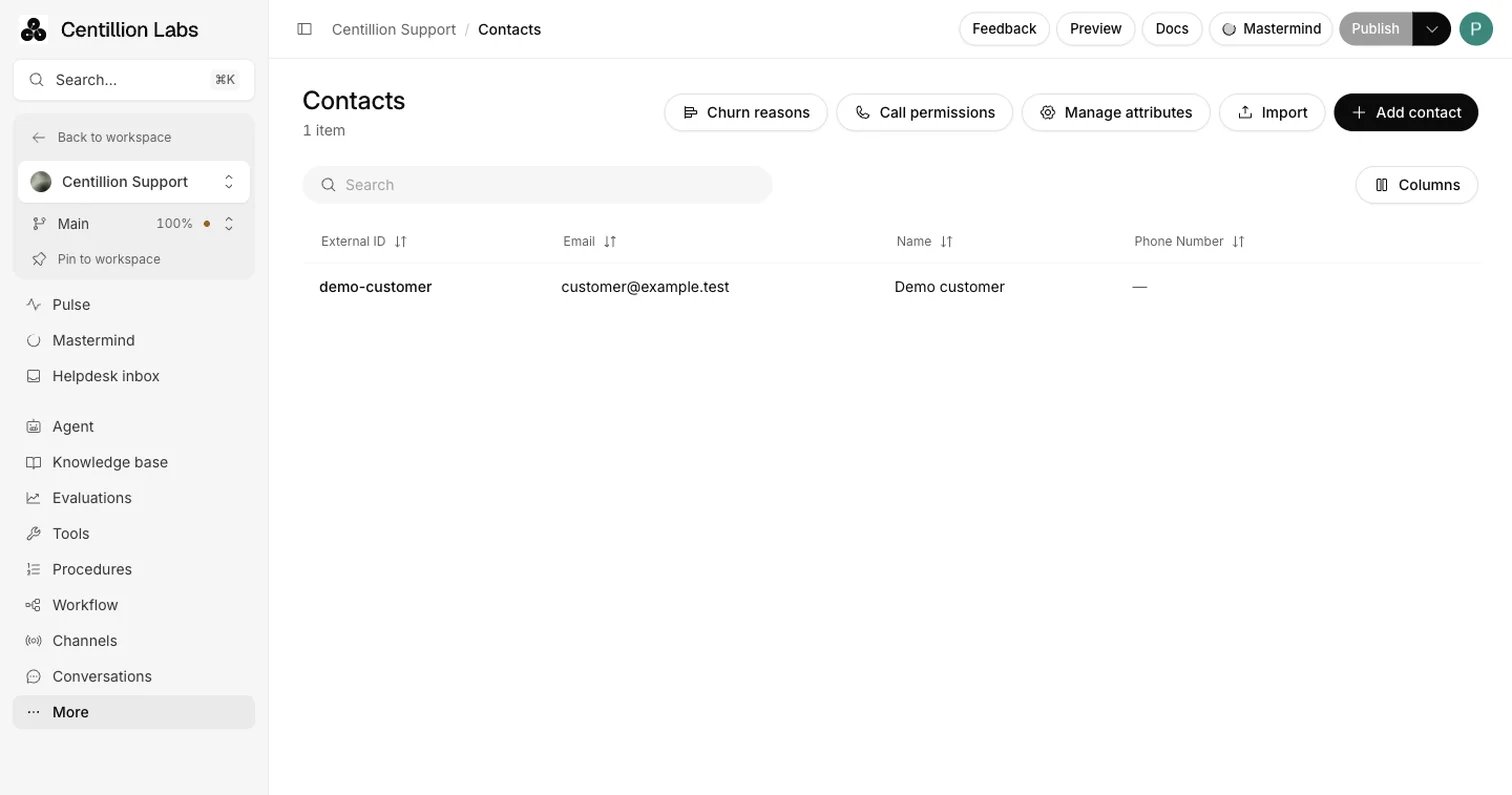
Contacts: search, the Columns menu and the buttons for churn reasons, call permissions, attributes, import and adding a contact.
What it does
- Keeps one list per agent, with External ID, email, name and phone columns plus a column for each custom attribute. Searching matches the ID, External ID, name, email and phone.
- Imports up to 1,000 rows per file from
.csvor.xlsx, up to 5 MB, matching existing people by External ID. - Holds custom attributes typed as text, number, date or true or false, which imports, CRM syncs and signed-in visitors can fill.
- Records why customers leave, when churn detection is on, and groups them by reason so you can start a campaign for each group.
- Keeps each email, phone number and External ID on one contact only.
What you need
Contacts is on every plan. Owners and Members can add, edit, import and delete contacts and manage attributes. Viewers can read them. See workspace roles. Syncing from a CRM needs Standard and up. If you are new to the product, start with what Centillion is.Set it up
1
Open Contacts
In your agent’s sidebar, open More → Contacts. From the
workspace sidebar, Contacts asks you to choose an agent first; its
Tags filter narrows the list of agents.
2
Define your attributes
Choose Manage attributes and add the fields you need, such as a plan or
a renewal date, before you import, so the import can fill them.
3
Import a file
Choose Import. Drop a
.csv or .xlsx file, or use Download CSV
template for a file with the right columns. The first row must hold the
column names.4
Map the columns
For each file column, pick External ID, Name, Email, Phone
Number, one of your attributes, or Don’t import. One column must map
to External ID, and each field can be mapped once. Choose Review
contacts.
5
Review and import
Each row shows New, Update or an error. Select the valid rows and
choose Import, which names how many contacts you selected. The result
lists how many contacts were created, updated and failed.
Use it every day
Find and edit people
The header shows how many contacts the agent has. Search by ID, External ID, name, email or phone. Click a column header to sort by it, and use Columns to show or hide columns, including attribute columns. Choose 10, 20, 50 or 100 rows per page. Add contact opens a form for one person. External ID is required. An email must be complete, and a phone number needs its country code, such as+1 555 555 5555. To change a contact, use its edit button in the row, then save or cancel.
The delete button asks for confirmation first. If someone else changed the same
contact while you were editing, reload the page and try again.
Import rules
A row whose External ID already exists updates that contact, and its Update badge lists each change from the old value to the new one. Other rows create new contacts. A row fails review when it has no External ID, shares an External ID, email or phone number with another row in the same file (every row that shares it fails), or uses an email or phone number that already belongs to another contact. After the import, rows that still need attention can be reviewed again from the results. If contacts change between review and import, Centillion asks you to review the file again so nothing is overwritten by stale data. Import another file starts over.Custom attributes
On Manage attributes, each attribute has:- Name: the identifier, in lowercase, starting with a letter and using only letters, numbers and underscores. It cannot be changed after creation, and names of standard contact fields are reserved.
- Type: Text, Number, Date or Boolean.
- Label: the name in the contacts table header.
- Description: up to 500 characters.
Where contacts come from
- Channels. WhatsApp, SMS and email identify the customer by their number or address, and a contact is created when churn detection saves a reason and none exists.
- Phone calls. A call from a number that no contact has creates a contact with that number and nothing else, so the agent’s workflow and tools have a contact to work with. A call from a withheld number creates none.
- Signed-in visitors. Identity verification links a website visitor to the contact with the same External ID and can update its details.
- CRM sync. HubSpot, Salesforce or Intercom fill Contacts with the customers you already have, every 15 minutes.
- Your own systems. The developer API can create contacts and set attributes; see contacts and campaign enrollment.
stripe_account attribute,
which Stripe billing uses to show that customer their
own invoices.
Churn reasons
When a customer tells your agent they are leaving, the reason is worth more than the conversation. Churn detection reads each finished conversation, records why the customer is leaving on their contact, and groups your customers by reason. Open Contacts → Churn reasons and switch on Detect churn reasons in conversations. It is off until you do, because the agent reads every finished conversation, and reads it again when it gets new activity, and each read uses AI tokens. A conversation counts as finished once it has ended, or has been quiet for 30 minutes. The agent reads conversations from the website chat, voice calls and every connected channel, from the last 30 days. Playground conversations and test calls are never read. When a customer said they are leaving, cancelling or closing their account, or asked how to, the agent picks the category that fits and keeps a one-line summary. A complaint on its own does not count. The reason lands in three attributes, which appear as columns in Contacts: Churn reason, Churn reason detail and Churn reason date. A newer reason replaces an older one, never the other way round. On the website, the visitor must be signed in for the reason to reach a contact; a reason from an anonymous visitor is counted but belongs to no contact. Each group on the Churn reasons page shows the filter a campaign uses,churn_reason = <category>, and Start a campaign opens a new outbound
campaign with that group as its audience. The full rules, the
default categories and how to edit them are on churn
reasons.
Call permissions
Call permissions, next to Churn reasons, keeps your record of consent to be called, with the evidence behind each consent, and the do-not-call list. Calls don’t check the consent records: you are responsible for having consent before you call. No agent or campaign calls a number on the do-not-call list.Limits and good to know
- An import file holds up to 1,000 contact rows and 5 MB, as
.csvor.xlsx. - A contact you add or import needs an External ID, up to 255 characters.
- An email, phone number or External ID belongs to one contact only. Fix duplicates before importing or linking channels.
- Attribute names are fixed once created; archive an attribute you no longer need.
- Each agent has its own contacts. Connecting the same CRM account to two agents gives each its own copy.
- Support teams see a contact’s tickets in the helpdesk, so a person takes over from the helpdesk inbox with the customer’s history in view.
Questions
How do I update existing contacts with a file?
Import a file whose External ID column matches the contacts you want to change. Those rows show Update with each change listed, and the rest create new contacts.Why was a row rejected in the import review?
The row has no External ID, shares an External ID, email or phone with another row in the file, or uses an email or phone that belongs to another contact. Hover over the error in the review step for details.Can the agent read my custom attributes?
Only the ones you choose. Under Settings → Identity → What the agent may read, select the attributes the agent may use in its answers. Billing identifiers stay private.Are contacts shared between agents?
No. Each agent has its own list. The workspace Contacts page asks you to pick the agent whose contacts you want to see.What happens to values when I archive an attribute?
The attribute disappears from contact forms, imports and the table, and its existing values are kept.Does churn detection cost anything?
Yes. Each finished conversation is read when it ends, and again when it gets new activity, and each read uses AI tokens, so detection is off until you switch it on.Try it
Download the CSV template, add a few customers with an External ID each, and import them. Then open one contact’s row and check the values landed where you expected.Start free
Start on the Free plan, or take a seven-day trial of a paid plan. Your agent is live on your site in an afternoon.
Book a demo
Fifteen minutes with the team, on your own use case.
Related
What Centillion is
How the agent, its knowledge and its channels fit together.
Campaigns
Reach a group of contacts and let the agent follow up.
CRM integrations
Sync HubSpot, Salesforce or Intercom into Contacts.