
- Tools, for transfers the agent may make at any point in the call. This is the system tool, and it needs no workflow.
- A Transfer step in the agent’s workflow, for a transfer at a fixed point in the flow, such as after a lead signs.
Turn it on
- Open Tools in the agent sidebar.
- Under System tools, click the switch beside Transfer to number. The Edit system tool panel opens.
- Choose Add rule and fill in the rule. Add one rule per destination.
- Choose Save. The tool turns on when it saves. Cancel leaves it off.
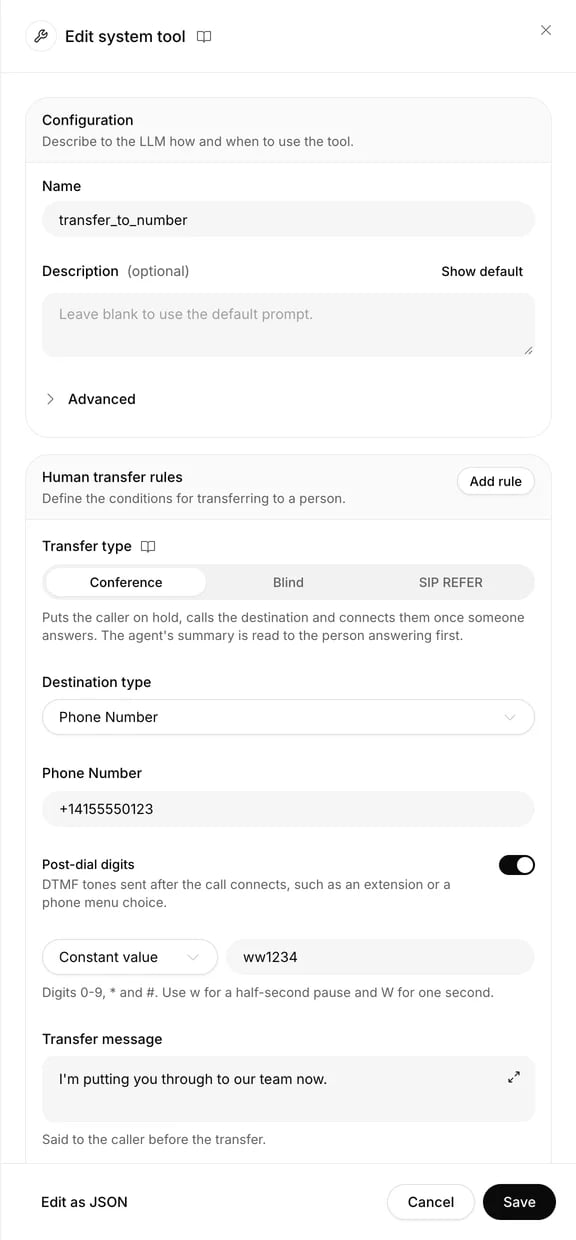
The panel names the tool and holds its description, then one human transfer rule per destination.
Rule fields
Write conditions so that no two overlap, because the agent picks one rule:
The caller asks to speak to someone about an invoice or a refund.Type
{{ in a condition to add a variable.
Transfer types
Conference
The default. The agent tells the caller it’s putting them through, and the caller hears hold music while Centillion calls the destination from your line. When someone answers, they first hear the agent’s summary of the call on their own, then join the caller. The caller doesn’t hear the summary. The agent then leaves the call. The agent writes the summary when it transfers: who is calling, what they need and what it already did. On a realtime voice the summary is read in a standard voice, because the realtime model has no separate voice to read it. A workspace with regulated data gets no summary on a realtime voice; the person is connected straight away.Blind
Centillion calls the destination and the caller hears it ring. The person sees the caller’s own number, the way a forwarded call shows it. If your carrier doesn’t let your line show another number, the call goes out from your line’s number instead. When someone answers, the agent leaves the call. There is no summary.SIP REFER
Your carrier moves the call. The caller’s call leaves Centillion and rings the destination directly. Use it for a SIP URI, for custom headers or UUI, and for a contact center that expects calls this way. Your SIP trunk must allow transfers by SIP REFER. On a Twilio Elastic SIP Trunk, that’s the trunk’s Call Transfer (SIP REFER) setting.Destinations from a variable
Choose Phone Number as Dynamic Variable or SIP URI as Dynamic Variable when a business system decides who answers. Enter the variable’s name, for examplejake_transfer_uri. A tool can fill it from its response, or the
conversation can set it with Update state.
The agent reads the variable when the transfer starts. If it’s missing,
invalid or a sensitive variable, the caller stays with the agent.
Post-dial digits
Post-dial digits dial an extension or answer a phone menu once the person’s line picks up. Turn on Post-dial digits, then choose:- Constant value, and type the digits.
- Dynamic variable, and enter the name of a variable that holds them.
0-9, * and #. w waits half a second and W waits one second, so
ww1234 waits one second and dials extension 1234.
Custom headers and UUI
With SIP REFER, Custom Headers addsX- headers to the transfer, such
as X-Lead-Id. A header’s value can be fixed or a variable: type {{ in the
value to choose one.
User-to-User Information (UUI) carries a short payload to the receiving
phone system in the Refer-To header. Enter it as plain text, with
{{variables}} if you need them. Centillion sends it hex-encoded. Some
systems need a Protocol discriminator, a hex octet such as 04, either
before the payload or as a header parameter. Check what your receiving system
expects.
Sensitive variables can’t be sent in headers or UUI.
In a workflow
Add a Phone number transfer step from the node menu. On the canvas it reads Transfer, with its destination underneath: the number, the SIP URI or the variable it reads.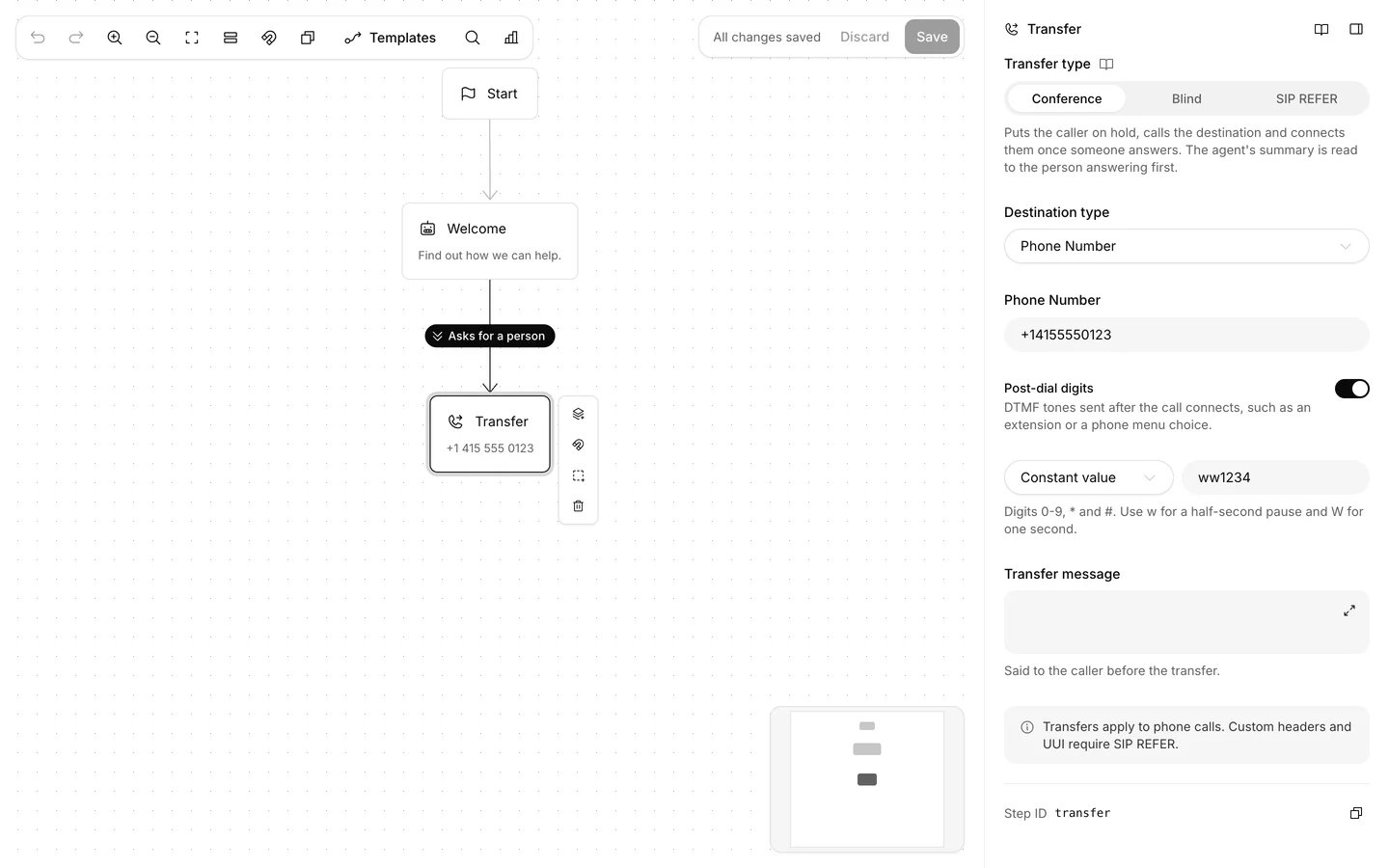
A Transfer step on the workflow canvas, with its settings in the panel beside it.
Which lines can transfer where
- A number bought through Centillion transfers only to phone numbers in its own country that aren’t premium-rate. It can’t transfer to SIP URIs.
- A number from your own Twilio account or SIP trunk can transfer to any number its carrier allows, and to SIP URIs with SIP REFER.
- Conference and Blind transfers dial out on your line, so the line needs outbound calling. A line without it, or one whose trunk refuses the call before it rings, transfers by SIP REFER instead.