
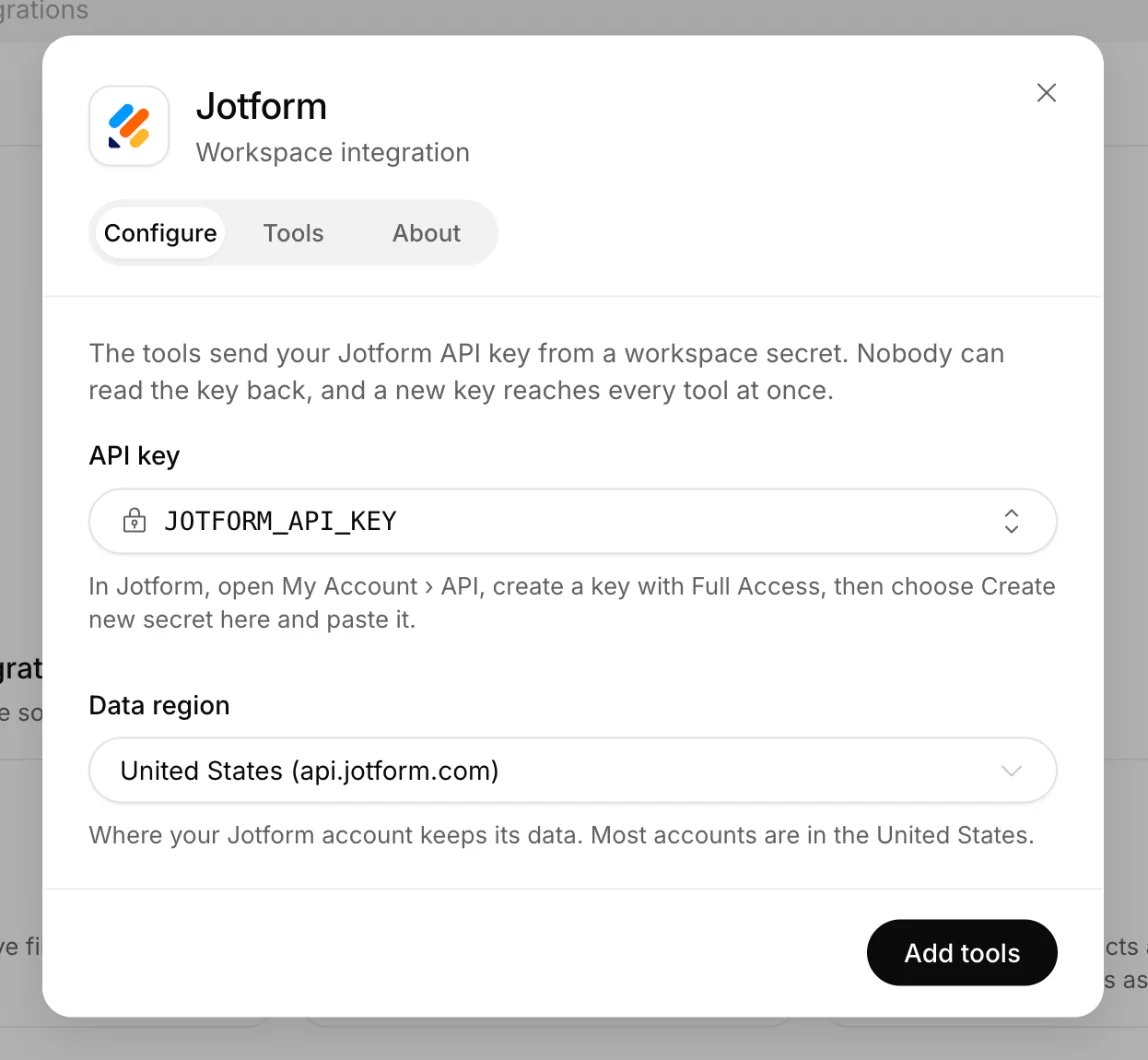
Jotform's Configure tab: the secret holding your API key and your account's data region.
Set it up
1
Create an API key in Jotform
In Jotform, open My Account → API and choose Create New Key. Set
its permissions to Full Access so the agent can add and update
submissions; Read Access is enough if it only looks records up. Copy
the key.
2
Store it as a secret
In Centillion, open Integrations → Add integration → Jotform. Open the
API key list, choose Create new secret, keep the name
JOTFORM_API_KEY and paste the key.3
Add the tools
Choose your account’s Data region (United States, Europe or HIPAA) and
choose Add tools. Five Jotform tools appear on the Tools page, and
Jotform appears on the Integrations page. Opening it there runs the
setup again, which adds only the tools that are missing and leaves the
others as they are.
4
Give them to an agent
Open the agent’s Tools page and attach the Jotform tools, then say in
its instructions which forms it works with and what it may change.
The tools
Submissions read back only the fields an agent needs: their ids, dates, and
each answer with its question’s name. Jotform’s full response for 20
submissions is often larger than the 20 KB an agent reads in one tool call; the
tools keep the rest out.
Filters
Jotform: Get submissions takes Jotform’s JSON filters, for example:Answers
Creating or updating a submission takes its answers by question id, as Jotform: Get form questions lists them. A question with parts takes one key per part:3_first and 3_last for a full name, 4_full for a phone number,
7_year, 7_month and 7_day for a date. A dropdown takes one of its options
exactly as listed.
Tell the agent how to use them
The tools describe themselves, but the agent works better when its instructions name your forms and your rules, for example:Follow up on new submissions
The tools act when the agent calls them, so a new submission doesn’t start a call by itself. To call people back after they submit, send each submission to Centillion from a Jotform webhook to your own endpoint, or from a Zap:- Turn on Keep open for new contacts for a campaign under Schedule and sending rules.
- Create the contact with
PUT /agents/{agentId}/contacts, with the phone number in E.164 format and your form’s consent wording as itsconsent. - Enroll it with
POST /campaigns/{campaignId}/enrollments. Answers the call needs, such as the session date, go invariables: they are written onto the contact as attributes, so the agent can use them on the call.
Troubleshooting
- The tool says the key is invalid or not authorized. Check that the secret holds the whole key, that the key still exists in Jotform, and that its permissions allow writes if the agent creates or updates submissions. Update the secret under Workspace settings → General → Secrets; every tool uses the new value from its next call.
- Nothing is found for an account outside the United States. Run the
setup again with the right region after removing the Jotform tools, or
change each tool’s address to
eu-api.jotform.comorhipaa-api.jotform.com. - “Tool output exceeds 20 KB after its response fields.” Ask for fewer submissions with a filter or a smaller limit.
- A new submission doesn’t start a call. The tools act only when the agent calls them; see Follow up on new submissions.