
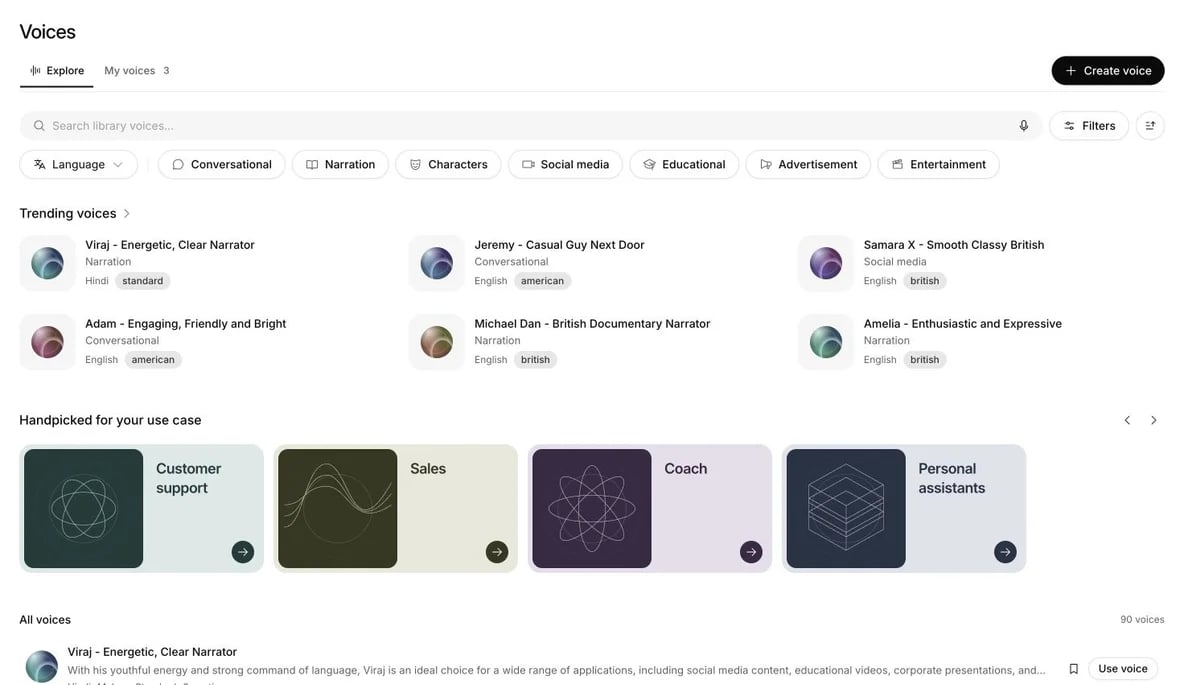
Explore voices by language, accent and speaking style, then listen before choosing.
Find a voice
Search by name or description, choose a language, or pick a use case such as Conversational or Narration. Filters includes quality, gender, age, accent, speaking style, pitch and notice period. You can also include voices with live moderation. Available details vary by voice. Voices with custom generation rates are excluded from the catalog. Sort by Trending, Latest, or Name A to Z. Load more continues the results. Clear all filters resets your choices. The microphone button beside search opens Find similar voices. Upload or record a sample to find public voices with a similar sound. This does not clone the speaker. Press a voice’s play button to listen. The player supports pause, replay and seeking. Choose Edit sample in the player to change the sample text, then press play. Previews are available on every plan; saving, creating and assigning voices requires voice access.Save and assign
Save a voice to add it to My voices. Choose Use voice, select an agent, and save the assignment. You can also select the current voice under Agent → Configuration → Voice. Publish the agent’s branch before expecting changed speech settings in new calls. A voice assigned to an agent cannot be removed until that agent uses another voice. Removing a voice removes its saved library entry. It does not delete the original recording or trained voice account asset.Create a voice
Choose Create voice, then pick how to create it.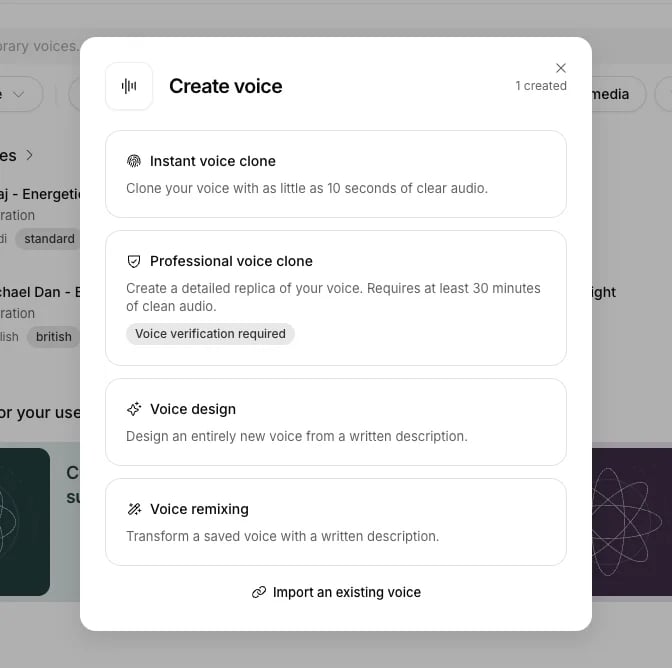
Create a clone, design a new voice, or remix one you have saved.
Instant voice clone
Upload or record at least 10 seconds of clear audio. Use a quiet room, a good microphone and consistent speaking volume. Each file can be up to 10 MB. Depending on the available cloning option, you may be asked for a single sample between 10 and 60 seconds.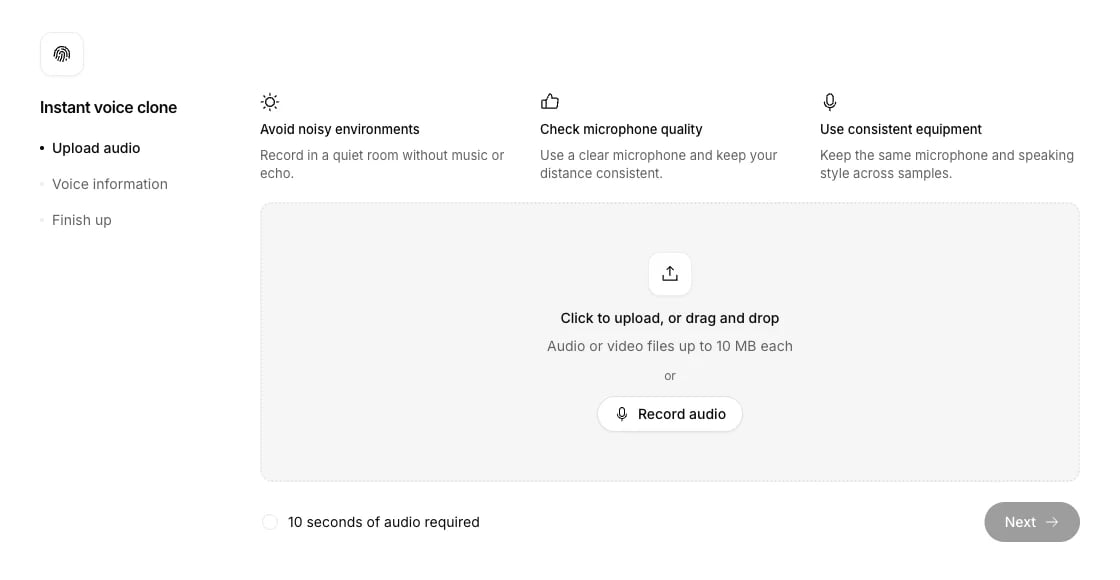
Upload a sample or record one, then enter the voice details and confirm permission.