Open Tests in the workspace sidebar to build a reusable test library. Open More → Tests in an agent’s sidebar to manage that agent’s suite and results. Tests use the selected branch draft by default, including its instructions, trained knowledge, actions and procedures. Choose another channel under Simulated channel, or another agent version in Advanced settings. Each run saves its configuration and tools so later edits do not change a run already in progress. Test transcripts stay separate from customer conversations. New tests mock all tools and return an error when no configured response matches. With version control, choose the current draft, published version, a branch, or a saved version. Tests do not receive production traffic. Shared tools and nested workflow or specialist calls follow the test’s mock settings. Mastermind can propose test edits and runs; each run still needs approval and uses test credits unless you allow message-credit fallback. Owners and Members can create, edit and run tests. Viewers can read tests and results. See workspace roles.

Build a workspace library

In workspace Tests, choose Create a test, select its type and save it. The All tests tab shows folders and test definitions, with each test’s type, creator and last update. Filter by Created by me, a specific creator, or Shared with me. Older tests may have no creator.
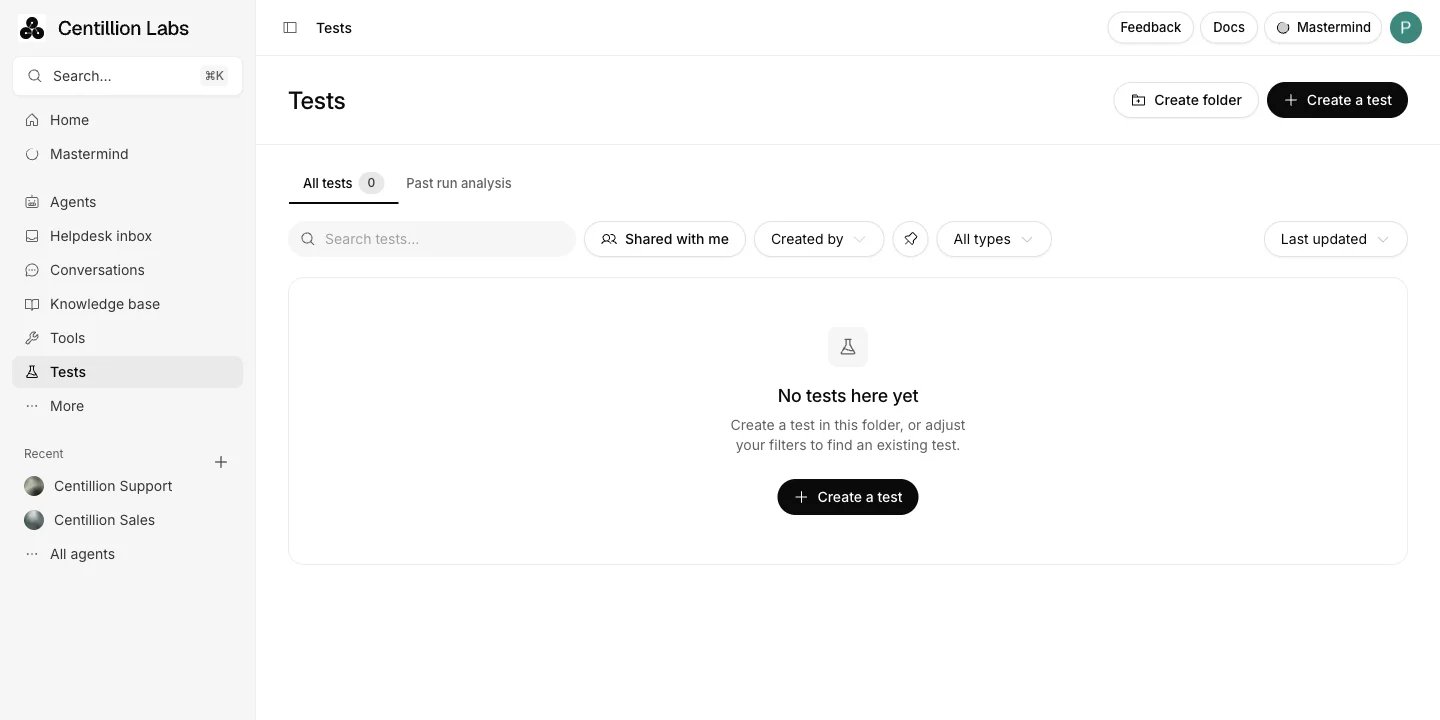
Workspace Tests page with an empty library, Create a test, creator and type filters, and a pin filter

The workspace test library groups reusable tests into folders and offers search, creator and type filters, sorting and personal pins.

Use Create folder to group related tests. Open a folder to create subfolders and use the breadcrumbs to return to its parent. Choose Rename or move folder in a folder’s menu to change its name or parent. Deleting a folder moves its tests and subfolders to its parent and keeps the tests and run history. Search by test name or ID, filter by type, and sort by name or last update. Search and filters include tests in subfolders. Pin a test or folder to keep it at the top of its list, or use the pin filter to show only your pinned items. A library test’s editor has the same pin, and Mastermind there starts a chat about that test. Pins are personal and remain after you reload the page. A test’s menu offers Edit, Duplicate, Move, Run, Copy ID and Delete. Select several tests to move or run them together. Selecting a folder includes tests in its subfolders. Run all tests runs the library; Run filtered tests runs the current search and filters. When you run library tests, choose an agent and the repeats per test. Tests are added to that agent’s suite as the run starts. If message credits need your confirmation, cancelling leaves the agent’s suite unchanged. A library test can use actions already configured on your agents. In the editor, use Tools from agent to browse an agent’s available tools. Each agent that uses the test must have the referenced actions available.

Add tests to an agent

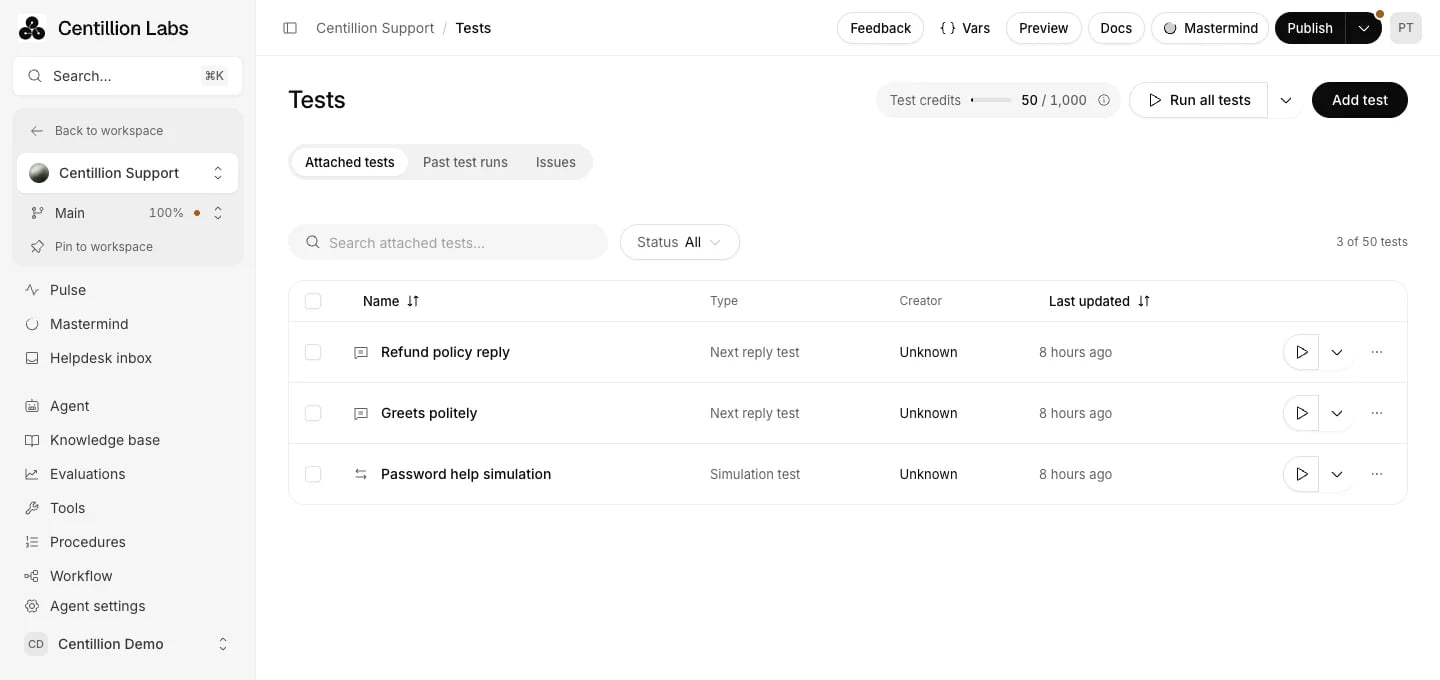
Agent Tests page with Attached tests, Past test runs and Issues tabs, a search and status filter, attached tests, Add test and the Test credits counter

An agent's Tests page lists its attached tests and shows monthly test credits in the header.

From an agent’s Tests page, choose Add test, search the library and click a test to attach it. Tests already attached to that agent show Added. Create new test and Create folder sit at the bottom of the list. Choose Manage to add several tests at once or to see which agent tests are shared. A new test stays on this agent unless you choose a folder or clear Attach to the agent automatically in the editor. Either choice saves it to the workspace library. To reuse an existing agent test, open its menu and choose Share with workspace. The test becomes part of the workspace library and stays in the agent’s suite. Copy test ID copies the ID for the API. A shared test’s menu offers Detach from agent instead of Delete test. Editing a shared test from either place updates its definition in every attached agent’s working editor. Wait until all agents running that test finish before editing. Saved versions and earlier results keep their own definitions. Restoring a saved version makes its tests independent local copies, so later library edits do not change them. Duplicate a test when you need another independent version. Deleting a workspace test leaves each attached agent with an independent copy and its run history. Deleting a test from an agent removes it from the selected branch draft. Published versions keep its definition, and earlier run history remains stored. The library definition and other agents remain available.

Choose a test type

Click a saved test’s name to open its full-page editor. The three test-type tabs sit above the settings on the left. The conversation preview stays on the right and changes with the selected type. On a narrow screen, the conversation follows the settings. A new test on an agent opens with the agent’s greeting in the preview. Use the preview’s + button to add a user or agent message. Each message has a role menu, an insert-below button and a delete button. Edit message text in place. For next-reply and tool-invocation tests, end the history with a user message. Choose Save to update a saved definition, or Save as new to create an independent copy of your edited setup. Past runs opens that test’s results and saved run configurations. Settings the three types share sit below the form, under Advanced settings: expected and forbidden tools, tool response overrides, the agent version, environments, and the starting workflow node.
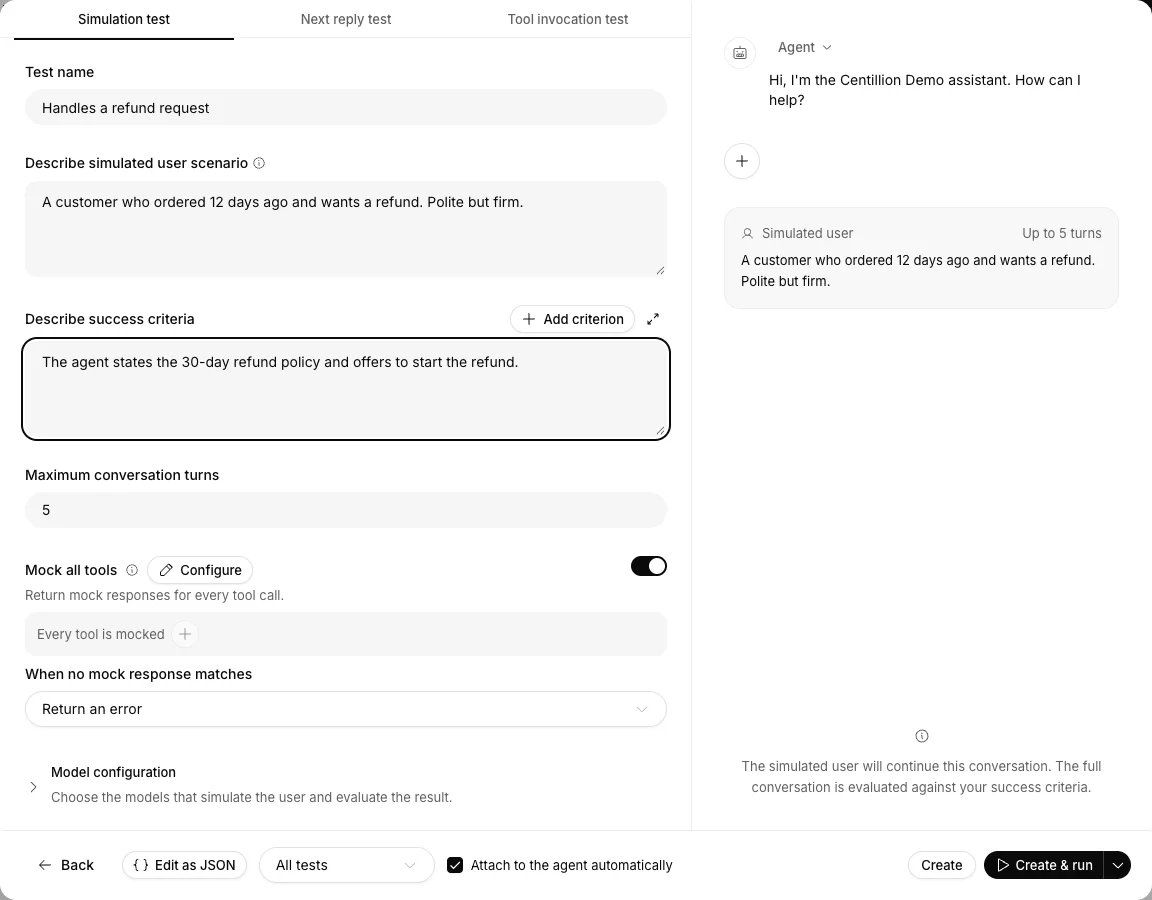
Create a test dialog with three tabs above the settings, a simulated user preview on the right, and controls to create and run the test

Create a test: choose its type, configure the test and provide conversation history.

Simulation test

Fill in Describe simulated user scenario and Describe success criteria, then set Maximum conversation turns from 1 to 50. New tests start at five turns. Choose Add criterion when you need several conditions checked. Every criterion must pass, and the results show which ones did. The simulated customer sees its scenario and the conversation. It cannot see your agent’s instructions or the success criteria. A separate evaluator grades the completed dialogue and action evidence. Type @ in a success criterion, an additional criterion or an expected next message to reference one of the agent’s procedures. The evaluator receives the procedure’s steps, so a criterion can say the agent followed it without repeating them. Conversation history is optional. If you provide it, the simulation continues from that point. Otherwise it starts with the agent’s greeting.

Next reply test

Add user and agent messages to Conversation history, ending with the user message you want answered. Use Describe expected next message to state what the next reply must achieve.
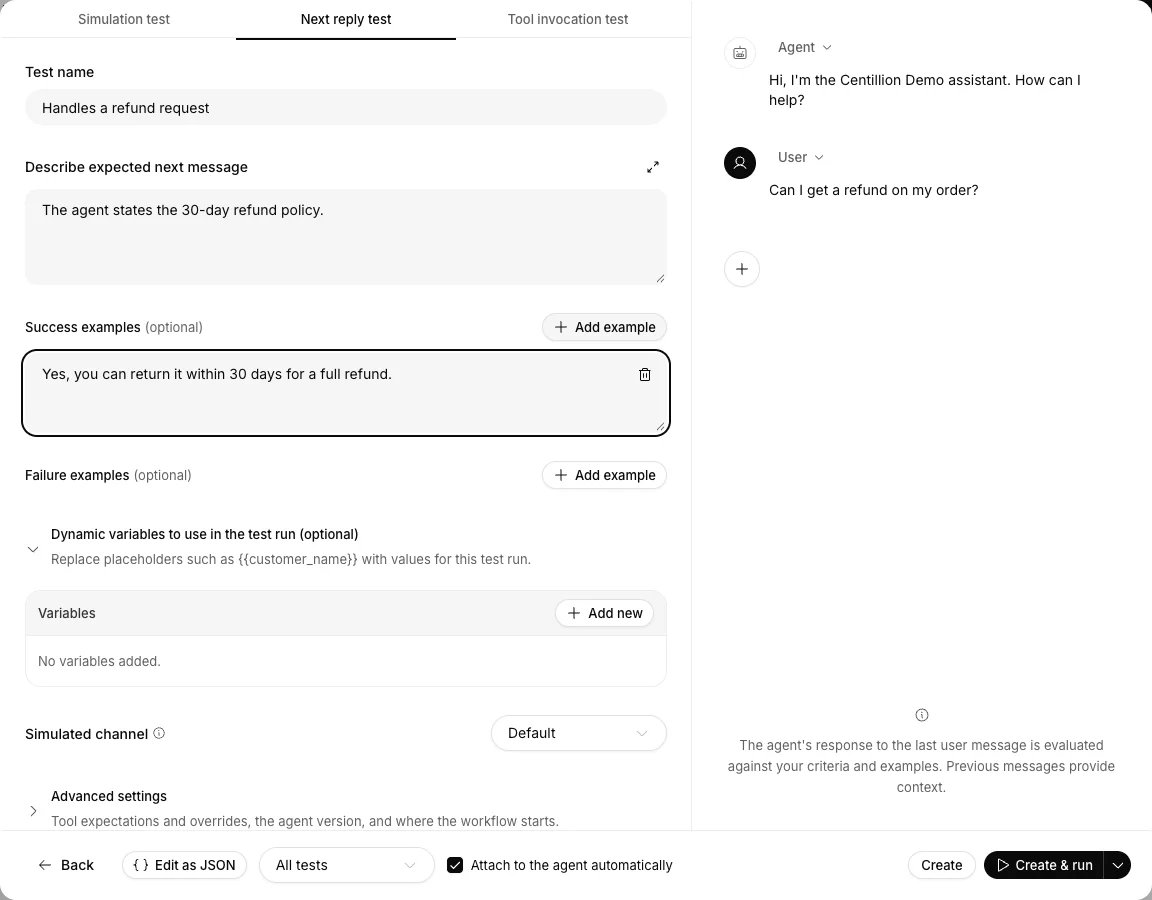
Next reply test configuration with success and failure examples, expandable model and variable settings, and a user message on the right

A next-reply test pairs the expected behavior and example replies with editable conversation context.

Optional Success examples show replies that should pass. Failure examples show behavior that should fail. The evaluator checks meaning and behavior; the agent does not have to copy your success examples word for word. The agent generates one new reply. Earlier history provides context and cannot satisfy response criteria by itself.

Tool invocation test

Provide conversation history ending with a user message, then choose Add tool and pick what to check. The test looks at one new agent reply. It does not grade the wording of that reply against a success criterion.
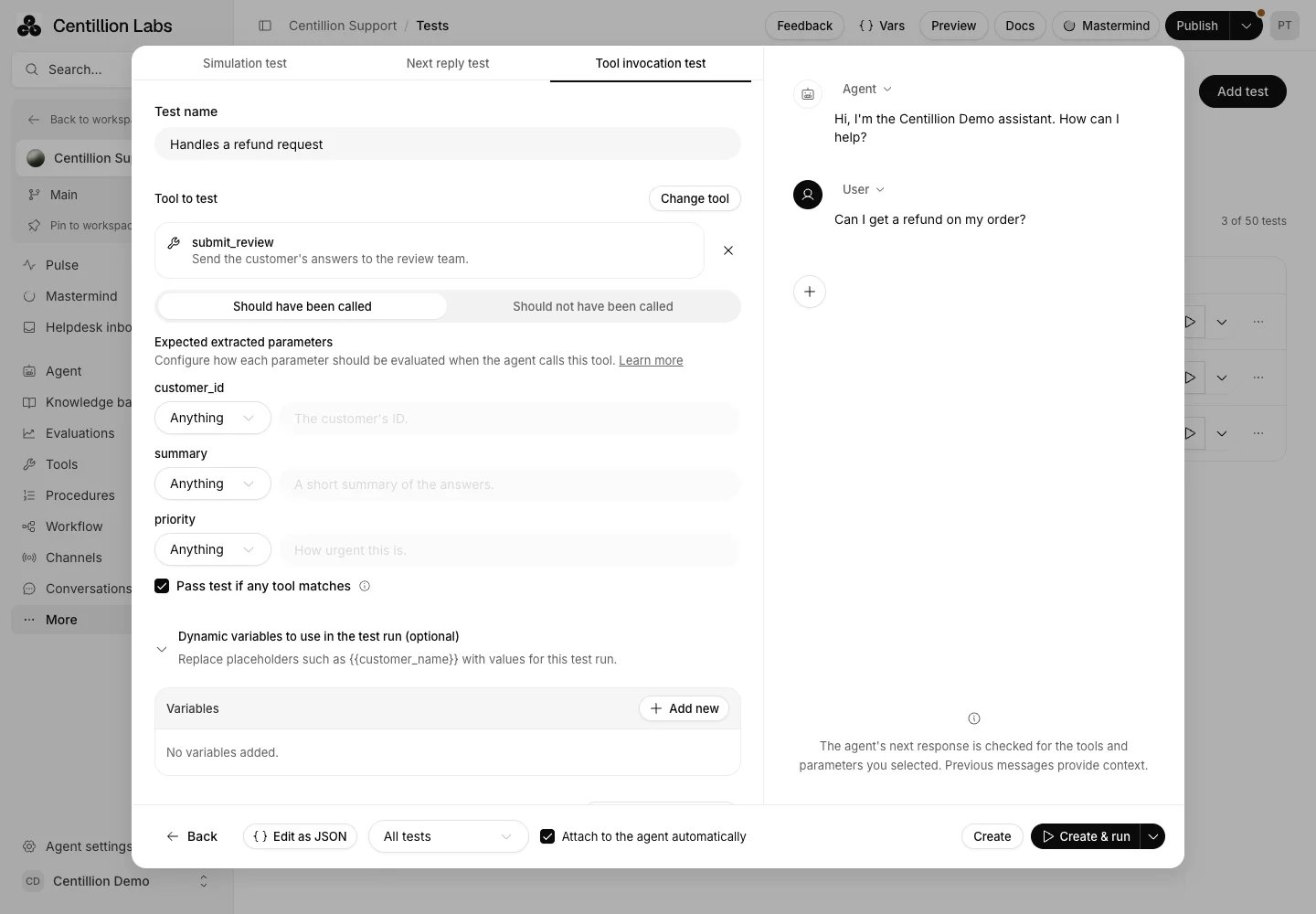
Tool invocation test editor with a chosen tool, Should have been called and Should not have been called, a validation method and value for each parameter, Pass test if any tool matches, and conversation history on the right

Choose a tool, say whether it should be called, and set how each parameter is checked.
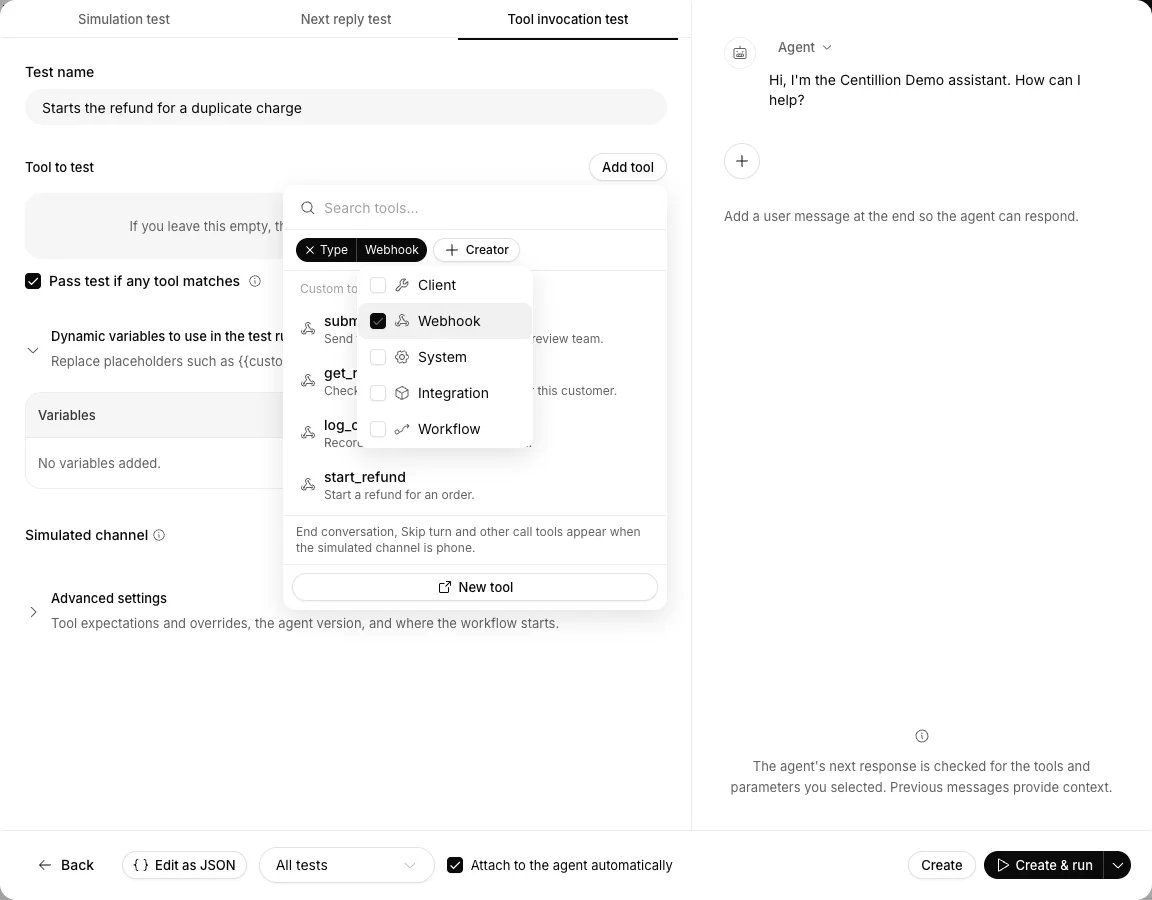
Above the list, Type narrows it to Client, Webhook, System, Integration or Workflow tools, and takes more than one. Creator keeps the tools one person made, along with the built-in ones. Filters stay set until you clear them.
Tool picker in a tool invocation test, with the Type filter open and Webhook checked, and the list showing the agent's webhook tools

Type and Creator narrow the tool list.

For a tool, choose Should have been called or Should not have been called. Change tool replaces your choice. Leave the field empty to check that the agent calls no tools. With Pass test if any tool matches on, which new tests start with, the test passes when one call matches, whatever else the agent called. Turn it off to require the expected tool to be called once and no other tool to be called. A tool marked Should not have been called always fails the test if called. A workflow or guardrail check ignores which tools were called. A guardrail that couldn’t be checked gives No verdict, not a pass or a fail. A procedure’s guardrails only run while that procedure is active, so a test has to reach the procedure before they can fire.

Check a transition to another agent

A test in the workspace library has no agent of its own, so Select agent with workflow comes first and Target workflow node lists that agent’s nodes. When the test runs on that agent, this is an ordinary move. When it runs on a different agent, the conversation can only get there by a handoff: the test checks that an Agent transfer step handed over to that node. A transfer that names no node starts the other agent at its beginning. The run ends at the handoff, so a test can’t follow the conversation further into the other agent.

Check actions and parameters

In a tool-invocation test, Expected extracted parameters has a row for each parameter the tool takes. Choose Anything, Exact, LLM, or Regex for a row and enter what you expect. Anything on a required parameter checks that the agent sent it. On an optional one it checks nothing. For simulation and next-reply tests, the checks are under Advanced settings. Leaving Expected tools empty skips action assertions. Selecting tools requires exactly that set, with no missing or extra actions. Order does not matter and repeated calls count once. Calls that return errors still count as invocations. Procedure control steps do not count as actions. Turn on Check arguments beside an expected action to validate its inputs. Choose a validation method and enter a JSON object: For example, Exact arguments of {"order_id":"123"} require that order ID, while allowing other inputs. A Regex check of {"order_id":"^[0-9]+$"} accepts a numeric order ID. An LLM check of {"reason":"The customer requests a refund because the item arrived damaged."} checks the meaning of the supplied reason. All checked parameters must match in the same call of the expected action. Turn on Validate each parameter separately to combine exact, regex, and semantic checks within one tool call. Each parameter has its own name, method, and expected value. Exact values can be text or JSON. Earlier conversation history does not count as an action invocation. Regex checks that exceed their execution limit fail. If the evaluator cannot grade an LLM check, the run receives No verdict.

Set action responses

In a simulation test, turn on Mock all tools, or turn it off and use the + beside Choose tools to mock to pick some. For the other test types these controls are under Advanced settings. Tools that aren’t mocked use your connected accounts and can change data. System tools are never mocked: they only change the test’s own conversation, and keypad and voicemail tools refuse to run outside a real call. Under When no mock response matches, choose whether a mocked tool returns an error or runs the real tool. Configure lists every tool with the mocks saved on it, which answer that tool’s calls in every test. Choose Edit beside a tool to change its saved mocks without leaving the test. Under Advanced settings, use Set response beside an expected tool or Add tool response under Tool response overrides to define JSON responses for this test only. Return as error tests failure handling. Add several responses for the same action and set Match call arguments or Parameter conditions to choose between them. Conditions support exact, regex, and semantic checks. The first matching response wins. Reorder definitions through Edit as JSON when you need to change their priority. Older tests retain their original per-tool mock settings until you choose a global strategy.

Variables and models

Under Dynamic variables to use in the test run (optional), choose Add new, enter a name and select Text, Number, Boolean, or JSON. Enter a value or toggle a boolean. Invalid numbers or JSON must be corrected before saving. These values replace placeholders such as {{customer_name}}. They apply to the agent’s instructions, guardrails and greeting, the test scenario and history, and criteria and examples. They also supply values for tools that use dynamic variables. The test does not change your saved agent settings. Use unique variable names containing letters, numbers and underscores, starting with a letter or underscore. Undefined placeholders stay unchanged. Variable substitution does not rewrite JSON mock responses or expected argument JSON. In Model configuration, choose the Simulated user model for simulations and the Evaluator model for graded replies, LLM parameter checks, or semantic mock conditions. The picker includes the current model catalog and the legacy OpenAI models. The default is gpt-4.1-mini; the chosen provider must be configured on the deployment. Your agent still answers with the model selected in Instructions. LLM parameter checks use the evaluator model saved in the test configuration. Use Edit as JSON to edit the complete test configuration. Changes are validated when you save or return to the visual editor.

Target a channel, environment, or workflow

Choose Simulated channel below the variables, and the agent version under Advanced settings → Execution settings. The test uses that channel’s instructions, model, and available tools. The conversation remains a text simulation, including when the channel is Phone. Named environments supplies variable maps for staging or other environments. Select an environment, then override individual values in Dynamic variables. Variables also apply to shared HTTP and MCP endpoints and headers. Named environments can include connections mappings from a tool’s toolId to a saved connection’s resourceId. The available saved connections appear below the environment editor. Mappings use the saved endpoint and credentials, and variables cannot change that connection’s origin. Agent configuration overrides changes instructions, guardrails, greeting, model, temperature, or language for this test without saving changes to the agent. Under Workflow, choose a starting node or use the default entry point. Add transition assertions to require the agent to move between specific nodes in order. A source of Any node accepts a transition from any preceding node.

Start from a conversation

When the agent gets something wrong, turn that moment into a test so it can’t happen again unnoticed. Open a transcript in Conversations, hover over a message and choose Create test. Create test in the transcript’s menu does the same for the whole conversation.
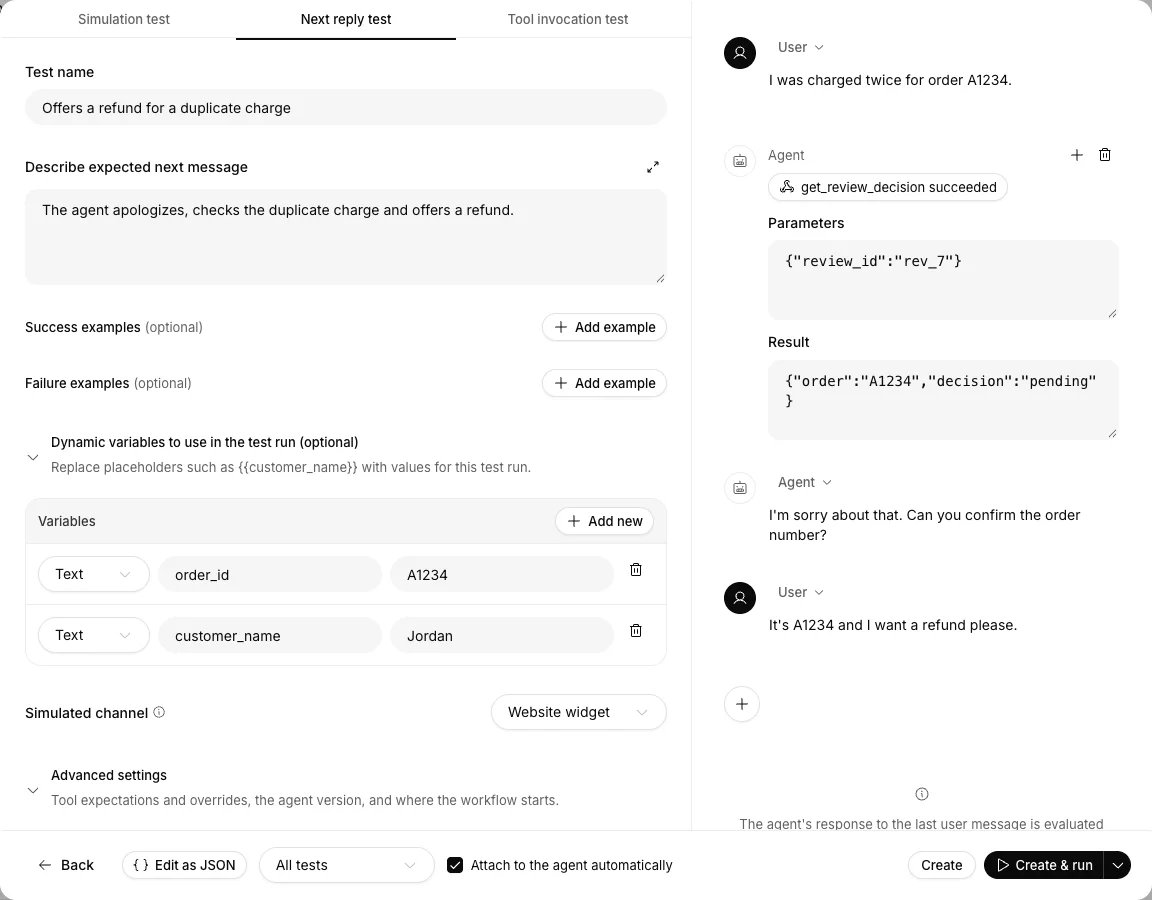
Create test dialog over a conversation, with the conversation history up to the customer's message, an open tool row showing its Parameters and Result, and dynamic variables filled in from the conversation

A test made from a conversation starts from the customer's message, with the tools the agent ran in their place.

The editor opens with the conversation up to that point, ending on the customer’s message. Choose the agent’s reply and the test replays the customer’s message before it. Choose a customer’s message and it replays that one. Any test type works from there. The test also takes these from the conversation:
  • its variables, with sensitive ones still masked
  • its channel
  • the workflow node the customer was on, as the starting node
  • the tools the agent ran, each in its place in the history
Click a tool in the history to read or edit its Parameters and Result. The agent sees these as tools it already ran, so changing a result tests how it copes with a different answer. It doesn’t run them again unless the conversation calls for it, and they don’t count as calls in a tool test. Webhook, MCP and other shared tools keep their parameters and result, with sensitive values masked. Only tools you can open in Tool logs are included, and a tool not shared with the whole workspace keeps just its name, since a saved test opens to everyone who can read the agent. A chat’s other tools also keep just their name. Those show as called. Original response from conversation shows what the agent really did next, including the tools it ran, with Show tool details for their parameters and result and View conversation to open the source. Name the test and describe what should have happened, then choose Create or Create & run. The original response stays with the saved test. Create test beside a message in a test result works the same way, and starts a next-reply test. Translations do not change the source text.

Test a workflow node

Open Workflow, select a Subagent or Say node, and open its Tests tab. Add test lists the agent’s tests and the workspace library, with Create new test and Create folder at the bottom.
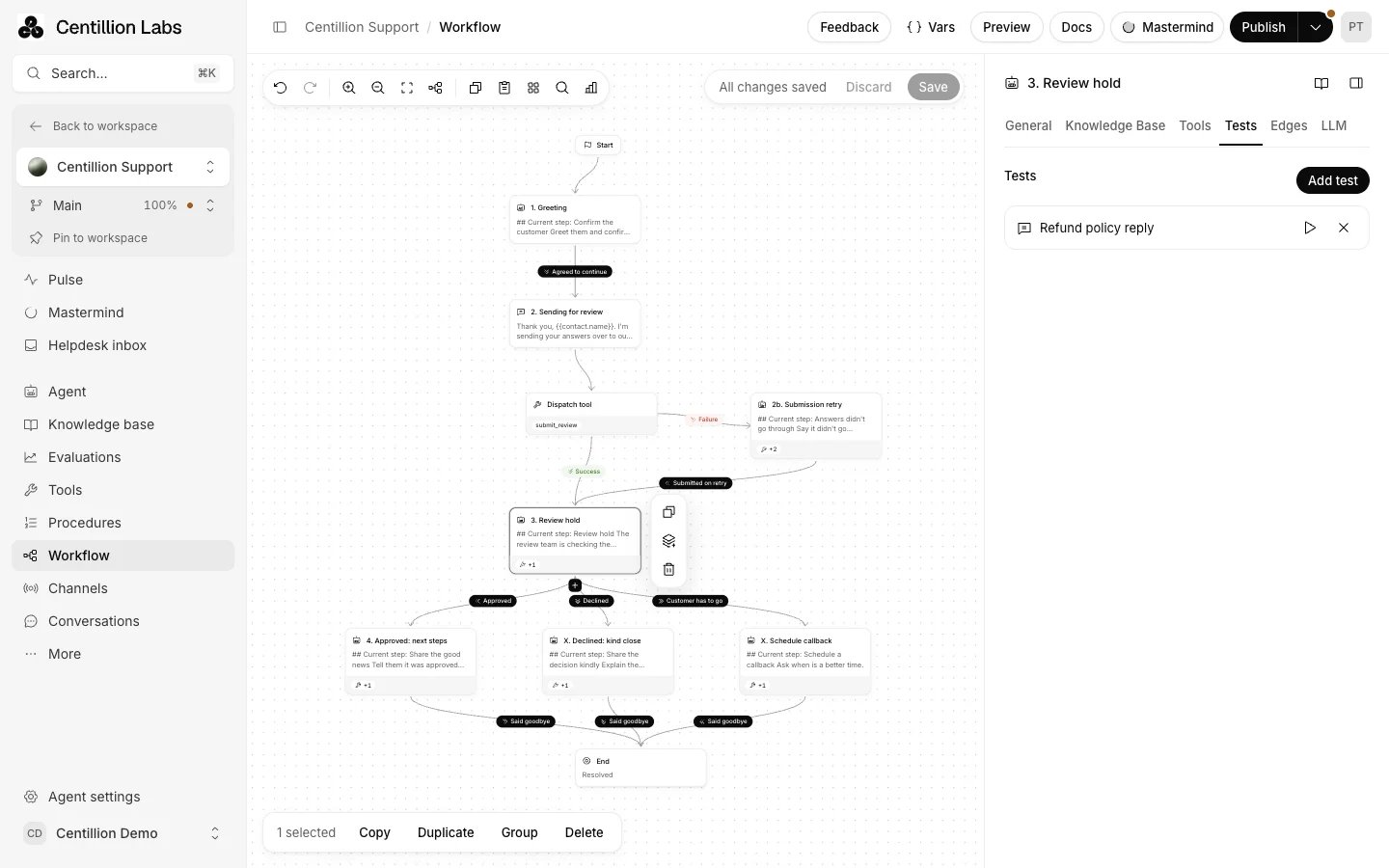
Workflow builder with a node selected and its Tests tab listing an attached test with run and detach buttons

Tests attached to a node start from that node.

An attached test starts from that node when it runs, including from Run all tests. A test attached to two nodes runs once from each, with the node’s name after the test’s name in the results. A test that names its own starting node under Advanced settings keeps it, and a test that expects the agent to move into a node doesn’t start on that node. A run against a saved version ignores attachments and starts where the test says. Attaching or detaching saves with the rest of the workflow’s edits, a moment after you stop. The play button runs a test from this node and stays on the canvas. Choose View results in the message that appears to open the run.

Run tests and read results

In an agent’s editor, click Save, or Save & run to start one run. New tests use Create and Create & run. The adjacent menu runs a test 3, 5, 15 or 50 times, and Custom repeat count takes any count from 1 to 50. Search by name or filter by Completed, In-progress and Never run. Select tests and choose Run selected to run each the same number of times. Already-running tests are skipped. Use Run all tests to start the agent’s whole suite. Attached tests lists the suite, while Past test runs analyzes its latest 500 saved batches.

Read a run

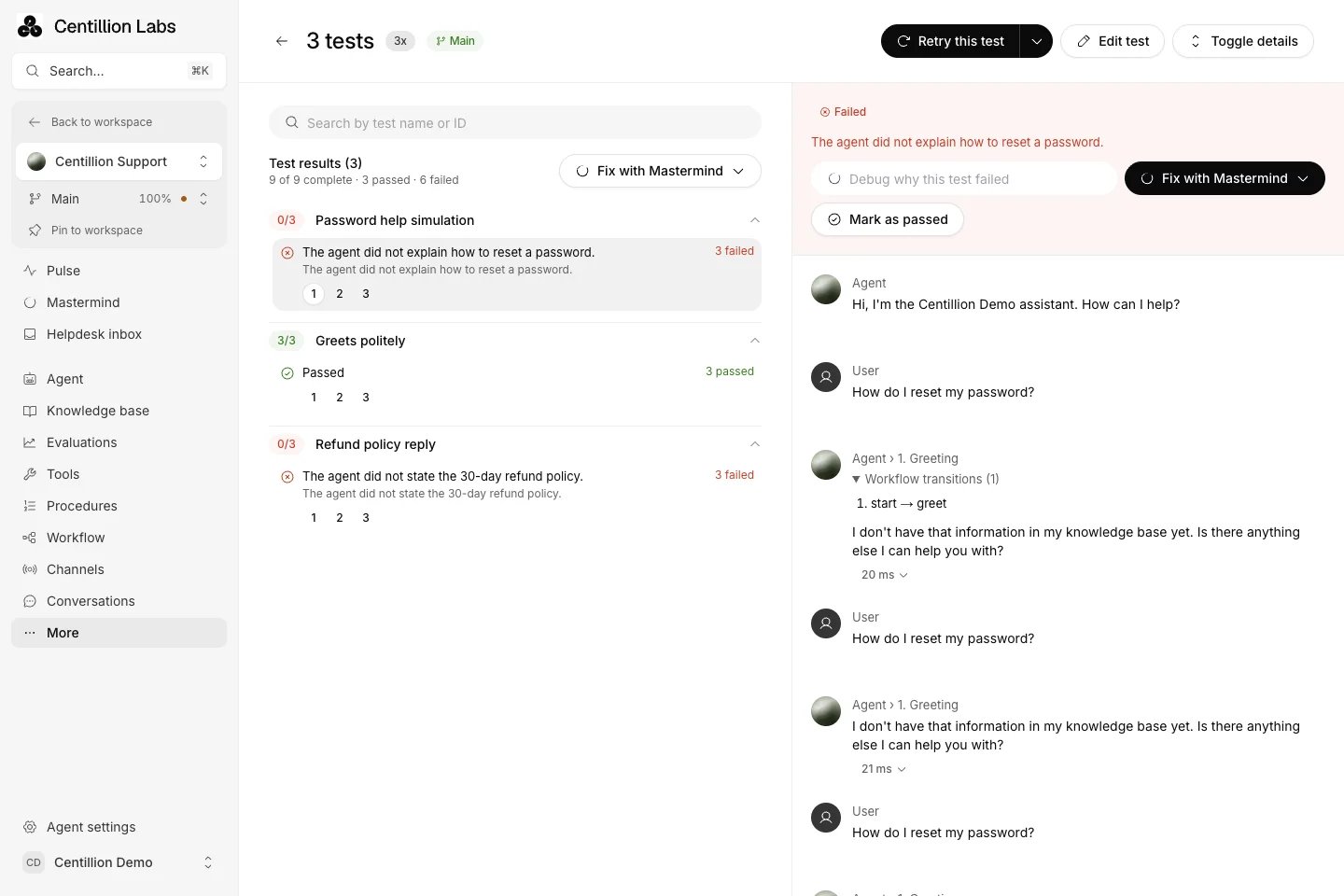
Run results page listing three tests with pass counts and grouped causes, a failed conversation with its reason, Debug why this test failed, Fix with Mastermind and Mark as passed

A run's results group each test's repeats by cause. The selected conversation sits on the right, with the evaluator's reason above it.

Starting a run opens its results, with every test from that run on one page. Each test shows how many repeats passed and groups its results by cause, so a test that failed four times the same way reads as one line. Search by test name or ID. Select a result to read its conversation on the right. Everything before Test response was given to the test, and everything after it is what the agent produced. Above each agent reply is the workflow step that answered. Below it is the response time: open it for the model, token counts and credits for that reply. With several criteria, the result lists each one with its reason. Toggle details shows or hides the tools and workflow moves in the transcript. Cancel run stops every queued and active repeat in the run. Retry this test runs the selected test again, and its menu offers Retry failed and Retry all. A retry uses each test’s current definition and the run’s repeat count, and opens as a new run. On a failed result, ask a question in Debug why this test failed, or choose Fix with Mastermind. With several failing tests, the menu above the results summarizes them together. Mark as passed records your decision when the evaluator got it wrong. The evaluator’s reason stays visible with your name and the date, the result counts as passed from then on, and Undo restores the failure.

Track issues

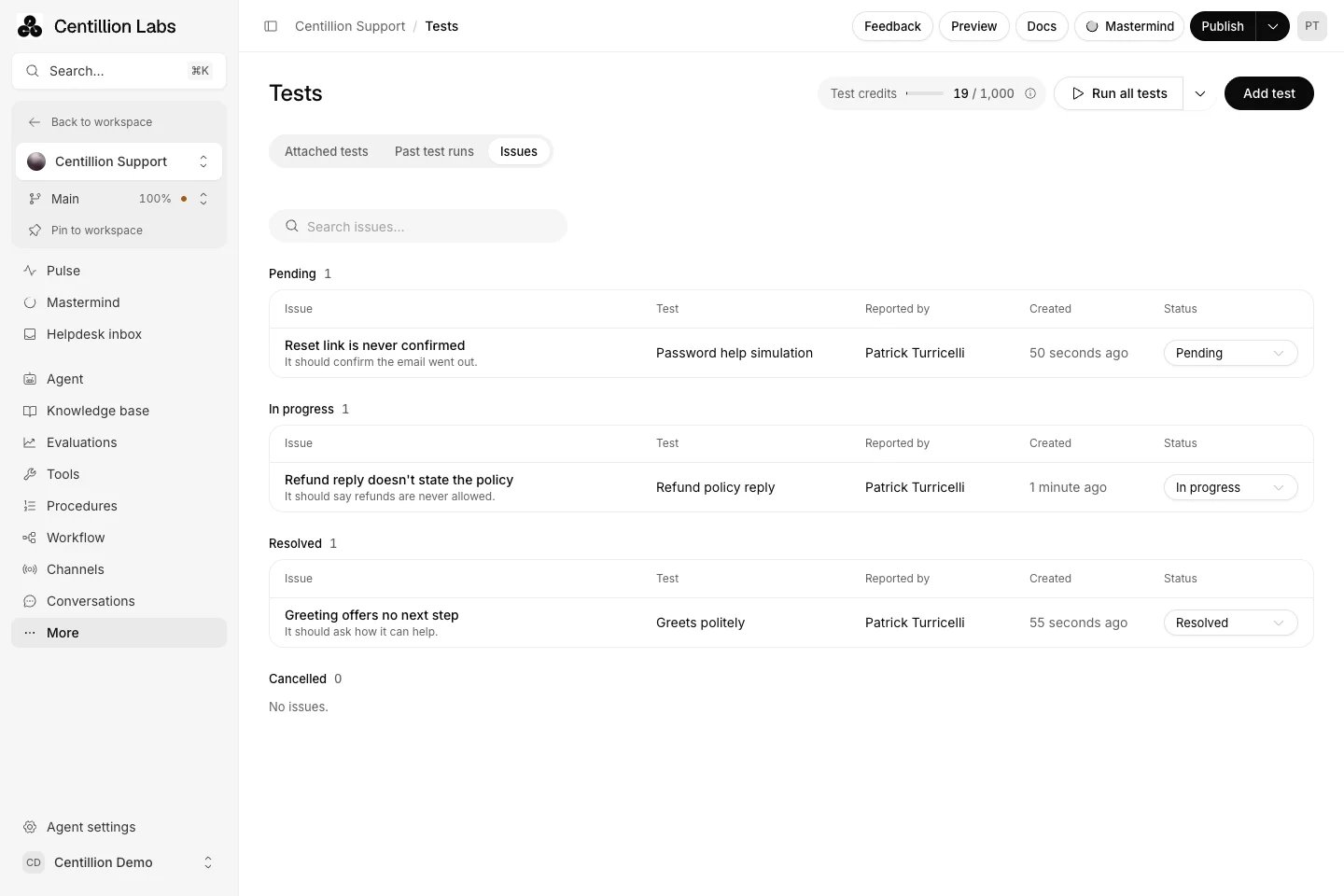
Issues tab on the Tests page with Pending, In progress, Resolved and Cancelled groups. Each row shows the issue title, the test, who reported it, when and a status menu.

Issues lists what your team flagged on test results, grouped by where each one stands.

Hover over an agent reply in a run and choose Flag issue to record what went wrong, with a title and an optional note. The reply shows Issue flagged, and the issue appears under Issues on the agent’s Tests page. Issues sit in four groups: Pending, In progress, Resolved and Cancelled. Change an issue’s status from its row, or select its title to reopen the conversation at that run. Issues stay with the run they were flagged on.

Analyze past test runs

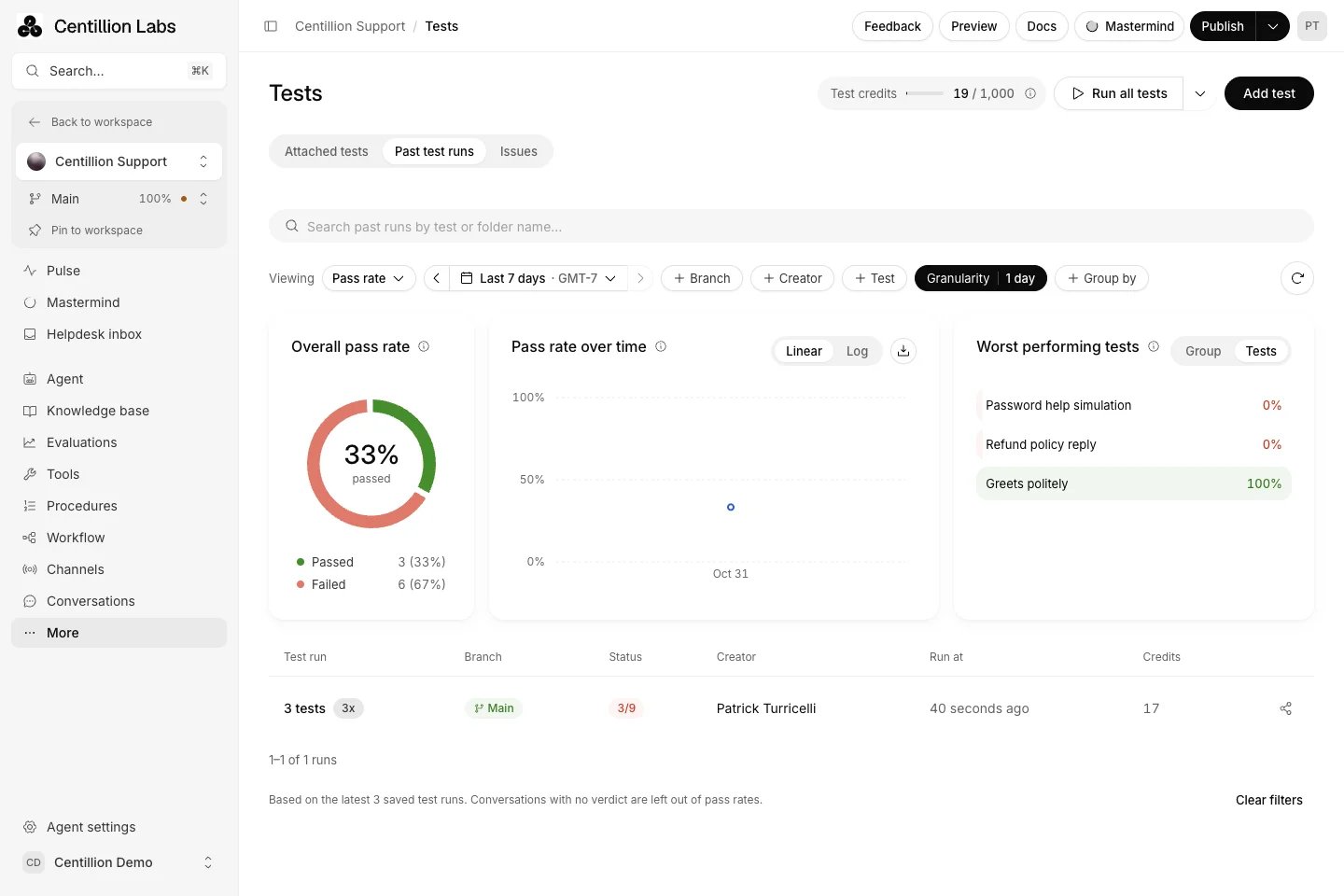
Past test runs tab with viewing, date, branch, creator and test filters, pass-rate charts, worst performing tests, and one run listed as three tests repeated three times

Past test runs charts pass rates and lists each run, with its tests, repeats, result and credits.

Search past runs by test or folder name. Choose a date window or custom range, move to an earlier window with the arrows, and filter by one or more branches, creators or tests. Granularity combines results by hour, day or week. Group by separates the trend and run table by test, branch, folder, test type or workflow node. Dates use your browser’s timezone, shown beside the date window. Viewing switches between Pass rate and Usage costs. Usage costs shows the credits your runs spent, credits over time, and the tests that used the most. Overall pass rate counts passed and failed conversations across the filtered runs. Pass rate over time plots that rate for each time bucket; switch between Linear and Log or download its percentages as CSV. No-verdict and unfinished conversations do not enter the pass rate. Worst performing tests shows the five lowest pass rates, tinted red below 50% and amber below 80%. Switch between tests and folder groups, then select one to filter its runs. The table shows one row per run, with its tests and repeats, branch, result count, creator, run time and credits. Open its name for the saved results, use the pencil to edit a single attached test, or copy its run link. Run links open the recorded branch. Older runs may have no recorded creator or branch; these are shown as unknown rather than inferred. Refresh to load current results. In-progress runs also refresh automatically. The analysis states how many saved runs it covers, so a date filter does not imply that older runs outside that limit were included. A test’s menu offers Edit test, Run test, Duplicate test, Export results and Delete test. Running tests cannot be edited, deleted or started again until they finish. Open a running test and choose Cancel run to stop its queued and active repeats. They finish with No verdict and a cancellation message. Requests already started may finish and use credits. Cancellation does not refund them. Open Past runs from a saved test’s editor for its pass rate, completed count and repeat results. Repeated runs show Grouped results with similar failures collected under a shared reason. Expand a group and open an individual run for its transcript and evaluator reason, or switch to Individual runs. Pass-rate badges are green at 100%, amber at 80% or higher, and red below 80%. Failed action checks show Never called and Not expected. Expand Completed actions and an action’s name to inspect its inputs and Mocked response or Response. No-verdict repeats do not enter the pass rate. Use Run again to repeat a test and the run history menu to inspect earlier results. Configuration shows the setup saved with the selected run. Workspace Past run analysis shows the latest 100 runs across agents. Search by test or agent name, filter by test type, and sort by name or most recent. Open a run to inspect its saved results. Export results downloads a CSV with status, turns, called, missing and unexpected actions, elapsed time, evaluator reason and error for each repeat in the selected run.

Tests and evaluations

Tests check behavior before a release. Evaluations, in the agent sidebar, grade real customer conversations after they end. Use tests to catch a regression before you publish and evaluations to measure what happened with customers.

Credits and limits

Every model request your agent makes consumes credits, including tool-loop requests. The simulated customer and evaluator do not use message credits. Test credits are shared across the workspace and reset at midnight UTC on the first of each month. Before a run that may need message credits, you see remaining test credits, estimated cost before extra tool calls and possible message-credit usage. Choose Run anyway to allow fallback. Single-reply tests estimate one reply per repeat. Actual cost depends on the selected agent model and number of requests. Tests stop if both balances run out. Your AI provider must also have available quota. Deleting tests does not restore consumed credits. A workspace can hold 500 library tests and 100 folders. An agent can have 200 tests, including attached library tests. A run can start up to 200 repeats across its selected tests, and the workspace runs up to five at once. Queued work continues after you close the page. Conversation history accepts up to 100 messages, each up to 12,000 characters. You can add up to 20 additional criteria or examples per list and 100 dynamic variables per test.

Questions

Do test conversations reach my customers?

Test transcripts do not appear in Conversations or receive production traffic. New tests mock every tool. Choosing Use real tools, leaving tools outside a mock selection, or enabling real-tool fallback can run actions against connected accounts and change data.

Which version of my agent does a test run against?

Choose the current draft, published version, a branch or a saved version in Execution settings. Each run keeps the selected configuration and tools while it runs.

Why did a test fail when the evaluator passed it?

An action, parameter or workflow assertion can fail independently of the evaluated outcome. Open the run to inspect its reason, Never called, Not expected, and workflow evidence.

What does No verdict mean?

An error prevented grading, such as a timeout or an unavailable AI provider. A conversation that stops during grading gets one automatic retry first. No-verdict repeats do not count toward the pass rate, so run the test again.

What happens when my test credits run out?

You see the remaining credits and an estimate before the run. Run anyway allows message-credit fallback. Without that permission, a repeat stops when its test credits run out. With it, a repeat stops when both balances run out.

Can I close the page while tests run?

Yes. Up to five repeats run at a time across the workspace, and the rest queue and continue after you close the page.

Can Mastermind write tests for me?

Yes. Mastermind can propose test edits and runs. Each run still needs your approval. See Mastermind.

Run tests from CI or code

Workspace API keys can create and update tests, attach them to agents, start runs, read grouped results, and cancel work through /api/v2/tests and /api/v2/agents/{agentId}/test-runs. A run returns a suiteId; read every test in it from /api/v2/agents/{agentId}/test-suites/{suiteId}, or cancel them together. Use a write-enabled key for mutations. Run creation supports Idempotency-Key, and message-credit fallback requires explicit opt-in. The repository includes scripts/agent-testing-client.mjs for JavaScript and scripts/agent-testing-cli.mjs for CI. The CLI waits for results, saves a JSON report, and exits unsuccessfully when a run fails or has no verdict.

Try it

Write one test for the question your customers ask most, with the outcome a good answer must reach, and run it three times. When a conversation needs a person in production, a person takes over from the helpdesk inbox.

Start free

Start on the Free plan, or take a seven-day trial of a paid plan. Your agent is live on your site in an afternoon.

Book a demo

Fifteen minutes with the team, on your own use case.
Or ask the assistant on this page.

What Centillion is

How the agent, its knowledge and its channels fit together.

Mastermind

Ask about your agent and change it in plain language.

Create an agent

Instructions, guardrails and the model your tests run against.
Last modified on November 2, 2026