
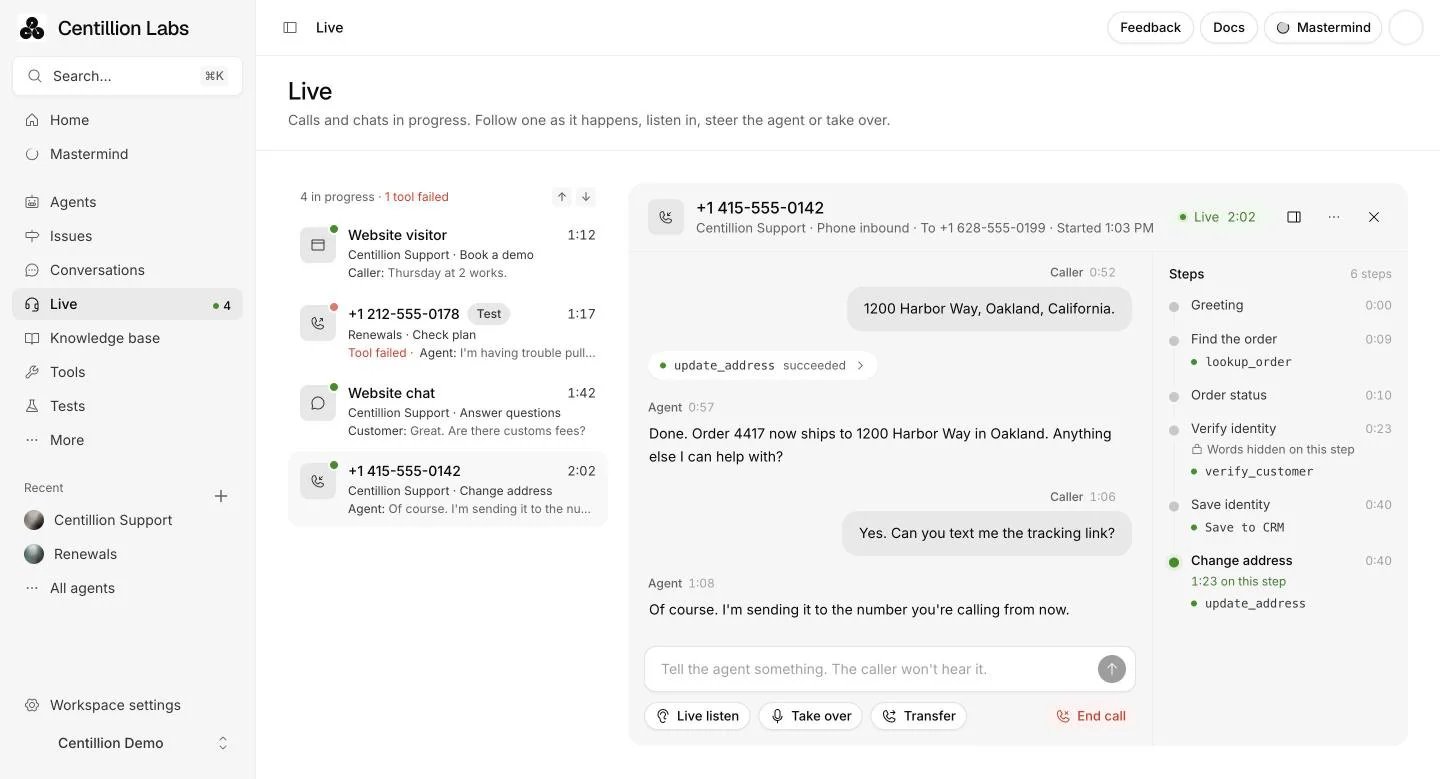
The Live page with a call open beside the list: who each conversation is with, the step it is on and its newest line; the open call's transcript, the steps it went through with the tools run on each, and the controls under it.
The list
The list shows every conversation in progress, newest first, and updates every four seconds. Each one shows:- who the agent is talking to: the caller’s number, the number it called, Website visitor for a web call, or where a chat is from
- the agent, and the workflow step the conversation is on
- the newest line, such as Caller: and what they just said. On a step that collects a sensitive value it says Collecting sensitive details instead.
- how long it has been going
Follow a conversation
Click a conversation to open it beside the list. Its header shows who it is with, the agent, the type (Phone inbound, Phone outbound, Web call or Chat), your number on a phone call, when it started, and a Live clock that keeps counting until the conversation ends. ⋯ in the header opens its review in Conversations, copies the transcript as text, or copies its ID. The transcript shows:- what the customer and the agent say. The first line of each turn says who spoke and when in the conversation, such as Caller 0:52. Hover a line for its clock time.
- Moved to a step, when the workflow moves the conversation on. When it passes through several steps at once, or runs tools on the way, that is one line, such as Moved to Order status · via 1 step, 1 tool. Click it to see each step and tool. A tool that failed shows in red without opening it.
- each tool the agent runs, with whether it succeeded. Click one to see what it was called with and what it returned.
- Keypad, when the caller presses keys on a step that takes them. You see the same mask the agent sees, never the digits.
Steps
Beside the transcript, Steps lists the steps the conversation has gone through in order, when it reached each one, and the tools run there. The current step is marked green and counts how long the conversation has been on it. A step where words were hidden says so. An agent without a workflow lists the tools it ran instead. The button beside the Live clock hides or shows the panel, and the page remembers your choice. The panel shows when the window is wide enough; on a narrow one the transcript’s Moved to lines carry the same steps. On a long conversation the first steps may no longer be listed. An in-progress conversation’s review in Conversations shows the same live transcript and controls.Listen, steer and take over
Under the transcript, the box sends the agent a note, and the buttons under it act on the call.
Whether a note, a transfer or an end went through shows in the transcript. One
that couldn’t, such as a transfer on an agent without the Transfer to
number tool, says why in amber.
On a chat, Take over opens the conversation in the
Helpdesk as you, where you reply to the customer and hand it back
to the agent. It needs the agent’s Helpdesk; without it, the button links to
its settings. End chat ends the chat.
If the connection drops, the panel says Disconnected from the conversation
and offers Reconnect. The conversation goes on while you are disconnected.
Who can use it
See Members for the roles.