
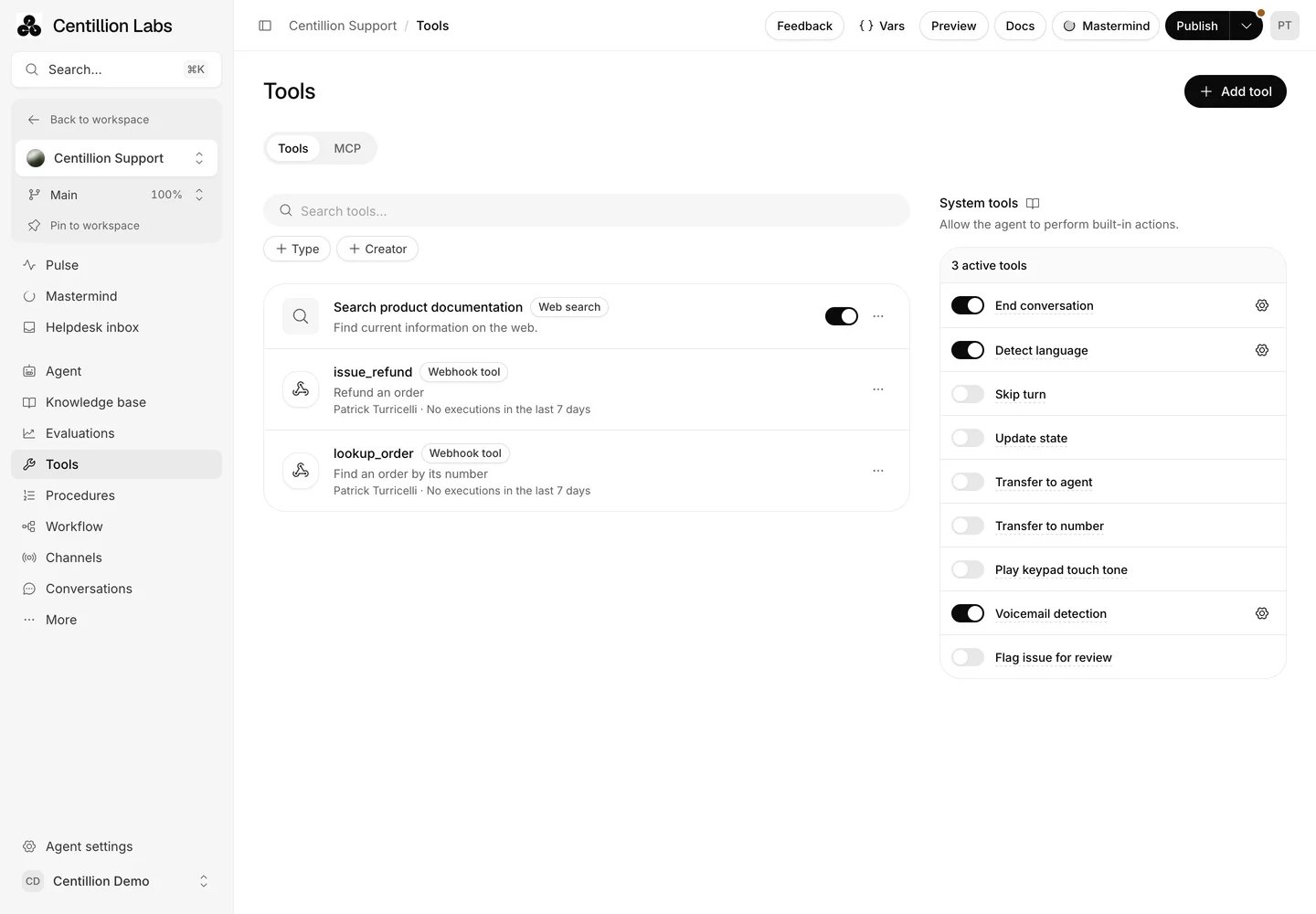
System tools sit beside the agent's attached tools. Hover a tool's name to see what it does.
Turn a tool on
Open Tools in the agent sidebar. System tools lists nine tools, each with a switch. Hover a tool’s name to see what it does. End conversation, Detect language, Skip turn, Play keypad touch tone, Voicemail detection and Flag issue for review turn on as soon as you click the switch. The gear beside an enabled tool opens its settings. Update state, Transfer to agent and Transfer to number do nothing until they’re configured, so their switch opens the settings first. The tool turns on when you choose Save. Cancel leaves it off. Turning one of these off later keeps its rules, so turning it back on shows them again. New blank agents start with all nine tools off. Existing agents keep the tools they had. Templates keep their configured behavior. These settings belong to the branch. They save to its draft, so publish before live conversations use them.Settings every tool has
Name is the tool’s fixed name, which you can use in your prompt. Description tells the agent how and when to use the tool. Leave it blank to use the default. Show default puts the default in the field so you can edit it, and Restore original takes it back out. Advanced holds Interruptions, which controls whether the customer can speak over the agent:
Edit as JSON shows the tool’s configuration as text, for copying between
agents. Switch to form goes back and keeps your edits.
Where each tool works
Workflow and procedure steps keep their own permissions. Turning off an agent’s
tool does not remove a transfer or end step you configured in a workflow or
procedure.
End conversation
Lets the agent close the conversation once it’s finished or the customer wants to stop. The default description asks for a brief goodbye first. Write your own to narrow it down, for example:End the call only after confirming the caller has no more questions.
Detect language
Lets the agent switch to the customer’s language, either because they spoke it or because they asked. Add each language the agent may switch to under its language settings first. Background speech or a strong accent can trigger a switch nobody wanted. Turn on Only at start of conversation to limit switching to the first two customer turns. If the language doesn’t switch in those turns, later attempts fail and the agent keeps its language without mentioning it. If it does switch, switching stays available for the rest of the conversation, so a wrong guess can still be corrected.Skip turn
Lets the agent stay silent when the caller says something like “give me a second”, then wait for them to speak. Turn on Re-prompt after waiting to have the agent check in if the caller stays quiet, and set Wait duration from 1 to 600 seconds. It’s 10 by default. The End conversation after silence timer pauses during the wait, so a long wait doesn’t end the call. If the caller speaks first, the agent doesn’t check in.Update state
Lets the agent save what it learns to variables during the conversation. Add at least one variable. The agent can only change the variables you list, and it can’t change a sensitive workflow variable.Transfer to agent
Lets the agent hand the conversation to another agent in your workspace. The agent needs no workflow.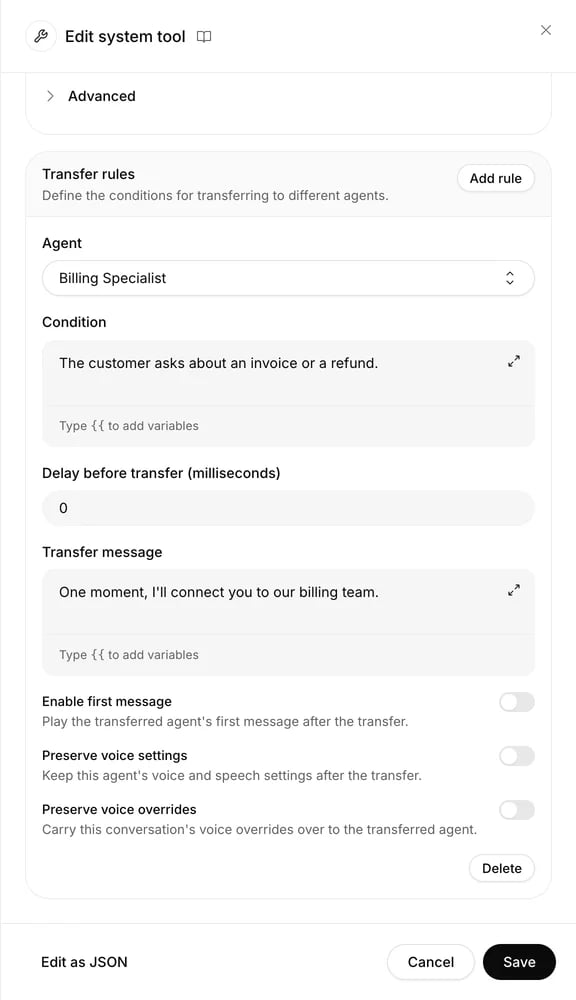
Each rule pairs a condition with the agent that takes over. Rules stay in this panel.
The agent reads the conditions and picks the rule that fits, so write them so
that no two overlap:
The customer asks about an invoice or a refund.The new agent keeps the whole conversation and uses its own prompt, knowledge, tools and, unless you preserve it, voice. This agent’s system tools stay behind, which means a transferred agent can’t transfer the conversation again. On calls, both agents must use the same voice mode and realtime provider. Publishing freezes the target’s settings into the release. When the target agent changes, publish this agent again to pick up the change. If the agent has a workflow with Agent transfer steps, they appear here too. Select the ones the tool may use.
Transfer to number
Lets the agent move a phone call to a person, on a phone number or a SIP address. It runs on phone calls only, and it needs no workflow.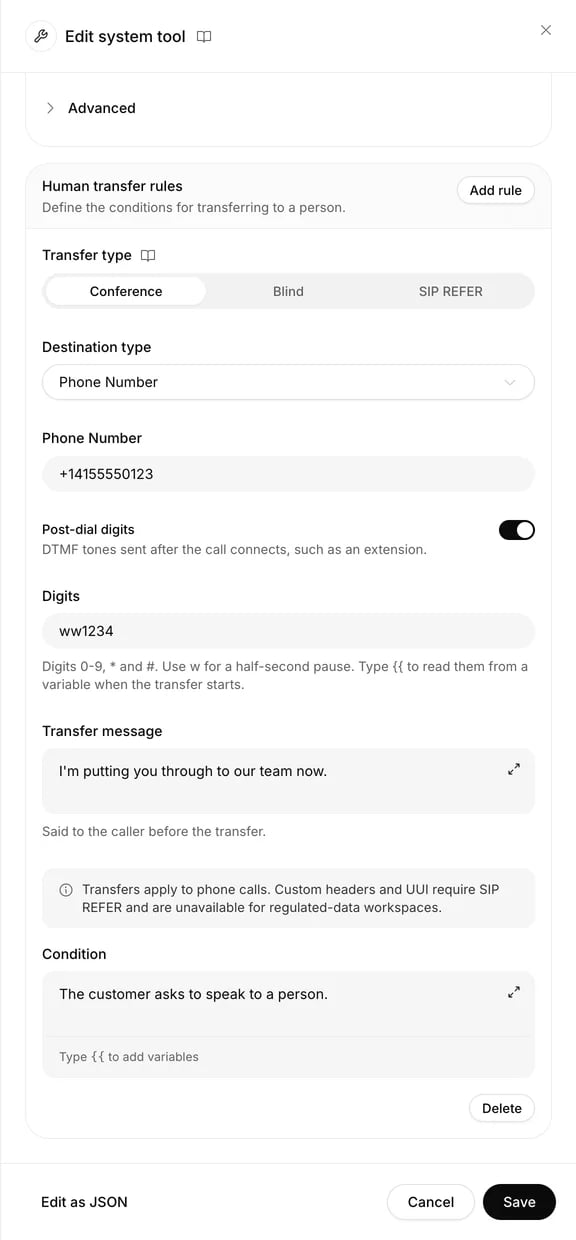
A human transfer rule sets how the call moves, where it goes and when.
Lines from Centillion transfer only to phone numbers in the line’s own country.
A number from your own Twilio account can also transfer to SIP addresses. If a
transfer fails, the caller stays with the agent, which says it can’t put them
through.
A workflow’s Phone number transfer steps appear here too. Select the ones
the tool may use.
To try a rule, call the agent’s number. Preview shows the agent choosing the
rule, but a browser call has no phone line to move.
Play keypad touch tone
Lets the agent press keys on a connected phone call, for example to get through a phone menu. Use out-of-band DTMF is on by default; switch it off to play tones as audio. Suppress turn after DTMF keeps the agent silent after the tones.Voicemail detection
Lets the agent recognize an answering machine on an outbound call. Leave Voicemail message blank to end the call silently, or enter a message to play before hanging up. The message can use variables such as{{name}}, including
recipient columns from a batch file. The agent waits for the greeting to finish
and recording to begin, plays the message once, then ends the call. The
conversation result stays Voicemail.
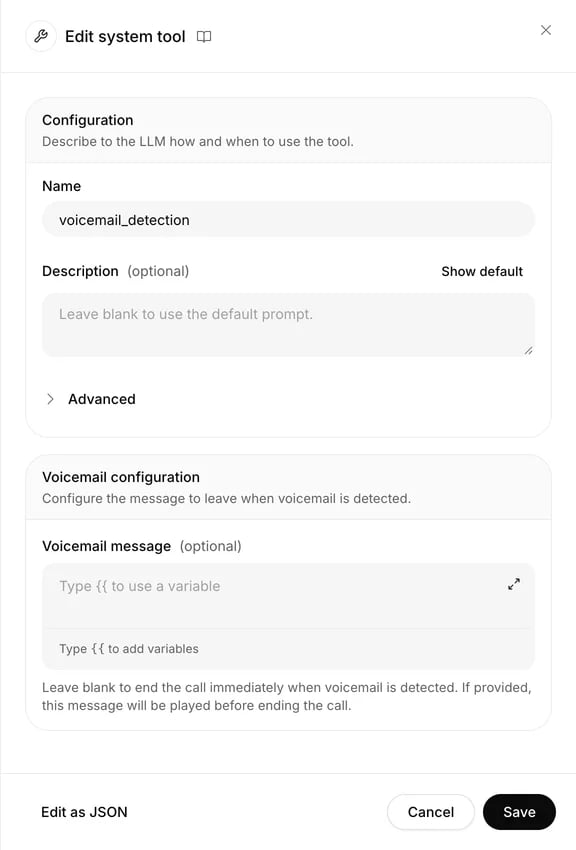
Voicemail detection can end the call silently or play a configured message after the greeting.