Install the Centillion AI chat widget for website visitors with one snippet: a floating chat bubble or an inline chat. Set it up and test it today.
Your agent answers on your own site through an AI chat widget for website
visitors. It comes in two shapes: a floating bubble in the corner of every
page, or an inline chat inside a page you choose. Both are one snippet, and
neither needs a plugin.
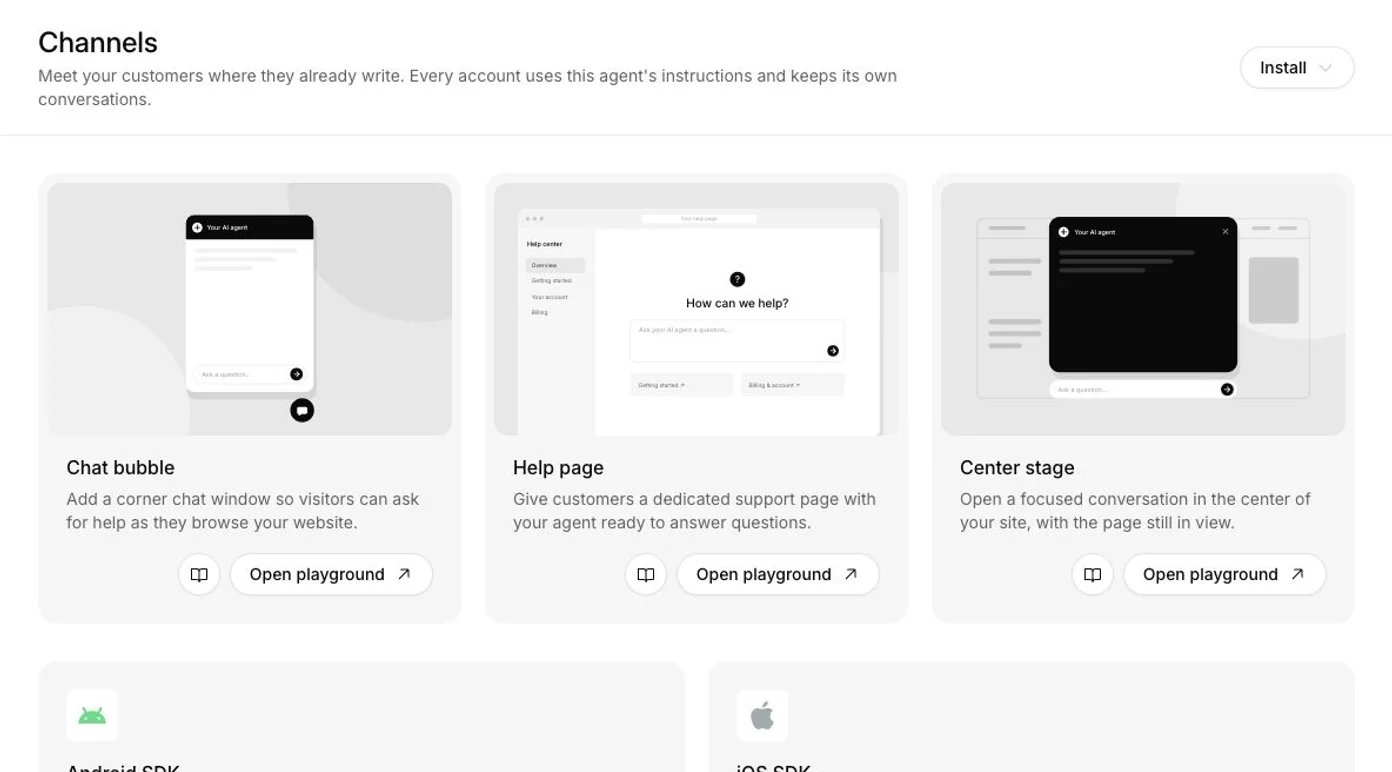
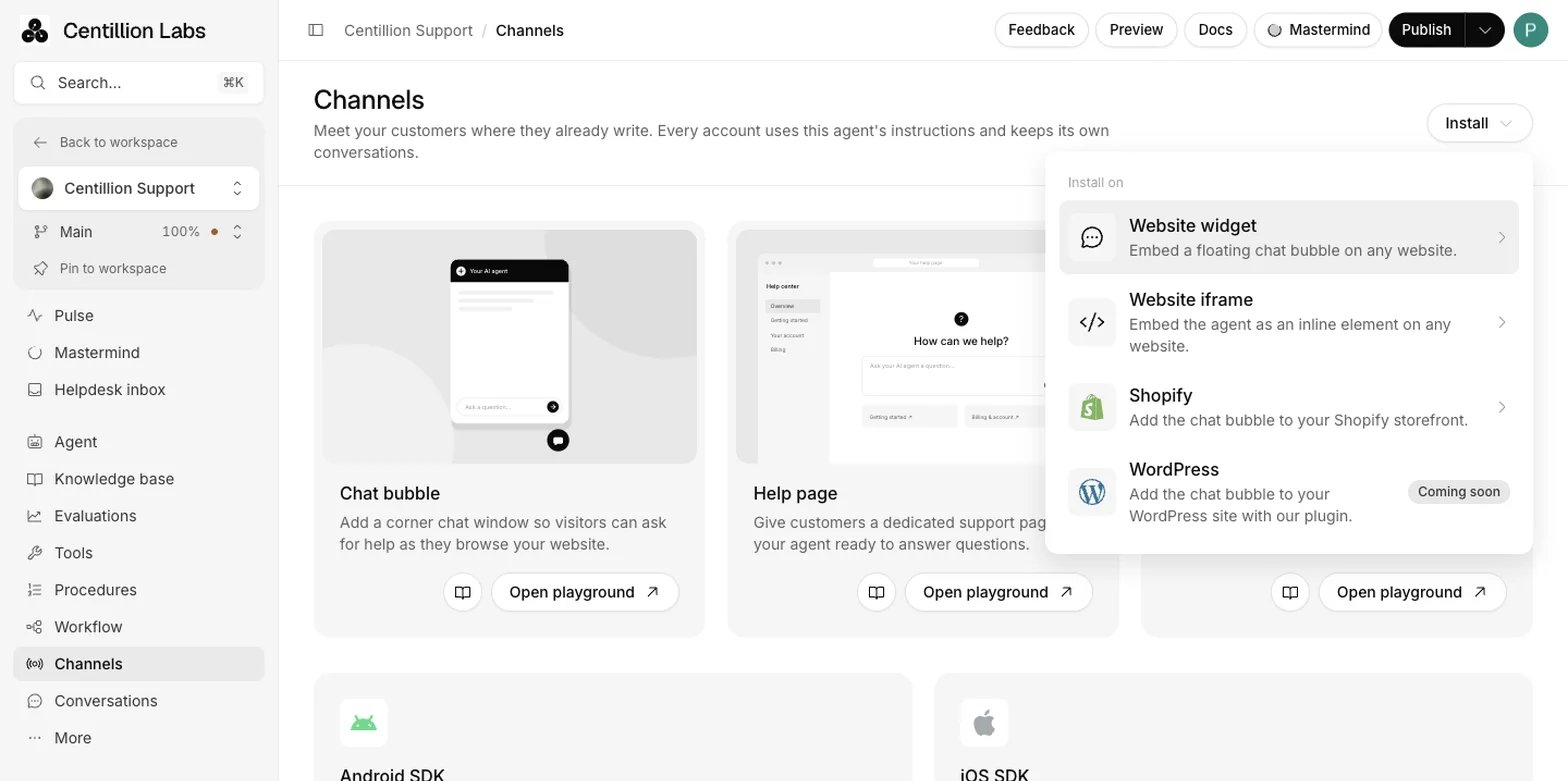
Channels holds the Install menu and the three website surfaces: Chat bubble, Help page and Center stage.
Adds a pill-shaped Chat now launcher to every page from one script tag.
The conversation itself loads only when a visitor reaches for it, so a chat
nobody opens costs your page next to nothing.
Puts the chat inline on a help or contact page with an iframe. Give it at
least 700 pixels of height.
Offers three website surfaces: Chat bubble (a corner window while
visitors browse), Help page (a dedicated support page) and Center
stage (a focused conversation in the middle of your site). Each one can be
switched off on its own.
Takes files from visitors, up to five files of 5 MB each per message, on
Hobby and up.
Hands the chat to your team: AI replies pause and a person takes over from
the helpdesk inbox.
Lets visitors dictate or talk to the agent out loud, within your plan’s call
limits.
An agent with website chat among its surfaces. An agent made with Create
AI agent has it from the start. An agent made through onboarding has
whatever you ticked on the deployment step.
The Owner or Member role. Viewers can try the agent in Playground but cannot
save changes. These workspace roles apply to your
dashboard team, not to people using the widget.
Access to your site’s shared layout, or to the page that should hold the
inline chat.
Hobby and up for visitor files. Live chat with your team needs Helpdesk, and
voice calls need Voice: both come with Standard and up.
The surfaces are chosen once, when the agent is created, and no setting
changes them afterwards. If your agent’s embed address returns a page not
found and the ID is right, website chat was never on it. Create a new agent and
point the snippet at that one.
Wait for automatic training to finish and Publish the branch before you put
the snippet on a page real customers visit. An untrained agent still replies from
its instructions,
but none of your imported knowledge is available to it yet. See
Training and publishing.
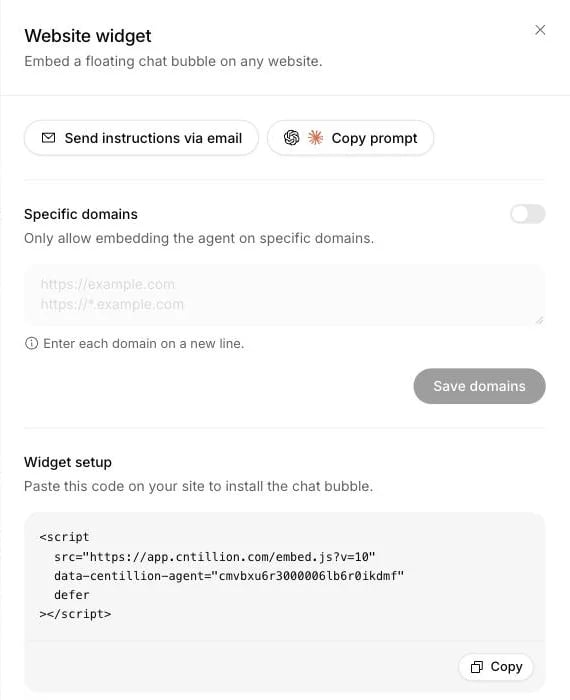
Leave the ?v=10 in place: it names the version of the widget script the
snippet was made for.
The Website widget panel holds the snippet and the Specific domains allowlist.
4
Paste it into your site
Put it in your site’s shared layout, near the closing </body> tag, so it
loads on every page. If someone else maintains the site, Send instructions
via email writes the snippet and where it goes into a mail you can
forward. Copy prompt gives the same instructions phrased for an AI
assistant, if you edit your site with one.
5
Check it in a private window
Open your site in a private window, send a real question and confirm the
answer. Then check that the conversation appears under Conversations.
The widget caches for an hour, so a browser that loaded your site before
you pasted the snippet may keep showing the old page for a while.
This is the right choice for a dedicated help or contact page. Below about
700 pixels of height the conversation gets cramped. Keep
allow="microphone" if you edit the code: voice calls need it.
By default the chat loads wherever the snippet is pasted, including on a site
that is not yours.
1
Turn on Specific domains
Open Channels → Install, then Website widget or Website iframe,
and turn on Specific domains.
2
List the sites, one per line
example.com*.example.com
A leading *. covers the domain and every subdomain under it. You can
write https://example.com too: the scheme and any port are ignored. Up to
50 entries.
3
Save the list
From then on, a visitor on any other site sees “Agent unavailable on this
domain” instead of the chat. Voice calls follow the same list.
For a Shopify store, use Channels → Install → Shopify, connect the store, and
enable and save Centillion chat in the active theme’s app embeds. No
snippet goes into the theme. See Shopify setup and actions.
The WordPress option in the Install menu is still coming soon; the snippets
above work on WordPress when pasted into the site’s layout.
The launcher shows the agent’s picture on the left and Chat now on the
right. The picture is the one under Display, Content, Agent
picture, the same one the chat header shows; without one, the Centillion
logo stands in. An agent created from a website starts with that site’s icon
as its picture and the site’s brand colour as its accent (see
creating an agent). Chat now expands the pill
into the conversation. Close or the Escape key collapses it and keeps the
conversation and any unsent message. The chat runs in its own frame, apart
from your page’s styles.In Display, choose the light or dark theme, the launcher’s position and
offsets, the conversation size, and whether it starts open or closed. Edit
Floating bubble, Button label to replace Chat now. The Chat now
and Close buttons take the accent colour when it is on. Auto-open after a
delay is off unless you turn it on. A widget set to start open, or shown
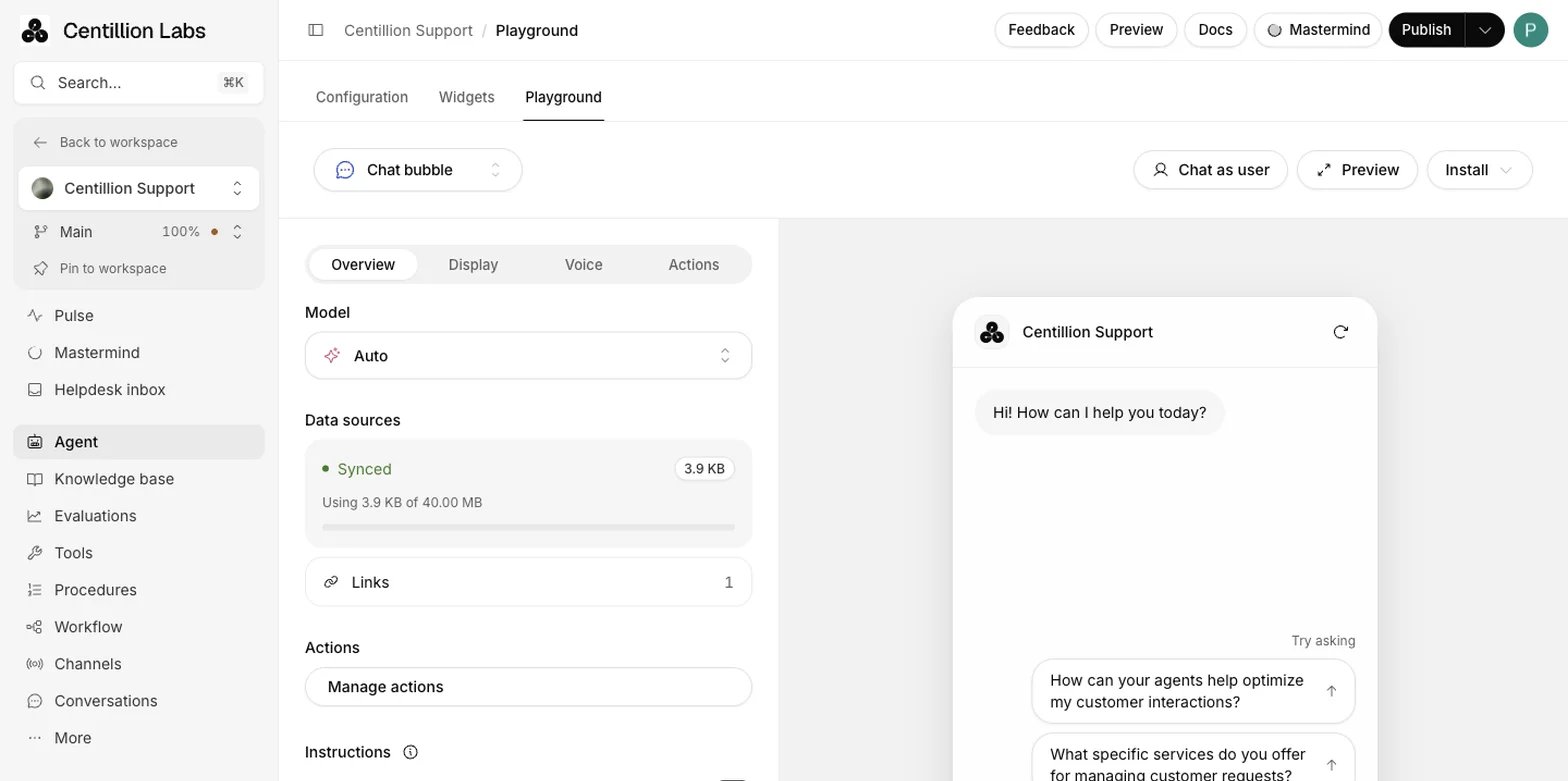
without a launcher, loads with the page.The Playground preview starts open so you can test at once. It follows your
dashboard theme, except in Display, where it shows the theme you are
editing. Switching tabs keeps the conversation and unsaved drafts; choose
Save changes to save the draft, then Publish in the top bar to update
new customer conversations.Each surface has a Visibility switch on the Playground’s Overview tab.
Turning one off stops it showing and routing messages to your agent. The same
tab can give the surface its own instructions. Every agent uses
version control. The chat opens with its assigned
version’s greeting and appearance, and an explicit restart loads a version by
the current traffic split. Domain allowlists and plan limits still apply at
once.
Enable Centillion Helpdesk, then set up Centillion live chat under
Tools → Add tool → New tool → Integration and select Chat bubble, Help page or Center stage. A
customer who asks for a person gets a waiting confirmation and can keep
writing in the same chat. AI replies pause, and your teammates continue from a
Live chat ticket. The chat timeline marks when live support starts and
when AI replies resume, apart from the messages themselves.For a person to handle the first message, turn on Human-first
conversations in Helpdesk settings, Human handoff. Chat bubble and
Help page conversations without a ticket then enter the inbox before the AI
answers. This does not apply to Center stage or the Playground. Center stage
runs at /embed/YOUR_AGENT_ID/center-stage on the app domain; enable its
channel as well as selecting it in the live chat action. Its chat, ticket
history and human replies stay with that Center stage conversation, and the
domain allowlist applies there too.When live alerts are on, the widget tells your team which page the visitor is
on. Only the address is sent, never the part after ? or #.
Visitors attach files with the paperclip, by dropping them on the chat or by
pasting. Images show a preview; wait for Ready to send. If sending fails,
the text and files return to the message box. The agent sees images and reads
the text of documents with the message they arrive in; later it knows them by
name. A model that cannot read images is told an image was sent. Files stay
private with the conversation: open them from Conversations or the
Helpdesk, where they stay on the ticket. Turn off Attachments under
Display, Capabilities to stop uploads.
Start dictation fills the message box from the visitor’s speech, in
browsers that support speech recognition, and works whenever Voice to text
(Dictation) is on. Start a voice conversation starts a call: the agent opens
with the First message → Call from Agent, or a greeting with its
name when that is empty, then the visitor speaks, the agent answers in its own
voice, and the visitor can cut in.
Pressing it again ends the call, and typing still works during it. The call
button appears only when dictation is on in Display and voice is on for
the agent with its voice settings complete. The browser asks for microphone
access the first time.
Control the bubble from your site.window.centillion.open(),
close() and resetChat() connect your own buttons. setOptions() changes
the title, launcher label, greetings, suggestions and composer for the
current page load. Chat bubble controls
covers proactive messages and dictation-only mode too.
Listen for events. Sent messages, finished answers, tool calls and
results, dictation transcripts and option changes reach
window.centillion.addEventListener; a plain iframe posts them to its
parent. See event listeners.
Recognise signed-in customers. Your server signs the user’s ID and the
page passes the signature, so the agent can link the chat to their contact
and answer about their account. With a signed identity, the script syncs
the contact before the widget opens. Choose Set up identity verification
in the Install sheet, then read identity verification.
Without it, every visitor is anonymous.
Run actions on your site. The script embed supports
website functions, which call functions your site
registers.
Billing questions.Stripe actions run in the
Chat bubble for identified visitors whose contact is linked to a Stripe
customer. Invoice and subscription cards appear in chat; changes open
Stripe’s portal. Help page and Center stage do not run them.
Meeting bookings. A Cal.com booking action on Chat bubble, Help page or
Center stage shows a calendar in the chat. Visitors pick a time zone and a
free slot, enter their details and confirm. Confirming a test in Playground
creates a real appointment.
Procedures.Free-form procedures load instructions
for a task. Structured procedures enforce an ordered sequence, with Ask
steps waiting for the visitor’s answer. Referenced actions must be enabled
for the website surface.
Campaign attribution. The script embed keeps the visitor’s first
campaign for the tab session and adds its five UTM parameters to agent links
back to your site. It needs embed.js?v=5 or later on every page. See
UTM tracking.
Show the agent to a share of visitors and compare them with visitors who see no
chat. Open Playground, Chat bubble or Center stage, then under
Display, A/B testing, turn on Show to a percentage of visitors.
Enter a whole number from 0 to 100 and choose Save changes. It starts at
50% when enabled and is shared by Chat bubble and Center stage. 0% hides the
agent from everyone; 100%, or turning testing off, makes every visitor
eligible. Turning it off keeps your percentage for next time.Each browser gets a random assignment that stays across visits. The
percentage is a target, so a small sample may differ. Raising it adds visitors
and keeps everyone already in. For included visitors, setOptions() also loads
the chat frame so it can confirm it rendered. Excluded visitors see
neither launcher nor chat, and auto-open or open() cannot reveal it. Direct
iframes and Center stage apply the split too; the Help page and the dashboard
preview always show. If the browser cannot store an assignment, a value from 1
to 99 keeps the widget hidden there. Clearing site storage or changing browser
can change an assignment.
Rate limit. By default an agent answers up to 20 messages every four
minutes from each visitor, who then sees “Too many messages in a row”. If all
visitors together send ten times that (200 messages every four minutes by
default), the agent pauses on your website until the window moves on. Change
the limit under Guardrails: 1 to 1000 messages, over a window of up to 24
hours, with your own message. WhatsApp, email, SMS and other channels never
count toward it. A visitor is known by the ID the chat sends, which stays the
same for a browser across the bubble and the inline chat; a modified client
can send a new ID each time, which is why the agent-wide limit exists.
Visitor files. Up to five files of 5 MB per message: PNG, JPG, GIF and
WEBP images, and PDF, DOCX, TXT, CSV and MD documents. PDFs up to five pages
and 2,000 tokens per page. Each image and PDF page adds the model’s credit
rate to the request (see Plans and billing). Each
visitor can send 30 files an hour, and an agent takes 600 an hour.
Voice calls. The limits on calls per day and calls at once apply to the
widget and are checked when the visitor presses the button. A call that
reaches the maximum call length ends: the agent says a short goodbye and
hangs up, unless a teammate has taken it over. A call also ends a few seconds
after the agent says goodbye if nobody speaks. If the visitor goes quiet in
the middle of a call, the agent follows the silence prompt and cutoff in
Settings → Advanced → Conversational behavior. Either timer can be
disabled. The same card controls waiting phrases and the
maximum duration message. See Conversational behavior.
The allowlist checks the page that loaded the chat, which browsers report
as the referring site. It deters a copied snippet; do not treat it as a
security boundary.
Video avatar. You cannot set up or edit a video avatar in the dashboard
today. An avatar saved earlier keeps working, as a panel docked to the side
of the page with its own launcher.
Branding. The branding add-on removes the Centillion footer from your
public agents and workspace emails. An Owner adds it in Workspace
settings, Plans.
The chat does not appear on my site. What should I check?
View the live page’s source and search for embed.js. A snippet in a draft
layout, or in a template you did not redeploy, is the usual cause. Then copy
the snippet again from the Install sheet, which rules out a wrong agent ID. If
both are right, the agent may not have website chat among its surfaces.
Check Display, A/B testing. Excluded browsers see no launcher and no
chat, and reloading keeps their assignment. Set 100% or turn testing off while
you check the installation, then restore your split.
Either the agent ID in the iframe address is wrong, or the agent does not have
website chat among its surfaces. Copy the snippet again from the Install sheet
first, since that rules out the ID.
That is a knowledge problem, not an installation one. Check that training has
finished and that your sources cover the question. See
My agent is not answering.
Until a visitor points at the launcher, tabs to it, taps it, or auto-open
fires, the page loads only the launcher script and its settings. A widget set
to start open loads with the page, because it is on screen from the start.
The product in one page: agents, knowledge, channels and the helpdesk.
Helpdesk
Where your team picks up the chats the agent hands over.
Chat bubble controls
Open, close and configure the widget from your own code.
Last modified on October 31, 2026
⌘I
{"docsConfig":{"theme":"maple","$schema":"https://mintlify.com/docs.json","name":"Centillion","description":"How to build a Centillion AI agent, give it your knowledge, and put it on your website, WhatsApp, Messenger, Instagram, Slack and email.","colors":{"primary":"#0a0a0a","light":"#f5f5f5","dark":"#0a0a0a"},"logo":{"light":"https://mintcdn.com/centillion/YMwlBbzdENjtfSuJ/logo/centillion-labs-logo-horizontal.svg?fit=max\u0026auto=format\u0026n=YMwlBbzdENjtfSuJ\u0026q=85\u0026s=a390a5bdca5c0720e1871afbf09b1f18","dark":"https://mintcdn.com/centillion/YMwlBbzdENjtfSuJ/logo/centillion-labs-logo-horizontal.svg?fit=max\u0026auto=format\u0026n=YMwlBbzdENjtfSuJ\u0026q=85\u0026s=a390a5bdca5c0720e1871afbf09b1f18","href":"https://cntillion.com"},"favicon":"https://mintcdn.com/centillion/OVR3XViKbG9zMitv/favicon.svg?fit=max\u0026auto=format\u0026n=OVR3XViKbG9zMitv\u0026q=85\u0026s=a6656501072b111f976d6229cbbd73ad","appearance":{"default":"light","strict":true},"background":{"color":{"light":"#ffffff","dark":"#0a0a0a"}},"navbar":{"links":[{"href":"https://cntillion.com/pricing","label":"Pricing"},{"href":"https://cntillion.com/support","label":"Contact"}],"primary":{"type":"button","label":"Open Centillion","href":"https://app.cntillion.com"}},"footer":{"links":[{"header":"Centillion","items":[{"label":"Home","href":"https://cntillion.com"},{"label":"Pricing","href":"https://cntillion.com/pricing"},{"label":"Contact","href":"https://cntillion.com/support"},{"label":"Sign in","href":"https://app.cntillion.com/sign-in"}]}]},"search":{"prompt":"Search the Centillion docs"},"seo":{"metatags":{"og:site_name":"Centillion Docs"},"organization":{"name":"Centillion","url":"https://cntillion.com"},"indexing":"navigable"},"fonts":{"family":"Inter"},"metadata":{"timestamp":true},"styling":{"latex":true},"navigation":{"pages":[]}},"deployment":{"deploymentMetadataValue":{"subdomain":"centillion","hasAudioNarration":false,"actualSubdomain":"centillion","customDomains":["cntillion.com"],"gitSource":{"type":"github","owner":"centillion-labs","repo":"conversational-agents-for-cx","deployBranch":"master","contentDirectory":"apps/docs","isPrivate":true,"mountPath":"","label":""},"chroma":{"latestBuiltDeploymentHistoryId":"6ae95d6935b55ff31612f7a7","collectionId":"27832044-5e72-44ea-8577-5c209cbfb879","liveDeploymentHistoryId":"6ae95d6935b55ff31612f7a7","schemaVersion":"v3"},"entitlements":{"AI_CHAT":{"status":"DISABLED"},"WEB_MCP":{"status":"DISABLED"},"NARRATION":{"status":"DISABLED"}},"buildId":"6ae96f717e64ded297ae851c","clientVersion":"0.0.4045","searchFilterCounts":[{"language":"default","tag":"Reach your customers","count":19},{"language":"default","tag":"Build your agent","count":14},{"language":"default","tag":"Guides","count":8},{"language":"default","tag":"Workspace","count":7},{"language":"default","tag":"API documentation","count":6},{"language":"default","tag":"Support","count":6},{"language":"default","tag":"Customer data","count":5},{"language":"default","tag":"Website development","count":2},{"language":"default","tag":"Get started","count":2},{"language":"default","tag":"Helpdesk API","count":1}]},"assistantConfig":{"enableAskAiButton":false,"enableStarterQuestions":false,"enableContextualStarterQuestions":false,"enableAskAiSearchBar":true},"basePath":"/docs","hasChatPermissions":false,"hasWebMcpPermissions":false,"toggles":[{"name":"kill-isr","enabled":true,"variant":{"name":"disabled","enabled":false,"feature_enabled":true},"impressionData":false},{"name":"agent-mintlify-slack","enabled":true,"variant":{"name":"disabled","enabled":false,"feature_enabled":true},"impressionData":false},{"name":"agent-integrations-settings","enabled":true,"variant":{"name":"disabled","enabled":false,"feature_enabled":true},"impressionData":false},{"name":"automations-pr-grouping","enabled":true,"variant":{"name":"disabled","enabled":false,"feature_enabled":true},"impressionData":false},{"name":"custom-prefix","enabled":true,"variant":{"name":"disabled","enabled":false,"feature_enabled":true},"impressionData":false},{"name":"analytics-v7","enabled":true,"variant":{"name":"disabled","enabled":false,"feature_enabled":true},"impressionData":false},{"name":"user-flows-analytics","enabled":true,"variant":{"name":"disabled","enabled":false,"feature_enabled":true},"impressionData":false},{"name":"no-publish-flow","enabled":true,"variant":{"name":"disabled","enabled":false,"feature_enabled":true},"impressionData":false},{"name":"workos-onboarding","enabled":true,"variant":{"name":"disabled","enabled":false,"feature_enabled":true},"impressionData":false},{"name":"llms-txt-v2","enabled":true,"variant":{"name":"disabled","enabled":false,"feature_enabled":true},"impressionData":false},{"name":"snapshot-serving-live","enabled":true,"variant":{"name":"disabled","enabled":false,"feature_enabled":true},"impressionData":false},{"name":"stripTemperatureMiddleware","enabled":true,"variant":{"name":"disabled","enabled":false,"feature_enabled":true},"impressionData":false},{"name":"support-platform-pylon-zendesk","enabled":true,"variant":{"name":"disabled","enabled":false,"feature_enabled":true},"impressionData":false},{"name":"snapshot-serving","enabled":true,"variant":{"name":"disabled","enabled":false,"feature_enabled":true},"impressionData":false},{"name":"instant-rollback","enabled":true,"variant":{"name":"disabled","enabled":false,"feature_enabled":true},"impressionData":false},{"name":"granular-notifications-server","enabled":true,"variant":{"name":"disabled","enabled":false,"feature_enabled":true},"impressionData":false},{"name":"granular-notifications","enabled":true,"variant":{"name":"disabled","enabled":false,"feature_enabled":true},"impressionData":false},{"name":"automations-fable","enabled":true,"variant":{"name":"disabled","enabled":false,"feature_enabled":true},"impressionData":false},{"name":"fixed-ai-action-pricing","enabled":true,"variant":{"name":"disabled","enabled":false,"feature_enabled":true},"impressionData":false},{"name":"automation-resolve-merge-conflict","enabled":true,"variant":{"name":"disabled","enabled":false,"feature_enabled":true},"impressionData":false},{"name":"scoped-publishing","enabled":true,"variant":{"name":"disabled","enabled":false,"feature_enabled":true},"impressionData":false},{"name":"mintql","enabled":true,"variant":{"name":"disabled","enabled":false,"feature_enabled":true},"impressionData":false},{"name":"page-level-analytics","enabled":true,"variant":{"name":"disabled","enabled":false,"feature_enabled":true},"impressionData":false},{"name":"editor-version-history-v2","enabled":true,"variant":{"name":"disabled","enabled":false,"feature_enabled":true},"impressionData":false},{"name":"billing-page-v2","enabled":true,"variant":{"name":"disabled","enabled":false,"feature_enabled":true},"impressionData":false},{"name":"full-page-search","enabled":true,"variant":{"name":"disabled","enabled":false,"feature_enabled":true},"impressionData":false},{"name":"workspace-projects","enabled":true,"variant":{"name":"disabled","enabled":false,"feature_enabled":true},"impressionData":false},{"name":"assistant-v5","enabled":true,"variant":{"name":"disabled","enabled":false,"feature_enabled":true},"impressionData":false},{"name":"byok-sep-25","enabled":true,"variant":{"name":"disabled","enabled":false,"feature_enabled":true},"impressionData":false},{"name":"fork-pr-previews","enabled":true,"variant":{"name":"disabled","enabled":false,"feature_enabled":true},"impressionData":false},{"name":"revalidation-jwt","enabled":true,"variant":{"name":"disabled","enabled":false,"feature_enabled":true},"impressionData":false},{"name":"vite-origin","enabled":true,"variant":{"name":"disabled","enabled":false,"feature_enabled":true},"impressionData":false},{"name":"billing-updated-9-15","enabled":true,"variant":{"name":"disabled","enabled":false,"feature_enabled":true},"impressionData":false},{"name":"workos-sso-scim","enabled":true,"variant":{"name":"disabled","enabled":false,"feature_enabled":true},"impressionData":false},{"name":"hobby-abuse-scan","enabled":true,"variant":{"name":"disabled","enabled":false,"feature_enabled":true},"impressionData":false},{"name":"dashboard-inbox","enabled":true,"variant":{"name":"disabled","enabled":false,"feature_enabled":true},"impressionData":false},{"name":"workos-signup","enabled":true,"variant":{"name":"disabled","enabled":false,"feature_enabled":true},"impressionData":false},{"name":"turbopuffer-dual-write","enabled":true,"variant":{"name":"disabled","enabled":false,"feature_enabled":true},"impressionData":false},{"name":"workos-enabled","enabled":true,"variant":{"name":"disabled","enabled":false,"feature_enabled":true},"impressionData":false},{"name":"approve-review-flow","enabled":true,"variant":{"name":"disabled","enabled":false,"feature_enabled":true},"impressionData":false},{"name":"sso-setup-deadline-banner","enabled":true,"variant":{"name":"disabled","enabled":false,"feature_enabled":true},"impressionData":false}],"googleFontsInlined":false},"customCss":[{"filePath":"style.css","content":":root{--bg-subtle:#f6f6f6;--ink:#0a0a0a;--ink-2:#353535;--ink-3:#626262;--ink-4:#a1a1a1;--ink-5:#c7c7c7;--amber:#db8831;--amber-text:#9f5f1c;--amber-tint:#fbf4ec;--radius-lg:16px;--radius-xl:24px;--radius-pill:9999px;--glow-lavender:#ebeaf7;--glow-pink:#f2e4e2;--glow-peach:#f5e6dd;--glow-sky:#e6ecf4;--glow-mint:#e9f4ef}#page-title{font-size:40px;font-weight:500;line-height:46px;color:var(--ink);letter-spacing:-.02em}#content>h2,#content>h3,#content>h4{font-size:20px;font-weight:500;line-height:26px;color:var(--ink);letter-spacing:-.01em}#content>h3,#content>h4{font-size:18px;line-height:24px}#content>h4{font-size:16px;line-height:22px;letter-spacing:0}#header .eyebrow,#search-bar-entry,#search-bar-entry-mobile{font-size:14px;font-weight:400;line-height:20px;color:var(--ink-3)}#search-bar-entry,#search-bar-entry-mobile{height:36px;padding:0 16px;color:var(--ink-4);background-color:var(--bg-subtle);border-radius:var(--radius-pill);box-shadow:none}#search-bar-entry svg,#search-bar-entry-mobile svg{color:var(--ink-4)}#search-bar-entry>span{font-size:12px;font-weight:400;line-height:16px;color:var(--ink-4)}#search-bar-entry-mobile:focus-visible,#search-bar-entry:focus-visible{outline:2px solid var(--ink);outline-offset:2px}#content .card{background-color:var(--bg-subtle);border:0;border-radius:var(--radius-lg);box-shadow:none}#content .card [data-component-part=card-content-container]{padding:20px}#content .card [data-component-part=card-icon] svg{background-color:var(--ink-3)}#content .card [data-component-part=card-content-container]>a>div.absolute{color:var(--ink-5)}#content .card [data-component-part=card-title]{font-size:16px;font-weight:500;line-height:22px;color:var(--ink)}#content .card [data-component-part=card-content]{font-size:14px;font-weight:400;line-height:20px;color:var(--ink-3)}#content .card [data-component-part=card-content]>span{color:inherit}#content-area:has(.centillion-hero)>#header{display:none}.centillion-hero{display:flex;flex-direction:column;gap:20px;padding:28px;margin-bottom:24px;background-color:var(--bg-subtle);background-image:radial-gradient(38% 80% at 96% 0%,var(--glow-lavender) 0%,transparent 100%),radial-gradient(30% 70% at 84% 48%,var(--glow-pink) 0%,transparent 100%),radial-gradient(34% 70% at 90% 100%,var(--glow-peach) 0%,transparent 100%),radial-gradient(28% 64% at 66% 58%,var(--glow-sky) 0%,transparent 100%),radial-gradient(26% 56% at 62% 0%,var(--glow-mint) 0%,transparent 100%);border-radius:var(--radius-xl)}.centillion-hero .centillion-hero-eyebrow{margin:0;font-size:14px;font-weight:400;line-height:20px;color:var(--ink-3)}.centillion-hero .centillion-hero-title{max-width:720px;margin:0;font-size:40px;font-weight:500;line-height:46px;color:var(--ink);letter-spacing:-.02em;text-wrap:balance}.centillion-hero .centillion-muted{color:var(--ink-3)}#content .callout{padding:16px 20px;font-size:14px;line-height:20px;border:0;border-radius:var(--radius-lg)}#content .callout[data-callout-type=warning]{background-color:var(--amber-tint)}#content .callout[data-callout-type=warning] [data-component-part=callout-icon] svg{color:var(--amber)}#content .callout[data-callout-type=warning] [data-component-part=callout-content]{color:var(--amber-text)}#content .callout[data-callout-type=note]{background-color:var(--bg-subtle)}#content .callout[data-callout-type=note] [data-component-part=callout-icon] svg{color:var(--ink-3)}#content .callout[data-callout-type=note] [data-component-part=callout-content]{color:var(--ink-2)}"}],"page":{"pagePath":"channels/website","slug":"/channels/website","pageMetadata":{"title":"AI chat widget for your website","description":"Install the Centillion AI chat widget for website visitors with one snippet: a floating chat bubble or an inline chat. Set it up and test it today.","sidebarTitle":"Installing the chat on your website","keywords":["AI chat widget for website","add AI chatbot to website","inline chat embed","live chat handoff"],"href":"/channels/website"},"description":{"compiledSource":"\"use strict\";\nconst {jsx: _jsx} = arguments[0];\nconst {useMDXComponents: _provideComponents} = arguments[0];\nfunction _createMdxContent(props) {\n const _components = {\n p: \"p\",\n ..._provideComponents(),\n ...props.components\n };\n return _jsx(_components.p, {\n children: \"Install the Centillion AI chat widget for website visitors with one snippet: a floating chat bubble or an inline chat. Set it up and test it today.\"\n });\n}\nfunction MDXContent(props = {}) {\n const {wrapper: MDXLayout} = {\n ..._provideComponents(),\n ...props.components\n };\n return MDXLayout ? _jsx(MDXLayout, {\n ...props,\n children: _jsx(_createMdxContent, {\n ...props\n })\n }) : _createMdxContent(props);\n}\nreturn {\n default: MDXContent\n};\n","frontmatter":{},"scope":{}},"pageType":"default","mdx":{"mdxSource":{"compiledSource":"\"use strict\";const{Fragment:_Fragment,jsx:_jsx,jsxs:_jsxs}=arguments[0];const{useMDXComponents:_provideComponents}=arguments[0];function _createMdxContent(props){const _components={a:`a`,code:`code`,li:`li`,p:`p`,pre:`pre`,span:`span`,strong:`strong`,ul:`ul`,..._provideComponents(),...props.components},{Card,CardGroup,CodeBlock,Frame,Heading,OptimizedImage,Step,Steps,Warning}=_components;if(!Card)_missingMdxReference(`Card`,true);if(!CardGroup)_missingMdxReference(`CardGroup`,true);if(!CodeBlock)_missingMdxReference(`CodeBlock`,true);if(!Frame)_missingMdxReference(`Frame`,true);if(!Heading)_missingMdxReference(`Heading`,true);if(!OptimizedImage)_missingMdxReference(`OptimizedImage`,true);if(!Step)_missingMdxReference(`Step`,true);if(!Steps)_missingMdxReference(`Steps`,true);if(!Warning)_missingMdxReference(`Warning`,true);return _jsxs(_Fragment,{children:[_jsx(_components.p,{children:`Your agent answers on your own site through an AI chat widget for website\nvisitors. It comes in two shapes: a floating bubble in the corner of every\npage, or an inline chat inside a page you choose. Both are one snippet, and\nneither needs a plugin.`}),`\n`,_jsx(Frame,{caption:`Channels holds the Install menu and the three website surfaces: Chat bubble, Help page and Center stage.`,children:_jsx(OptimizedImage,{src:`https://mintcdn.com/centillion/HETe0o8F9JBS-hxj/images/channels/website-01-channels-page.webp?fit=max\u0026auto=format\u0026n=HETe0o8F9JBS-hxj\u0026q=85\u0026s=5a5af119c5caa02b9d3d0fc276efb98d`,alt:`Channels page with Install and the Chat bubble, Help page and Center stage cards`,\"data-og-width\":`1392`,width:`1392`,\"data-og-height\":`772`,height:`772`,\"data-path\":`images/channels/website-01-channels-page.webp`,\"data-optimize\":`true`,\"data-opv\":`3`,srcset:`https://mintcdn.com/centillion/HETe0o8F9JBS-hxj/images/channels/website-01-channels-page.webp?w=280\u0026fit=max\u0026auto=format\u0026n=HETe0o8F9JBS-hxj\u0026q=85\u0026s=0b38a302105a4d88fc3ea3d456a97d0b 280w, https://mintcdn.com/centillion/HETe0o8F9JBS-hxj/images/channels/website-01-channels-page.webp?w=560\u0026fit=max\u0026auto=format\u0026n=HETe0o8F9JBS-hxj\u0026q=85\u0026s=fe25eeb76d456f7207ebd9ae2459c87d 560w, https://mintcdn.com/centillion/HETe0o8F9JBS-hxj/images/channels/website-01-channels-page.webp?w=840\u0026fit=max\u0026auto=format\u0026n=HETe0o8F9JBS-hxj\u0026q=85\u0026s=1483b7bdcb3520040149623b01ff2218 840w, https://mintcdn.com/centillion/HETe0o8F9JBS-hxj/images/channels/website-01-channels-page.webp?w=1100\u0026fit=max\u0026auto=format\u0026n=HETe0o8F9JBS-hxj\u0026q=85\u0026s=4e472121061a2b340f82c56eab105950 1100w, https://mintcdn.com/centillion/HETe0o8F9JBS-hxj/images/channels/website-01-channels-page.webp?w=1650\u0026fit=max\u0026auto=format\u0026n=HETe0o8F9JBS-hxj\u0026q=85\u0026s=b716f2230a4e41a7e5787e52a2b46a06 1650w, https://mintcdn.com/centillion/HETe0o8F9JBS-hxj/images/channels/website-01-channels-page.webp?w=2500\u0026fit=max\u0026auto=format\u0026n=HETe0o8F9JBS-hxj\u0026q=85\u0026s=0849e356d379f9e2f11c9848239579d8 2500w`})}),`\n`,_jsx(Heading,{level:`2`,id:`what-it-does`,children:`What it does`}),`\n`,_jsxs(_components.ul,{children:[`\n`,_jsxs(_components.li,{children:[`Adds a pill-shaped `,_jsx(_components.strong,{children:`Chat now`}),` launcher to every page from one script tag.\nThe conversation itself loads only when a visitor reaches for it, so a chat\nnobody opens costs your page next to nothing.`]}),`\n`,_jsx(_components.li,{children:`Puts the chat inline on a help or contact page with an iframe. Give it at\nleast 700 pixels of height.`}),`\n`,_jsxs(_components.li,{children:[`Offers three website surfaces: `,_jsx(_components.strong,{children:`Chat bubble`}),` (a corner window while\nvisitors browse), `,_jsx(_components.strong,{children:`Help page`}),` (a dedicated support page) and `,_jsx(_components.strong,{children:`Center\nstage`}),` (a focused conversation in the middle of your site). Each one can be\nswitched off on its own.`]}),`\n`,_jsx(_components.li,{children:`Takes files from visitors, up to five files of 5 MB each per message, on\nHobby and up.`}),`\n`,_jsxs(_components.li,{children:[`Hands the chat to your team: AI replies pause and a person takes over from\nthe `,_jsx(_components.a,{href:`/helpdesk`,children:`helpdesk inbox`}),`.`]}),`\n`,_jsx(_components.li,{children:`Lets visitors dictate or talk to the agent out loud, within your plan’s call\nlimits.`}),`\n`]}),`\n`,_jsx(Heading,{level:`2`,id:`what-you-need`,children:`What you need`}),`\n`,_jsxs(_components.ul,{children:[`\n`,_jsxs(_components.li,{children:[`An agent with website chat among its surfaces. An agent made with `,_jsx(_components.strong,{children:`Create\nAI agent`}),` has it from the start. An agent made through onboarding has\nwhatever you ticked on the deployment step.`]}),`\n`,_jsxs(_components.li,{children:[`The Owner or Member role. Viewers can try the agent in Playground but cannot\nsave changes. These `,_jsx(_components.a,{href:`/workspaces/members`,children:`workspace roles`}),` apply to your\ndashboard team, not to people using the widget.`]}),`\n`,_jsx(_components.li,{children:`Access to your site’s shared layout, or to the page that should hold the\ninline chat.`}),`\n`,_jsx(_components.li,{children:`Hobby and up for visitor files. Live chat with your team needs Helpdesk, and\nvoice calls need Voice: both come with Standard and up.`}),`\n`]}),`\n`,_jsx(Warning,{children:_jsx(_components.p,{children:`The surfaces are chosen once, when the agent is created, and no setting\nchanges them afterwards. If your agent’s embed address returns a page not\nfound and the ID is right, website chat was never on it. Create a new agent and\npoint the snippet at that one.`})}),`\n`,_jsxs(_components.p,{children:[`Wait for automatic training to finish and `,_jsx(_components.strong,{children:`Publish`}),` the branch before you put\nthe snippet on a page real customers visit. An untrained agent still replies from\nits instructions,\nbut none of your imported knowledge is available to it yet. See\n`,_jsx(_components.a,{href:`/agents/training-and-publishing`,children:`Training and publishing`}),`.`]}),`\n`,_jsx(Heading,{level:`2`,id:`set-it-up`,children:`Set it up`}),`\n`,_jsx(Heading,{level:`3`,id:`the-floating-chat-bubble`,children:`The floating chat bubble`}),`\n`,_jsxs(Steps,{children:[_jsxs(Step,{title:`Open the Install menu`,children:[_jsxs(_components.p,{children:[`Open your agent’s `,_jsx(_components.strong,{children:`Channels`}),` page and click `,_jsx(_components.strong,{children:`Install`}),`. The same menu is\navailable as an `,_jsx(_components.strong,{children:`Install`}),` shortcut in `,_jsx(_components.strong,{children:`Playground → Chat bubble`}),`.`]}),_jsx(Frame,{caption:`The Playground keeps an Install shortcut beside the chat bubble preview.`,children:_jsx(OptimizedImage,{src:`https://mintcdn.com/centillion/WLpDA0mJ1ryQ1IZ5/images/channels/website-02-playground-chat-bubble.webp?fit=max\u0026auto=format\u0026n=WLpDA0mJ1ryQ1IZ5\u0026q=85\u0026s=9c9a03b6faa5751b2fbf145134622ef5`,alt:`Playground with Chat bubble selected, a chat preview open and the Install shortcut`,\"data-og-width\":`1568`,width:`1568`,\"data-og-height\":`781`,height:`781`,\"data-path\":`images/channels/website-02-playground-chat-bubble.webp`,\"data-optimize\":`true`,\"data-opv\":`3`,srcset:`https://mintcdn.com/centillion/WLpDA0mJ1ryQ1IZ5/images/channels/website-02-playground-chat-bubble.webp?w=280\u0026fit=max\u0026auto=format\u0026n=WLpDA0mJ1ryQ1IZ5\u0026q=85\u0026s=4d6d45d8db21e9afa4b98b5e1d18fa1e 280w, https://mintcdn.com/centillion/WLpDA0mJ1ryQ1IZ5/images/channels/website-02-playground-chat-bubble.webp?w=560\u0026fit=max\u0026auto=format\u0026n=WLpDA0mJ1ryQ1IZ5\u0026q=85\u0026s=9e5fead7bc4c9a756eab2e255c2ddf2e 560w, https://mintcdn.com/centillion/WLpDA0mJ1ryQ1IZ5/images/channels/website-02-playground-chat-bubble.webp?w=840\u0026fit=max\u0026auto=format\u0026n=WLpDA0mJ1ryQ1IZ5\u0026q=85\u0026s=b3a43a8976850cda124a15c1f22d3810 840w, https://mintcdn.com/centillion/WLpDA0mJ1ryQ1IZ5/images/channels/website-02-playground-chat-bubble.webp?w=1100\u0026fit=max\u0026auto=format\u0026n=WLpDA0mJ1ryQ1IZ5\u0026q=85\u0026s=997edb9417f21da81b2684db74507572 1100w, https://mintcdn.com/centillion/WLpDA0mJ1ryQ1IZ5/images/channels/website-02-playground-chat-bubble.webp?w=1650\u0026fit=max\u0026auto=format\u0026n=WLpDA0mJ1ryQ1IZ5\u0026q=85\u0026s=c297d0e2625971a552a895e038e32a5e 1650w, https://mintcdn.com/centillion/WLpDA0mJ1ryQ1IZ5/images/channels/website-02-playground-chat-bubble.webp?w=2500\u0026fit=max\u0026auto=format\u0026n=WLpDA0mJ1ryQ1IZ5\u0026q=85\u0026s=b848a7fe9bbc19f4342cad5018589f45 2500w`})})]}),_jsxs(Step,{title:`Choose Website widget`,children:[_jsxs(_components.p,{children:[`The menu lists `,_jsx(_components.strong,{children:`Website widget`}),`, `,_jsx(_components.strong,{children:`Website iframe`}),`, `,_jsx(_components.strong,{children:`Shopify`}),` and\n`,_jsx(_components.strong,{children:`WordPress`}),`. Pick `,_jsx(_components.strong,{children:`Website widget`}),`.`]}),_jsx(Frame,{caption:`Channels, Install: choose the widget, the iframe or Shopify. WordPress is marked Coming soon.`,children:_jsx(OptimizedImage,{src:`https://mintcdn.com/centillion/WLpDA0mJ1ryQ1IZ5/images/channels/website-03-deploy-menu.webp?fit=max\u0026auto=format\u0026n=WLpDA0mJ1ryQ1IZ5\u0026q=85\u0026s=a0e9962309c9ffceba42cca00be45a1c`,alt:`Install menu on Channels with Website widget, Website iframe, Shopify and WordPress options`,\"data-og-width\":`1568`,width:`1568`,\"data-og-height\":`781`,height:`781`,\"data-path\":`images/channels/website-03-deploy-menu.webp`,\"data-optimize\":`true`,\"data-opv\":`3`,srcset:`https://mintcdn.com/centillion/WLpDA0mJ1ryQ1IZ5/images/channels/website-03-deploy-menu.webp?w=280\u0026fit=max\u0026auto=format\u0026n=WLpDA0mJ1ryQ1IZ5\u0026q=85\u0026s=dc93b41223678140f180c37f77a6b44e 280w, https://mintcdn.com/centillion/WLpDA0mJ1ryQ1IZ5/images/channels/website-03-deploy-menu.webp?w=560\u0026fit=max\u0026auto=format\u0026n=WLpDA0mJ1ryQ1IZ5\u0026q=85\u0026s=df884ceb33c5c389478819338a387f78 560w, https://mintcdn.com/centillion/WLpDA0mJ1ryQ1IZ5/images/channels/website-03-deploy-menu.webp?w=840\u0026fit=max\u0026auto=format\u0026n=WLpDA0mJ1ryQ1IZ5\u0026q=85\u0026s=1669492db564e06b47334760d9f8b856 840w, https://mintcdn.com/centillion/WLpDA0mJ1ryQ1IZ5/images/channels/website-03-deploy-menu.webp?w=1100\u0026fit=max\u0026auto=format\u0026n=WLpDA0mJ1ryQ1IZ5\u0026q=85\u0026s=1c87ce795a4fbb76547a40ac351a398b 1100w, https://mintcdn.com/centillion/WLpDA0mJ1ryQ1IZ5/images/channels/website-03-deploy-menu.webp?w=1650\u0026fit=max\u0026auto=format\u0026n=WLpDA0mJ1ryQ1IZ5\u0026q=85\u0026s=427c0e13e8c81dadd595415c6eda1a87 1650w, https://mintcdn.com/centillion/WLpDA0mJ1ryQ1IZ5/images/channels/website-03-deploy-menu.webp?w=2500\u0026fit=max\u0026auto=format\u0026n=WLpDA0mJ1ryQ1IZ5\u0026q=85\u0026s=62091410810784a3645ed15aa05ac5a9 2500w`})})]}),_jsxs(Step,{title:`Copy the snippet`,children:[_jsx(_components.p,{children:`The sheet shows the code with your agent’s ID already in it. Copy it from\nthere rather than from this page, so the ID is right.`}),_jsx(CodeBlock,{filename:``,numberOfLines:`5`,language:`html`,children:_jsx(_components.pre,{className:`shiki shiki-themes github-light-default dark-plus`,style:{backgroundColor:`#ffffff`,\"--shiki-dark-bg\":`#0B0C0E`,color:`#1f2328`,\"--shiki-dark\":`#D4D4D4`},language:`html`,children:_jsxs(_components.code,{language:`html`,numberOfLines:`5`,children:[_jsxs(_components.span,{className:`line`,children:[_jsx(_components.span,{style:{color:`#1F2328`,\"--shiki-dark\":`#808080`},children:`\u003c`}),_jsx(_components.span,{style:{color:`#116329`,\"--shiki-dark\":`#569CD6`},children:`script`})]}),`\n`,_jsxs(_components.span,{className:`line`,children:[_jsx(_components.span,{style:{color:`#0550AE`,\"--shiki-dark\":`#9CDCFE`},children:` src`}),_jsx(_components.span,{style:{color:`#1F2328`,\"--shiki-dark\":`#D4D4D4`},children:`=`}),_jsx(_components.span,{style:{color:`#0A3069`,\"--shiki-dark\":`#CE9178`},children:`\"https://app.cntillion.com/embed.js?v=10\"`})]}),`\n`,_jsxs(_components.span,{className:`line`,children:[_jsx(_components.span,{style:{color:`#0550AE`,\"--shiki-dark\":`#9CDCFE`},children:` data-centillion-agent`}),_jsx(_components.span,{style:{color:`#1F2328`,\"--shiki-dark\":`#D4D4D4`},children:`=`}),_jsx(_components.span,{style:{color:`#0A3069`,\"--shiki-dark\":`#CE9178`},children:`\"YOUR_AGENT_ID\"`})]}),`\n`,_jsx(_components.span,{className:`line`,children:_jsx(_components.span,{style:{color:`#0550AE`,\"--shiki-dark\":`#9CDCFE`},children:` defer`})}),`\n`,_jsxs(_components.span,{className:`line`,children:[_jsx(_components.span,{style:{color:`#1F2328`,\"--shiki-dark\":`#808080`},children:`>\u003c/`}),_jsx(_components.span,{style:{color:`#116329`,\"--shiki-dark\":`#569CD6`},children:`script`}),_jsx(_components.span,{style:{color:`#1F2328`,\"--shiki-dark\":`#808080`},children:`>`})]}),`\n`]})})}),_jsxs(_components.p,{children:[`Leave the `,_jsx(_components.code,{children:`?v=10`}),` in place: it names the version of the widget script the\nsnippet was made for.`]}),_jsx(Frame,{caption:`The Website widget panel holds the snippet and the Specific domains allowlist.`,children:_jsx(OptimizedImage,{src:`https://mintcdn.com/centillion/OVR3XViKbG9zMitv/images/channels/website-04-widget-setup-panel.webp?fit=max\u0026auto=format\u0026n=OVR3XViKbG9zMitv\u0026q=85\u0026s=0e8966751a1cdfc7f554f331ba017c75`,alt:`Website widget panel with the Specific domains switch, the domain list and the embed snippet loading embed.js from app.cntillion.com`,\"data-og-width\":`570`,width:`570`,\"data-og-height\":`700`,height:`700`,\"data-path\":`images/channels/website-04-widget-setup-panel.webp`,\"data-optimize\":`true`,\"data-opv\":`3`,srcset:`https://mintcdn.com/centillion/OVR3XViKbG9zMitv/images/channels/website-04-widget-setup-panel.webp?w=280\u0026fit=max\u0026auto=format\u0026n=OVR3XViKbG9zMitv\u0026q=85\u0026s=818df9eb90a2062897577acd2441696f 280w, https://mintcdn.com/centillion/OVR3XViKbG9zMitv/images/channels/website-04-widget-setup-panel.webp?w=560\u0026fit=max\u0026auto=format\u0026n=OVR3XViKbG9zMitv\u0026q=85\u0026s=bcbaba9afc6aff0ce3d7ff208c9d2b82 560w, https://mintcdn.com/centillion/OVR3XViKbG9zMitv/images/channels/website-04-widget-setup-panel.webp?w=840\u0026fit=max\u0026auto=format\u0026n=OVR3XViKbG9zMitv\u0026q=85\u0026s=14d58efdbe43c9b804680960890e5ee5 840w, https://mintcdn.com/centillion/OVR3XViKbG9zMitv/images/channels/website-04-widget-setup-panel.webp?w=1100\u0026fit=max\u0026auto=format\u0026n=OVR3XViKbG9zMitv\u0026q=85\u0026s=5b47fc7aca67eea07fc4fcdb3417f003 1100w, https://mintcdn.com/centillion/OVR3XViKbG9zMitv/images/channels/website-04-widget-setup-panel.webp?w=1650\u0026fit=max\u0026auto=format\u0026n=OVR3XViKbG9zMitv\u0026q=85\u0026s=32b33e64218240e19d7ab83173dbeadb 1650w, https://mintcdn.com/centillion/OVR3XViKbG9zMitv/images/channels/website-04-widget-setup-panel.webp?w=2500\u0026fit=max\u0026auto=format\u0026n=OVR3XViKbG9zMitv\u0026q=85\u0026s=e0dae2e751c3121fc4e8fc377ae2d0ce 2500w`})})]}),_jsx(Step,{title:`Paste it into your site`,children:_jsxs(_components.p,{children:[`Put it in your site’s shared layout, near the closing `,_jsx(_components.code,{children:`\u003c/body>`}),` tag, so it\nloads on every page. If someone else maintains the site, `,_jsx(_components.strong,{children:`Send instructions\nvia email`}),` writes the snippet and where it goes into a mail you can\nforward. `,_jsx(_components.strong,{children:`Copy prompt`}),` gives the same instructions phrased for an AI\nassistant, if you edit your site with one.`]})}),_jsx(Step,{title:`Check it in a private window`,children:_jsxs(_components.p,{children:[`Open your site in a private window, send a real question and confirm the\nanswer. Then check that the conversation appears under `,_jsx(_components.strong,{children:`Conversations`}),`.\nThe widget caches for an hour, so a browser that loaded your site before\nyou pasted the snippet may keep showing the old page for a while.`]})})]}),`\n`,_jsx(Heading,{level:`3`,id:`the-inline-chat`,children:`The inline chat`}),`\n`,_jsxs(Steps,{children:[_jsx(Step,{title:`Choose Website iframe`,children:_jsxs(_components.p,{children:[`In `,_jsx(_components.strong,{children:`Channels`}),`, click `,_jsx(_components.strong,{children:`Install`}),`, then `,_jsx(_components.strong,{children:`Website iframe`}),`. The Playground\nhas the same Install shortcut.`]})}),_jsxs(Step,{title:`Paste the iframe where the chat belongs`,children:[_jsx(CodeBlock,{filename:``,numberOfLines:`8`,language:`html`,children:_jsx(_components.pre,{className:`shiki shiki-themes github-light-default dark-plus`,style:{backgroundColor:`#ffffff`,\"--shiki-dark-bg\":`#0B0C0E`,color:`#1f2328`,\"--shiki-dark\":`#D4D4D4`},language:`html`,children:_jsxs(_components.code,{language:`html`,numberOfLines:`8`,children:[_jsxs(_components.span,{className:`line`,children:[_jsx(_components.span,{style:{color:`#1F2328`,\"--shiki-dark\":`#808080`},children:`\u003c`}),_jsx(_components.span,{style:{color:`#116329`,\"--shiki-dark\":`#569CD6`},children:`iframe`})]}),`\n`,_jsxs(_components.span,{className:`line`,children:[_jsx(_components.span,{style:{color:`#0550AE`,\"--shiki-dark\":`#9CDCFE`},children:` src`}),_jsx(_components.span,{style:{color:`#1F2328`,\"--shiki-dark\":`#D4D4D4`},children:`=`}),_jsx(_components.span,{style:{color:`#0A3069`,\"--shiki-dark\":`#CE9178`},children:`\"https://app.cntillion.com/embed/YOUR_AGENT_ID\"`})]}),`\n`,_jsxs(_components.span,{className:`line`,children:[_jsx(_components.span,{style:{color:`#0550AE`,\"--shiki-dark\":`#9CDCFE`},children:` width`}),_jsx(_components.span,{style:{color:`#1F2328`,\"--shiki-dark\":`#D4D4D4`},children:`=`}),_jsx(_components.span,{style:{color:`#0A3069`,\"--shiki-dark\":`#CE9178`},children:`\"100%\"`})]}),`\n`,_jsxs(_components.span,{className:`line`,children:[_jsx(_components.span,{style:{color:`#0550AE`,\"--shiki-dark\":`#9CDCFE`},children:` style`}),_jsx(_components.span,{style:{color:`#1F2328`,\"--shiki-dark\":`#D4D4D4`},children:`=`}),_jsx(_components.span,{style:{color:`#0A3069`,\"--shiki-dark\":`#CE9178`},children:`\"height: 100%; min-height: 700px\"`})]}),`\n`,_jsxs(_components.span,{className:`line`,children:[_jsx(_components.span,{style:{color:`#0550AE`,\"--shiki-dark\":`#9CDCFE`},children:` frameborder`}),_jsx(_components.span,{style:{color:`#1F2328`,\"--shiki-dark\":`#D4D4D4`},children:`=`}),_jsx(_components.span,{style:{color:`#0A3069`,\"--shiki-dark\":`#CE9178`},children:`\"0\"`})]}),`\n`,_jsxs(_components.span,{className:`line`,children:[_jsx(_components.span,{style:{color:`#0550AE`,\"--shiki-dark\":`#9CDCFE`},children:` allow`}),_jsx(_components.span,{style:{color:`#1F2328`,\"--shiki-dark\":`#D4D4D4`},children:`=`}),_jsx(_components.span,{style:{color:`#0A3069`,\"--shiki-dark\":`#CE9178`},children:`\"microphone\"`})]}),`\n`,_jsxs(_components.span,{className:`line`,children:[_jsx(_components.span,{style:{color:`#0550AE`,\"--shiki-dark\":`#9CDCFE`},children:` title`}),_jsx(_components.span,{style:{color:`#1F2328`,\"--shiki-dark\":`#D4D4D4`},children:`=`}),_jsx(_components.span,{style:{color:`#0A3069`,\"--shiki-dark\":`#CE9178`},children:`\"Centillion support agent\"`})]}),`\n`,_jsxs(_components.span,{className:`line`,children:[_jsx(_components.span,{style:{color:`#1F2328`,\"--shiki-dark\":`#808080`},children:`>\u003c/`}),_jsx(_components.span,{style:{color:`#116329`,\"--shiki-dark\":`#569CD6`},children:`iframe`}),_jsx(_components.span,{style:{color:`#1F2328`,\"--shiki-dark\":`#808080`},children:`>`})]}),`\n`]})})}),_jsxs(_components.p,{children:[`This is the right choice for a dedicated help or contact page. Below about\n700 pixels of height the conversation gets cramped. Keep\n`,_jsx(_components.code,{children:`allow=\"microphone\"`}),` if you edit the code: voice calls need it.`]})]})]}),`\n`,_jsx(Heading,{level:`3`,id:`only-on-your-own-sites`,children:`Only on your own sites`}),`\n`,_jsx(_components.p,{children:`By default the chat loads wherever the snippet is pasted, including on a site\nthat is not yours.`}),`\n`,_jsxs(Steps,{children:[_jsx(Step,{title:`Turn on Specific domains`,children:_jsxs(_components.p,{children:[`Open `,_jsx(_components.strong,{children:`Channels → Install`}),`, then `,_jsx(_components.strong,{children:`Website widget`}),` or `,_jsx(_components.strong,{children:`Website iframe`}),`,\nand turn on `,_jsx(_components.strong,{children:`Specific domains`}),`.`]})}),_jsxs(Step,{title:`List the sites, one per line`,children:[_jsx(CodeBlock,{filename:``,numberOfLines:`3`,language:`text`,children:_jsx(_components.pre,{className:`shiki shiki-themes github-light-default dark-plus`,style:{backgroundColor:`#ffffff`,\"--shiki-dark-bg\":`#0B0C0E`,color:`#1f2328`,\"--shiki-dark\":`#D4D4D4`},language:`text`,children:_jsxs(_components.code,{language:`text`,numberOfLines:`3`,children:[_jsx(_components.span,{className:`line`,children:_jsx(_components.span,{children:`example.com`})}),`\n`,_jsx(_components.span,{className:`line`,children:_jsx(_components.span,{children:`*.example.com`})}),`\n`,_jsx(_components.span,{className:`line`,children:_jsx(_components.span,{})})]})})}),_jsxs(_components.p,{children:[`A leading `,_jsx(_components.code,{children:`*.`}),` covers the domain and every subdomain under it. You can\nwrite `,_jsx(_components.code,{children:`https://example.com`}),` too: the scheme and any port are ignored. Up to\n50 entries.`]})]}),_jsx(Step,{title:`Save the list`,children:_jsx(_components.p,{children:`From then on, a visitor on any other site sees “Agent unavailable on this\ndomain” instead of the chat. Voice calls follow the same list.`})})]}),`\n`,_jsx(Heading,{level:`3`,id:`shopify-and-wordpress`,children:`Shopify and WordPress`}),`\n`,_jsxs(_components.p,{children:[`For a Shopify store, use `,_jsx(_components.strong,{children:`Channels → Install → Shopify`}),`, connect the store, and\nenable and save `,_jsx(_components.strong,{children:`Centillion chat`}),` in the active theme’s app embeds. No\nsnippet goes into the theme. See `,_jsx(_components.a,{href:`/channels/shopify`,children:`Shopify setup and actions`}),`.\nThe WordPress option in the Install menu is still coming soon; the snippets\nabove work on WordPress when pasted into the site’s layout.`]}),`\n`,_jsx(Heading,{level:`2`,id:`use-it-every-day`,children:`Use it every day`}),`\n`,_jsx(Heading,{level:`3`,id:`appearance-and-behaviour`,children:`Appearance and behaviour`}),`\n`,_jsxs(_components.p,{children:[`The launcher shows the agent’s picture on the left and `,_jsx(_components.strong,{children:`Chat now`}),` on the\nright. The picture is the one under `,_jsx(_components.strong,{children:`Display`}),`, `,_jsx(_components.strong,{children:`Content`}),`, `,_jsx(_components.strong,{children:`Agent\npicture`}),`, the same one the chat header shows; without one, the Centillion\nlogo stands in. An agent created from a website starts with that site’s icon\nas its picture and the site’s brand colour as its accent (see\n`,_jsx(_components.a,{href:`/agents/create-an-agent`,children:`creating an agent`}),`). `,_jsx(_components.strong,{children:`Chat now`}),` expands the pill\ninto the conversation. `,_jsx(_components.strong,{children:`Close`}),` or the Escape key collapses it and keeps the\nconversation and any unsent message. The chat runs in its own frame, apart\nfrom your page’s styles.`]}),`\n`,_jsxs(_components.p,{children:[`In `,_jsx(_components.strong,{children:`Display`}),`, choose the light or dark theme, the launcher’s position and\noffsets, the conversation size, and whether it starts open or closed. Edit\n`,_jsx(_components.strong,{children:`Floating bubble`}),`, `,_jsx(_components.strong,{children:`Button label`}),` to replace `,_jsx(_components.strong,{children:`Chat now`}),`. The `,_jsx(_components.strong,{children:`Chat now`}),`\nand `,_jsx(_components.strong,{children:`Close`}),` buttons take the accent colour when it is on. Auto-open after a\ndelay is off unless you turn it on. A widget set to start open, or shown\nwithout a launcher, loads with the page.`]}),`\n`,_jsxs(_components.p,{children:[`The Playground preview starts open so you can test at once. It follows your\ndashboard theme, except in `,_jsx(_components.strong,{children:`Display`}),`, where it shows the theme you are\nediting. Switching tabs keeps the conversation and unsaved drafts; choose\n`,_jsx(_components.strong,{children:`Save changes`}),` to save the draft, then `,_jsx(_components.strong,{children:`Publish`}),` in the top bar to update\nnew customer conversations.`]}),`\n`,_jsxs(_components.p,{children:[`Each surface has a `,_jsx(_components.strong,{children:`Visibility`}),` switch on the Playground’s `,_jsx(_components.strong,{children:`Overview`}),` tab.\nTurning one off stops it showing and routing messages to your agent. The same\ntab can give the surface its own instructions. Every agent uses\n`,_jsx(_components.a,{href:`/agents/releases-and-workflows`,children:`version control`}),`. The chat opens with its assigned\nversion’s greeting and appearance, and an explicit restart loads a version by\nthe current traffic split. Domain allowlists and plan limits still apply at\nonce.`]}),`\n`,_jsx(Heading,{level:`3`,id:`live-support-with-your-team`,children:`Live support with your team`}),`\n`,_jsxs(_components.p,{children:[`Enable Centillion Helpdesk, then set up `,_jsx(_components.strong,{children:`Centillion live chat`}),` under\n`,_jsx(_components.strong,{children:`Tools → Add tool → New tool → Integration`}),` and select `,_jsx(_components.strong,{children:`Chat bubble`}),`, `,_jsx(_components.strong,{children:`Help page`}),` or `,_jsx(_components.strong,{children:`Center stage`}),`. A\ncustomer who asks for a person gets a waiting confirmation and can keep\nwriting in the same chat. AI replies pause, and your teammates continue from a\n`,_jsx(_components.strong,{children:`Live chat`}),` ticket. The chat timeline marks when live support starts and\nwhen AI replies resume, apart from the messages themselves.`]}),`\n`,_jsxs(_components.p,{children:[`For a person to handle the first message, turn on `,_jsx(_components.strong,{children:`Human-first\nconversations`}),` in `,_jsx(_components.strong,{children:`Helpdesk settings`}),`, `,_jsx(_components.strong,{children:`Human handoff`}),`. Chat bubble and\nHelp page conversations without a ticket then enter the inbox before the AI\nanswers. This does not apply to Center stage or the Playground. Center stage\nruns at `,_jsx(_components.code,{children:`/embed/YOUR_AGENT_ID/center-stage`}),` on the app domain; enable its\nchannel as well as selecting it in the live chat action. Its chat, ticket\nhistory and human replies stay with that Center stage conversation, and the\ndomain allowlist applies there too.`]}),`\n`,_jsxs(_components.p,{children:[`When live alerts are on, the widget tells your team which page the visitor is\non. Only the address is sent, never the part after `,_jsx(_components.code,{children:`?`}),` or `,_jsx(_components.code,{children:`#`}),`.`]}),`\n`,_jsx(Heading,{level:`3`,id:`files-from-visitors`,children:`Files from visitors`}),`\n`,_jsxs(_components.p,{children:[`Visitors attach files with the paperclip, by dropping them on the chat or by\npasting. Images show a preview; wait for `,_jsx(_components.strong,{children:`Ready to send`}),`. If sending fails,\nthe text and files return to the message box. The agent sees images and reads\nthe text of documents with the message they arrive in; later it knows them by\nname. A model that cannot read images is told an image was sent. Files stay\nprivate with the conversation: open them from `,_jsx(_components.strong,{children:`Conversations`}),` or the\nHelpdesk, where they stay on the ticket. Turn off `,_jsx(_components.strong,{children:`Attachments`}),` under\n`,_jsx(_components.strong,{children:`Display`}),`, `,_jsx(_components.strong,{children:`Capabilities`}),` to stop uploads.`]}),`\n`,_jsx(Heading,{level:`3`,id:`voice-and-dictation`,children:`Voice and dictation`}),`\n`,_jsxs(_components.p,{children:[_jsx(_components.strong,{children:`Start dictation`}),` fills the message box from the visitor’s speech, in\nbrowsers that support speech recognition, and works whenever `,_jsx(_components.strong,{children:`Voice to text\n(Dictation)`}),` is on. `,_jsx(_components.strong,{children:`Start a voice conversation`}),` starts a call: the agent opens\nwith the `,_jsx(_components.strong,{children:`First message → Call`}),` from `,_jsx(_components.strong,{children:`Agent`}),`, or a greeting with its\nname when that is empty, then the visitor speaks, the agent answers in its own\nvoice, and the visitor can cut in.\nPressing it again ends the call, and typing still works during it. The call\nbutton appears only when dictation is on in `,_jsx(_components.strong,{children:`Display`}),` and voice is on for\nthe agent with its voice settings complete. The browser asks for microphone\naccess the first time.`]}),`\n`,_jsx(Heading,{level:`3`,id:`your-site-your-customers`,children:`Your site, your customers`}),`\n`,_jsxs(_components.ul,{children:[`\n`,_jsxs(_components.li,{children:[_jsx(_components.strong,{children:`Control the bubble from your site.`}),` `,_jsx(_components.code,{children:`window.centillion.open()`}),`,\n`,_jsx(_components.code,{children:`close()`}),` and `,_jsx(_components.code,{children:`resetChat()`}),` connect your own buttons. `,_jsx(_components.code,{children:`setOptions()`}),` changes\nthe title, launcher label, greetings, suggestions and composer for the\ncurrent page load. `,_jsx(_components.a,{href:`/developer-guides/chat-bubble-control`,children:`Chat bubble controls`}),`\ncovers proactive messages and dictation-only mode too.`]}),`\n`,_jsxs(_components.li,{children:[_jsx(_components.strong,{children:`Listen for events.`}),` Sent messages, finished answers, tool calls and\nresults, dictation transcripts and option changes reach\n`,_jsx(_components.code,{children:`window.centillion.addEventListener`}),`; a plain iframe posts them to its\nparent. See `,_jsx(_components.a,{href:`/developer-guides/event-listeners`,children:`event listeners`}),`.`]}),`\n`,_jsxs(_components.li,{children:[_jsx(_components.strong,{children:`Recognise signed-in customers.`}),` Your server signs the user’s ID and the\npage passes the signature, so the agent can link the chat to their contact\nand answer about their account. With a signed identity, the script syncs\nthe contact before the widget opens. Choose `,_jsx(_components.strong,{children:`Set up identity verification`}),`\nin the Install sheet, then read `,_jsx(_components.a,{href:`/customer-data/identity-verification`,children:`identity verification`}),`.\nWithout it, every visitor is anonymous.`]}),`\n`,_jsxs(_components.li,{children:[_jsx(_components.strong,{children:`Run actions on your site.`}),` The script embed supports\n`,_jsx(_components.a,{href:`/agents/custom-actions`,children:`website functions`}),`, which call functions your site\nregisters.`]}),`\n`,_jsxs(_components.li,{children:[_jsx(_components.strong,{children:`Billing questions.`}),` `,_jsx(_components.a,{href:`/customer-data/stripe`,children:`Stripe actions`}),` run in the\nChat bubble for identified visitors whose contact is linked to a Stripe\ncustomer. Invoice and subscription cards appear in chat; changes open\nStripe’s portal. Help page and Center stage do not run them.`]}),`\n`,_jsxs(_components.li,{children:[_jsx(_components.strong,{children:`Meeting bookings.`}),` A Cal.com booking action on Chat bubble, Help page or\nCenter stage shows a calendar in the chat. Visitors pick a time zone and a\nfree slot, enter their details and confirm. Confirming a test in Playground\ncreates a real appointment.`]}),`\n`,_jsxs(_components.li,{children:[_jsx(_components.strong,{children:`Procedures.`}),` `,_jsx(_components.a,{href:`/agents/procedures`,children:`Free-form procedures`}),` load instructions\nfor a task. Structured procedures enforce an ordered sequence, with Ask\nsteps waiting for the visitor’s answer. Referenced actions must be enabled\nfor the website surface.`]}),`\n`,_jsxs(_components.li,{children:[_jsx(_components.strong,{children:`Campaign attribution.`}),` The script embed keeps the visitor’s first\ncampaign for the tab session and adds its five UTM parameters to agent links\nback to your site. It needs `,_jsx(_components.code,{children:`embed.js?v=5`}),` or later on every page. See\n`,_jsx(_components.a,{href:`/channels/utm-tracking`,children:`UTM tracking`}),`.`]}),`\n`]}),`\n`,_jsx(Heading,{level:`3`,id:`a/b-testing`,children:`A/B testing`}),`\n`,_jsxs(_components.p,{children:[`Show the agent to a share of visitors and compare them with visitors who see no\nchat. Open `,_jsx(_components.strong,{children:`Playground`}),`, `,_jsx(_components.strong,{children:`Chat bubble`}),` or `,_jsx(_components.strong,{children:`Center stage`}),`, then under\n`,_jsx(_components.strong,{children:`Display`}),`, `,_jsx(_components.strong,{children:`A/B testing`}),`, turn on `,_jsx(_components.strong,{children:`Show to a percentage of visitors`}),`.\nEnter a whole number from 0 to 100 and choose `,_jsx(_components.strong,{children:`Save changes`}),`. It starts at\n50% when enabled and is shared by Chat bubble and Center stage. 0% hides the\nagent from everyone; 100%, or turning testing off, makes every visitor\neligible. Turning it off keeps your percentage for next time.`]}),`\n`,_jsxs(_components.p,{children:[`Each browser gets a random assignment that stays across visits. The\npercentage is a target, so a small sample may differ. Raising it adds visitors\nand keeps everyone already in. For included visitors, `,_jsx(_components.code,{children:`setOptions()`}),` also loads\nthe chat frame so it can confirm it rendered. Excluded visitors see\nneither launcher nor chat, and auto-open or `,_jsx(_components.code,{children:`open()`}),` cannot reveal it. Direct\niframes and Center stage apply the split too; the Help page and the dashboard\npreview always show. If the browser cannot store an assignment, a value from 1\nto 99 keeps the widget hidden there. Clearing site storage or changing browser\ncan change an assignment.`]}),`\n`,_jsx(Heading,{level:`2`,id:`limits-and-good-to-know`,children:`Limits and good to know`}),`\n`,_jsxs(_components.ul,{children:[`\n`,_jsxs(_components.li,{children:[_jsx(_components.strong,{children:`Rate limit.`}),` By default an agent answers up to 20 messages every four\nminutes from each visitor, who then sees “Too many messages in a row”. If all\nvisitors together send ten times that (200 messages every four minutes by\ndefault), the agent pauses on your website until the window moves on. Change\nthe limit under `,_jsx(_components.strong,{children:`Guardrails`}),`: 1 to 1000 messages, over a window of up to 24\nhours, with your own message. WhatsApp, email, SMS and other channels never\ncount toward it. A visitor is known by the ID the chat sends, which stays the\nsame for a browser across the bubble and the inline chat; a modified client\ncan send a new ID each time, which is why the agent-wide limit exists.`]}),`\n`,_jsxs(_components.li,{children:[_jsx(_components.strong,{children:`Visitor files.`}),` Up to five files of 5 MB per message: PNG, JPG, GIF and\nWEBP images, and PDF, DOCX, TXT, CSV and MD documents. PDFs up to five pages\nand 2,000 tokens per page. Each image and PDF page adds the model’s credit\nrate to the request (see `,_jsx(_components.a,{href:`/workspaces/billing`,children:`Plans and billing`}),`). Each\nvisitor can send 30 files an hour, and an agent takes 600 an hour.`]}),`\n`,_jsxs(_components.li,{children:[_jsx(_components.strong,{children:`Voice calls.`}),` The limits on calls per day and calls at once apply to the\nwidget and are checked when the visitor presses the button. A call that\nreaches the maximum call length ends: the agent says a short goodbye and\nhangs up, unless a teammate has taken it over. A call also ends a few seconds\nafter the agent says goodbye if nobody speaks. If the visitor goes quiet in\nthe middle of a call, the agent follows the silence prompt and cutoff in\n`,_jsx(_components.strong,{children:`Settings → Advanced → Conversational behavior`}),`. Either timer can be\ndisabled. The same card controls waiting phrases and the\nmaximum duration message. See `,_jsx(_components.a,{href:`/agents/create-an-agent#conversational-behavior`,children:`Conversational behavior`}),`.`]}),`\n`,_jsxs(_components.li,{children:[_jsx(_components.strong,{children:`The allowlist`}),` checks the page that loaded the chat, which browsers report\nas the referring site. It deters a copied snippet; do not treat it as a\nsecurity boundary.`]}),`\n`,_jsxs(_components.li,{children:[_jsx(_components.strong,{children:`Video avatar.`}),` You cannot set up or edit a video avatar in the dashboard\ntoday. An avatar saved earlier keeps working, as a panel docked to the side\nof the page with its own launcher.`]}),`\n`,_jsxs(_components.li,{children:[_jsx(_components.strong,{children:`Branding.`}),` The branding add-on removes the Centillion footer from your\npublic agents and workspace emails. An Owner adds it in `,_jsx(_components.strong,{children:`Workspace\nsettings`}),`, `,_jsx(_components.strong,{children:`Plans`}),`.`]}),`\n`]}),`\n`,_jsx(Heading,{level:`2`,id:`questions`,children:`Questions`}),`\n`,_jsx(Heading,{level:`3`,id:`the-chat-does-not-appear-on-my-site-what-should-i-check`,children:`The chat does not appear on my site. What should I check?`}),`\n`,_jsxs(_components.p,{children:[`View the live page’s source and search for `,_jsx(_components.code,{children:`embed.js`}),`. A snippet in a draft\nlayout, or in a template you did not redeploy, is the usual cause. Then copy\nthe snippet again from the Install sheet, which rules out a wrong agent ID. If\nboth are right, the agent may not have website chat among its surfaces.`]}),`\n`,_jsx(Heading,{level:`3`,id:`why-do-some-visitors-see-no-widget`,children:`Why do some visitors see no widget?`}),`\n`,_jsxs(_components.p,{children:[`Check `,_jsx(_components.strong,{children:`Display`}),`, `,_jsx(_components.strong,{children:`A/B testing`}),`. Excluded browsers see no launcher and no\nchat, and reloading keeps their assignment. Set 100% or turn testing off while\nyou check the installation, then restore your split.`]}),`\n`,_jsx(Heading,{level:`3`,id:`the-panel-says-the-agent-is-unavailable-on-this-domain`,children:`The panel says the agent is unavailable on this domain.`}),`\n`,_jsxs(_components.p,{children:[`The domain allowlist is on and this site is not on it. Add the site under\n`,_jsx(_components.strong,{children:`Specific domains`}),` in the Install sheet and save the list.`]}),`\n`,_jsx(Heading,{level:`3`,id:`the-inline-chat-shows-a-page-not-found`,children:`The inline chat shows a page not found.`}),`\n`,_jsx(_components.p,{children:`Either the agent ID in the iframe address is wrong, or the agent does not have\nwebsite chat among its surfaces. Copy the snippet again from the Install sheet\nfirst, since that rules out the ID.`}),`\n`,_jsx(Heading,{level:`3`,id:`the-chat-works-but-its-answers-are-not-useful`,children:`The chat works but its answers are not useful.`}),`\n`,_jsxs(_components.p,{children:[`That is a knowledge problem, not an installation one. Check that training has\nfinished and that your sources cover the question. See\n`,_jsx(_components.a,{href:`/troubleshooting`,children:`My agent is not answering`}),`.`]}),`\n`,_jsx(Heading,{level:`3`,id:`does-the-widget-slow-down-my-pages`,children:`Does the widget slow down my pages?`}),`\n`,_jsx(_components.p,{children:`Until a visitor points at the launcher, tabs to it, taps it, or auto-open\nfires, the page loads only the launcher script and its settings. A widget set\nto start open loads with the page, because it is on screen from the start.`}),`\n`,_jsx(Heading,{level:`3`,id:`where-else-can-my-agent-answer-besides-the-website`,children:`Where else can my agent answer besides the website?`}),`\n`,_jsxs(_components.p,{children:[`The same agent can answer on WhatsApp, email, phone and other channels, with\nthe same knowledge. `,_jsx(_components.a,{href:`/introduction`,children:`What Centillion is`}),` gives the overview.`]}),`\n`,_jsx(Heading,{level:`2`,id:`try-it`,children:`Try it`}),`\n`,_jsx(_components.p,{children:`Paste the snippet into a test page and send your first question. You will see\nthe conversation in the dashboard a moment later.`}),`\n`,_jsxs(CardGroup,{cols:2,children:[_jsx(Card,{title:`Start free`,icon:`rocket`,href:`https://app.cntillion.com/sign-up?utm_source=docs\u0026utm_medium=article\u0026utm_campaign=channels-website`,children:_jsx(_components.p,{children:`Start on the Free plan, or take a seven-day trial of a paid plan. Your agent is live on your site in an afternoon.`})}),_jsx(Card,{title:`Book a demo`,icon:`calendar`,href:`https://cal.com/patrick-turricelli-smgfks/15min?utm_source=docs\u0026utm_medium=article\u0026utm_campaign=channels-website`,children:_jsx(_components.p,{children:`Fifteen minutes with the team, on your own use case.`})})]}),`\n`,_jsx(_components.p,{children:`Or ask the assistant on this page.`}),`\n`,_jsx(Heading,{level:`2`,id:`related`,children:`Related`}),`\n`,_jsxs(CardGroup,{cols:3,children:[_jsx(Card,{title:`What Centillion is`,icon:`compass`,href:`/introduction`,children:_jsx(_components.p,{children:`The product in one page: agents, knowledge, channels and the helpdesk.`})}),_jsx(Card,{title:`Helpdesk`,icon:`inbox`,href:`/helpdesk`,children:_jsx(_components.p,{children:`Where your team picks up the chats the agent hands over.`})}),_jsx(Card,{title:`Chat bubble controls`,icon:`code`,href:`/developer-guides/chat-bubble-control`,children:_jsx(_components.p,{children:`Open, close and configure the widget from your own code.`})})]})]})}function MDXContent(props={}){const{wrapper:MDXLayout}={..._provideComponents(),...props.components};return MDXLayout?_jsx(MDXLayout,{...props,children:_jsx(_createMdxContent,{...props})}):_createMdxContent(props)}return{default:MDXContent};function _missingMdxReference(id,component){throw new Error(`Expected `+(component?`component`:`object`)+\" `\"+id+\"` to be defined: you likely forgot to import, pass, or provide it.\")}","frontmatter":{},"scope":{"config":{},"pageMetadata":{"title":"AI chat widget for your website","description":"Install the Centillion AI chat widget for website visitors with one snippet: a floating chat bubble or an inline chat. Set it up and test it today.","sidebarTitle":"Installing the chat on your website","keywords":["AI chat widget for website","add AI chatbot to website","inline chat embed","live chat handoff"],"href":"/channels/website"}}},"mdxSourceWithNoJs":null},"mdxExtracts":{"tableOfContents":[{"title":"What it does","slug":"what-it-does","depth":2,"children":[]},{"title":"What you need","slug":"what-you-need","depth":2,"children":[]},{"title":"Set it up","slug":"set-it-up","depth":2,"children":[{"title":"The floating chat bubble","slug":"the-floating-chat-bubble","depth":3,"children":[]},{"title":"The inline chat","slug":"the-inline-chat","depth":3,"children":[]},{"title":"Only on your own sites","slug":"only-on-your-own-sites","depth":3,"children":[]},{"title":"Shopify and WordPress","slug":"shopify-and-wordpress","depth":3,"children":[]}]},{"title":"Use it every day","slug":"use-it-every-day","depth":2,"children":[{"title":"Appearance and behaviour","slug":"appearance-and-behaviour","depth":3,"children":[]},{"title":"Live support with your team","slug":"live-support-with-your-team","depth":3,"children":[]},{"title":"Files from visitors","slug":"files-from-visitors","depth":3,"children":[]},{"title":"Voice and dictation","slug":"voice-and-dictation","depth":3,"children":[]},{"title":"Your site, your customers","slug":"your-site-your-customers","depth":3,"children":[]},{"title":"A/B testing","slug":"a/b-testing","depth":3,"children":[]}]},{"title":"Limits and good to know","slug":"limits-and-good-to-know","depth":2,"children":[]},{"title":"Questions","slug":"questions","depth":2,"children":[{"title":"The chat does not appear on my site. What should I check?","slug":"the-chat-does-not-appear-on-my-site-what-should-i-check","depth":3,"children":[]},{"title":"Why do some visitors see no widget?","slug":"why-do-some-visitors-see-no-widget","depth":3,"children":[]},{"title":"The panel says the agent is unavailable on this domain.","slug":"the-panel-says-the-agent-is-unavailable-on-this-domain","depth":3,"children":[]},{"title":"The inline chat shows a page not found.","slug":"the-inline-chat-shows-a-page-not-found","depth":3,"children":[]},{"title":"The chat works but its answers are not useful.","slug":"the-chat-works-but-its-answers-are-not-useful","depth":3,"children":[]},{"title":"Does the widget slow down my pages?","slug":"does-the-widget-slow-down-my-pages","depth":3,"children":[]},{"title":"Where else can my agent answer besides the website?","slug":"where-else-can-my-agent-answer-besides-the-website","depth":3,"children":[]}]},{"title":"Try it","slug":"try-it","depth":2,"children":[]},{"title":"Related","slug":"related","depth":2,"children":[]}],"codeExamples":{}},"jsLinks":[],"subdomain":"centillion","siteName":"Centillion","title":"AI chat widget for your website - Centillion","navMaps":{"firstHrefInVersion":{},"firstHrefInLanguage":{}},"lastModified":"2026-10-31T22:56:43.431Z","gitLastModified":"2026-10-31T22:56:34.000Z","originalFileLocation":"channels/website.mdx"},"headHtml":"\u003cscript data-mint-head>(function(){var d=document.documentElement,p=\"light\";if(!p){try{p=localStorage.getItem(\"isDarkMode\")}catch(e){}if(p==='true')p='dark';else if(p==='false')p='light';if(p!=='light'\u0026\u0026p!=='dark'\u0026\u0026p!=='system')p=\"light\"}var r=p==='system'?(matchMedia(\"(prefers-color-scheme: dark)\").matches?'dark':'light'):p;d.classList.remove(r==='dark'?'light':'dark');d.classList.add(r);d.setAttribute(\"data-theme-preference\",p)})();\u003c/script>\u003cmeta data-mint-head name=\"description\" content=\"Install the Centillion AI chat widget for website visitors with one snippet: a floating chat bubble or an inline chat. Set it up and test it today.\">\u003cmeta data-mint-head name=\"application-name\" content=\"Centillion\">\u003cmeta data-mint-head name=\"generator\" content=\"Mintlify\">\u003clink data-mint-head rel=\"icon\" type=\"image/png\" sizes=\"192x192\" href=\"/docs/mintlify-assets/_mintlify/favicons/centillion/BF_fLDJvZi3ny4fj/_generated/favicon/android-chrome-192x192.png\" media=\"(prefers-color-scheme: light)\">\u003clink data-mint-head rel=\"apple-touch-icon\" type=\"image/png\" sizes=\"180x180\" href=\"/docs/mintlify-assets/_mintlify/favicons/centillion/BF_fLDJvZi3ny4fj/_generated/favicon/apple-touch-icon.png\">\u003clink data-mint-head rel=\"icon\" type=\"image/png\" sizes=\"16x16\" href=\"/docs/mintlify-assets/_mintlify/favicons/centillion/BF_fLDJvZi3ny4fj/_generated/favicon/favicon-16x16.png\" media=\"(prefers-color-scheme: light)\">\u003clink data-mint-head rel=\"icon\" type=\"image/png\" sizes=\"32x32\" href=\"/docs/mintlify-assets/_mintlify/favicons/centillion/BF_fLDJvZi3ny4fj/_generated/favicon/favicon-32x32.png\" media=\"(prefers-color-scheme: light)\">\u003clink data-mint-head rel=\"shortcut icon\" type=\"image/x-icon\" href=\"/docs/mintlify-assets/_mintlify/favicons/centillion/BF_fLDJvZi3ny4fj/_generated/favicon/favicon.ico\" media=\"(prefers-color-scheme: light)\">\u003clink data-mint-head rel=\"icon\" type=\"image/png\" sizes=\"192x192\" href=\"/docs/mintlify-assets/_mintlify/favicons/centillion/BF_fLDJvZi3ny4fj/_generated/favicon-dark/android-chrome-192x192.png\" media=\"(prefers-color-scheme: dark)\">\u003clink data-mint-head rel=\"icon\" type=\"image/png\" sizes=\"16x16\" href=\"/docs/mintlify-assets/_mintlify/favicons/centillion/BF_fLDJvZi3ny4fj/_generated/favicon-dark/favicon-16x16.png\" media=\"(prefers-color-scheme: dark)\">\u003clink data-mint-head rel=\"icon\" type=\"image/png\" sizes=\"32x32\" href=\"/docs/mintlify-assets/_mintlify/favicons/centillion/BF_fLDJvZi3ny4fj/_generated/favicon-dark/favicon-32x32.png\" media=\"(prefers-color-scheme: dark)\">\u003clink data-mint-head rel=\"shortcut icon\" type=\"image/x-icon\" href=\"/docs/mintlify-assets/_mintlify/favicons/centillion/BF_fLDJvZi3ny4fj/_generated/favicon-dark/favicon.ico\" media=\"(prefers-color-scheme: dark)\">\u003cmeta data-mint-head property=\"og:title\" content=\"AI chat widget for your website - Centillion\">\u003cmeta data-mint-head property=\"og:description\" content=\"Install the Centillion AI chat widget for website visitors with one snippet: a floating chat bubble or an inline chat. Set it up and test it today.\">\u003cmeta data-mint-head property=\"og:site_name\" content=\"Centillion Docs\">\u003cmeta data-mint-head property=\"og:url\" content=\"https://cntillion.com/docs/channels/website\">\u003cmeta data-mint-head property=\"og:type\" content=\"website\">\u003cmeta data-mint-head property=\"og:image\" content=\"https://centillion.mintlify.app/_mintlify/api/og/v2?division=Reach+your+customers\u0026amp;title=AI+chat+widget+for+your+website\u0026amp;description=Install+the+Centillion+AI+chat+widget+for+website+visitors+with+one+snippet%3A+a+floating+chat+bubble+or+an+inline+chat.+Set+it+up+and+test+it+today.\u0026amp;theme=a486c6eed2424799fd7a38ab\u0026amp;signature=d4990a841045c5450dc4fdeaaf6dcf999eb2f368d0792360c841da236b345139\">\u003cmeta data-mint-head property=\"og:image:width\" content=\"1200\">\u003cmeta data-mint-head property=\"og:image:height\" content=\"630\">\u003cmeta data-mint-head name=\"twitter:card\" content=\"summary_large_image\">\u003cmeta data-mint-head name=\"twitter:title\" content=\"AI chat widget for your website - Centillion\">\u003cmeta data-mint-head name=\"twitter:description\" content=\"Install the Centillion AI chat widget for website visitors with one snippet: a floating chat bubble or an inline chat. Set it up and test it today.\">\u003cmeta data-mint-head name=\"twitter:image\" content=\"https://centillion.mintlify.app/_mintlify/api/og/v2?division=Reach+your+customers\u0026amp;title=AI+chat+widget+for+your+website\u0026amp;description=Install+the+Centillion+AI+chat+widget+for+website+visitors+with+one+snippet%3A+a+floating+chat+bubble+or+an+inline+chat.+Set+it+up+and+test+it+today.\u0026amp;theme=a486c6eed2424799fd7a38ab\u0026amp;signature=d4990a841045c5450dc4fdeaaf6dcf999eb2f368d0792360c841da236b345139\">\u003cmeta data-mint-head name=\"twitter:image:width\" content=\"1200\">\u003cmeta data-mint-head name=\"twitter:image:height\" content=\"630\">\u003cmeta data-mint-head name=\"msapplication-config\" content=\"/docs/mintlify-assets/_mintlify/favicons/centillion/BF_fLDJvZi3ny4fj/_generated/favicon/browserconfig.xml\">\u003cmeta data-mint-head name=\"apple-mobile-web-app-title\" content=\"Centillion\">\u003cmeta data-mint-head name=\"msapplication-TileColor\" content=\"#0a0a0a\">\u003clink data-mint-head rel=\"canonical\" href=\"https://cntillion.com/docs/channels/website\">\u003clink data-mint-head rel=\"alternate\" type=\"application/xml\" href=\"/docs/sitemap.xml\">\u003clink data-mint-head rel=\"alternate\" type=\"text/markdown\" href=\"/docs/channels/website.md\">\u003cscript data-mint-head type=\"application/ld+json\">{\"@context\":\"https://schema.org\",\"@graph\":[{\"@type\":\"Organization\",\"@id\":\"https://cntillion.com/#organization\",\"name\":\"Centillion\",\"url\":\"https://cntillion.com\",\"logo\":{\"@type\":\"ImageObject\",\"url\":\"https://mintcdn.com/centillion/YMwlBbzdENjtfSuJ/logo/centillion-labs-logo-horizontal.svg?fit=max\u0026auto=format\u0026n=YMwlBbzdENjtfSuJ\u0026q=85\u0026s=a390a5bdca5c0720e1871afbf09b1f18\"}},{\"@type\":\"WebSite\",\"@id\":\"https://cntillion.com/docs#website\",\"name\":\"Centillion\",\"url\":\"https://cntillion.com/docs\",\"publisher\":{\"@id\":\"https://cntillion.com/#organization\"}},{\"@type\":\"WebPage\",\"@id\":\"https://cntillion.com/docs/channels/website#webpage\",\"url\":\"https://cntillion.com/docs/channels/website\",\"name\":\"AI chat widget for your website\",\"description\":\"Install the Centillion AI chat widget for website visitors with one snippet: a floating chat bubble or an inline chat. Set it up and test it today.\",\"dateModified\":\"2026-10-31T22:56:34.000Z\",\"isPartOf\":{\"@id\":\"https://cntillion.com/docs#website\"},\"breadcrumb\":{\"@id\":\"https://cntillion.com/docs/channels/website#breadcrumb\"}},{\"@type\":\"BreadcrumbList\",\"@id\":\"https://cntillion.com/docs/channels/website#breadcrumb\",\"itemListElement\":[{\"@type\":\"ListItem\",\"position\":1,\"name\":\"Centillion\",\"item\":\"https://cntillion.com/docs\"},{\"@type\":\"ListItem\",\"position\":2,\"name\":\"AI chat widget for your website\",\"item\":\"https://cntillion.com/docs/channels/website\"}]},{\"@type\":[\"Article\",\"TechArticle\"],\"@id\":\"https://cntillion.com/docs/channels/website#article\",\"headline\":\"AI chat widget for your website\",\"name\":\"AI chat widget for your website\",\"description\":\"Install the Centillion AI chat widget for website visitors with one snippet: a floating chat bubble or an inline chat. Set it up and test it today.\",\"url\":\"https://cntillion.com/docs/channels/website\",\"mainEntityOfPage\":{\"@id\":\"https://cntillion.com/docs/channels/website#webpage\"},\"dateModified\":\"2026-10-31T22:56:34.000Z\",\"keywords\":\"AI chat widget for website, add AI chatbot to website, inline chat embed, live chat handoff\",\"publisher\":{\"@id\":\"https://cntillion.com/#organization\"},\"isPartOf\":{\"@id\":\"https://cntillion.com/docs#website\"}}]}\u003c/script>\u003cscript data-mint-head type=\"application/ld+json\">{\"@context\":\"https://schema.org\",\"@type\":\"WebSite\",\"name\":\"Centillion\",\"creator\":{\"@type\":\"Organization\",\"name\":\"Mintlify\",\"url\":\"https://mintlify.com\"}}\u003c/script>","siteName":"Centillion","nav":{"global":null,"groups":[{"group":"Get started","pages":[{"title":"What Centillion is","href":"/introduction"},{"title":"Quickstart","href":"/quickstart"}]},{"group":"Build your agent","pages":[{"title":"Build an AI customer support agent","sidebarTitle":"Creating an agent","href":"/agents/create-an-agent"},{"title":"Manage an AI agent in plain language","sidebarTitle":"Mastermind","href":"/agents/mastermind"},{"title":"Train an AI agent on your website and docs","sidebarTitle":"Adding knowledge","href":"/agents/knowledge"},{"title":"Training and publishing","href":"/agents/training-and-publishing"},{"title":"Releases, shared tools and workflows","href":"/agents/releases-and-workflows"},{"title":"Personalization","href":"/agents/personalization"},{"title":"Disclosure requirements","href":"/agents/disclosure-requirements"},{"title":"Procedures","href":"/agents/procedures"},{"title":"Signatures, texts and waiting in workflows","sidebarTitle":"Signatures and texts","href":"/agents/signatures-and-texts"},{"title":"Test an AI agent with simulated customers","sidebarTitle":"Tests","href":"/agents/tests"},{"title":"Agent dashboards, Pulse, topics and sentiment","sidebarTitle":"Dashboards","href":"/analytics"},{"title":"AI agent custom tools: call your API","sidebarTitle":"Custom tools","href":"/agents/custom-actions"},{"title":"System tools: end calls, transfer and more","sidebarTitle":"System tools","href":"/agents/system-tools"},{"title":"AI chatbot lead capture forms and data","description":"Have your Centillion agent ask for leads, addresses or order details in chat, then send each submission to a webhook or email. Set up an action.","sidebarTitle":"Collect data","href":"/agents/collect-data"}]},{"group":"Reach your customers","pages":[{"title":"AI chat widget for your website","sidebarTitle":"Installing the chat on your website","href":"/channels/website"},{"title":"UTM tracking","description":"Keep campaign attribution when visitors follow links your agent shares.","href":"/channels/utm-tracking"},{"title":"Shopify AI customer support chatbot","sidebarTitle":"Shopify","href":"/channels/shopify"},{"title":"iOS and Android SDKs","href":"/channels/mobile-sdk"},{"title":"Connecting a channel","href":"/channels/overview"},{"title":"WhatsApp AI agent for customer support","sidebarTitle":"WhatsApp","href":"/channels/whatsapp"},{"title":"AI text message support for US businesses","sidebarTitle":"Text messages (SMS)","href":"/channels/sms"},{"title":"Phone numbers for your AI agent","sidebarTitle":"Phone numbers","href":"/channels/phone"},{"title":"Existing Centillion Labs numbers","href":"/channels/phone-numbers-from-centillion"},{"title":"Outbound AI calls","href":"/channels/outbound-calls"},{"title":"Facebook Messenger AI chatbot for business","sidebarTitle":"Messenger","href":"/channels/messenger"},{"title":"Instagram DM automation with AI","sidebarTitle":"Instagram","href":"/channels/instagram"},{"title":"AI assistant in Slack for support teams","sidebarTitle":"Slack","href":"/channels/slack"},{"title":"Salesforce","href":"/channels/salesforce"},{"title":"Connect an AI agent to Zapier","sidebarTitle":"Zapier","href":"/channels/zapier"},{"title":"AI email support agent","sidebarTitle":"Email","href":"/channels/email"},{"title":"Email addresses and domains","href":"/channels/email-settings"},{"title":"Set up email forwarding","href":"/channels/email-forwarding"},{"title":"Authenticate an email domain","href":"/channels/email-dns"}]},{"group":"Website development","pages":[{"title":"Event listeners","href":"/developer-guides/event-listeners"},{"title":"Webhooks","href":"/developer-guides/webhooks"}]},{"group":"Customer data","pages":[{"title":"Import contacts CSV to your AI agent","sidebarTitle":"Contacts","href":"/customer-data/contacts"},{"title":"Sync AI agents with HubSpot or Salesforce","sidebarTitle":"Connecting HubSpot, Salesforce or Intercom","href":"/customer-data/crm-integrations"},{"title":"AI support agent with Stripe billing","sidebarTitle":"Stripe billing","href":"/customer-data/stripe"},{"title":"Verify logged-in users in AI chat widget","sidebarTitle":"Identity verification","href":"/customer-data/identity-verification"},{"title":"Churn reasons","href":"/customer-data/churn-reasons"}]},{"group":"Win customers back","pages":[{"title":"Outbound calls and campaigns","sidebarTitle":"Outbound campaigns","href":"/campaigns"}]},{"group":"Support","pages":[{"title":"AI helpdesk with human handoff","sidebarTitle":"Helpdesk","href":"/helpdesk"},{"title":"Helpdesk email settings","href":"/helpdesk/email-settings"},{"title":"Product issues in Notion","href":"/helpdesk/product-issues"},{"title":"Zendesk email handoff","href":"/helpdesk/zendesk-email"},{"title":"Centillion on your phone","href":"/mobile"},{"title":"My agent is not answering","href":"/troubleshooting"}]},{"group":"Workspace","pages":[{"title":"Workspaces","href":"/workspaces/overview"},{"title":"Conversations","href":"/workspaces/conversations"},{"title":"Voices","href":"/workspaces/voices"},{"title":"Workspace settings","href":"/workspaces/settings"},{"title":"Members and roles","href":"/workspaces/members"},{"title":"Workspace usage","href":"/workspaces/usage"},{"title":"Plans and billing","href":"/workspaces/billing"}]},{"group":"Guides","pages":[{"title":"Guides to AI customer conversations","sidebarTitle":"All guides","href":"/guides/overview"},{"title":"AI outbound calling: consent, hours and disclosure","sidebarTitle":"AI outbound calling","href":"/guides/ai-outbound-calling"},{"title":"Answering WhatsApp customers with an AI agent","sidebarTitle":"WhatsApp AI agent","href":"/guides/whatsapp-ai-agent"},{"title":"AI phone answering on your own Twilio number","sidebarTitle":"AI phone answering","href":"/guides/ai-phone-answering"},{"title":"Chatbot vs AI agent: what changes for customer support","sidebarTitle":"Chatbot vs AI agent","href":"/guides/chatbot-vs-ai-agent"},{"title":"Shopify customer service automation: orders and returns","sidebarTitle":"Shopify support","href":"/guides/shopify-ai-support"},{"title":"How to train an AI chatbot on your own data","sidebarTitle":"Train on your data","href":"/guides/train-ai-agent-on-website"},{"title":"WhatsApp win-back campaigns: a practical guide","sidebarTitle":"WhatsApp win-back","href":"/guides/whatsapp-win-back-campaigns"}]},{"group":"API documentation","pages":[{"title":"API reference","href":"/api-reference/introduction"},{"title":"Developer API","href":"/api-reference/developer-api"},{"title":"Real-time monitoring","href":"/api-reference/realtime-monitoring"},{"title":"Contacts and campaign enrollment","href":"/api-reference/contacts-and-enrollments"},{"title":"Batch calling API","href":"/api-reference/batch-calls"},{"title":"Agent testing API","href":"/api-reference/agent-testing"}]},{"group":"Helpdesk API","pages":[{"title":"Create a Helpdesk ticket","openapi":"POST /api/v2/agents/{agentId}/helpdesk/tickets","href":"/api-reference/endpoint/create-helpdesk-ticket"}]},{"group":"Developer guides","pages":[{"title":"Chat bubble controls","href":"/developer-guides/chat-bubble-control"}]}]},"basePath":"","title":"AI chat widget for your website - Centillion","buildId":"dpl_Acry4NrQAgjcikyFgVE2eJ7XQCAv","deploymentId":"dpl_Acry4NrQAgjcikyFgVE2eJ7XQCAv","dynamics":["07c022d89b","a74be98ba7"],"chunks":["Frame-D9VvKFqQ.js","DynamicMarkdown-BCpKo5ib.js","zoom-image-lightbox-DBRtNxbY.js","lightbox-handle-r17bVUz3.js"]}