
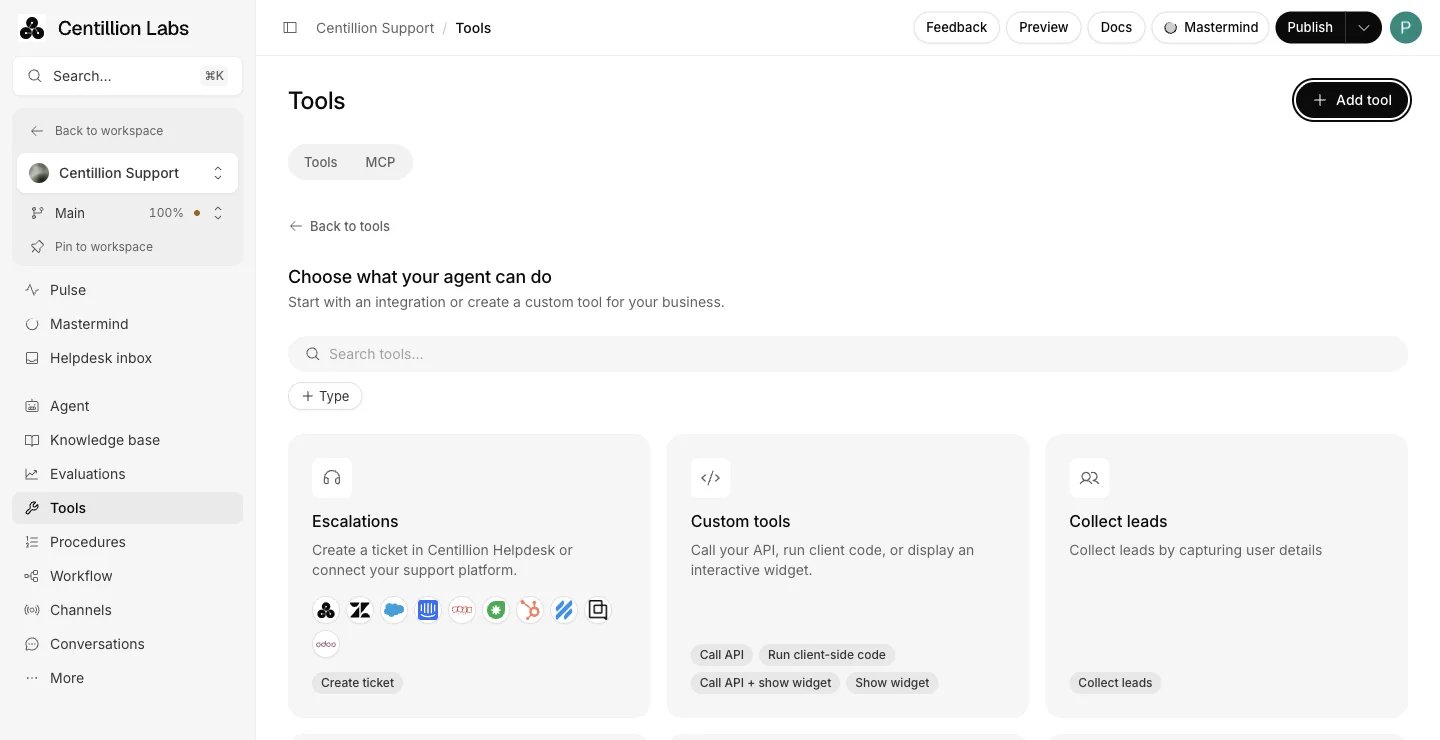
The integration catalog, where Collect leads and Collect data start.
What it does
- Asks for up to 20 fields per Collect data action, typed as text, number, email, date or true or false. An agent can have more than one action, each with its own fields and destinations.
- Asks for missing required fields before submitting and saves only details the customer supplied.
- Sends each submission as a
POSTto your webhook endpoints and by email to your team, when you add those destinations. - Lists submissions under Conversations → Collected data, with CSV and PDF export.
- Runs on the website, the mobile SDKs, the API and connected messaging channels. Phone, Salesforce and Zendesk collection is not available.
What you need
Enabled Collect data actions count toward your plan’s action allowance. Hobby includes five enabled actions per agent, Standard eight and Pro twelve. Free has no enabled actions. See plan limits. Owners and Members create and change actions; see workspace roles. If you are new to the product, start with what Centillion is.Set it up
1
Open the builder
Open Conversations → Collected data and choose Set up Collect data.
You can also start from Tools → Add tool → New tool → Integration, then
choose Collect data.
2
General
Give the action a distinct name and describe when the agent should use it.
Include an example customer request. Turn on Only use in procedures when
a procedure should decide when the action runs.
3
Fields
Select Add data input. Give each field a unique name, a type, and a
description of what the agent should ask for. Mark fields as required only
when the submission needs them. You can add up to 20 fields. Undo
removal restores the last field you removed while keeping later edits.
4
Destinations
Optionally add webhook endpoints or email recipients. If you don’t need
destinations, choose Skip.
5
Channels
Turn on the configured channels where the action should run. Unconfigured
channels have setup links.
6
Save
Choose Save to keep a new action as a draft, or Save & enable to make
it available. Saving an action that is already enabled keeps it enabled.
Use it every day
How the agent collects
The agent asks for missing required fields before submitting. Optional fields can stay empty. The agent is instructed to save only details supplied by the customer, without guessing. Separate completed collections are stored as separate submissions, including multiple collections in the same conversation turn. When a message is retried with the same request ID, its collections match the submissions already saved for that message, so no duplicate is stored and no notification is sent again.Preview and test
The editor’s preview uses the same chat appearance as the Playground, including the agent’s saved colors, theme, display name, greeting and suggested messages. To change its appearance, customize the agent in the Playground and save your settings. Use Try collecting data in the preview to walk through the fields. Enter answers, skip optional fields, and review the collected values. Once all required answers are present, Finish collection lets you leave the remaining optional fields empty. Collect again starts another collection, and the reset button clears the preview. The preview checks field values locally. It does not save submissions, send email, call webhooks or evaluate the action’s trigger instructions. Editing the fields resets the preview so it always uses the current definitions. To test conversational behavior, save and enable the action, then open the Playground and select a configured channel where the action is enabled. The agent follows the action’s instructions and validates your answers. It confirms that the collection is a preview, without creating a submission or sending email or webhooks. The test conversation follows the Playground’s normal conversation logging behavior. To verify storage and delivery, use the action on a deployed channel, then check Conversations → Collected data and the configured destinations.Webhooks and email
Add an HTTPS endpoint under Webhooks and choose Create webhook. Save the action to apply the destination. Each submission produces aPOST with the event
name {action name}_collect_data.submit, the collected values, and the agent,
action, conversation and submission identifiers. The conversation ID is the one
the developer API returns for that conversation.
Turn on Email notification and enter at least one recipient to send the
collected values to your team. Press Enter or comma after each address. You can
also paste several addresses separated by commas or semicolons. Duplicate
addresses are removed. An invalid address or an unfinished webhook must be
corrected or cleared before saving.
To start a Zapier workflow from each submission, see
Zapier.
Review and export submissions
Open Conversations → Collected data. Choose a date preset or select a custom range in the calendar. When you have multiple collection actions, use the action filter to narrow the table. Each field has its own column. View opens the associated conversation. Select rows to show the bulk toolbar, then choose Export data → CSV or PDF. Exports include empty optional field columns. Wide PDF tables continue across pages. Select all selects the rows currently loaded; use Load more first to include older submissions. The delete button removes the selected submissions after confirmation. Deletion cannot be undone. A failed filter request shows a retry state so results from a previous filter are not mistaken for current results.Collect leads
Collect leads is a separate catalog entry for name, email and phone, plus up to 30 custom fields. Under How should details be collected?, choose Collect from a form, where visitors fill out fields in a widget, or Collect conversationally, where the AI gathers details in conversation. You also set the messages shown after a submission and after a visitor dismisses the form. Leads appear under Conversations → Leads, with the same date filter and export as collected data. In the Playground, Collect leads can’t be switched on until it is fully configured.Limits and good to know
- A Collect data action holds up to 20 fields.
- Collection runs on API, Chat bubble, Help page, Center stage, Android SDK, iOS SDK, and connected Email, Instagram, Messenger, Slack, SMS and WhatsApp channels. Phone, Salesforce and Zendesk collection are not available.
- Collected values are stored as supplied, without automatic redaction.
- The Playground and the editor preview never create submissions, send email or call webhooks.
- Deleting submissions cannot be undone.
Questions
Can one agent have several Collect data actions?
Yes. Each action has its own fields and destinations, and each enabled action counts toward your plan’s action allowance. Use the action filter on Collected data to see one action’s submissions.What happens if the customer skips a required field?
The agent asks for missing required fields before it submits. Optional fields can stay empty, and the agent saves only what the customer supplied.Why didn’t my test in the Playground create a submission?
The Playground confirms the collection as a preview. It does not store a submission or send email or webhooks. Use the action on a deployed channel to check storage and delivery.What does the webhook receive?
APOST for each submission, with the event name {action name}_collect_data.submit,
the collected values, and the agent, action, conversation and submission
identifiers.
Can a retried message create a duplicate submission?
No. A retried message with the same request ID matches the submissions already saved for it, so nothing is stored or sent twice.Can I collect data on phone calls?
No. Phone, Salesforce and Zendesk collection are not available. Collection runs on the website, the mobile SDKs, the API and connected messaging channels.Try it
Create one Collect data action with two or three fields, enable it on your chat bubble, and check the submission under Collected data. If a customer asks for a person while you collect, a person takes over from the helpdesk inbox.Start free
Start on the Free plan, or take a seven-day trial of a paid plan. Your agent is live on your site in an afternoon.
Book a demo
Fifteen minutes with the team, on your own use case.
Related
What Centillion is
How the agent, its knowledge and its channels fit together.
Zapier
Start a Zap from each lead or form submission.
Contacts
Import, edit and segment the customers your agent knows.