
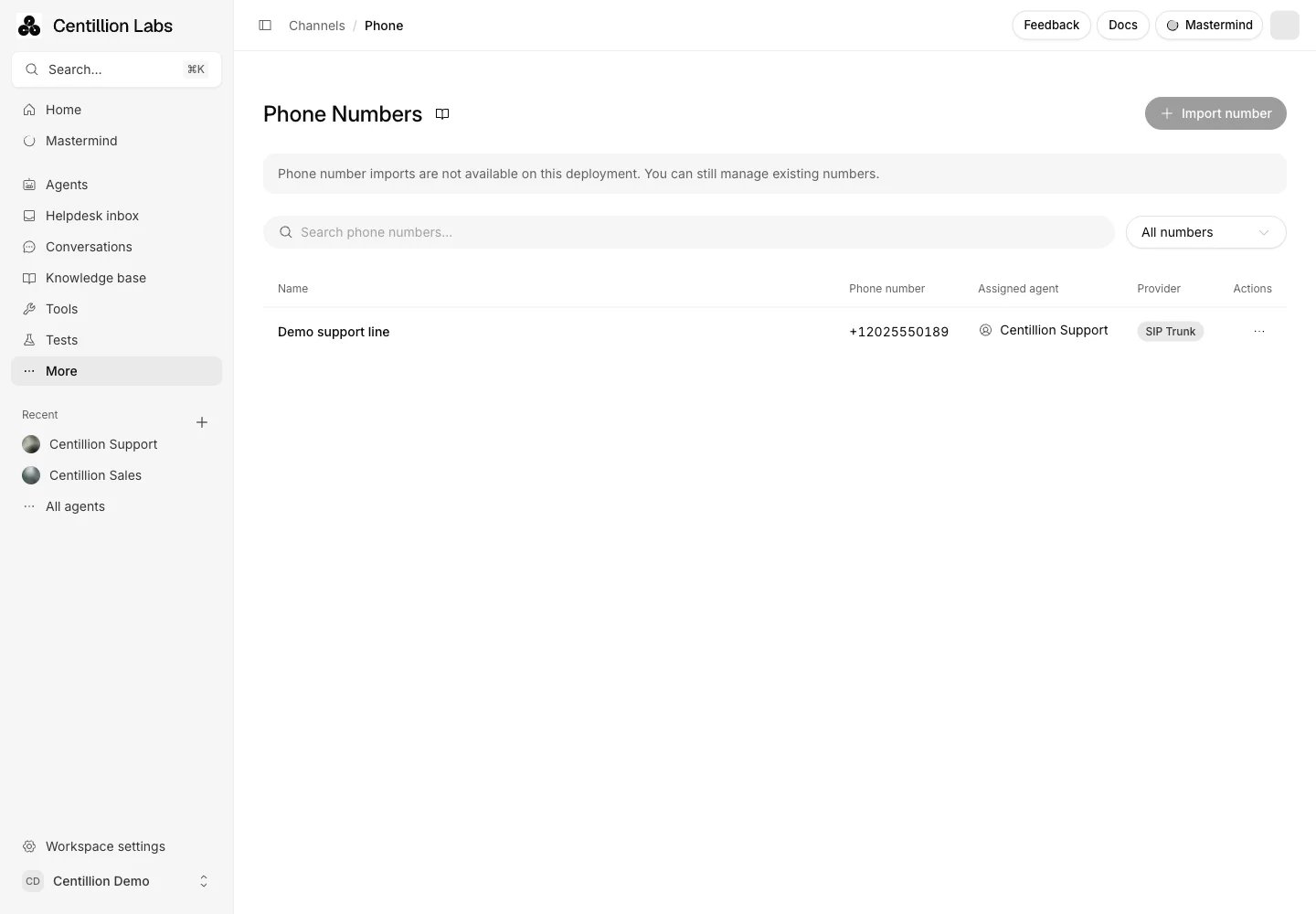
The telephony list shows each number, the agent assigned to it, the branch that answers its calls and its provider.
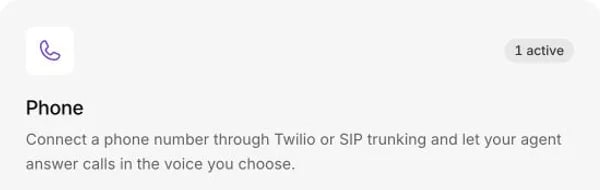
The Phone card shows how many numbers are active for the agent.
What it does
- Imports numbers at workspace level, ready to assign to an agent.
- Answers calls to assigned numbers, with one agent per number.
- Lets you move a number to another agent or leave it unassigned.
- Speaks with the voice, language and greeting saved under Agent. The agent answers in the caller’s language if they speak another one.
- Lists calls under Conversations with Phone as their source.
- Runs as many calls at once as your plan allows: 10 on Standard, 20 on Pro, or the limit Centillion set for your workspace. Each minute uses workspace credits.
What you need
- The Standard plan or above, which includes telephony and voice.
- The Owner or Member role. See workspace roles.
- For Twilio, a voice-capable phone number and the account’s Account SID and Auth Token from the Twilio Console.
- For SIP, your provider’s inbound access settings or outbound trunk address and credentials. Ask your provider which transport and encryption it supports.
- A voice, language and greeting under the agent’s Agent.
Import from Twilio
1
Open the import form
In the workspace sidebar, open More → Channels → Phone. Click Import number,
then From Twilio.To import and assign in one step, open an agent’s Channels → Phone,
click Add number, then From Twilio.
2
Enter the number and account details
Give the number a Label, such as “Support US”, and enter the phone
number in international format, including
+ and the country code. Enter
the Twilio Account SID and Auth Token, then import the number.
Use the eye button to check a pasted token before clicking Import.Centillion checks that the account is active, owns the number, and allows
voice calls. A number already on another SIP trunk must be removed from
that trunk in Twilio before you import it here.Centillion creates a dedicated SIP trunk in your Twilio account and routes
the number through it. The number stays in your account, with your usual
Twilio charges. The Auth Token is encrypted and never shown again.3
Choose the agent
A number imported from the workspace stays unassigned until you choose an
agent. Click the number’s row and choose an agent in the details drawer, or open the agent’s
Channels → Phone, click Add number, and select it from the workspace
numbers.Importing from inside an agent assigns the new number to that agent.
Assigning also turns on voice for the agent if it was off.
4
Call it
Call the number from your own phone. The agent answers with its greeting
from Agent. Check the transcript under Conversations
after the call.
Import from a SIP trunk
Open Phone Numbers, click Import number, then From SIP Trunk. The same form is available from an agent’s Add number menu. Enter a label and the phone number in international format. Enable inbound calls, outbound calls, or both, according to the trunk you want to connect.- For inbound calls, provide the IP addresses or CIDR ranges your provider sends calls from, authentication credentials, or both. Inbound calls need at least one access restriction. Use the inbound SIP address shown by Centillion when configuring routing with your provider. Allowed caller numbers is an optional extra restriction: enter international numbers separated by commas or new lines. Leave it blank to accept any caller from your allowed sources.
- For outbound calls, enter the provider’s SIP hostname or IPv4 address, with
an optional port from
1to65535. Omitsip:and any path. Choose its transport and enter the provider’s username and password. Most providers require them for outbound calls, so leave them empty only if yours allows calls by IP address. Match the media encryption setting to your provider’s requirements.
+E.164 format. Assign an agent, save the provider’s
routing, then call the number to verify the connection. Importing a number does
not verify the carrier’s routing.
If the number already belongs to another inbound trunk, the import stops and
leaves that trunk unchanged. Ask your telephony administrator to remove the
number from the old trunk before importing it again.
Choose the voice and greeting
Open Agent. Pick a voice and the language the call opens in, then write the First message → Call callers hear. Leave it blank and the agent waits for the caller to speak. Callers can talk over it; turn off Interruptible under the field to play it in full, for example when it carries a recording notice. Publish the branch to use those speech settings in new calls. Switch to Main to change recording retention under Settings → Advanced → Privacy or call limits under Settings → Security → Limits. Conversation audio is saved automatically, except for callers who opt out.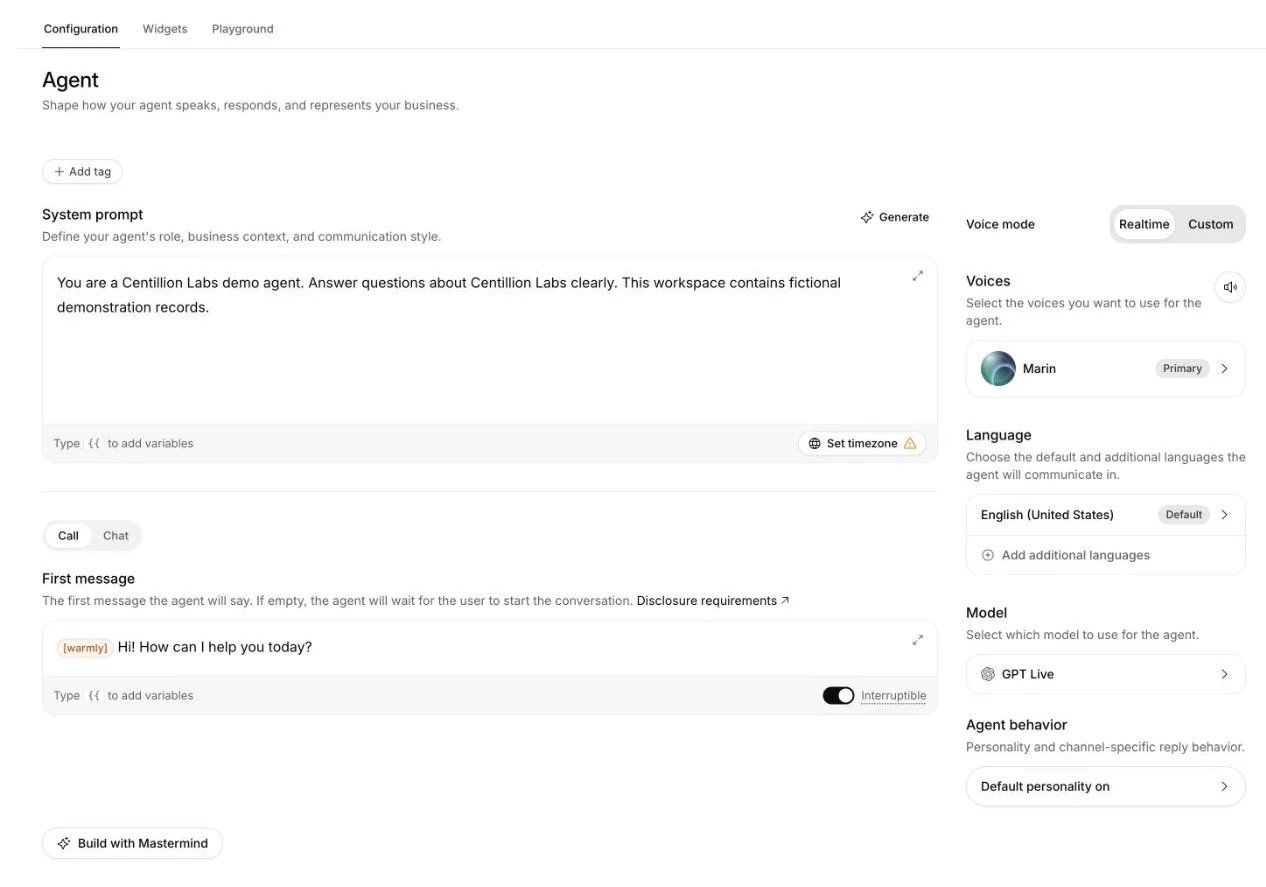
Agent configuration contains voice mode, model, voice and language.
Personalize incoming calls
The same agent handles incoming and outgoing calls.{{system.direction}} tells
the system prompt which one it’s on. To look up the caller before the first
message, configure a workspace default in Workspace settings → Webhooks,
then enable it for the agent in Settings → Security. An agent can also use
its own endpoint. The response can supply dynamic variables and explicitly
allowed conversation overrides. See Personalization
for setup, response examples, timing, permissions and Preview behavior.
Use it every day
- A call to an active number reaches the agent it is assigned to, and only that agent.
- The agent speaks with the voice and language from Agent, and opens with its greeting there. Voice selects the Realtime model or Custom language model used by the call.
- It follows the agent’s instructions, knowledge and actions, as in chat.
- Your plan’s limit on calls at once applies across the workspace. A call ends at the maximum call length under Settings → Advanced: the agent says a short goodbye and hangs up. A call a teammate has taken over is theirs, and keeps going. The other call limits there apply to website calls only.
- Every call is listed under Conversations with Phone as its source.
Text customers and look up their history
Phone number imports configure calling. To let your agent send SMS and MMS messages or read message and call history in chat, connect Twilio separately under Integrations, then add Twilio tools under Tools. The Twilio window under Integrations lists them under Tools, and Add tools takes you there. Each action does one thing:- Send message, Delete message
- Get message, List messages, Get messages for number
- Get call, List calls, Get calls for number
Managing numbers
Open Phone Numbers to see a row for each number. Search by number, label, agent name or provider. The All numbers filter can show only Assigned or Unassigned numbers. Clear filters returns to the whole inventory. Click a number’s row to open Phone number details. The Agent selector searches agents in your workspace and saves the assignment when you select one. Choose No agent to stop sending new calls to an agent while keeping the number in your workspace. Clicking an assigned agent’s name in the table opens that agent’s Phone page.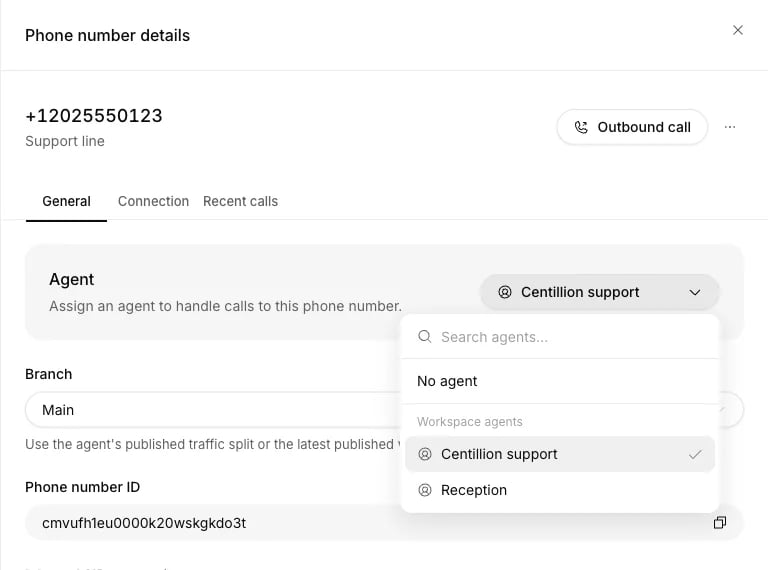
Open a number's details to choose the agent that handles its calls.
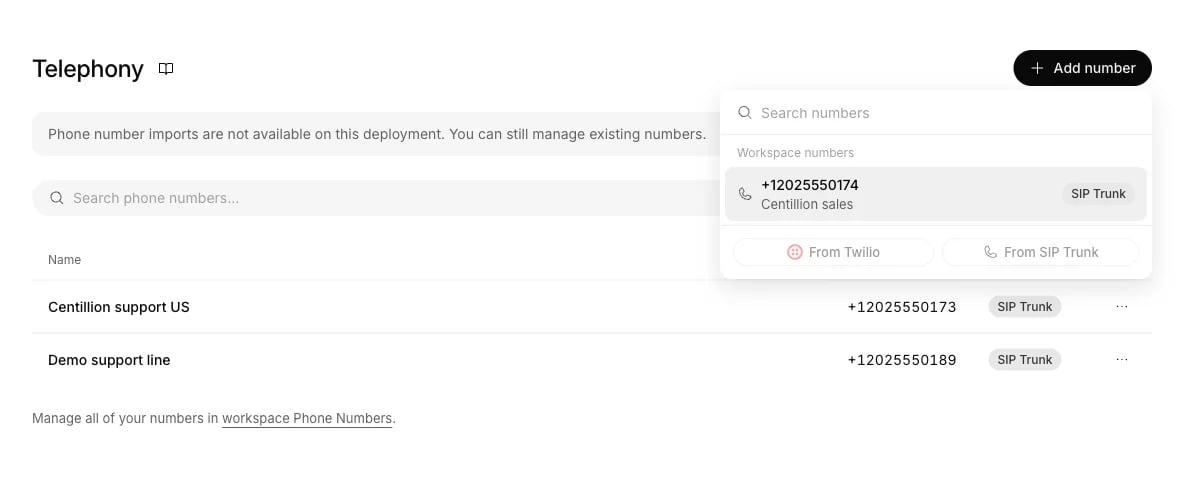
Add an unassigned workspace number from the agent's Phone page.
Send a test call
Click Outbound call in a number row or at the top of its details. Choose the agent, published branch or traffic split, and destination number including its country code. The selected agent handles this one call; the number’s inbound assignment stays the same. A number bought through Centillion Labs can only call with its original agent. Dynamic variables lists every variable the selected published version uses, filled in from the test values in Vars. Change a value or its type for this call. A value you leave blank is sent blank, soHi {{name}}, reads “Hi ,”. Lists and objects are sent as JSON text, and null
as blank text. Answering machine detection ends the call when the agent
detects voicemail or an automated greeting. Click Send test call. The first
time you do, the
Outbound communications terms and conditions
open: tick the box and choose Continue, and the call goes out. You agree
once per workspace.
An outbound SIP connection is required. Your do-not-call list and call limits
still apply. Real test calls use normal workspace credits and carrier charges.
Calling means the request was accepted, and the dialog shows the result
when the call ends. The call did not go through says why the call could not
be placed, such as a provider that needs this number’s outbound username and
password. If the request could not be confirmed, check
Recent calls first; retrying with the same settings in the same dialog
reuses the request instead of sending another call.
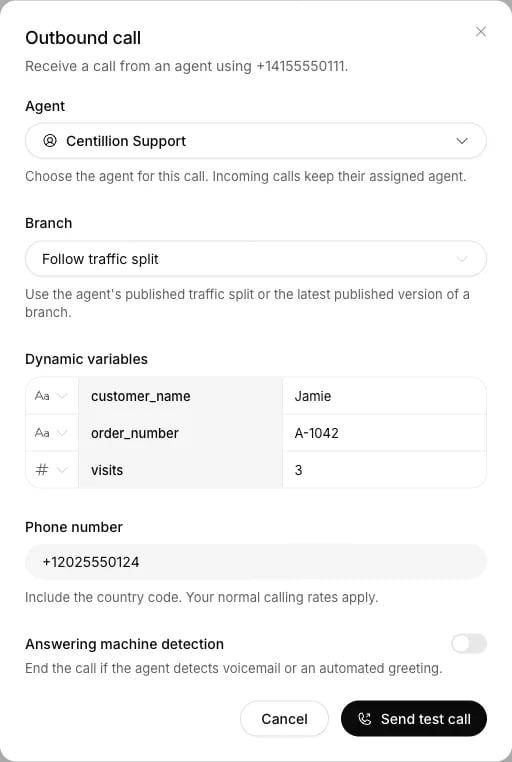
Send a test call with a selected agent and published branch without changing inbound assignment.
Check call results
The number’s Recent calls tab shows its latest 20 calls, with direction, agent, outcome, duration and a link to the conversation. A call that could not be placed says why. Available SIP response codes and carrier call IDs help your provider trace a connection failure. Active calls refresh automatically; use the refresh button to check for new inbound calls. This history contains calls that reached Centillion Labs. A carrier rejection before the call reaches the app may appear only in your provider’s logs. The dashboard does not expose raw SIP-message logs or custom TLS certificate-domain validation controls.Update a number’s connection
Open the number’s settings and choose Connection. Owners and Members can update an imported number’s provider settings here. For a SIP trunk, edit the inbound or outbound settings, then click Save connection. You can change the provider address, transport, media encryption, IP allowlist, allowed caller numbers and authentication. Keep at least one call direction enabled. Inbound calls still need an IP allowlist, authentication, or both. Saved SIP passwords stay hidden. Leave a password field blank to keep its saved value, or enter a new password to replace it. To remove authentication, turn off inbound Authentication, or clear both outbound credentials. Changes apply to future calls. If a save reports that only one direction was updated, check that direction before retrying.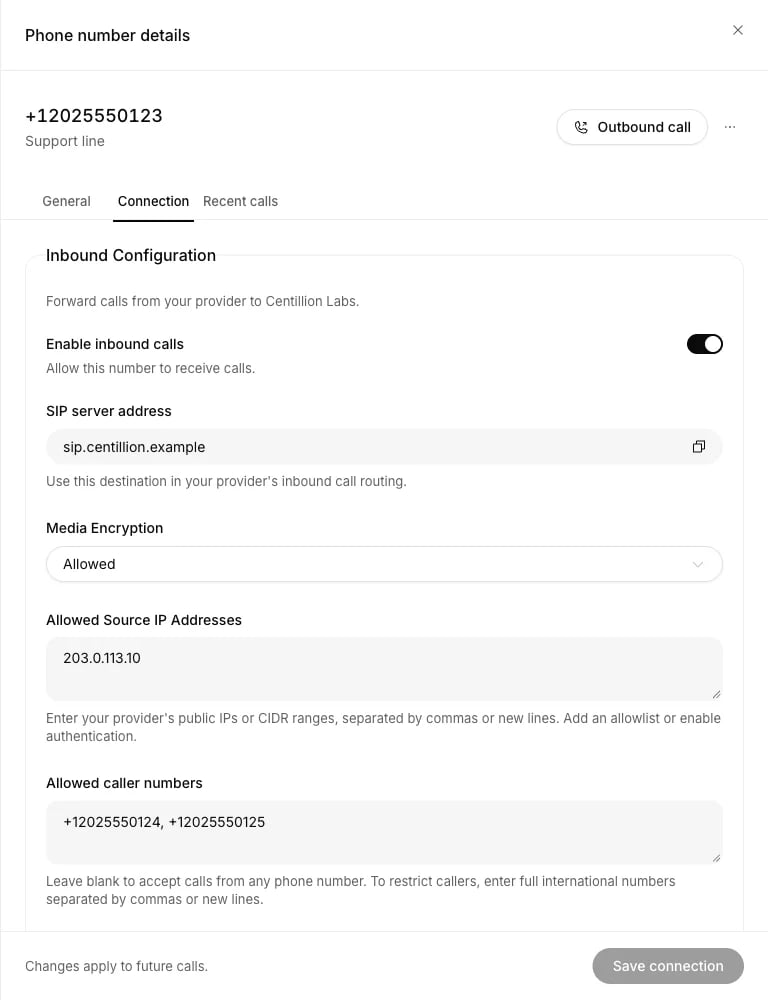
The Connection tab holds inbound access restrictions and outbound provider settings.
Remove an imported number
Open the number’s three-dot menu, choose Remove number, and confirm. If removal fails, the confirmation stays open so you can retry or cancel. Removing an imported number from the workspace stops Centillion routing calls for it. For Twilio, Centillion takes it off the configured SIP trunk and removes a trunk created only for that number. The phone number stays in your Twilio account. For SIP, remove any routing to Centillion from your provider too. To release an existing Centillion Labs number, contact the Centillion Labs team. Releasing returns the number to the carrier, where someone else may get it.Calls that need a person
Every call is saved under Conversations, so your team can read what was said and follow up. The live chat handoff does not run on phone calls; on your chat channels, a person takes over from the helpdesk inbox. When the agent cannot answer a caller, it can offer a callback or the information by message and record the request as a ticket. It only offers this when Helpdesk is on and the agent’s Escalations action, under Tools, is enabled with Phone among its channels and none of its fields is required. Phone is off there by default. Without it, the agent tells the caller it does not have that information and offers no follow-up. Nobody from your team can join a phone call, so the agent never tells a caller that someone is coming on the line, never offers or tries to bring someone in unless a workflow step transfers the call, and never asks them to hold or wait for a person, even when its instructions say to bring in the team. A caller who asks for a person is offered the callback or message when Escalations is set up as above. Otherwise the agent says it can’t put them through and keeps helping. Only an agent workflow with a step that transfers the call can move a caller to a person. When the call’s workflow can still reach such a step, the agent says instead that a person may be able to help later in the call, but not right now, and may also offer the callback or message when Escalations is set up. On a step where the caller can choose to go on to a step that transfers the call, the agent offers that transfer and moves the caller there when they want it.Twilio tool credentials
If you use Twilio tools and change that integration’s Auth Token in Twilio, open Integrations → Twilio and click Update Auth Token. The integration keeps its own credentials, separate from numbers imported through Phone Numbers. Updating one does not update the other.Limits and good to know
- One agent per number. A workspace number has one assigned agent or is unassigned. Reassign it to change who answers new calls.
- Keep the imported trunk settings. Changing the SIP trunk Centillion creates in Twilio can stop your number from reaching the agent.
- Call limits. Your plan’s limit on calls at once applies across the workspace, and a call the agent is still on ends at the maximum call length under Settings → Advanced → Conversational behavior. Daily and concurrent call limits are under Settings → Security → Limits.
- Credits. Each minute of a call uses the workspace’s credits.
- Silent calls end. After the agent says goodbye, the call hangs up as soon as the caller says goodbye back, and a few seconds later if nobody speaks or the caller only says “Thank you!” or “You too!”. If the caller says anything else, the call goes on. If the caller goes quiet in the middle of a call, Settings → Advanced → Conversational behavior controls when the agent checks in and when silence ends the call. Either timer can be disabled. These silence timers pause while either side speaks or the agent works, such as during a lookup. The maximum call length still applies. While a workflow step still waits for a detail from the caller, such as a callback number, a goodbye does not end the call: the agent asks for it, starting with “Before you go.” A caller who goes quiet follows the configured silence timers. See Conversational behavior.
- A goodbye before the line closes. When the agent ends the call on a line that was not a goodbye, such as “One moment.”, it says a short goodbye in the caller’s language first.
- Twilio tools are separate. Disconnecting the Twilio integration turns off its actions and removes numbers imported through that integration. Numbers imported through Phone Numbers have their own settings.
Recovering an interrupted phone operation
Purchases, releases, and business verification keep a durable workspace claim until the operation finishes. A connection failure or process crash can leave the claim in place. If the phone settings keep reporting that an operation is running, contact Centillion support. Waiting does not release this claim. After support reconciles the operation, retry the action.Questions
Do I need to buy numbers from Centillion?
No. Import an existing Twilio number or connect your provider’s SIP trunk from Phone Numbers. Your provider keeps the number.Why does an imported number not ring through?
A workspace import stays unassigned until you choose an agent. Open the number under Phone Numbers and assign it, or select it from Add number inside the agent’s Channels → Phone page. Also check that your provider routes calls to Centillion.Why does an outbound test call not ring my phone?
The test dialog and the number’s Recent calls tab say why a call could not be placed. If your SIP provider asked for a login, open the number’s settings, choose Connection, enter or correct the outbound username and password from your provider, and click Save connection. If your provider refused the call, check those credentials, and that it lets this number call the destination.What does the caller hear first?
A workflow opening comes first, then a permitted initiation override. If neither applies, the call uses the language’s first message or First message → Call from Agent. If that is blank, nobody speaks until the caller does. See how the opening is chosen. Calls open without a fixed notice. Include any required AI, transcription or recording disclosure in every opening you use. See Disclosure requirements. Website calls and voice previews use the same first message and do not fetch initiation data.Can two agents share a number?
No. A number belongs to one agent at a time. Your workspace can keep several numbers from the same provider account and assign each to a different agent.What happens if I change my Twilio Auth Token?
Open the number’s settings under Phone Numbers, choose Connection, enter the New Auth Token, and click Update token. Repeat for each imported number using that account. If you also use Twilio tools, update that separate integration under Integrations → Twilio → Update Auth Token.Which plan do I need?
Standard or above, which includes telephony and voice. Each minute of a call also uses credits from the workspace balance.Can the same agent answer chat and email too?
Yes. One agent, with one set of instructions and knowledge, answers on every channel you connect. What Centillion is gives the overview.Try it
Import one number, assign it, and call it from your own phone. The call shows up under Conversations when you hang up.Start free
Start on the Free plan, or take a seven-day trial of a paid plan. Your agent is live on your site in an afternoon.
Book a demo
Fifteen minutes with the team, on your own use case.
Related
What Centillion is
The product in one page: agents, knowledge, channels and the helpdesk.
Helpdesk
Where your team takes over chats on your other channels.
Text messages (SMS)
Give customers a business number they can text.