Shopify customer service automation: orders and returns
What Shopify shoppers ask, which answers an AI agent can give from live store data, and where a person stays in charge. Set it up on your store.
Guide
Shopify customer service that answers orders, returns and product questions from live store data.
Shopify customer service automation works when the agent can see what the
shopper is asking about: the product, the cart, the order. This guide covers
the questions a store gets, how an AI agent answers them from live data, what
to keep for a person, and how to set it up with Centillion.
Store support is narrow and repetitive, which is why it suits an agent. Most
messages fall into a handful of groups:
Before buying. Does this come in another size, is it in stock, what is
the difference between two products, how long does shipping take.
The cart. Add this, remove that, change the quantity, where do I pay.
After buying. Where is my order, what is the tracking number, has it
shipped.
Returns and exchanges. Can I send it back, can I get a different size,
when do I get my money.
The account. Change my email or phone, update my address, I cannot log
in.
The first group is about your catalogue and policies. The other groups are
about one shopper’s data, and that is where most support bots stop: they can
link the returns policy page but cannot tell the shopper whether their own
order qualifies.
An agent becomes useful in a store when it has two kinds of input. The first
is knowledge: your shipping policy, your returns policy, your size guides. The
second is tools that read and change store data through the store’s API.An order question then runs like this. The shopper asks where their order is.
The agent asks for what it needs to find the order, looks it up, and replies
with the status and tracking it found. A return follows the same pattern with
more checks: was the item delivered, is it inside the return window, how many
units can still go back. When everything checks out, the agent asks the
shopper to confirm and processes the return.The same applies before buying. Product search with live prices and stock
avoids the classic failure where a bot recommends something that sold out last
week.
Identity before order data. An order number on its own is not proof that
the person asking placed the order. Require a second detail that only the
buyer has, such as the checkout email or phone, or a signed-in customer
account, before showing anything about an order.Confirmation before changes. Any change to an order, a return, an address
or a profile should wait for an explicit yes from the shopper. This is where
a misread message turns into a real cost.Your return policy, written down. An agent applies the rules you give it.
If your return window, your exchange rules and your exceptions live only in
someone’s head, write them down first. Decide which cases the agent may settle
and which go to a person.Uncertain results. Store APIs sometimes accept a change without confirming
it in time. A retry in that state can create a duplicate. Check the order
before trying again.Exceptions stay with people. A damaged parcel, a gift that went to the
wrong address, a customer who wants an exception to your policy. Hand these to
your team with the conversation attached, so a person takes over from the
helpdesk inbox without asking the shopper to start again.Questions you can prevent. Many “where is my order” messages come from
shoppers who never got a clear shipping update. Shipping notifications from
your store cut those at the source; the agent then handles the shoppers who
still have a question.
Centillion connects one Shopify store to one agent. The agent
answers in a chat bubble on your storefront, searches products, updates the
shopper’s cart, shows order status and tracking, and processes eligible
returns. The full reference is the Shopify page.You need a workspace administrator, a plan with integrations (Hobby and up),
the store’s original myshopify.com domain and permission to edit the theme.
Exchanges for a new order also need Helpdesk, which comes with Standard and
up.
1
Open Shopify setup
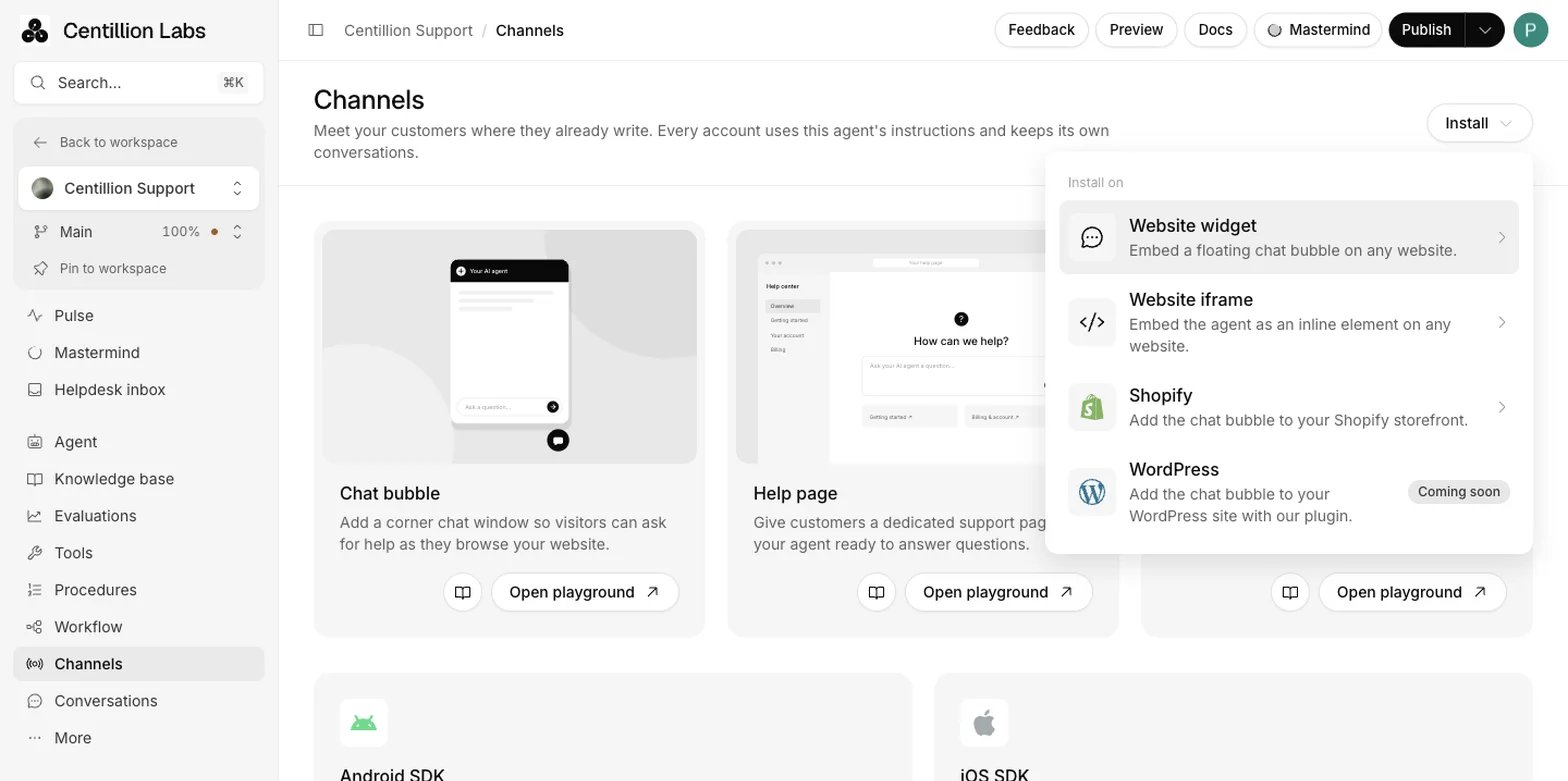
Open the agent’s Channels → Install → Shopify. The same Install menu
is available in Playground → Chat bubble, and the Shopify card on
Channels also opens setup.
Channels, Install: the Shopify entry adds the chat bubble to your storefront.
2
Connect the store
Enter the store’s original myshopify.com domain, choose Connect
Shopify, authorise the Centillion Labs app, and return to the dashboard.
Turn on Shopify enabled.
3
Enable the app embed
Choose Open theme editor, enable Centillion chat in App embeds
and save the theme. There is no theme code to edit.
4
Enable the tools you want
Open Tools → Add tool → New tool → Integration, select Shopify, and enable the
tools one by one: product search, cart, orders, returns and exchanges,
profile and address. For each, say when the agent should use it and on
which channels. Each enabled tool counts toward your plan’s limit per
agent: five on Hobby, eight on Standard and twelve on Pro.
5
Give it your policies
Add your shipping and returns pages under Knowledge base → Data
sources. Use the store’s sitemap to avoid importing duplicate navigation
and collection pages.
6
Test on the live storefront
Ask about a product, add it to the cart from the chat, and check the
store’s cart page. Sign in to a customer account to test profile, address
and order-tag changes; the Playground does not have that store session.
What the agent does once it is live:
Order status. A guest gives the exact order number and the checkout
email or phone. A signed-in customer sees their own recent orders, inside
Shopify’s standard recent-order window of 60 days.
Returns. The same-order return checks delivered items and the return
window you configure, then processes an eligible return against the original
payment.
Exchanges for a new order. These open a Helpdesk request, and an
administrator approves or rejects each one under Channels, Shopify.
Confirmation. The agent asks the shopper to confirm before any order,
return, exchange, profile or address change.
Uncertain results. An uncertain result means Shopify may have accepted
the change. Check the record and the actual order or cart before retrying,
to avoid a duplicate.
Yes, when the guest gives the exact order number and the checkout email or
phone. Signed-in customers can see their own recent orders without that step.
The same-order return tool checks delivery, the return window and the
returnable quantities, then processes an eligible return against the original
payment. Exchanges for a new order wait for an administrator’s approval.
Product search reads your published products with live prices and
availability, and shows product cards with variant choices. Search is text
only; image search is not available.
Can I answer Shopify questions on WhatsApp or email too?
The same agent answers on your other channels with the same knowledge. On
WhatsApp, Instagram, Messenger, SMS, email and Slack, procedures that use
Shopify tools are skipped, so test what you need on each channel.
Connect your store, enable the app embed and two or three tools, and ask the
chat about a recent test order. Then try a return on an order that is outside
your window and check that the agent declines it.
Start free
Connecting Shopify needs Hobby or above. Take a seven-day trial of a paid plan to try it on your store.
Book a demo
Fifteen minutes with the team, on your own use case.
Connect the store, enable the app embed, and every Shopify tool.
Chatbot vs AI agent
Why an agent that acts needs written rules and a way out.
Custom tools
Connect your own systems, such as a returns portal or a carrier API.
Last modified on October 22, 2026
⌘I
{"docsConfig":{"theme":"maple","$schema":"https://mintlify.com/docs.json","name":"Centillion","description":"How to build a Centillion AI agent, give it your knowledge, and put it on your website, WhatsApp, Messenger, Instagram, Slack and email.","colors":{"primary":"#0a0a0a","light":"#f5f5f5","dark":"#0a0a0a"},"logo":{"light":"https://mintcdn.com/centillion/YMwlBbzdENjtfSuJ/logo/centillion-labs-logo-horizontal.svg?fit=max\u0026auto=format\u0026n=YMwlBbzdENjtfSuJ\u0026q=85\u0026s=a390a5bdca5c0720e1871afbf09b1f18","dark":"https://mintcdn.com/centillion/YMwlBbzdENjtfSuJ/logo/centillion-labs-logo-horizontal.svg?fit=max\u0026auto=format\u0026n=YMwlBbzdENjtfSuJ\u0026q=85\u0026s=a390a5bdca5c0720e1871afbf09b1f18","href":"https://cntillion.com"},"favicon":"https://mintcdn.com/centillion/OVR3XViKbG9zMitv/favicon.svg?fit=max\u0026auto=format\u0026n=OVR3XViKbG9zMitv\u0026q=85\u0026s=a6656501072b111f976d6229cbbd73ad","appearance":{"default":"light","strict":true},"background":{"color":{"light":"#ffffff","dark":"#0a0a0a"}},"navbar":{"links":[{"href":"https://cntillion.com/pricing","label":"Pricing"},{"href":"https://cntillion.com/support","label":"Contact"}],"primary":{"type":"button","label":"Open Centillion","href":"https://app.cntillion.com"}},"footer":{"links":[{"header":"Centillion","items":[{"label":"Home","href":"https://cntillion.com"},{"label":"Pricing","href":"https://cntillion.com/pricing"},{"label":"Contact","href":"https://cntillion.com/support"},{"label":"Sign in","href":"https://app.cntillion.com/sign-in"}]}]},"search":{"prompt":"Search the Centillion docs"},"seo":{"metatags":{"og:site_name":"Centillion Docs"},"organization":{"name":"Centillion","url":"https://cntillion.com"},"indexing":"navigable"},"fonts":{"family":"Inter"},"metadata":{"timestamp":true},"styling":{"latex":true},"navigation":{"pages":[]}},"deployment":{"deploymentMetadataValue":{"subdomain":"centillion","hasAudioNarration":false,"actualSubdomain":"centillion","customDomains":["cntillion.com"],"gitSource":{"type":"github","owner":"centillion-labs","repo":"conversational-agents-for-cx","deployBranch":"master","contentDirectory":"apps/docs","isPrivate":true,"mountPath":"","label":""},"chroma":{"latestBuiltDeploymentHistoryId":"6ae95d6935b55ff31612f7a7","collectionId":"27832044-5e72-44ea-8577-5c209cbfb879","liveDeploymentHistoryId":"6ae95d6935b55ff31612f7a7","schemaVersion":"v3"},"entitlements":{"AI_CHAT":{"status":"DISABLED"},"WEB_MCP":{"status":"DISABLED"},"NARRATION":{"status":"DISABLED"}},"buildId":"6ae96f717e64ded297ae851c","clientVersion":"0.0.4045","searchFilterCounts":[{"language":"default","tag":"Reach your customers","count":19},{"language":"default","tag":"Build your agent","count":14},{"language":"default","tag":"Guides","count":8},{"language":"default","tag":"Workspace","count":7},{"language":"default","tag":"API documentation","count":6},{"language":"default","tag":"Support","count":6},{"language":"default","tag":"Customer data","count":5},{"language":"default","tag":"Website development","count":2},{"language":"default","tag":"Get started","count":2},{"language":"default","tag":"Helpdesk API","count":1}]},"assistantConfig":{"enableAskAiButton":false,"enableStarterQuestions":false,"enableContextualStarterQuestions":false,"enableAskAiSearchBar":true},"basePath":"/docs","hasChatPermissions":false,"hasWebMcpPermissions":false,"toggles":[{"name":"kill-isr","enabled":true,"variant":{"name":"disabled","enabled":false,"feature_enabled":true},"impressionData":false},{"name":"agent-mintlify-slack","enabled":true,"variant":{"name":"disabled","enabled":false,"feature_enabled":true},"impressionData":false},{"name":"agent-integrations-settings","enabled":true,"variant":{"name":"disabled","enabled":false,"feature_enabled":true},"impressionData":false},{"name":"automations-pr-grouping","enabled":true,"variant":{"name":"disabled","enabled":false,"feature_enabled":true},"impressionData":false},{"name":"custom-prefix","enabled":true,"variant":{"name":"disabled","enabled":false,"feature_enabled":true},"impressionData":false},{"name":"analytics-v7","enabled":true,"variant":{"name":"disabled","enabled":false,"feature_enabled":true},"impressionData":false},{"name":"user-flows-analytics","enabled":true,"variant":{"name":"disabled","enabled":false,"feature_enabled":true},"impressionData":false},{"name":"no-publish-flow","enabled":true,"variant":{"name":"disabled","enabled":false,"feature_enabled":true},"impressionData":false},{"name":"workos-onboarding","enabled":true,"variant":{"name":"disabled","enabled":false,"feature_enabled":true},"impressionData":false},{"name":"llms-txt-v2","enabled":true,"variant":{"name":"disabled","enabled":false,"feature_enabled":true},"impressionData":false},{"name":"snapshot-serving-live","enabled":true,"variant":{"name":"disabled","enabled":false,"feature_enabled":true},"impressionData":false},{"name":"stripTemperatureMiddleware","enabled":true,"variant":{"name":"disabled","enabled":false,"feature_enabled":true},"impressionData":false},{"name":"support-platform-pylon-zendesk","enabled":true,"variant":{"name":"disabled","enabled":false,"feature_enabled":true},"impressionData":false},{"name":"snapshot-serving","enabled":true,"variant":{"name":"disabled","enabled":false,"feature_enabled":true},"impressionData":false},{"name":"instant-rollback","enabled":true,"variant":{"name":"disabled","enabled":false,"feature_enabled":true},"impressionData":false},{"name":"granular-notifications-server","enabled":true,"variant":{"name":"disabled","enabled":false,"feature_enabled":true},"impressionData":false},{"name":"granular-notifications","enabled":true,"variant":{"name":"disabled","enabled":false,"feature_enabled":true},"impressionData":false},{"name":"automations-fable","enabled":true,"variant":{"name":"disabled","enabled":false,"feature_enabled":true},"impressionData":false},{"name":"fixed-ai-action-pricing","enabled":true,"variant":{"name":"disabled","enabled":false,"feature_enabled":true},"impressionData":false},{"name":"automation-resolve-merge-conflict","enabled":true,"variant":{"name":"disabled","enabled":false,"feature_enabled":true},"impressionData":false},{"name":"scoped-publishing","enabled":true,"variant":{"name":"disabled","enabled":false,"feature_enabled":true},"impressionData":false},{"name":"mintql","enabled":true,"variant":{"name":"disabled","enabled":false,"feature_enabled":true},"impressionData":false},{"name":"page-level-analytics","enabled":true,"variant":{"name":"disabled","enabled":false,"feature_enabled":true},"impressionData":false},{"name":"editor-version-history-v2","enabled":true,"variant":{"name":"disabled","enabled":false,"feature_enabled":true},"impressionData":false},{"name":"billing-page-v2","enabled":true,"variant":{"name":"disabled","enabled":false,"feature_enabled":true},"impressionData":false},{"name":"full-page-search","enabled":true,"variant":{"name":"disabled","enabled":false,"feature_enabled":true},"impressionData":false},{"name":"workspace-projects","enabled":true,"variant":{"name":"disabled","enabled":false,"feature_enabled":true},"impressionData":false},{"name":"assistant-v5","enabled":true,"variant":{"name":"disabled","enabled":false,"feature_enabled":true},"impressionData":false},{"name":"byok-sep-25","enabled":true,"variant":{"name":"disabled","enabled":false,"feature_enabled":true},"impressionData":false},{"name":"fork-pr-previews","enabled":true,"variant":{"name":"disabled","enabled":false,"feature_enabled":true},"impressionData":false},{"name":"revalidation-jwt","enabled":true,"variant":{"name":"disabled","enabled":false,"feature_enabled":true},"impressionData":false},{"name":"vite-origin","enabled":true,"variant":{"name":"disabled","enabled":false,"feature_enabled":true},"impressionData":false},{"name":"billing-updated-9-15","enabled":true,"variant":{"name":"disabled","enabled":false,"feature_enabled":true},"impressionData":false},{"name":"workos-sso-scim","enabled":true,"variant":{"name":"disabled","enabled":false,"feature_enabled":true},"impressionData":false},{"name":"hobby-abuse-scan","enabled":true,"variant":{"name":"disabled","enabled":false,"feature_enabled":true},"impressionData":false},{"name":"dashboard-inbox","enabled":true,"variant":{"name":"disabled","enabled":false,"feature_enabled":true},"impressionData":false},{"name":"workos-signup","enabled":true,"variant":{"name":"disabled","enabled":false,"feature_enabled":true},"impressionData":false},{"name":"turbopuffer-dual-write","enabled":true,"variant":{"name":"disabled","enabled":false,"feature_enabled":true},"impressionData":false},{"name":"workos-enabled","enabled":true,"variant":{"name":"disabled","enabled":false,"feature_enabled":true},"impressionData":false},{"name":"approve-review-flow","enabled":true,"variant":{"name":"disabled","enabled":false,"feature_enabled":true},"impressionData":false},{"name":"sso-setup-deadline-banner","enabled":true,"variant":{"name":"disabled","enabled":false,"feature_enabled":true},"impressionData":false}],"googleFontsInlined":false},"customCss":[{"filePath":"style.css","content":":root{--bg-subtle:#f6f6f6;--ink:#0a0a0a;--ink-2:#353535;--ink-3:#626262;--ink-4:#a1a1a1;--ink-5:#c7c7c7;--amber:#db8831;--amber-text:#9f5f1c;--amber-tint:#fbf4ec;--radius-lg:16px;--radius-xl:24px;--radius-pill:9999px;--glow-lavender:#ebeaf7;--glow-pink:#f2e4e2;--glow-peach:#f5e6dd;--glow-sky:#e6ecf4;--glow-mint:#e9f4ef}#page-title{font-size:40px;font-weight:500;line-height:46px;color:var(--ink);letter-spacing:-.02em}#content>h2,#content>h3,#content>h4{font-size:20px;font-weight:500;line-height:26px;color:var(--ink);letter-spacing:-.01em}#content>h3,#content>h4{font-size:18px;line-height:24px}#content>h4{font-size:16px;line-height:22px;letter-spacing:0}#header .eyebrow,#search-bar-entry,#search-bar-entry-mobile{font-size:14px;font-weight:400;line-height:20px;color:var(--ink-3)}#search-bar-entry,#search-bar-entry-mobile{height:36px;padding:0 16px;color:var(--ink-4);background-color:var(--bg-subtle);border-radius:var(--radius-pill);box-shadow:none}#search-bar-entry svg,#search-bar-entry-mobile svg{color:var(--ink-4)}#search-bar-entry>span{font-size:12px;font-weight:400;line-height:16px;color:var(--ink-4)}#search-bar-entry-mobile:focus-visible,#search-bar-entry:focus-visible{outline:2px solid var(--ink);outline-offset:2px}#content .card{background-color:var(--bg-subtle);border:0;border-radius:var(--radius-lg);box-shadow:none}#content .card [data-component-part=card-content-container]{padding:20px}#content .card [data-component-part=card-icon] svg{background-color:var(--ink-3)}#content .card [data-component-part=card-content-container]>a>div.absolute{color:var(--ink-5)}#content .card [data-component-part=card-title]{font-size:16px;font-weight:500;line-height:22px;color:var(--ink)}#content .card [data-component-part=card-content]{font-size:14px;font-weight:400;line-height:20px;color:var(--ink-3)}#content .card [data-component-part=card-content]>span{color:inherit}#content-area:has(.centillion-hero)>#header{display:none}.centillion-hero{display:flex;flex-direction:column;gap:20px;padding:28px;margin-bottom:24px;background-color:var(--bg-subtle);background-image:radial-gradient(38% 80% at 96% 0%,var(--glow-lavender) 0%,transparent 100%),radial-gradient(30% 70% at 84% 48%,var(--glow-pink) 0%,transparent 100%),radial-gradient(34% 70% at 90% 100%,var(--glow-peach) 0%,transparent 100%),radial-gradient(28% 64% at 66% 58%,var(--glow-sky) 0%,transparent 100%),radial-gradient(26% 56% at 62% 0%,var(--glow-mint) 0%,transparent 100%);border-radius:var(--radius-xl)}.centillion-hero .centillion-hero-eyebrow{margin:0;font-size:14px;font-weight:400;line-height:20px;color:var(--ink-3)}.centillion-hero .centillion-hero-title{max-width:720px;margin:0;font-size:40px;font-weight:500;line-height:46px;color:var(--ink);letter-spacing:-.02em;text-wrap:balance}.centillion-hero .centillion-muted{color:var(--ink-3)}#content .callout{padding:16px 20px;font-size:14px;line-height:20px;border:0;border-radius:var(--radius-lg)}#content .callout[data-callout-type=warning]{background-color:var(--amber-tint)}#content .callout[data-callout-type=warning] [data-component-part=callout-icon] svg{color:var(--amber)}#content .callout[data-callout-type=warning] [data-component-part=callout-content]{color:var(--amber-text)}#content .callout[data-callout-type=note]{background-color:var(--bg-subtle)}#content .callout[data-callout-type=note] [data-component-part=callout-icon] svg{color:var(--ink-3)}#content .callout[data-callout-type=note] [data-component-part=callout-content]{color:var(--ink-2)}"}],"page":{"pagePath":"guides/shopify-ai-support","slug":"/guides/shopify-ai-support","pageMetadata":{"title":"Shopify customer service automation: orders and returns","description":"What Shopify shoppers ask, which answers an AI agent can give from live store data, and where a person stays in charge. Set it up on your store.","sidebarTitle":"Shopify support","keywords":["Shopify customer service automation","where is my order automation","AI order tracking for Shopify","Shopify returns chatbot"],"href":"/guides/shopify-ai-support"},"description":{"compiledSource":"\"use strict\";\nconst {jsx: _jsx} = arguments[0];\nconst {useMDXComponents: _provideComponents} = arguments[0];\nfunction _createMdxContent(props) {\n const _components = {\n p: \"p\",\n ..._provideComponents(),\n ...props.components\n };\n return _jsx(_components.p, {\n children: \"What Shopify shoppers ask, which answers an AI agent can give from live store data, and where a person stays in charge. Set it up on your store.\"\n });\n}\nfunction MDXContent(props = {}) {\n const {wrapper: MDXLayout} = {\n ..._provideComponents(),\n ...props.components\n };\n return MDXLayout ? _jsx(MDXLayout, {\n ...props,\n children: _jsx(_createMdxContent, {\n ...props\n })\n }) : _createMdxContent(props);\n}\nreturn {\n default: MDXContent\n};\n","frontmatter":{},"scope":{}},"pageType":"default","mdx":{"mdxSource":{"compiledSource":"\"use strict\";const{Fragment:_Fragment,jsx:_jsx,jsxs:_jsxs}=arguments[0];const{useMDXComponents:_provideComponents}=arguments[0];function _createMdxContent(props){const _components={a:`a`,code:`code`,li:`li`,p:`p`,strong:`strong`,ul:`ul`,..._provideComponents(),...props.components},{Card,CardGroup,Frame,Heading,OptimizedImage,Step,Steps}=_components;if(!Card)_missingMdxReference(`Card`,true);if(!CardGroup)_missingMdxReference(`CardGroup`,true);if(!Frame)_missingMdxReference(`Frame`,true);if(!Heading)_missingMdxReference(`Heading`,true);if(!OptimizedImage)_missingMdxReference(`OptimizedImage`,true);if(!Step)_missingMdxReference(`Step`,true);if(!Steps)_missingMdxReference(`Steps`,true);return _jsxs(_Fragment,{children:[_jsxs(`div`,{className:`centillion-hero`,children:[_jsx(`p`,{className:`centillion-hero-eyebrow`,children:`Guide`}),_jsxs(`div`,{className:`centillion-hero-title`,role:`heading`,\"aria-level\":`1`,children:[`Shopify `,_jsx(`span`,{className:`centillion-muted`,children:`customer service that answers`}),` orders, returns `,_jsx(`span`,{className:`centillion-muted`,children:`and`}),` product questions `,_jsx(`span`,{className:`centillion-muted`,children:`from live store data.`})]})]}),`\n`,_jsx(_components.p,{children:`Shopify customer service automation works when the agent can see what the\nshopper is asking about: the product, the cart, the order. This guide covers\nthe questions a store gets, how an AI agent answers them from live data, what\nto keep for a person, and how to set it up with Centillion.`}),`\n`,_jsx(Heading,{level:`2`,id:`what-shoppers-ask-a-store`,children:`What shoppers ask a store`}),`\n`,_jsx(_components.p,{children:`Store support is narrow and repetitive, which is why it suits an agent. Most\nmessages fall into a handful of groups:`}),`\n`,_jsxs(_components.ul,{children:[`\n`,_jsxs(_components.li,{children:[_jsx(_components.strong,{children:`Before buying.`}),` Does this come in another size, is it in stock, what is\nthe difference between two products, how long does shipping take.`]}),`\n`,_jsxs(_components.li,{children:[_jsx(_components.strong,{children:`The cart.`}),` Add this, remove that, change the quantity, where do I pay.`]}),`\n`,_jsxs(_components.li,{children:[_jsx(_components.strong,{children:`After buying.`}),` Where is my order, what is the tracking number, has it\nshipped.`]}),`\n`,_jsxs(_components.li,{children:[_jsx(_components.strong,{children:`Returns and exchanges.`}),` Can I send it back, can I get a different size,\nwhen do I get my money.`]}),`\n`,_jsxs(_components.li,{children:[_jsx(_components.strong,{children:`The account.`}),` Change my email or phone, update my address, I cannot log\nin.`]}),`\n`]}),`\n`,_jsx(_components.p,{children:`The first group is about your catalogue and policies. The other groups are\nabout one shopper’s data, and that is where most support bots stop: they can\nlink the returns policy page but cannot tell the shopper whether their own\norder qualifies.`}),`\n`,_jsx(Heading,{level:`2`,id:`how-an-agent-answers-from-live-data`,children:`How an agent answers from live data`}),`\n`,_jsx(_components.p,{children:`An agent becomes useful in a store when it has two kinds of input. The first\nis knowledge: your shipping policy, your returns policy, your size guides. The\nsecond is tools that read and change store data through the store’s API.`}),`\n`,_jsx(_components.p,{children:`An order question then runs like this. The shopper asks where their order is.\nThe agent asks for what it needs to find the order, looks it up, and replies\nwith the status and tracking it found. A return follows the same pattern with\nmore checks: was the item delivered, is it inside the return window, how many\nunits can still go back. When everything checks out, the agent asks the\nshopper to confirm and processes the return.`}),`\n`,_jsx(_components.p,{children:`The same applies before buying. Product search with live prices and stock\navoids the classic failure where a bot recommends something that sold out last\nweek.`}),`\n`,_jsx(Heading,{level:`2`,id:`what-to-watch-for`,children:`What to watch for`}),`\n`,_jsxs(_components.p,{children:[_jsx(_components.strong,{children:`Identity before order data.`}),` An order number on its own is not proof that\nthe person asking placed the order. Require a second detail that only the\nbuyer has, such as the checkout email or phone, or a signed-in customer\naccount, before showing anything about an order.`]}),`\n`,_jsxs(_components.p,{children:[_jsx(_components.strong,{children:`Confirmation before changes.`}),` Any change to an order, a return, an address\nor a profile should wait for an explicit yes from the shopper. This is where\na misread message turns into a real cost.`]}),`\n`,_jsxs(_components.p,{children:[_jsx(_components.strong,{children:`Your return policy, written down.`}),` An agent applies the rules you give it.\nIf your return window, your exchange rules and your exceptions live only in\nsomeone’s head, write them down first. Decide which cases the agent may settle\nand which go to a person.`]}),`\n`,_jsxs(_components.p,{children:[_jsx(_components.strong,{children:`Uncertain results.`}),` Store APIs sometimes accept a change without confirming\nit in time. A retry in that state can create a duplicate. Check the order\nbefore trying again.`]}),`\n`,_jsxs(_components.p,{children:[_jsx(_components.strong,{children:`Exceptions stay with people.`}),` A damaged parcel, a gift that went to the\nwrong address, a customer who wants an exception to your policy. Hand these to\nyour team with the conversation attached, so a person takes over from the\n`,_jsx(_components.a,{href:`/helpdesk`,children:`helpdesk inbox`}),` without asking the shopper to start again.`]}),`\n`,_jsxs(_components.p,{children:[_jsx(_components.strong,{children:`Questions you can prevent.`}),` Many “where is my order” messages come from\nshoppers who never got a clear shipping update. Shipping notifications from\nyour store cut those at the source; the agent then handles the shoppers who\nstill have a question.`]}),`\n`,_jsx(Heading,{level:`2`,id:`set-it-up-with-centillion`,children:`Set it up with Centillion`}),`\n`,_jsxs(_components.p,{children:[_jsx(_components.a,{href:`/introduction`,children:`Centillion`}),` connects one Shopify store to one agent. The agent\nanswers in a chat bubble on your storefront, searches products, updates the\nshopper’s cart, shows order status and tracking, and processes eligible\nreturns. The full reference is the `,_jsx(_components.a,{href:`/channels/shopify`,children:`Shopify page`}),`.`]}),`\n`,_jsxs(_components.p,{children:[`You need a workspace administrator, a plan with integrations (Hobby and up),\nthe store’s original `,_jsx(_components.code,{children:`myshopify.com`}),` domain and permission to edit the theme.\nExchanges for a new order also need Helpdesk, which comes with Standard and\nup.`]}),`\n`,_jsxs(Steps,{children:[_jsxs(Step,{title:`Open Shopify setup`,children:[_jsxs(_components.p,{children:[`Open the agent’s `,_jsx(_components.strong,{children:`Channels → Install → Shopify`}),`. The same Install menu\nis available in `,_jsx(_components.strong,{children:`Playground → Chat bubble`}),`, and the Shopify card on\n`,_jsx(_components.strong,{children:`Channels`}),` also opens setup.`]}),_jsx(Frame,{caption:`Channels, Install: the Shopify entry adds the chat bubble to your storefront.`,children:_jsx(OptimizedImage,{src:`https://mintcdn.com/centillion/WLpDA0mJ1ryQ1IZ5/images/channels/shopify-01-deploy-menu.webp?fit=max\u0026auto=format\u0026n=WLpDA0mJ1ryQ1IZ5\u0026q=85\u0026s=877cf939ff28a8ee02fcb48726775fce`,alt:`Install menu on Channels with the Shopify entry reading Add the chat bubble to your Shopify storefront`,\"data-og-width\":`1568`,width:`1568`,\"data-og-height\":`781`,height:`781`,\"data-path\":`images/channels/shopify-01-deploy-menu.webp`,\"data-optimize\":`true`,\"data-opv\":`3`,srcset:`https://mintcdn.com/centillion/WLpDA0mJ1ryQ1IZ5/images/channels/shopify-01-deploy-menu.webp?w=280\u0026fit=max\u0026auto=format\u0026n=WLpDA0mJ1ryQ1IZ5\u0026q=85\u0026s=def86931f5c2c70b6e1257405238bee0 280w, https://mintcdn.com/centillion/WLpDA0mJ1ryQ1IZ5/images/channels/shopify-01-deploy-menu.webp?w=560\u0026fit=max\u0026auto=format\u0026n=WLpDA0mJ1ryQ1IZ5\u0026q=85\u0026s=340b510a0e715747235c49f0f58dda6b 560w, https://mintcdn.com/centillion/WLpDA0mJ1ryQ1IZ5/images/channels/shopify-01-deploy-menu.webp?w=840\u0026fit=max\u0026auto=format\u0026n=WLpDA0mJ1ryQ1IZ5\u0026q=85\u0026s=e0e135ebe5da1bde782c99d3e83a6dd7 840w, https://mintcdn.com/centillion/WLpDA0mJ1ryQ1IZ5/images/channels/shopify-01-deploy-menu.webp?w=1100\u0026fit=max\u0026auto=format\u0026n=WLpDA0mJ1ryQ1IZ5\u0026q=85\u0026s=396f4c816a7441d58cadbc4299f2b46b 1100w, https://mintcdn.com/centillion/WLpDA0mJ1ryQ1IZ5/images/channels/shopify-01-deploy-menu.webp?w=1650\u0026fit=max\u0026auto=format\u0026n=WLpDA0mJ1ryQ1IZ5\u0026q=85\u0026s=f2141c140a9c1271250158b4e306a051 1650w, https://mintcdn.com/centillion/WLpDA0mJ1ryQ1IZ5/images/channels/shopify-01-deploy-menu.webp?w=2500\u0026fit=max\u0026auto=format\u0026n=WLpDA0mJ1ryQ1IZ5\u0026q=85\u0026s=0bf6b5e4e1cdeb05ae9bee9bc29eac5e 2500w`})})]}),_jsx(Step,{title:`Connect the store`,children:_jsxs(_components.p,{children:[`Enter the store’s original `,_jsx(_components.code,{children:`myshopify.com`}),` domain, choose `,_jsx(_components.strong,{children:`Connect\nShopify`}),`, authorise the Centillion Labs app, and return to the dashboard.\nTurn on `,_jsx(_components.strong,{children:`Shopify enabled`}),`.`]})}),_jsx(Step,{title:`Enable the app embed`,children:_jsxs(_components.p,{children:[`Choose `,_jsx(_components.strong,{children:`Open theme editor`}),`, enable `,_jsx(_components.strong,{children:`Centillion chat`}),` in `,_jsx(_components.strong,{children:`App embeds`}),`\nand save the theme. There is no theme code to edit.`]})}),_jsx(Step,{title:`Enable the tools you want`,children:_jsxs(_components.p,{children:[`Open `,_jsx(_components.strong,{children:`Tools → Add tool → New tool → Integration`}),`, select `,_jsx(_components.strong,{children:`Shopify`}),`, and enable the\ntools one by one: product search, cart, orders, returns and exchanges,\nprofile and address. For each, say when the agent should use it and on\nwhich channels. Each enabled tool counts toward your plan’s limit per\nagent: five on Hobby, eight on Standard and twelve on Pro.`]})}),_jsx(Step,{title:`Give it your policies`,children:_jsxs(_components.p,{children:[`Add your shipping and returns pages under `,_jsx(_components.strong,{children:`Knowledge base → Data\nsources`}),`. Use the store’s sitemap to avoid importing duplicate navigation\nand collection pages.`]})}),_jsx(Step,{title:`Test on the live storefront`,children:_jsx(_components.p,{children:`Ask about a product, add it to the cart from the chat, and check the\nstore’s cart page. Sign in to a customer account to test profile, address\nand order-tag changes; the Playground does not have that store session.`})})]}),`\n`,_jsx(_components.p,{children:`What the agent does once it is live:`}),`\n`,_jsxs(_components.ul,{children:[`\n`,_jsxs(_components.li,{children:[_jsx(_components.strong,{children:`Order status.`}),` A guest gives the exact order number and the checkout\nemail or phone. A signed-in customer sees their own recent orders, inside\nShopify’s standard recent-order window of 60 days.`]}),`\n`,_jsxs(_components.li,{children:[_jsx(_components.strong,{children:`Returns.`}),` The same-order return checks delivered items and the return\nwindow you configure, then processes an eligible return against the original\npayment.`]}),`\n`,_jsxs(_components.li,{children:[_jsx(_components.strong,{children:`Exchanges for a new order.`}),` These open a Helpdesk request, and an\nadministrator approves or rejects each one under `,_jsx(_components.strong,{children:`Channels`}),`, `,_jsx(_components.strong,{children:`Shopify`}),`.`]}),`\n`,_jsxs(_components.li,{children:[_jsx(_components.strong,{children:`Confirmation.`}),` The agent asks the shopper to confirm before any order,\nreturn, exchange, profile or address change.`]}),`\n`,_jsxs(_components.li,{children:[_jsx(_components.strong,{children:`Uncertain results.`}),` An uncertain result means Shopify may have accepted\nthe change. Check the record and the actual order or cart before retrying,\nto avoid a duplicate.`]}),`\n`]}),`\n`,_jsx(Heading,{level:`2`,id:`questions`,children:`Questions`}),`\n`,_jsx(Heading,{level:`3`,id:`can-the-agent-tell-a-guest-where-their-order-is`,children:`Can the agent tell a guest where their order is?`}),`\n`,_jsx(_components.p,{children:`Yes, when the guest gives the exact order number and the checkout email or\nphone. Signed-in customers can see their own recent orders without that step.`}),`\n`,_jsx(Heading,{level:`3`,id:`can-the-agent-issue-refunds`,children:`Can the agent issue refunds?`}),`\n`,_jsx(_components.p,{children:`The same-order return tool checks delivery, the return window and the\nreturnable quantities, then processes an eligible return against the original\npayment. Exchanges for a new order wait for an administrator’s approval.`}),`\n`,_jsx(Heading,{level:`3`,id:`does-the-agent-know-my-products`,children:`Does the agent know my products?`}),`\n`,_jsx(_components.p,{children:`Product search reads your published products with live prices and\navailability, and shows product cards with variant choices. Search is text\nonly; image search is not available.`}),`\n`,_jsx(Heading,{level:`3`,id:`do-i-need-to-edit-my-theme-code`,children:`Do I need to edit my theme code?`}),`\n`,_jsxs(_components.p,{children:[`No. You enable `,_jsx(_components.strong,{children:`Centillion chat`}),` in the theme editor’s `,_jsx(_components.strong,{children:`App embeds`}),` and\nsave the theme.`]}),`\n`,_jsx(Heading,{level:`3`,id:`can-i-answer-shopify-questions-on-whatsapp-or-email-too`,children:`Can I answer Shopify questions on WhatsApp or email too?`}),`\n`,_jsx(_components.p,{children:`The same agent answers on your other channels with the same knowledge. On\nWhatsApp, Instagram, Messenger, SMS, email and Slack, procedures that use\nShopify tools are skipped, so test what you need on each channel.`}),`\n`,_jsx(Heading,{level:`2`,id:`try-it`,children:`Try it`}),`\n`,_jsx(_components.p,{children:`Connect your store, enable the app embed and two or three tools, and ask the\nchat about a recent test order. Then try a return on an order that is outside\nyour window and check that the agent declines it.`}),`\n`,_jsxs(CardGroup,{cols:2,children:[_jsx(Card,{title:`Start free`,icon:`rocket`,href:`https://app.cntillion.com/sign-up?utm_source=docs\u0026utm_medium=article\u0026utm_campaign=guides-shopify-ai-support`,children:_jsx(_components.p,{children:`Connecting Shopify needs Hobby or above. Take a seven-day trial of a paid plan to try it on your store.`})}),_jsx(Card,{title:`Book a demo`,icon:`calendar`,href:`https://cal.com/patrick-turricelli-smgfks/15min?utm_source=docs\u0026utm_medium=article\u0026utm_campaign=guides-shopify-ai-support`,children:_jsx(_components.p,{children:`Fifteen minutes with the team, on your own use case.`})})]}),`\n`,_jsx(_components.p,{children:`Or ask the assistant on this page.`}),`\n`,_jsx(Heading,{level:`2`,id:`related`,children:`Related`}),`\n`,_jsxs(CardGroup,{cols:3,children:[_jsx(Card,{title:`Shopify`,icon:`bag-shopping`,href:`/channels/shopify`,children:_jsx(_components.p,{children:`Connect the store, enable the app embed, and every Shopify tool.`})}),_jsx(Card,{title:`Chatbot vs AI agent`,icon:`scale-balanced`,href:`/guides/chatbot-vs-ai-agent`,children:_jsx(_components.p,{children:`Why an agent that acts needs written rules and a way out.`})}),_jsx(Card,{title:`Custom tools`,icon:`bolt`,href:`/agents/custom-actions`,children:_jsx(_components.p,{children:`Connect your own systems, such as a returns portal or a carrier API.`})})]})]})}function MDXContent(props={}){const{wrapper:MDXLayout}={..._provideComponents(),...props.components};return MDXLayout?_jsx(MDXLayout,{...props,children:_jsx(_createMdxContent,{...props})}):_createMdxContent(props)}return{default:MDXContent};function _missingMdxReference(id,component){throw new Error(`Expected `+(component?`component`:`object`)+\" `\"+id+\"` to be defined: you likely forgot to import, pass, or provide it.\")}","frontmatter":{},"scope":{"config":{},"pageMetadata":{"title":"Shopify customer service automation: orders and returns","description":"What Shopify shoppers ask, which answers an AI agent can give from live store data, and where a person stays in charge. Set it up on your store.","sidebarTitle":"Shopify support","keywords":["Shopify customer service automation","where is my order automation","AI order tracking for Shopify","Shopify returns chatbot"],"href":"/guides/shopify-ai-support"}}},"mdxSourceWithNoJs":null},"mdxExtracts":{"tableOfContents":[{"title":"What shoppers ask a store","slug":"what-shoppers-ask-a-store","depth":2,"children":[]},{"title":"How an agent answers from live data","slug":"how-an-agent-answers-from-live-data","depth":2,"children":[]},{"title":"What to watch for","slug":"what-to-watch-for","depth":2,"children":[]},{"title":"Set it up with Centillion","slug":"set-it-up-with-centillion","depth":2,"children":[]},{"title":"Questions","slug":"questions","depth":2,"children":[{"title":"Can the agent tell a guest where their order is?","slug":"can-the-agent-tell-a-guest-where-their-order-is","depth":3,"children":[]},{"title":"Can the agent issue refunds?","slug":"can-the-agent-issue-refunds","depth":3,"children":[]},{"title":"Does the agent know my products?","slug":"does-the-agent-know-my-products","depth":3,"children":[]},{"title":"Do I need to edit my theme code?","slug":"do-i-need-to-edit-my-theme-code","depth":3,"children":[]},{"title":"Can I answer Shopify questions on WhatsApp or email too?","slug":"can-i-answer-shopify-questions-on-whatsapp-or-email-too","depth":3,"children":[]}]},{"title":"Try it","slug":"try-it","depth":2,"children":[]},{"title":"Related","slug":"related","depth":2,"children":[]}],"codeExamples":{}},"jsLinks":[],"subdomain":"centillion","siteName":"Centillion","title":"Shopify customer service automation: orders and returns - Centillion","navMaps":{"firstHrefInVersion":{},"firstHrefInLanguage":{}},"lastModified":"2026-10-31T05:17:34.415Z","gitLastModified":"2026-10-22T07:48:15.000Z","originalFileLocation":"guides/shopify-ai-support.mdx"},"headHtml":"\u003cscript data-mint-head>(function(){var d=document.documentElement,p=\"light\";if(!p){try{p=localStorage.getItem(\"isDarkMode\")}catch(e){}if(p==='true')p='dark';else if(p==='false')p='light';if(p!=='light'\u0026\u0026p!=='dark'\u0026\u0026p!=='system')p=\"light\"}var r=p==='system'?(matchMedia(\"(prefers-color-scheme: dark)\").matches?'dark':'light'):p;d.classList.remove(r==='dark'?'light':'dark');d.classList.add(r);d.setAttribute(\"data-theme-preference\",p)})();\u003c/script>\u003cmeta data-mint-head name=\"description\" content=\"What Shopify shoppers ask, which answers an AI agent can give from live store data, and where a person stays in charge. Set it up on your store.\">\u003cmeta data-mint-head name=\"application-name\" content=\"Centillion\">\u003cmeta data-mint-head name=\"generator\" content=\"Mintlify\">\u003clink data-mint-head rel=\"icon\" type=\"image/png\" sizes=\"192x192\" href=\"/docs/mintlify-assets/_mintlify/favicons/centillion/BF_fLDJvZi3ny4fj/_generated/favicon/android-chrome-192x192.png\" media=\"(prefers-color-scheme: light)\">\u003clink data-mint-head rel=\"apple-touch-icon\" type=\"image/png\" sizes=\"180x180\" href=\"/docs/mintlify-assets/_mintlify/favicons/centillion/BF_fLDJvZi3ny4fj/_generated/favicon/apple-touch-icon.png\">\u003clink data-mint-head rel=\"icon\" type=\"image/png\" sizes=\"16x16\" href=\"/docs/mintlify-assets/_mintlify/favicons/centillion/BF_fLDJvZi3ny4fj/_generated/favicon/favicon-16x16.png\" media=\"(prefers-color-scheme: light)\">\u003clink data-mint-head rel=\"icon\" type=\"image/png\" sizes=\"32x32\" href=\"/docs/mintlify-assets/_mintlify/favicons/centillion/BF_fLDJvZi3ny4fj/_generated/favicon/favicon-32x32.png\" media=\"(prefers-color-scheme: light)\">\u003clink data-mint-head rel=\"shortcut icon\" type=\"image/x-icon\" href=\"/docs/mintlify-assets/_mintlify/favicons/centillion/BF_fLDJvZi3ny4fj/_generated/favicon/favicon.ico\" media=\"(prefers-color-scheme: light)\">\u003clink data-mint-head rel=\"icon\" type=\"image/png\" sizes=\"192x192\" href=\"/docs/mintlify-assets/_mintlify/favicons/centillion/BF_fLDJvZi3ny4fj/_generated/favicon-dark/android-chrome-192x192.png\" media=\"(prefers-color-scheme: dark)\">\u003clink data-mint-head rel=\"icon\" type=\"image/png\" sizes=\"16x16\" href=\"/docs/mintlify-assets/_mintlify/favicons/centillion/BF_fLDJvZi3ny4fj/_generated/favicon-dark/favicon-16x16.png\" media=\"(prefers-color-scheme: dark)\">\u003clink data-mint-head rel=\"icon\" type=\"image/png\" sizes=\"32x32\" href=\"/docs/mintlify-assets/_mintlify/favicons/centillion/BF_fLDJvZi3ny4fj/_generated/favicon-dark/favicon-32x32.png\" media=\"(prefers-color-scheme: dark)\">\u003clink data-mint-head rel=\"shortcut icon\" type=\"image/x-icon\" href=\"/docs/mintlify-assets/_mintlify/favicons/centillion/BF_fLDJvZi3ny4fj/_generated/favicon-dark/favicon.ico\" media=\"(prefers-color-scheme: dark)\">\u003cmeta data-mint-head property=\"og:title\" content=\"Shopify customer service automation: orders and returns - Centillion\">\u003cmeta data-mint-head property=\"og:description\" content=\"What Shopify shoppers ask, which answers an AI agent can give from live store data, and where a person stays in charge. Set it up on your store.\">\u003cmeta data-mint-head property=\"og:site_name\" content=\"Centillion Docs\">\u003cmeta data-mint-head property=\"og:url\" content=\"https://cntillion.com/docs/guides/shopify-ai-support\">\u003cmeta data-mint-head property=\"og:type\" content=\"website\">\u003cmeta data-mint-head property=\"og:image\" content=\"https://centillion.mintlify.app/_mintlify/api/og/v2?division=Guides\u0026amp;title=Shopify+customer+service+automation%3A+orders+and+returns\u0026amp;description=What+Shopify+shoppers+ask%2C+which+answers+an+AI+agent+can+give+from+live+store+data%2C+and+where+a+person+stays+in+charge.+Set+it+up+on+your+store.\u0026amp;theme=a486c6eed2424799fd7a38ab\u0026amp;signature=ce1747ae243fc01b69289f16d2769131e9ec691a9d3d98780ae3be170c39a496\">\u003cmeta data-mint-head property=\"og:image:width\" content=\"1200\">\u003cmeta data-mint-head property=\"og:image:height\" content=\"630\">\u003cmeta data-mint-head name=\"twitter:card\" content=\"summary_large_image\">\u003cmeta data-mint-head name=\"twitter:title\" content=\"Shopify customer service automation: orders and returns - Centillion\">\u003cmeta data-mint-head name=\"twitter:description\" content=\"What Shopify shoppers ask, which answers an AI agent can give from live store data, and where a person stays in charge. Set it up on your store.\">\u003cmeta data-mint-head name=\"twitter:image\" content=\"https://centillion.mintlify.app/_mintlify/api/og/v2?division=Guides\u0026amp;title=Shopify+customer+service+automation%3A+orders+and+returns\u0026amp;description=What+Shopify+shoppers+ask%2C+which+answers+an+AI+agent+can+give+from+live+store+data%2C+and+where+a+person+stays+in+charge.+Set+it+up+on+your+store.\u0026amp;theme=a486c6eed2424799fd7a38ab\u0026amp;signature=ce1747ae243fc01b69289f16d2769131e9ec691a9d3d98780ae3be170c39a496\">\u003cmeta data-mint-head name=\"twitter:image:width\" content=\"1200\">\u003cmeta data-mint-head name=\"twitter:image:height\" content=\"630\">\u003cmeta data-mint-head name=\"msapplication-config\" content=\"/docs/mintlify-assets/_mintlify/favicons/centillion/BF_fLDJvZi3ny4fj/_generated/favicon/browserconfig.xml\">\u003cmeta data-mint-head name=\"apple-mobile-web-app-title\" content=\"Centillion\">\u003cmeta data-mint-head name=\"msapplication-TileColor\" content=\"#0a0a0a\">\u003clink data-mint-head rel=\"canonical\" href=\"https://cntillion.com/docs/guides/shopify-ai-support\">\u003clink data-mint-head rel=\"alternate\" type=\"application/xml\" href=\"/docs/sitemap.xml\">\u003clink data-mint-head rel=\"alternate\" type=\"text/markdown\" href=\"/docs/guides/shopify-ai-support.md\">\u003cscript data-mint-head type=\"application/ld+json\">{\"@context\":\"https://schema.org\",\"@graph\":[{\"@type\":\"Organization\",\"@id\":\"https://cntillion.com/#organization\",\"name\":\"Centillion\",\"url\":\"https://cntillion.com\",\"logo\":{\"@type\":\"ImageObject\",\"url\":\"https://mintcdn.com/centillion/YMwlBbzdENjtfSuJ/logo/centillion-labs-logo-horizontal.svg?fit=max\u0026auto=format\u0026n=YMwlBbzdENjtfSuJ\u0026q=85\u0026s=a390a5bdca5c0720e1871afbf09b1f18\"}},{\"@type\":\"WebSite\",\"@id\":\"https://cntillion.com/docs#website\",\"name\":\"Centillion\",\"url\":\"https://cntillion.com/docs\",\"publisher\":{\"@id\":\"https://cntillion.com/#organization\"}},{\"@type\":\"WebPage\",\"@id\":\"https://cntillion.com/docs/guides/shopify-ai-support#webpage\",\"url\":\"https://cntillion.com/docs/guides/shopify-ai-support\",\"name\":\"Shopify customer service automation: orders and returns\",\"description\":\"What Shopify shoppers ask, which answers an AI agent can give from live store data, and where a person stays in charge. Set it up on your store.\",\"dateModified\":\"2026-10-22T07:48:15.000Z\",\"isPartOf\":{\"@id\":\"https://cntillion.com/docs#website\"},\"breadcrumb\":{\"@id\":\"https://cntillion.com/docs/guides/shopify-ai-support#breadcrumb\"}},{\"@type\":\"BreadcrumbList\",\"@id\":\"https://cntillion.com/docs/guides/shopify-ai-support#breadcrumb\",\"itemListElement\":[{\"@type\":\"ListItem\",\"position\":1,\"name\":\"Guides\",\"item\":\"https://cntillion.com/docs/guides/overview\"},{\"@type\":\"ListItem\",\"position\":2,\"name\":\"Shopify customer service automation: orders and returns\",\"item\":\"https://cntillion.com/docs/guides/shopify-ai-support\"}]},{\"@type\":[\"Article\",\"TechArticle\"],\"@id\":\"https://cntillion.com/docs/guides/shopify-ai-support#article\",\"headline\":\"Shopify customer service automation: orders and returns\",\"name\":\"Shopify customer service automation: orders and returns\",\"description\":\"What Shopify shoppers ask, which answers an AI agent can give from live store data, and where a person stays in charge. Set it up on your store.\",\"url\":\"https://cntillion.com/docs/guides/shopify-ai-support\",\"mainEntityOfPage\":{\"@id\":\"https://cntillion.com/docs/guides/shopify-ai-support#webpage\"},\"dateModified\":\"2026-10-22T07:48:15.000Z\",\"keywords\":\"Shopify customer service automation, where is my order automation, AI order tracking for Shopify, Shopify returns chatbot\",\"publisher\":{\"@id\":\"https://cntillion.com/#organization\"},\"isPartOf\":{\"@id\":\"https://cntillion.com/docs#website\"}}]}\u003c/script>\u003cscript data-mint-head type=\"application/ld+json\">{\"@context\":\"https://schema.org\",\"@type\":\"WebSite\",\"name\":\"Centillion\",\"creator\":{\"@type\":\"Organization\",\"name\":\"Mintlify\",\"url\":\"https://mintlify.com\"}}\u003c/script>","siteName":"Centillion","nav":{"global":null,"groups":[{"group":"Get started","pages":[{"title":"What Centillion is","href":"/introduction"},{"title":"Quickstart","href":"/quickstart"}]},{"group":"Build your agent","pages":[{"title":"Build an AI customer support agent","sidebarTitle":"Creating an agent","href":"/agents/create-an-agent"},{"title":"Manage an AI agent in plain language","sidebarTitle":"Mastermind","href":"/agents/mastermind"},{"title":"Train an AI agent on your website and docs","sidebarTitle":"Adding knowledge","href":"/agents/knowledge"},{"title":"Training and publishing","href":"/agents/training-and-publishing"},{"title":"Releases, shared tools and workflows","href":"/agents/releases-and-workflows"},{"title":"Personalization","href":"/agents/personalization"},{"title":"Disclosure requirements","href":"/agents/disclosure-requirements"},{"title":"Procedures","href":"/agents/procedures"},{"title":"Signatures, texts and waiting in workflows","sidebarTitle":"Signatures and texts","href":"/agents/signatures-and-texts"},{"title":"Test an AI agent with simulated customers","sidebarTitle":"Tests","href":"/agents/tests"},{"title":"Agent dashboards, Pulse, topics and sentiment","sidebarTitle":"Dashboards","href":"/analytics"},{"title":"AI agent custom tools: call your API","sidebarTitle":"Custom tools","href":"/agents/custom-actions"},{"title":"System tools: end calls, transfer and more","sidebarTitle":"System tools","href":"/agents/system-tools"},{"title":"AI chatbot lead capture forms and data","sidebarTitle":"Collect data","href":"/agents/collect-data"}]},{"group":"Reach your customers","pages":[{"title":"AI chat widget for your website","sidebarTitle":"Installing the chat on your website","href":"/channels/website"},{"title":"UTM tracking","href":"/channels/utm-tracking"},{"title":"Shopify AI customer support chatbot","sidebarTitle":"Shopify","href":"/channels/shopify"},{"title":"iOS and Android SDKs","href":"/channels/mobile-sdk"},{"title":"Connecting a channel","href":"/channels/overview"},{"title":"WhatsApp AI agent for customer support","sidebarTitle":"WhatsApp","href":"/channels/whatsapp"},{"title":"AI text message support for US businesses","sidebarTitle":"Text messages (SMS)","href":"/channels/sms"},{"title":"Phone numbers for your AI agent","sidebarTitle":"Phone numbers","href":"/channels/phone"},{"title":"Existing Centillion Labs numbers","href":"/channels/phone-numbers-from-centillion"},{"title":"Outbound AI calls","href":"/channels/outbound-calls"},{"title":"Facebook Messenger AI chatbot for business","sidebarTitle":"Messenger","href":"/channels/messenger"},{"title":"Instagram DM automation with AI","sidebarTitle":"Instagram","href":"/channels/instagram"},{"title":"AI assistant in Slack for support teams","sidebarTitle":"Slack","href":"/channels/slack"},{"title":"Salesforce","href":"/channels/salesforce"},{"title":"Connect an AI agent to Zapier","sidebarTitle":"Zapier","href":"/channels/zapier"},{"title":"AI email support agent","sidebarTitle":"Email","href":"/channels/email"},{"title":"Email addresses and domains","href":"/channels/email-settings"},{"title":"Set up email forwarding","href":"/channels/email-forwarding"},{"title":"Authenticate an email domain","href":"/channels/email-dns"}]},{"group":"Website development","pages":[{"title":"Event listeners","href":"/developer-guides/event-listeners"},{"title":"Webhooks","href":"/developer-guides/webhooks"}]},{"group":"Customer data","pages":[{"title":"Import contacts CSV to your AI agent","sidebarTitle":"Contacts","href":"/customer-data/contacts"},{"title":"Sync AI agents with HubSpot or Salesforce","sidebarTitle":"Connecting HubSpot, Salesforce or Intercom","href":"/customer-data/crm-integrations"},{"title":"AI support agent with Stripe billing","sidebarTitle":"Stripe billing","href":"/customer-data/stripe"},{"title":"Verify logged-in users in AI chat widget","sidebarTitle":"Identity verification","href":"/customer-data/identity-verification"},{"title":"Churn reasons","href":"/customer-data/churn-reasons"}]},{"group":"Win customers back","pages":[{"title":"Outbound calls and campaigns","sidebarTitle":"Outbound campaigns","href":"/campaigns"}]},{"group":"Support","pages":[{"title":"AI helpdesk with human handoff","sidebarTitle":"Helpdesk","href":"/helpdesk"},{"title":"Helpdesk email settings","href":"/helpdesk/email-settings"},{"title":"Product issues in Notion","href":"/helpdesk/product-issues"},{"title":"Zendesk email handoff","href":"/helpdesk/zendesk-email"},{"title":"Centillion on your phone","href":"/mobile"},{"title":"My agent is not answering","href":"/troubleshooting"}]},{"group":"Workspace","pages":[{"title":"Workspaces","href":"/workspaces/overview"},{"title":"Conversations","href":"/workspaces/conversations"},{"title":"Voices","href":"/workspaces/voices"},{"title":"Workspace settings","href":"/workspaces/settings"},{"title":"Members and roles","href":"/workspaces/members"},{"title":"Workspace usage","href":"/workspaces/usage"},{"title":"Plans and billing","href":"/workspaces/billing"}]},{"group":"Guides","pages":[{"title":"Guides to AI customer conversations","sidebarTitle":"All guides","href":"/guides/overview"},{"title":"AI outbound calling: consent, hours and disclosure","sidebarTitle":"AI outbound calling","href":"/guides/ai-outbound-calling"},{"title":"Answering WhatsApp customers with an AI agent","sidebarTitle":"WhatsApp AI agent","href":"/guides/whatsapp-ai-agent"},{"title":"AI phone answering on your own Twilio number","sidebarTitle":"AI phone answering","href":"/guides/ai-phone-answering"},{"title":"Chatbot vs AI agent: what changes for customer support","description":"A chatbot answers from a script and ends the chat. An AI agent works for your business inside its rules. Learn the difference and build an agent.","sidebarTitle":"Chatbot vs AI agent","href":"/guides/chatbot-vs-ai-agent"},{"title":"Shopify customer service automation: orders and returns","sidebarTitle":"Shopify support","href":"/guides/shopify-ai-support"},{"title":"How to train an AI chatbot on your own data","description":"How an AI agent learns from your website and documents, why answers go wrong, and how to keep knowledge tidy. Then add your own sources and test them.","sidebarTitle":"Train on your data","href":"/guides/train-ai-agent-on-website"},{"title":"WhatsApp win-back campaigns: a practical guide","sidebarTitle":"WhatsApp win-back","href":"/guides/whatsapp-win-back-campaigns"}]},{"group":"API documentation","pages":[{"title":"API reference","href":"/api-reference/introduction"},{"title":"Developer API","href":"/api-reference/developer-api"},{"title":"Real-time monitoring","href":"/api-reference/realtime-monitoring"},{"title":"Contacts and campaign enrollment","href":"/api-reference/contacts-and-enrollments"},{"title":"Batch calling API","href":"/api-reference/batch-calls"},{"title":"Agent testing API","href":"/api-reference/agent-testing"}]},{"group":"Helpdesk API","pages":[{"title":"Create a Helpdesk ticket","openapi":"POST /api/v2/agents/{agentId}/helpdesk/tickets","href":"/api-reference/endpoint/create-helpdesk-ticket"}]},{"group":"Developer guides","pages":[{"title":"Chat bubble controls","href":"/developer-guides/chat-bubble-control"}]}]},"basePath":"","title":"Shopify customer service automation: orders and returns - Centillion","buildId":"dpl_Acry4NrQAgjcikyFgVE2eJ7XQCAv","deploymentId":"dpl_Acry4NrQAgjcikyFgVE2eJ7XQCAv","dynamics":["07c022d89b","a74be98ba7"],"chunks":["Frame-D9VvKFqQ.js","DynamicMarkdown-BCpKo5ib.js","zoom-image-lightbox-DBRtNxbY.js","lightbox-handle-r17bVUz3.js"]}