
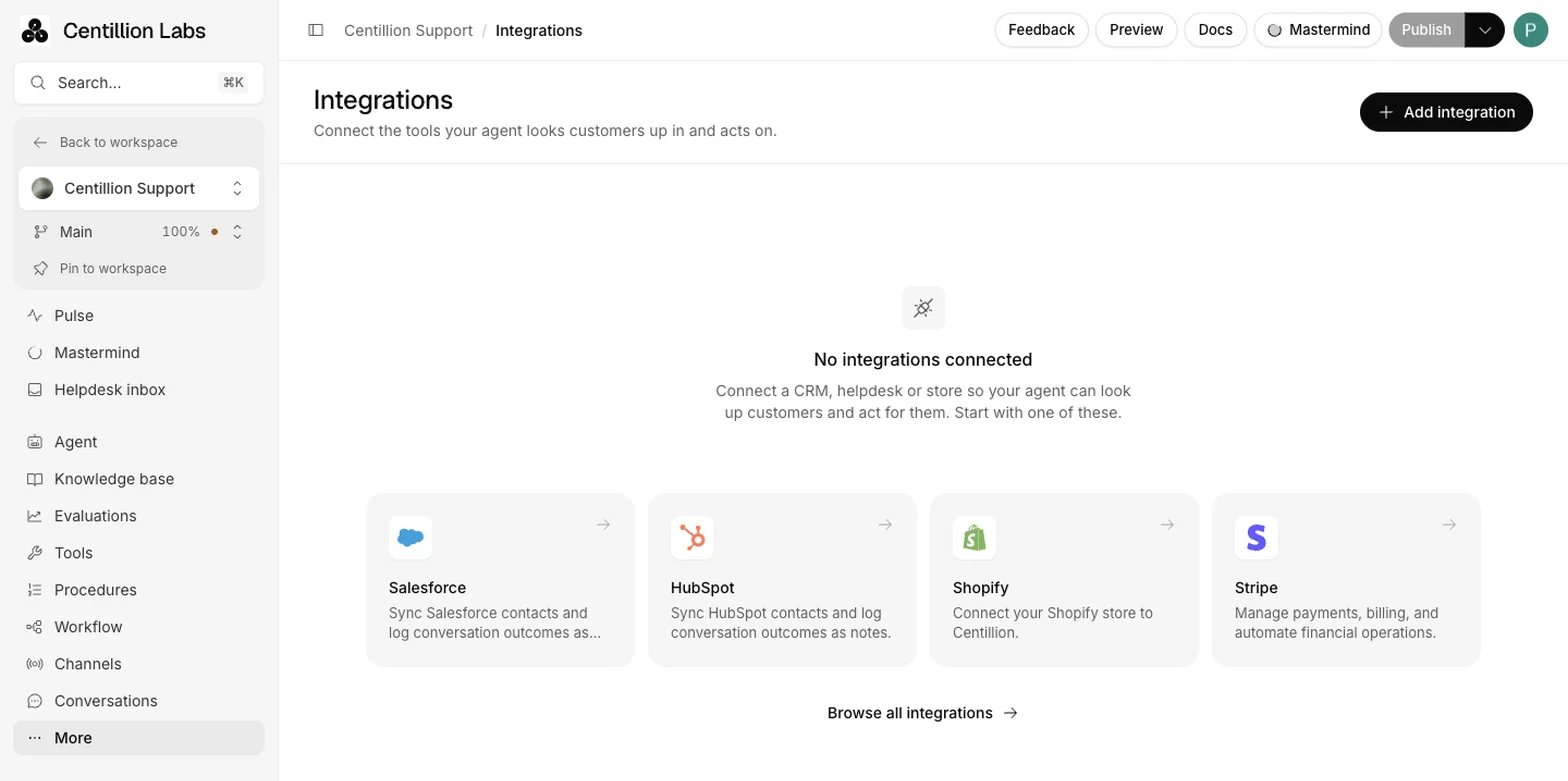
The agent's Integrations page, where Add integration opens the catalog and connected CRMs are listed.
What it does
- Copies email, name and phone from each CRM record into Contacts, then reads only changed records every 15 minutes.
- Matches a CRM record to the contact with the same external ID, email or phone, and leaves duplicates out instead of merging them.
- Copies extra CRM fields you map onto contact attributes or the External ID.
- Writes conversation summaries, churn reasons and handoffs back to the CRM record, for contacts that came from the CRM.
- Supports HubSpot, Salesforce and Intercom, with each agent connecting its own account.
What you need
- Standard and up for HubSpot, Salesforce and Intercom. Sync and write-back stop if the workspace no longer has the required plan; saved contact records remain available.
- The Owner or Member role to connect and change integrations. Viewers can read their status but cannot change them. See workspace roles.
- A CRM account that can approve access, or for Salesforce, an external client app in your org.
Set it up
1
Open Integrations
Open your agent and choose Integrations in the sidebar. The page lists
what the agent has connected, with a search box and a sort order.
2
Find the CRM
Click Add integration to open the catalog. Choose a category on the left
(Knowledge, CRM, Helpdesk, Messaging and live chat, Commerce, Payments,
Scheduling, Telephony, E-signature) or use Search integrations.
3
Connect
Choosing a provider opens its window with three tabs: Configure to
connect it, Tools for what the agent can do with it, and About.
Click Connect, sign in to the CRM and approve access. For Intercom,
first choose the Data region.
4
Wait for the first sync
You return to the Integrations page, and the first sync starts within a few
minutes.
5
Map fields and write-back
Open the connection to choose Field mapping and turn on Write outcomes
back.
Use it every day
The catalog
The catalog also includes Stripe billing, Shopify, Slack, Twilio for phone calls, and other providers. Providers the Centillion team sets up with you are marked On request, and choosing one offers Contact us. A CRM without its deployment configuration also shows this contact option. Back returns to the catalog. Each agent connects its own CRM account. Connecting the same account to two agents is fine: each keeps its own contacts. The workspace Integrations page lists workspace and agent connections in one table. Search by service, account name or agent, and sort by Recent or Name. The Scope column shows which agent owns a connection; Manage opens its settings.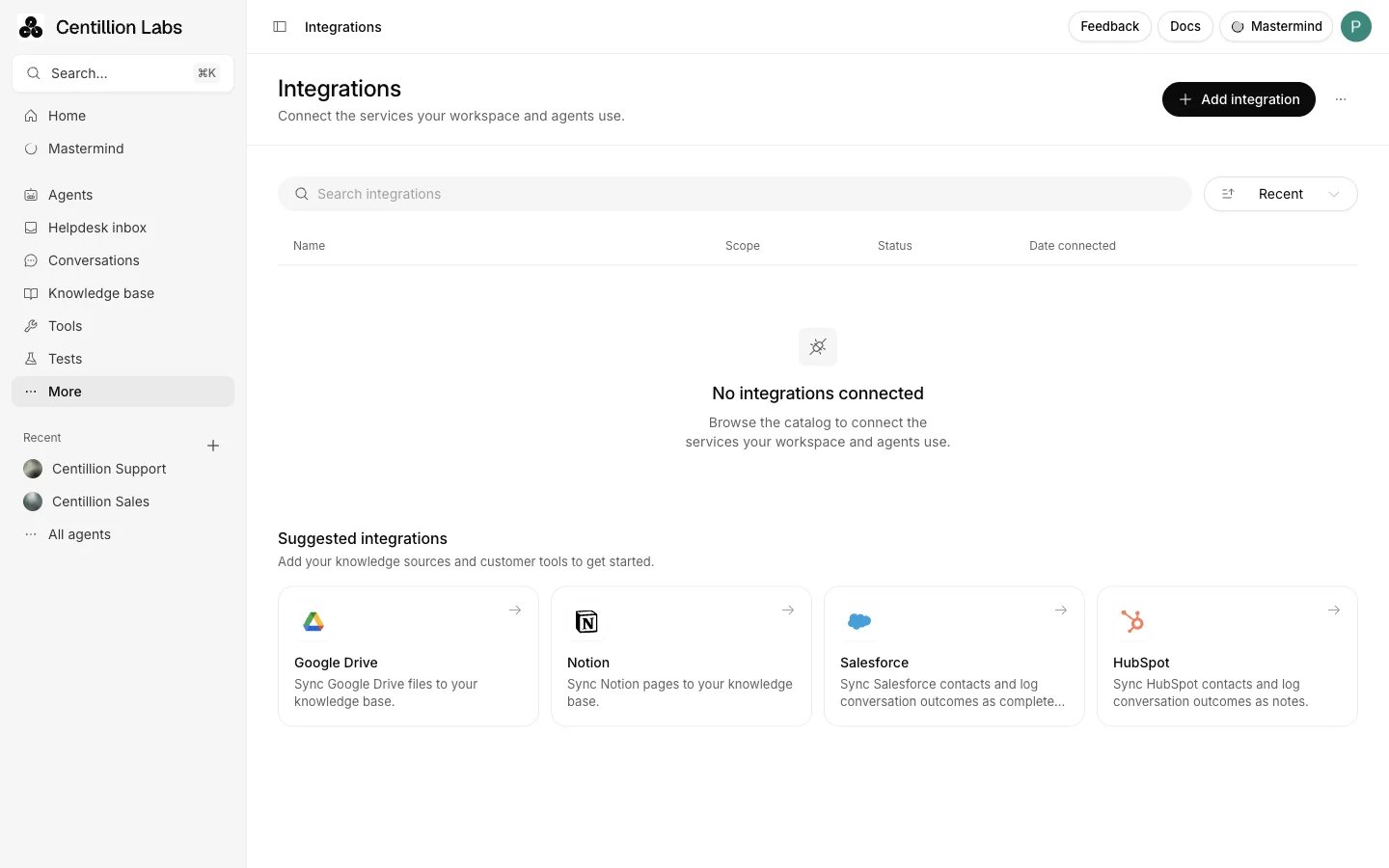
Workspace Integrations lists saved connections. Add integration opens the catalog, including DocuSign under E-signature.
Intercom regions
Choose where your Intercom workspace is hosted under Data region: the US, Europe or Australia. Intercom has a separate sign-in page for each region. If you sign in to Intercom with Google, the region has to match, or Intercom refuses the sign-in.Salesforce with your own app
Salesforce offers a second Connection method: OAuth 2.0 client credentials, which connects through an app in your own org instead of signing in.- In Salesforce Setup, create an external client app with OAuth turned on.
- Enable the client credentials flow and choose the integration user it runs as. Give that user API access and access to contacts, cases and tasks.
- In Centillion, choose Salesforce, set Connection method to OAuth
2.0 client credentials, and enter your org’s My Domain hostname (such as
acme.my.salesforce.com), the consumer key and the consumer secret. Click Connect.
Salesforce support workflows
Salesforce contact syncing shares its connection with Channels → Salesforce. From that channel’s Manage screen, choose the model and instructions in Overview, then install the package and assign an active reply user in Configs. Leave Generate Draft Response off for automatic case emails, or turn it on for drafts that teammates review and send from Salesforce. Verify the reply user’s organization-wide email address before using automatic replies. Unassign user stops automatic generation and keeps manual drafts and contact syncing available. Pause sync pauses the shared connection, including case replies and live chat synchronization. Disconnect also removes the package configuration and closes its live chats; existing Salesforce cases and emails remain in Salesforce. Use Salesforce support actions to create cases, escalate an existing case, or hand website chats to your team. The Salesforce setup guide covers package installation, permissions and Enhanced Chat configuration.What syncs
Email, name and phone always sync. After the first pass, only records changed since the last one are read, every 15 minutes. Sync now queues a pass right away, and Pause sync stops syncing until you resume it. A CRM record joins the contact that already has its external ID, email or phone, or becomes a new contact. A phone only joins them when their emails match or one of them has none, so colleagues who share a company’s main number stay separate contacts, and the number stays on the contact that already has it. A record with no email, phone or external ID is skipped. Two CRM records that point at the same contact are counted as duplicates and the second one is left out, rather than merged. A value another contact already uses is not copied over, and an empty email, name, phone or external ID in the CRM never erases the one the contact already has.Choosing extra fields
Field mapping picks more CRM fields to copy onto each contact:- External ID: the id your own product uses for the customer. Map it if you use identity verification, so a signed-in visitor meets their CRM record.
- An existing contact attribute, such as a plan or balance you created in Contacts, Manage attributes.
- A new attribute, created with the CRM field’s type when you save.
Writing outcomes back
With Write outcomes back on, the agent logs to the contact’s CRM record:- a short summary of each finished conversation, when churn detection is on;
- the reason, when a customer says they are leaving;
- each handoff to your team, when the agent opens a ticket or a live chat in Helpdesk or asks for one again on the customer’s existing ticket: the ticket number, the subject and description of that request, and a link to the ticket.
When a connection stops
If the CRM stops accepting the connection, because access was revoked or the app was uninstalled, the Integrations list shows Needs reconnect and syncing stops. Click Manage, then Reconnect, or Update credentials for a Salesforce connection made with client credentials. Notes queued in the meantime are sent once it works again. Disconnect removes the connection, its field mapping and queued notes. Contacts that synced stay in Contacts.Limits and good to know
- Changed records sync every 15 minutes. Sync now queues a pass at once.
- A record with no email, phone or external ID is skipped, and a second record pointing at the same contact is left out as a duplicate.
- Write-back reaches only contacts that came from the CRM.
- Conversation summaries are written back only when churn detection is on.
- Disconnecting deletes the field mapping and queued notes; synced contacts stay.
Questions
How often does Centillion read my CRM?
The first pass reads every record. After that, only records changed since the last pass are read, every 15 minutes. Sync now queues a pass right away.Will syncing overwrite data my agent collected?
An empty email, name, phone or external ID in the CRM never erases the one the contact already has. A mapped attribute follows the CRM, so clearing it there clears it on the contact.Can two agents use the same CRM account?
Yes. Each agent connects its own account, and connecting the same account to two agents is fine. Each keeps its own contacts.What does the agent write to the CRM?
A summary of each finished conversation when churn detection is on, the reason when a customer says they are leaving, and each handoff to your team with the ticket number, subject, description and link.Why does my integration show Needs reconnect?
The CRM stopped accepting the connection, usually because access was revoked or the app was uninstalled. Click Manage, then Reconnect, and queued notes are sent once it works again.Which plan do I need?
Standard and up for HubSpot, Salesforce and Intercom.Try it
Connect your CRM to one agent, wait for the first sync, and open Contacts to check that your customers arrived with the fields you mapped.Start free
Start on the Free plan, or take a seven-day trial of a paid plan. Your agent is live on your site in an afternoon.
Book a demo
Fifteen minutes with the team, on your own use case.
Related
What Centillion is
How the agent, its knowledge and its channels fit together.
Contacts
Import, edit and segment the customers your agent knows.
Stripe billing
Show signed-in customers their invoices and subscriptions in chat.