
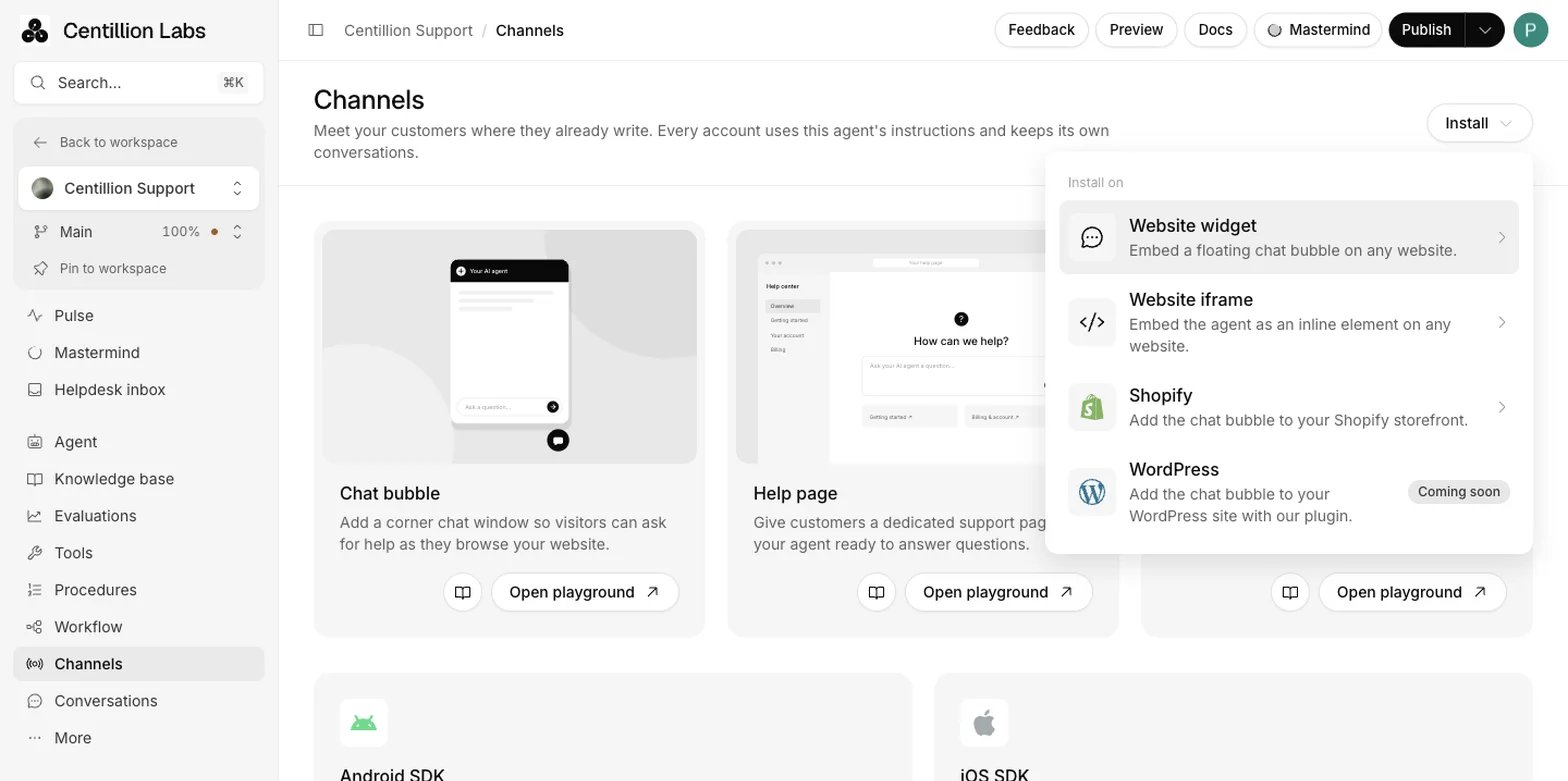
Channels, Install: the Shopify entry adds the chat bubble to your storefront.
What it does
- Adds the chat bubble to your theme through an app embed, with no theme code to edit.
- Searches published products with live prices and availability, and shows product cards with variant choices. Search is text only.
- Adds, changes and removes cart items, using the shopper’s own Shopify cart on the storefront.
- Shows order status and tracking, for guests with the exact order number and checkout email or phone, and for signed-in customers from Shopify’s standard recent-order window.
- Processes eligible returns against the original payment and opens exchanges for your approval.
- Asks the customer to confirm before any order, return, exchange, profile or address change.
What you need
- A workspace administrator to connect the store.
- A plan with integrations: Hobby and up. New-order exchanges also need Helpdesk, which comes with Standard and up.
- The store’s original
myshopify.comdomain, from Shopify Settings, Domains. - Permission to edit the store’s theme and save its app embeds.
Set it up
1
Open Shopify setup
Open the agent’s Channels, then Install → Shopify. The same Install
menu is available in Playground → Chat bubble. You can also start from
the Shopify card on Channels (Setup), or from Integrations,
Add integration, Shopify, Connect.
2
Connect the store
Enter the store’s original
myshopify.com domain. Choose Connect
Shopify, authorise the Centillion Labs app, and return to the dashboard.
If setup says the connection is not configured, your deployment
administrator must configure the Shopify app before you can connect a
store.3
Turn Shopify on
You come back to Shopify setup. Turn on the Shopify enabled
toggle at the top. This enables the chat bubble and prepares customer
sign-in.
4
Pick a theme and open its editor
The page loads your store’s themes and selects the live theme. Choose
another theme if you want to preview the embed there first, then choose
Open theme editor. If the themes cannot load, choose Retry loading
themes; you can still open the current theme’s editor.
5
Enable the app embed
Enable Centillion chat in App embeds and save the theme. If it is
not listed there, your Shopify administrator needs to deploy the
Centillion theme extension first.
6
Enable tools
Open Tools, select Shopify, and choose a tool. Set its name, when
the agent should use it, and its channels, then save and enable it. Only
use in procedures makes it available only while an active procedure
references it.
Use it every day
The actions
- Retrieve and display products: searches published products with live prices and availability; shows product cards and variant choices.
- Update cart: adds items, changes quantities, or removes lines.
- Get cart: shows items, quantities, totals and a checkout link.
- Create order: creates an unpaid checkout draft, a cash-on-delivery order, or a free order restricted to procedures.
- Create exchange, new order: opens a Helpdesk request for administrator approval before creating a replacement.
- Create return or exchange, same order: checks delivered items and the return window, then processes an eligible return against the original payment.
- Retrieve and display orders: shows order status and tracking for verified orders.
- Update customer profile: updates a signed-in customer’s name, email or phone.
- Update billing address: updates the signed-in customer’s default account address, without changing existing orders.
- Check account and send activation email: gives the login link and can request an invitation for an eligible classic customer account.
- Tag an order: adds only the tags you configured to a signed-in customer’s order.
Exchanges and uncertain requests
New-order exchanges need Helpdesk. An administrator approves or rejects each request under Channels, Shopify, and the outcome is recorded on its ticket and conversation, where a person takes over from the helpdesk inbox if needed. A replacement with a remaining balance gets a checkout link. Same-order returns use the delivery-based window you configure, or no time limit when the field is empty. Exchanges need Allow exchanges on the same order. If an exchange needs extra payment, it stays open for you to collect and review before a replacement is released. An uncertain result means Shopify may have accepted the change. Check the record and the actual order or cart before retrying, to avoid a duplicate.Customer data requests
Customer data requests appear under Channels, Shopify. Export the data, fulfil the request through your verified privacy process, and mark it fulfilled.Pause or disconnect
Pause Shopify to disable its actions and hide the widget on the next storefront refresh. The connection and records remain. Disconnecting removes saved chat carts and pending requests, disables the actions, and redacts linked customer chat and support records. Export any records you need first, and uninstall the app in Shopify to revoke its permissions.Limits and good to know
- Product search is live text search. Image search, catalog indexing and native Meta or WhatsApp catalog sync are not available.
- New-order exchanges do not collect extra fields you define.
- Paying online does not update the chat or clear its original cart; Shopify checkout is the record of payment.
- Order history is limited to Shopify’s standard recent-order window of 60 days.
- Free orders are available only in procedures.
- Some themes refresh their cart badge or drawer only after navigation or
reload. The embed sends
cart:updated,cart-updateandcart:updateevents withdetail.newCartfor themes that listen for one. - Test actions on the live storefront, with a signed-in customer for account changes. The Playground does not have that store session.
Questions
The chat bubble does not show on my store. What should I check?
Check that the Shopify enabled toggle is on, that Centillion chat is enabled and saved in the theme’s app embeds, and that your store’s domain is allowed by any website domain restrictions you set.Do I need to edit my theme code?
No. The theme app embed adds the widget. You enable Centillion chat in the theme editor’s App embeds and save.Can guests track their orders?
Yes. A guest gives the exact order number and the checkout email or phone. Signed-in customers can see their own recent orders.Can the agent issue refunds?
The same-order return action checks delivery, the return window and the returnable quantities, then processes an eligible return against the original payment. Exchanges for a new order wait for an administrator’s approval.Can I test the actions in the Playground?
Not fully. Account changes need a signed-in customer’s store session, which the Playground does not have. Test on the live storefront.What happens to customer data when I disconnect?
Saved chat carts and pending requests are removed, and linked customer chat and support records are redacted. Export what you need first, then uninstall the app in Shopify.Can the same agent answer on my other channels?
Yes. One agent answers on your website, email, WhatsApp and phone with the same knowledge. What Centillion is gives the overview.Try it
Connect your store, enable the app embed, and ask the chat about a product. Then add it to the cart from the chat and check Shopify’s cart page.Start free
Start on the Free plan, or take a seven-day trial of a paid plan. Your agent is live on your site in an afternoon.
Book a demo
Fifteen minutes with the team, on your own use case.
Related
What Centillion is
The product in one page: agents, knowledge, channels and the helpdesk.
Custom tools
Set when and where each action runs, including the Shopify ones.
Helpdesk
Where your team reviews exchanges and takes over conversations.