
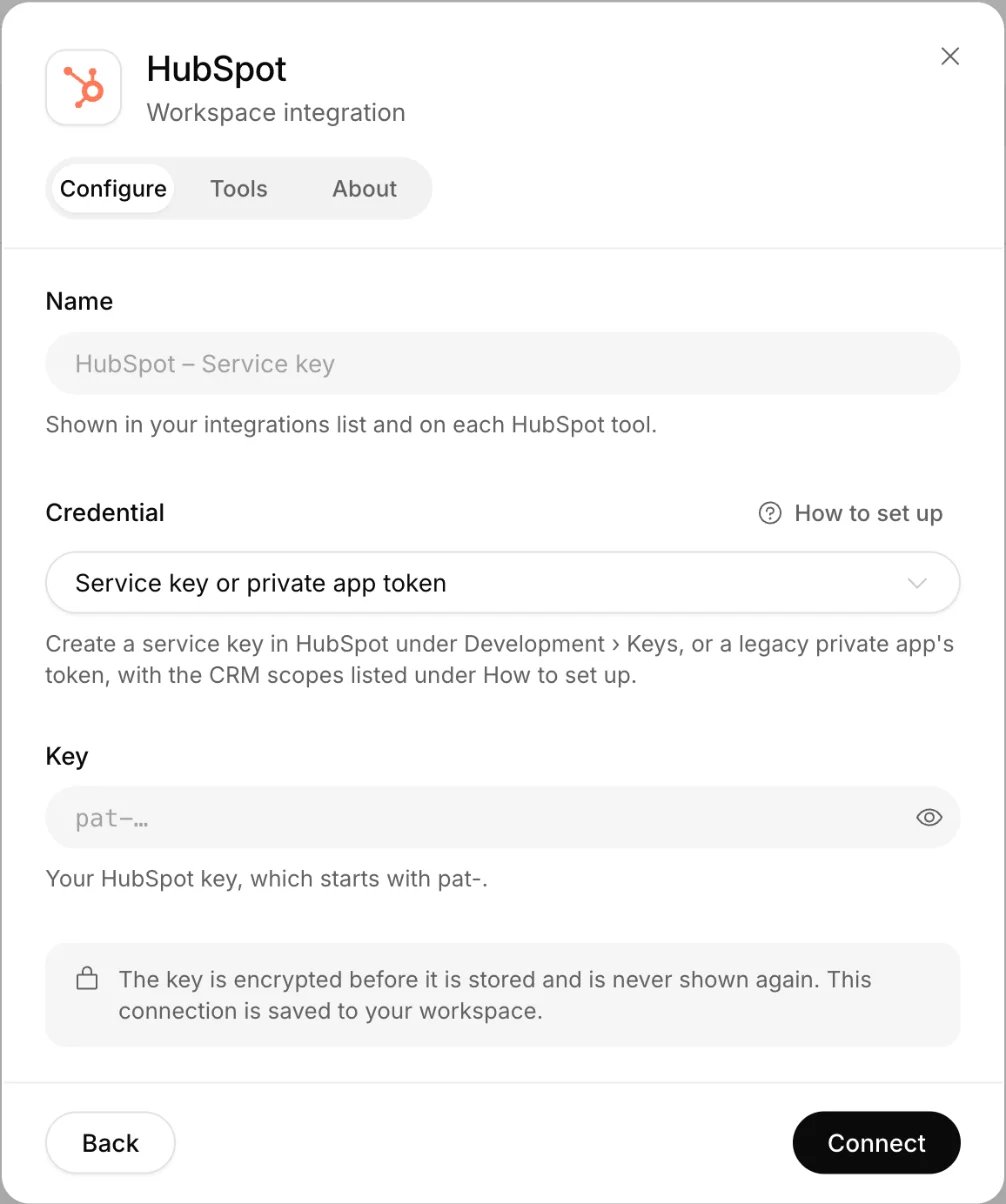
HubSpot's Configure tab: a name for the connection, the credential and the key.
Set it up
1
Create a key in HubSpot
In HubSpot, open Development → Keys and create a service key. On an
account that still has legacy apps, Development → Legacy apps → Create
legacy app → Private works too, and its access token is used the same
way. Both start with
pat-.2
Give it the CRM scopes
Allow
crm.objects.contacts.read, crm.objects.contacts.write,
crm.objects.companies.read, crm.objects.companies.write,
crm.objects.deals.read, crm.objects.deals.write,
crm.schemas.contacts.read, crm.schemas.companies.read and
crm.schemas.deals.read. Calls, meetings, notes and tasks need nothing
more. No tool uses crm.schemas.contacts.read or
crm.schemas.companies.read yet: the only property list the tools read is
a deal’s, for Get deal with custom properties. When a scope is
missing, the tool’s answer names it if HubSpot does, and otherwise asks you
to check the key’s scopes.3
Connect it
In Centillion, open Integrations → Add integration → HubSpot. Give the
connection a name, paste the key and choose Connect. Centillion checks
the key with HubSpot and stores it encrypted; it is never shown again.
4
Add the tools
Open Tools → Add integration tool, pick the connection, tick the tools
you want and choose Create, which reads Create 3 tools when you
tick three. Add HubSpot tools on the connection’s
dialog opens the same list. Tools the connection already has stay ticked,
so running it again adds only what is missing.
5
Give them to an agent
Attach the tools on the agent’s Tools page, and say in its
instructions when to use them, as in the example below.
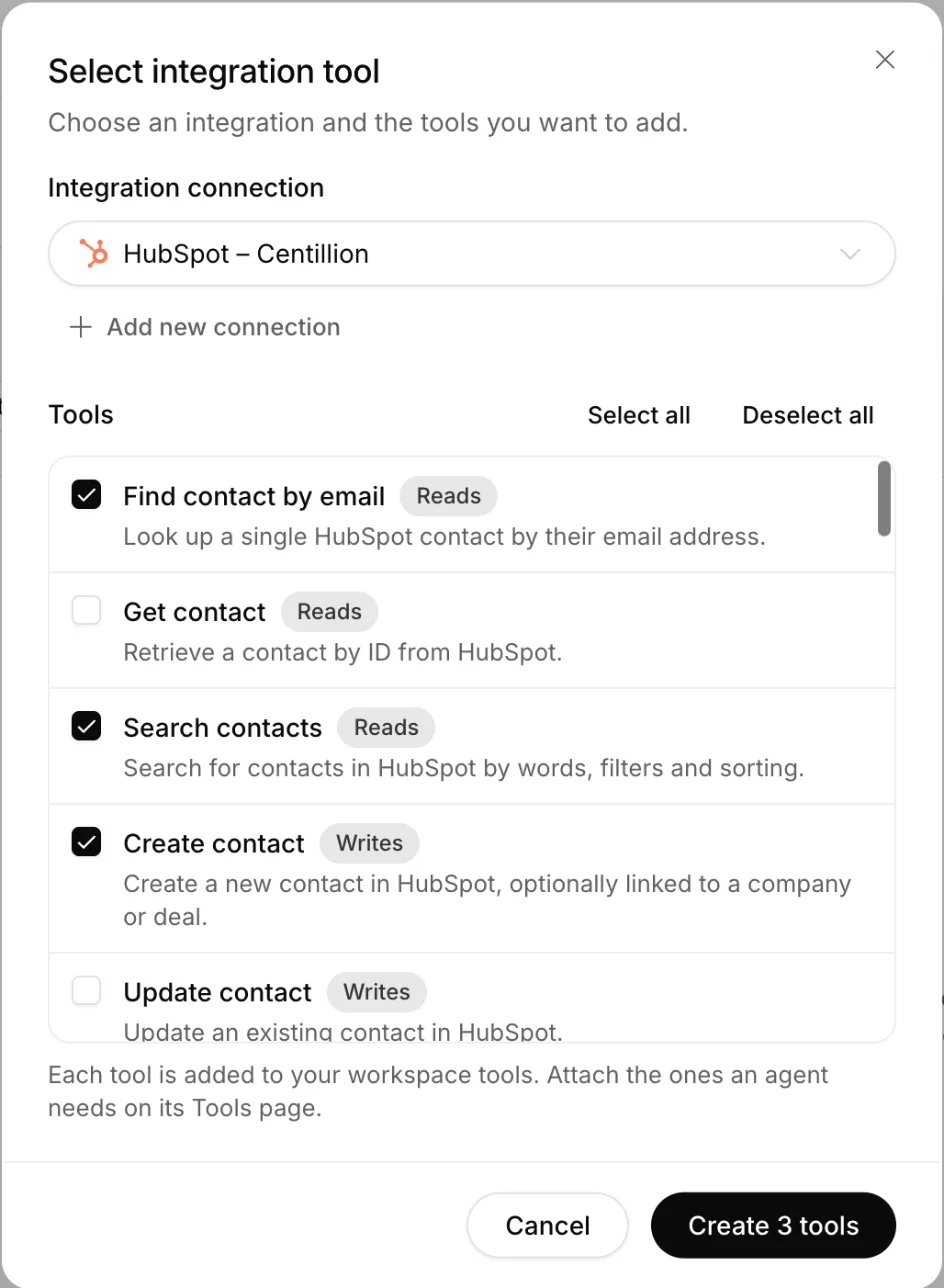
Add integration tool: the connection, then the HubSpot tools to add as workspace tools.
The tools
Each tool is named after what it does, such ashubspot_log_call. The tool
picker and the Tools tab of the HubSpot window mark each one Reads or
Writes.
A few details the agent relies on:
- Finding records. Searches take words to match, conditions on any
property (such as
lifecyclestageequalscustomer), a sort and a limit, and return anext_pagevalue for more. Records come back with their usual properties; a tool takes more by internal name. - Deal stages. Deals read back with their stage and pipeline names, and
Update deal and Create deal take a stage by its name, such as
Contract Sent. Get deal with custom properties lists the fields that can be set: your account’s own deal properties, plus the deal’s name, amount, stage, pipeline, close date, type, description and owner. Other properties HubSpot defines are left out, and each field lists at most 50 options. - Calls. Log call writes what happened and the outcome (Connected, Busy, No answer, Left voicemail, Left live message, Wrong number or Meeting booked), linked to the contact, company or deal. It reads your account’s list of call outcomes to set the outcome; when that list can’t be read or has no outcome by that name, the outcome goes into the call’s notes instead. The numbers and the duration are logged only when the agent passes them, and every call is logged as completed, even one whose outcome is No answer.
- Meetings. Book meeting adds a scheduled meeting to the timeline, with its time, length, location and notes. It does not check a calendar, send an invitation or set an owner.
- Links. Contacts, deals, calls, meetings, notes and tasks an agent creates can be linked to contacts, companies and deals as they are created. Create company cannot link as it creates, so link a new company, or any records that already exist, with Create associations.
- Sensitive values. A value your agent keeps sealed during a call, such as a date of birth it collected, is masked before anything is sent to HubSpot.
Test a tool
Open a HubSpot tool on the Tools page, choose Settings → Test Tool, and run it with Call HubSpot to see what HubSpot returns. Tools that only read start on Call HubSpot; tools that write start on Mock response, so a test changes nothing in HubSpot until you choose to. Every call, from a test or a conversation, appears under the tool’s Tool Logs.Tell the agent how to use them
The tools describe themselves, but the agent works better when its instructions name your process, for example:UNQUALIFIED is not a do-not-call setting. To stop
calling someone who asks, turn on the agent’s
Do-not-call handling: the agent
confirms, ends the call and puts the number on your workspace’s
do-not-call list.
To mark that person in HubSpot as well, choose a
do-not-call property for the agent’s call records.
Log every call
An agent connected to HubSpot on its own Integrations page saves a call record in HubSpot for each call it makes or answers, answered or not. Centillion writes the record after the call, so the agent needs no instruction or tool for it.Connect the agent with the workspace key
1
Add the key to the workspace
Connect HubSpot under Integrations in the workspace with a key, as in
Set it up.
2
Connect the agent
Open the agent, choose Integrations → Add integration → HubSpot, and on
Configure set Connection method to Use the workspace’s HubSpot
connection. Pick the connection under HubSpot connection and choose
Connect.
3
Check Call activity
Open the connection. Write outcomes back to HubSpot and Log every
call are both on for a connection made this way. Calls are saved only
while both are on.
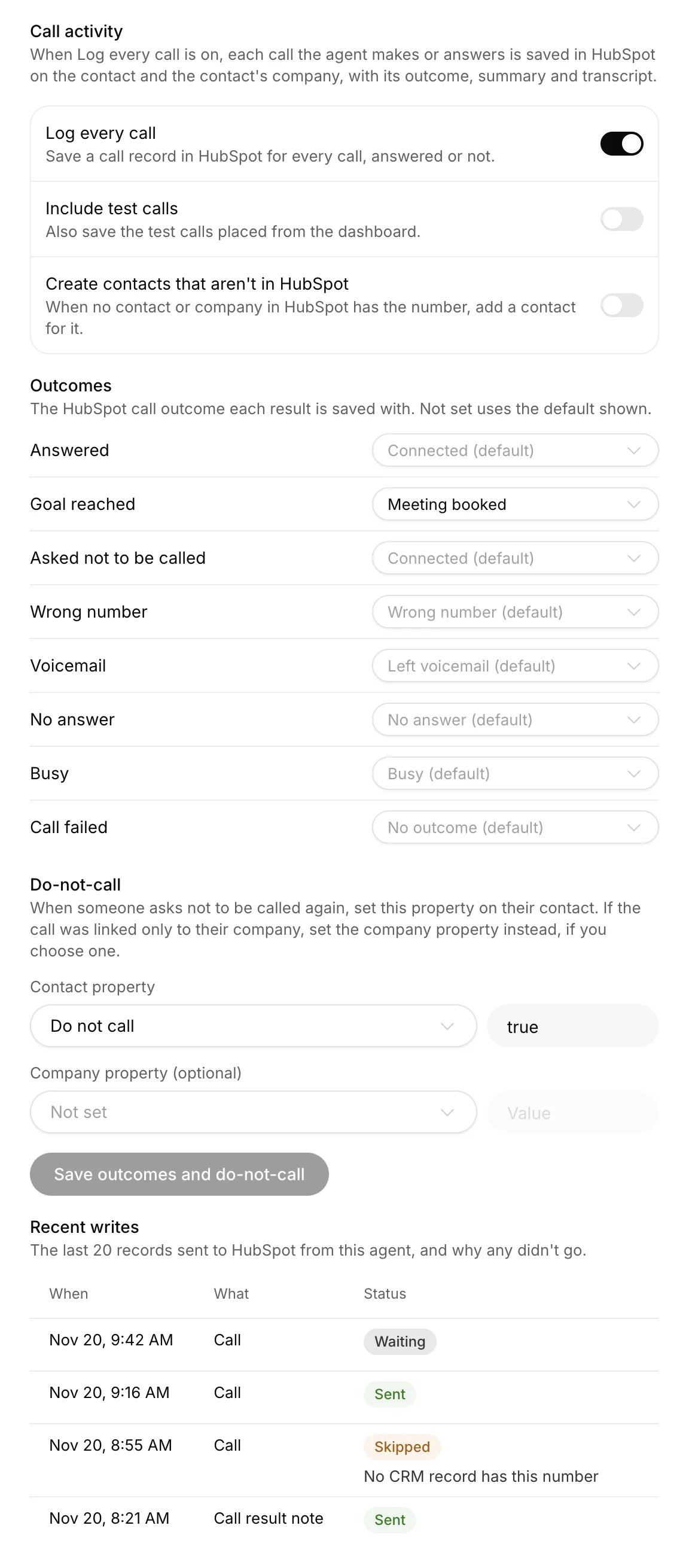
Call activity on the agent's HubSpot connection: the three switches, the HubSpot outcome for each result, the do-not-call properties and the latest writes.
What a call record holds
- Title: the agent’s name and who it spoke to, such as “Front desk call with Jamie Rivera”, or their number when the contact has no name.
- Direction, time and duration, with your line’s number and theirs.
- Status: Completed for an answered call or a voicemail, otherwise No answer, Busy or Failed.
- Outcome: one of your account’s call outcomes, as set under Outcomes.
- Notes: for a call the agent placed, the outcome it reached in its own words, such as “Call outcome: not interested”, with the reason the customer gave for leaving and what they said, when they gave one. Then the call’s summary, the values the agent’s data collection fields found, a View the conversation link and the transcript. A long transcript keeps its first and last lines and marks where it was shortened. Values the conversation kept sealed, such as a date of birth, are masked.
- Links: the contact, with their company when the number lookup or
crm_company_idnames it, or the company alone when the call belongs to a company rather than one person (see Which record a call goes to). HubSpot also shows a contact’s call on the contact’s primary company.
- Test calls placed from the dashboard, unless Include test calls is on.
- A call the carrier refused for its calling rate before anyone was rung. A campaign calls that person again.
- A call with no phone number: a voice call from your website or from the agent’s preview, and one from a caller who hides their number.
Outcomes
Each call gets one result, and each result is saved with a HubSpot call outcome. Under Outcomes, each result has a menu of your account’s call outcomes; Not set uses the default. Choose Save outcomes and do-not-call to keep your changes.
When your account has no call outcome with the chosen name, the call is saved
without an outcome and its notes start with the name, such as “Outcome:
Meeting booked”. If your account has no Meeting booked outcome, add one in
HubSpot or choose another outcome for Goal reached.
Which record a call goes to
Each call is matched to HubSpot when it is written. The first of these that finds a record wins:- The HubSpot contact the agent’s contact came from, or was created for.
crm_contact_idin the call’s variables, withcrm_company_idwhen it is there too.crm_company_idalone: the call goes to that company.- The number the agent called, or the caller’s number. When exactly one contact has it as their phone or mobile number, the call goes to that contact. When several contacts have it and all belong to the same company, the call goes to the company.
- The contact’s email address.
- The number, when exactly one company has it as its phone number.
- A new contact for the number, when Create contacts that aren’t in HubSpot is on.
crm_contact_id and crm_company_id:
columns in a batch call or campaign’s recipients file, or variables in the
Batch calls or Campaigns
API. Send them as text, digits only:
Do-not-call
Under Do-not-call, choose a Contact property and the value to set on it, such as a yes/no property set totrue, and optionally a Company
property and its value. Only text and yes/no properties are listed.
When a call’s result is Asked not to be called, the property is set right
after the call record is written:
- the contact property, when the call went to a contact;
- the company property, when the call went to a company rather than one person.
Test calls and new contacts
Include test calls and Create contacts that aren’t in HubSpot can be turned on only while Log every call is on. Include test calls is off by default, so test calls placed from the dashboard stay out of HubSpot. Turn it on while you check the setup. Create contacts that aren’t in HubSpot is off by default. When it is on and no contact or company has the call’s number, Centillion creates a contact with the number and the name and email address it has, logs the call on it, and links the agent’s contact to it, so later calls and notes find it.The agent’s own Log call tool
When the agent also logs the call itself with Log call during the conversation, on the same HubSpot account, the call record updates that call instead of adding a second one, so each call stays one record. The call record’s values replace the call’s own: its title, status and notes, and its outcome, duration and numbers when the call record has them. The call record’s links are added to the ones the agent’s tool made, and none are removed. If the agent logged more than one call, the last one is updated. The settings say so when the agent has the Log call tool.Recent writes
Recent writes lists the last 20 things the connection sent to HubSpot, or tried to: calls, and the notes from write-back. Owners and Members see it. Each row has a status:- Sent. When part of it didn’t work, a line under it says so, such as “Couldn’t link the call to the company” or “Couldn’t set the do-not-call property”, with the reason. “The key can’t set that property; check its scopes.” means the key lacks the scope to change that object in HubSpot; the connection keeps working.
- Waiting: queued, waiting for the summary, or waiting to try again after HubSpot didn’t answer.
- Skipped, with why nothing was written:
- “No CRM record has this number”: nothing matched, and Create contacts that aren’t in HubSpot is off.
- “Several CRM records have this number”: see Which record a call goes to.
- “Call logging is off” or “Test calls aren’t logged”: the call was queued before the switch was turned off.
- “The key can’t link calls to companies; add the companies scope”: the call belongs to a company and the key lacks the company scopes.
- Failed: HubSpot refused the write, or kept failing. A write is tried up to six times, waiting longer each time.
Troubleshooting
- “HubSpot did not accept this key.” This shows when you connect. Copy the
key again from HubSpot: it starts with
pat-. - “HubSpot refused this connection’s key. Update the credentials on the Integrations page.” A tool answers this when the key was deleted or rotated in HubSpot, which stops it working at once. Open the connection, choose Update credentials and paste the new one.
- “The HubSpot key lacks the scope this needs.” Add the scope the message names to the key in HubSpot. The tools use the new scope from their next call.
- “The HubSpot key is not allowed to do this. Check its scopes in HubSpot.” HubSpot refused the call without naming a scope. Compare the key’s scopes with the list above.
- A stage or pipeline is refused. The message lists the names your account has; the agent can retry with one of them.
- “Contact already exists.” HubSpot keeps one contact per email address. The tool returns the existing contact’s ID, which the agent can update instead.
- Calls don’t appear in HubSpot. On the agent’s HubSpot connection, check that Write outcomes back to HubSpot and Log every call are on, and that the call wasn’t a test call. Recent writes shows why a call was skipped or failed.
- A call went to the company instead of the person. Several contacts in
HubSpot have that number. Give each person their own number in HubSpot, or,
on calls you place, name the contact with
crm_contact_id.