
The list
The most recent conversations come first, by their last activity. Each row shows:
The list loads 50 conversations at a time. Load more adds the next 50.
Filter and search
- The date range is always above the list. It starts at Last 30 days; choose All time to include older conversations.
- Filters opens every other filter, grouped by what it reads. Each filter you turn on becomes a chip beside the date range. Click a chip to change it, or its × to remove it. Filters of different kinds narrow the list together, and choosing several values in one filter matches any of them.
- In workspace history, branches, versions, workflow steps and evaluation criteria belong to one agent. Changing the Agent or Tags filter removes any of these that no longer apply.
- When nothing is filtered and the last 30 days hold no conversations, the page reads “No conversations in the last 30 days”. Show all time lists the older ones.
- Keyword searches a contact’s name, phone number or email address, both
speakers’ message text, and an exact conversation ID. Every unquoted word
must match somewhere in the conversation. Use
"double quotes"for an exact phrase. Characters such as%and_match themselves. - Switch to Smart search to describe the meaning you are looking for, such as “customers unhappy about a damaged delivery”, then press Enter. Matches show the closest transcript excerpt and are ordered by relevance. Enable Smart search in the agent’s Evaluations and analyze completed conversations before searching. An empty index or an unavailable embedding service shows a message; you can switch to Keyword. Agent, tag, channel, branch and date filters apply in both modes. The other filters need Keyword search.
- The page’s address keeps the filters, query and search mode, so you can bookmark or share it.
- From a node in Workflow analytics, View conversations that entered this node opens history with a Node entered filter and the analytics date range. Clear its chip to return to all nodes.
- When nothing matches, the page reads “No conversations match these filters” and Clear filters returns to the full list.
Available filters
Branch and Version filters use the version pinned to the conversation, so
publishing a new version or changing traffic does not change past assignments.
A conversation without a recorded assignment appears only when no branch is
chosen and reads Not recorded. Older conversations keep their original
history; starting version control does not assign them a version retroactively.
Playground and Preview conversations record the branch being previewed and show
Draft preview because they use unpublished settings.
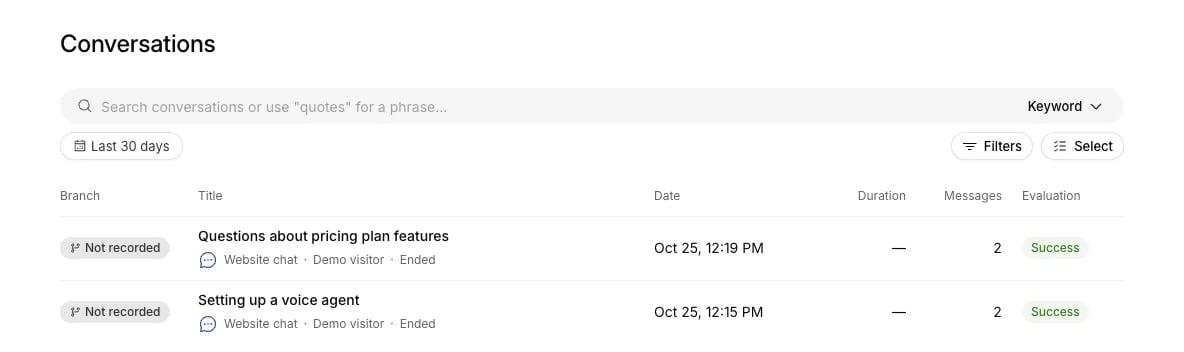
An agent's conversation history uses the shared search and filters, with a generated title and the branch, channel and evaluation details in each row.
Open a conversation
Click a row to open the conversation panel. The transcript is on the left, with four tabs on the right. On smaller screens, use Transcript and Details to switch panels: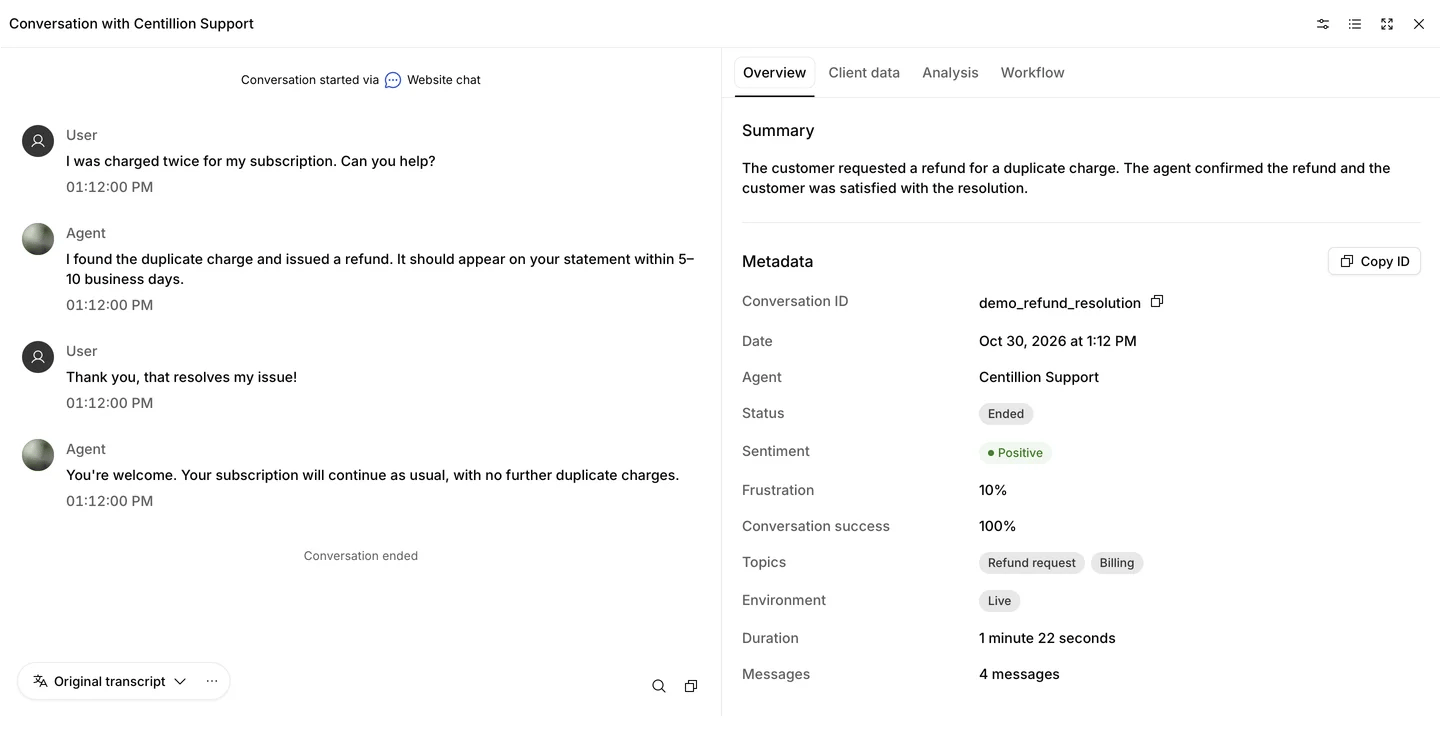
Conversation review with a demo chat transcript, summary, sentiment, frustration, success score and topics.
- Overview opens with the summary and metadata. Metadata shows the conversation ID, date, agent, branch, version, status, sentiment, environment, duration and message count. When analysis is available, it also shows customer frustration, conversation success and topics. Sentiment updates when analysis finishes; pending or failed work has an explicit status. A rerun keeps the previous result visible while it runs. Voice calls also show their recorded user ID. Missing values are labelled as such. Branch and version links beside the agent open their release history. Completed voice calls generate a summary automatically. If no summary has been saved, Generate summary creates and saves one using the agent’s model and AI credits. This requires permission to manage agents.
- Client data shows what the conversation ran with. Client overrides
lists the call’s language, whether it was text only, and for a preview whether
its tools were mocked. Dynamic variables lists each variable the
conversation set, from initiation data, preview variables, tool results and the workflow, at its
last value. Booleans read true or false, an empty value reads Empty
string, and a missing one null. The copy button beside a value copies it.
Sensitive workflow variables and
secret__initiation variables show their mask, never the value. See Personalization for the initialization response and override permissions. - Analysis opens with Metadata: how many times the conversation was analyzed, the AI credits all those runs used, and the credits of the latest run, including extraction and sentiment jobs. Conversation success averages the known binary results and normalized numeric scores, with the number of scored criteria shown alongside it. Results lists each criterion’s latest verdict or numeric score and rationale under its Conversation or Agent scope. Group by switches between Scope and Result, and Result filters to the results you pick. Re-run analysis uses the branch’s currently enabled criteria, data collection, sentiment, topics and search indexing. Rerun, beside a criterion when you hover it, evaluates that criterion alone. Both use AI credits and require permission to manage agents. A job whose first try fails is tried twice more in the background, and its result appears when it finishes. Collected data includes each typed value and its evidence; a missing value is distinct from false or zero. Sentiment shows its rationale, frustration estimate and user-turn trajectory. Topic badges summarize the customer’s intent.
- Workflow shows the workflow the conversation ran on: a preview’s draft, or the version it was assigned. Steps it entered and transitions it took carry how many times, the rest are dimmed, and the summary at the top reads how many steps it visited and the one it ended on. Zoom with the controls at the bottom left. Select a step or a transition to read its settings, read-only, as the workflow builder shows them. A conversation from before version control shows the agent’s current workflow and says so.
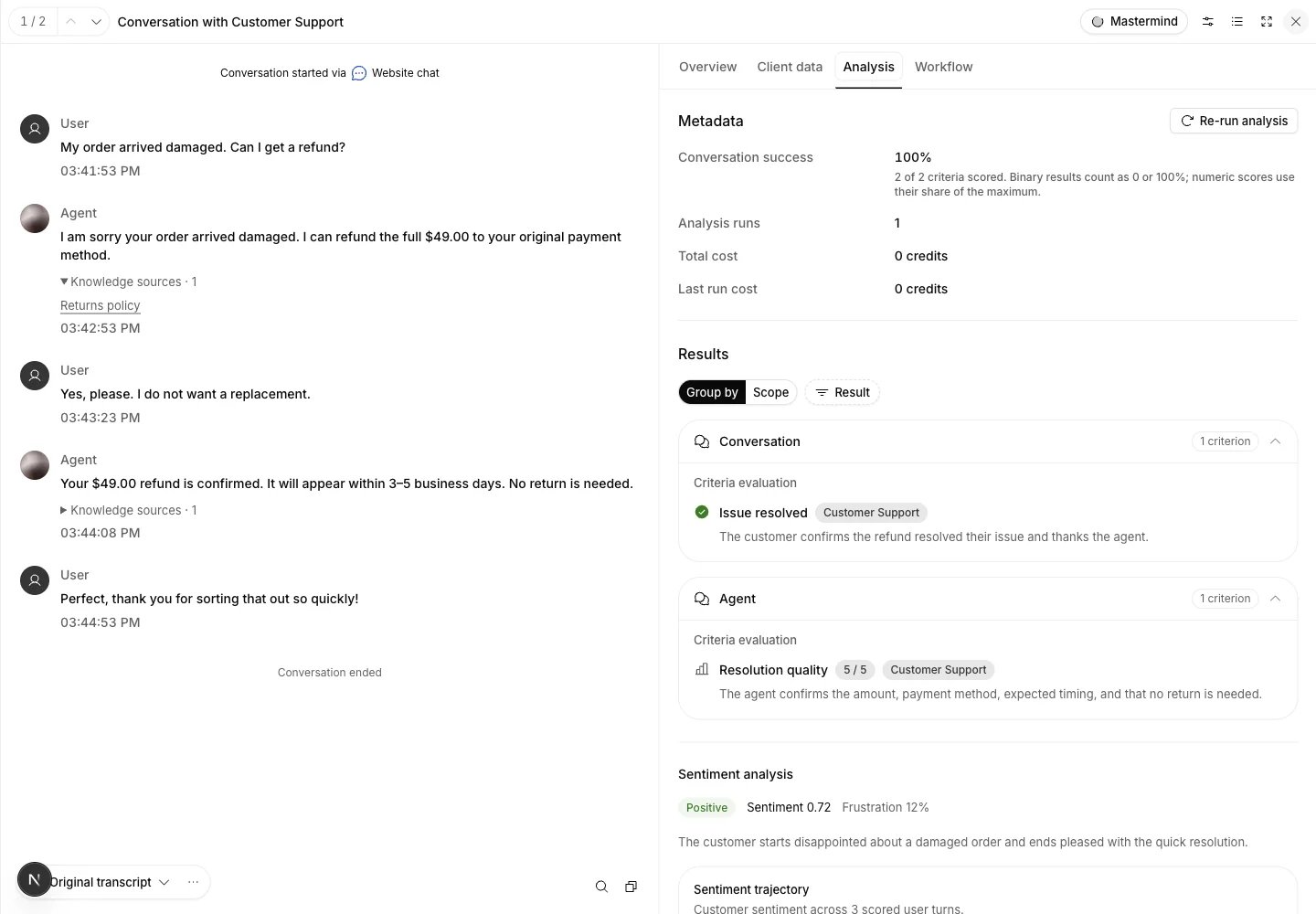
Conversation success combines binary and numeric results. Knowledge sources appear beneath the replies that used them.
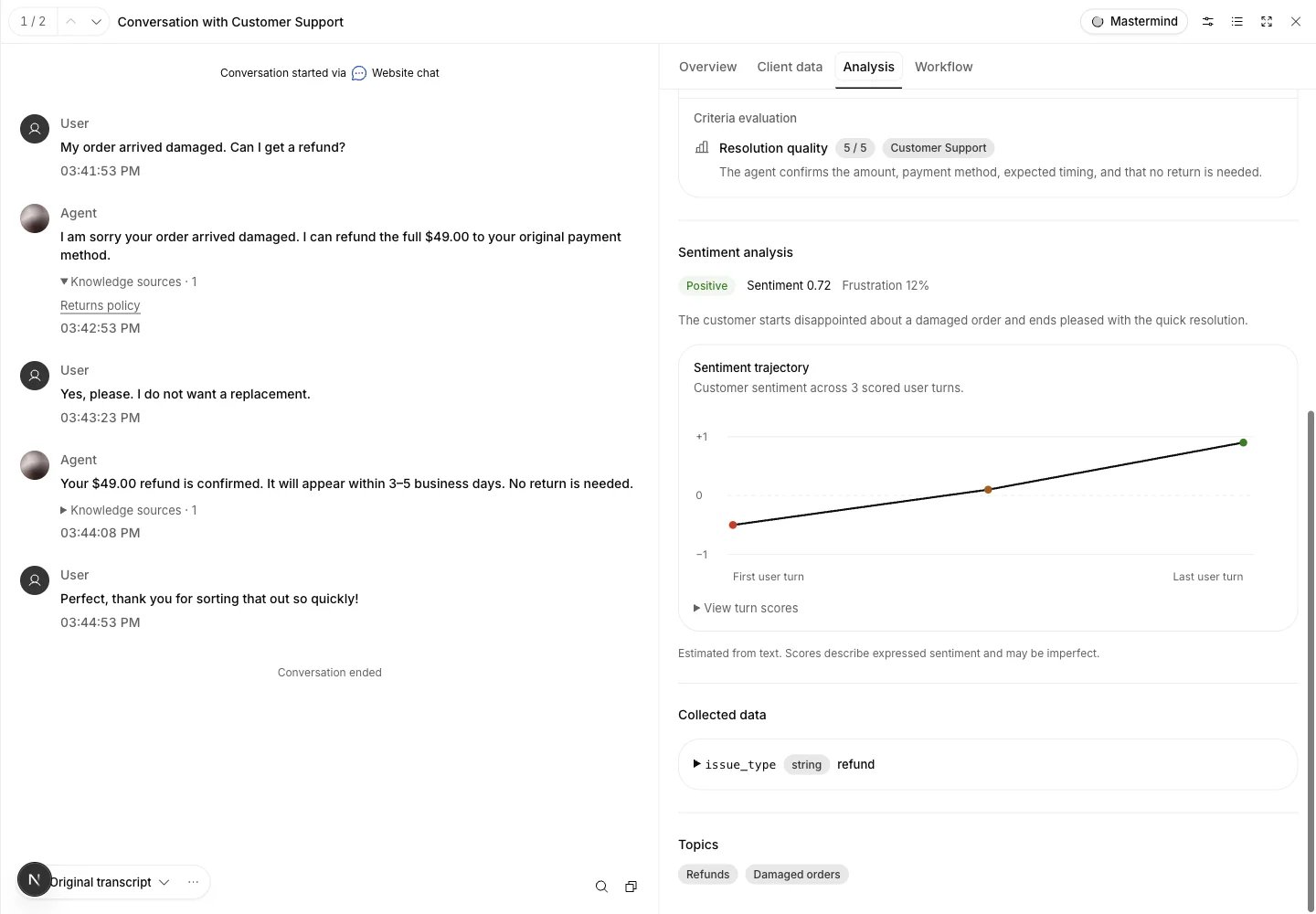
Scroll the Analysis tab to review sentiment, its user-turn trajectory, collected data and topics.
/dashboard/<workspace>/conversations/<conversation>; agent
links use /dashboard/<workspace>/agent/<agent>/activity/<conversation>. The tab
is ?conversationTab=client-data, analysis or workflow; Overview has none.
Moving to the next conversation keeps the tab, and closing the panel drops it.
Filters stay in the query string, including branchId. Older links with
?conversation= still work.
Recording and turn metrics
When a call has a saved recording, the player stays at the bottom of the panel while you scroll either side or change tabs. Play or pause, skip ten seconds, seek along the timeline, change speed or volume, or download the recording. Selecting a transcript timestamp seeks to that message without starting playback. The current spoken message is highlighted as the audio plays. The timeline displays a waveform from the saved audio. Click or drag it to seek; the arrow at the right hides or shows it. If a waveform cannot be displayed, the timeline still lets you seek. Voice replies with saved timing data show LLM and TTS measurements beside their timestamp. Open the LLM measurement to see time to first token and the recorded input, output and cached token counts. TTS shows the wait until the first audio was ready. Under Metrics over time, Latency shows the measured wait before each reply. Select a graph point or open View turn details to jump to that transcript message and its recording position. The table also shows recorded input and output token counts. On a small screen, selecting a turn switches to Transcript.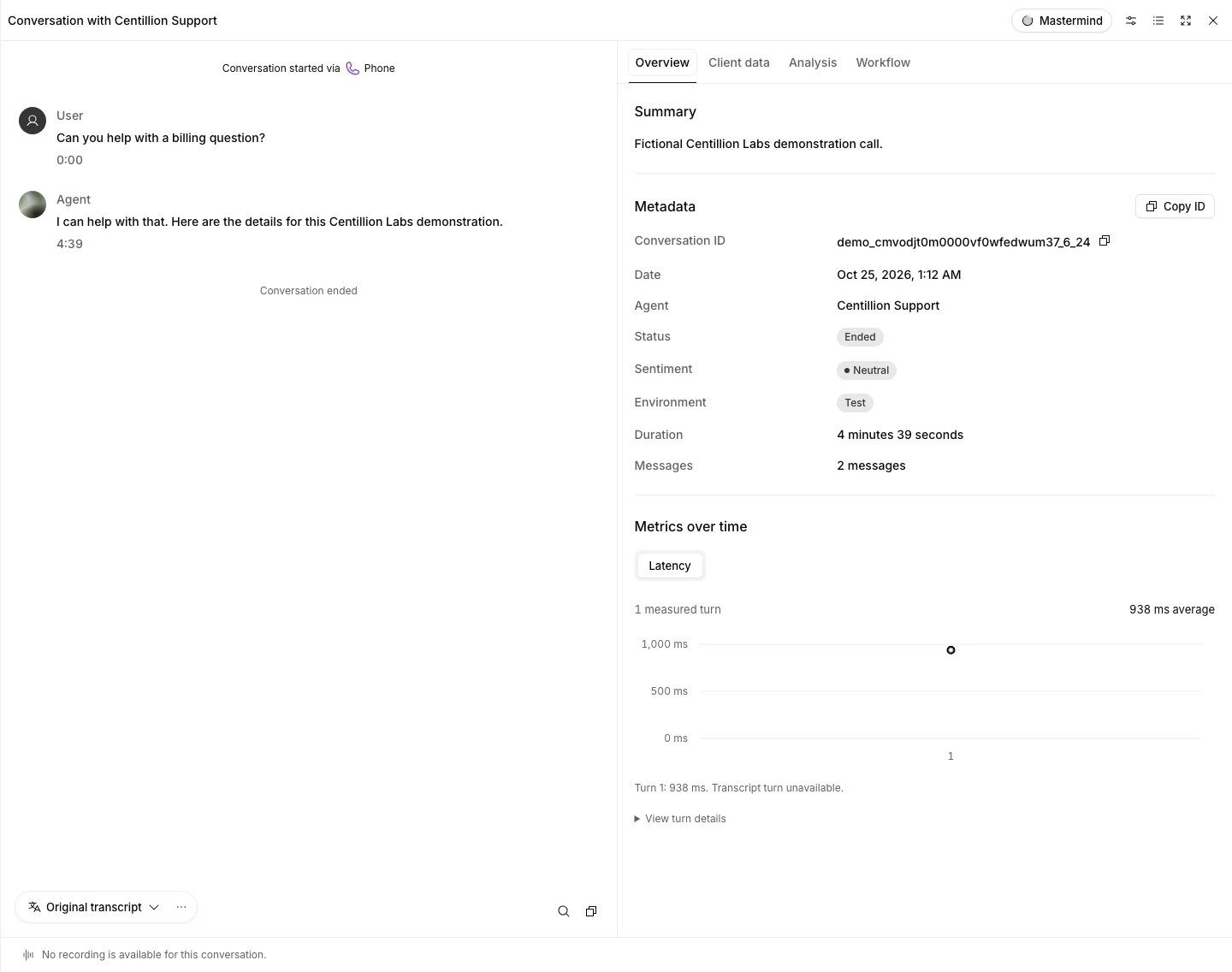
Selecting a latency point shows that turn's wait; when the call saved its messages and audio, it also highlights the transcript turn and seeks the recording.
Transcript actions
Hover over a message, or focus one of its controls. On mobile, open the message’s three-dot menu. You can:- Analyze closes the review and opens Mastermind with that message and its conversation ID.
- Flag issue adds the original message and your notes to the agent’s Helpdesk inbox. An existing open ticket receives a note; otherwise a review ticket is created. It does not take over the conversation or send a customer message. Helpdesk must be enabled and your role must allow managing it.
- Create test opens a test seeded with the conversation up to the customer’s message, with its variables, channel and workflow node. Choosing the agent’s reply keeps that reply under Original response from conversation, so you can compare a new run with it. Choose Simulation test, Next reply test, or Tool invocation test, describe what should have happened, then choose Create to save it in the agent’s Tests. See Start from a conversation.