
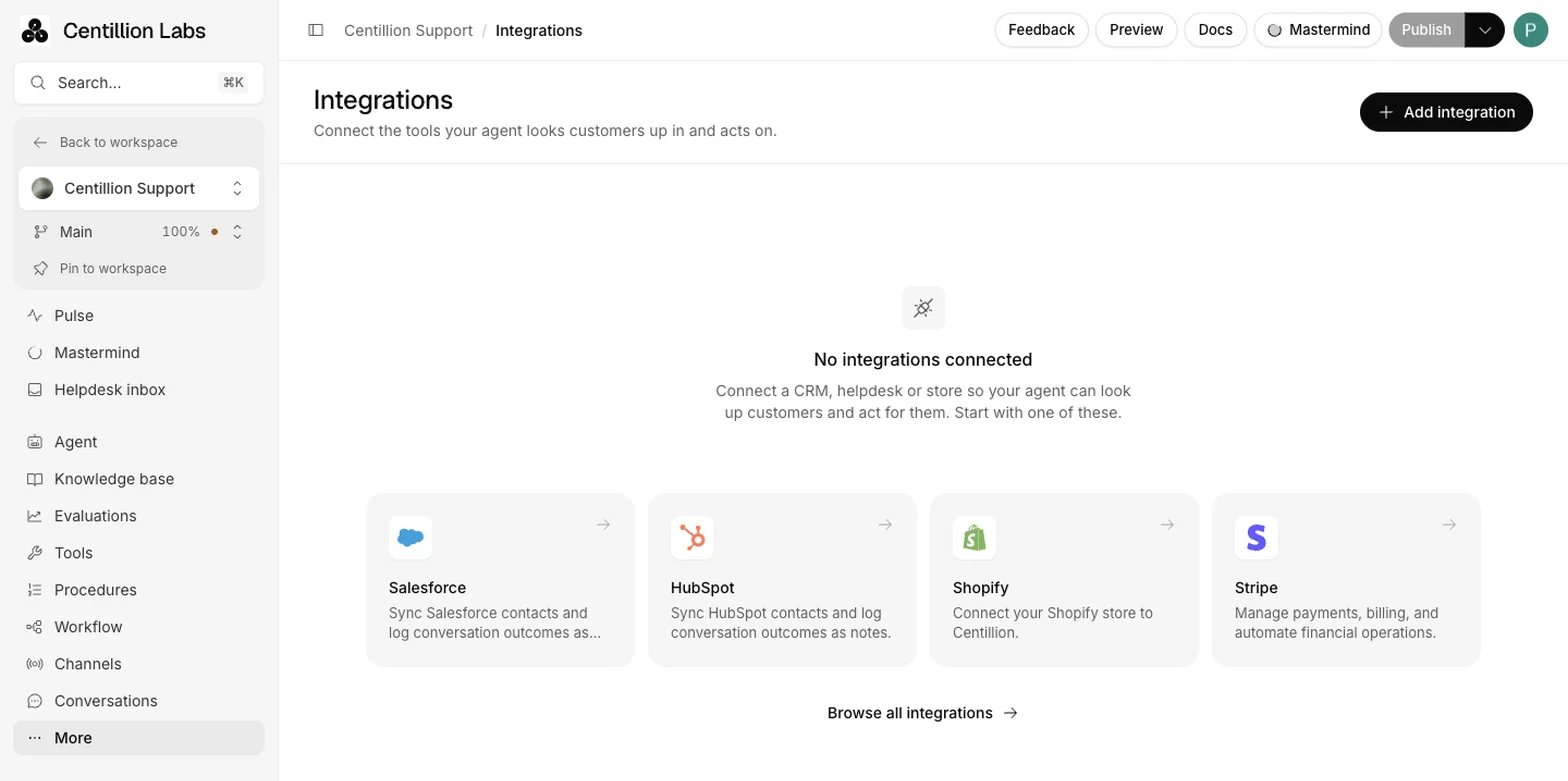
Integrations: Add integration opens the catalog, where Stripe sits under Payments.
What it does
- Shows a signed-in customer their invoices, ten per page, with status, totals, dates, hosted invoice links and PDF downloads.
- Shows their subscriptions, ten per page, with plans, prices, quantities, status, billing periods, trials and cancellation dates.
- Opens a Stripe portal for the plan and quantity changes, payment methods and cancellation you allow, or for name, email, phone, billing address and tax IDs.
- Runs in Chat bubble only, and only for a verified visitor linked to a contact with a Stripe customer ID.
- Never changes billing by itself: the customer confirms every change in Stripe.
What you need
- Standard and up. Your own Centillion subscription is managed separately in workspace billing.
- The Owner or Member role to connect Stripe and test as a customer. See workspace roles.
- Identity verification on your website, so the agent knows which customer is chatting.
- A Stripe account, connected through the Stripe app or a restricted API key.
Set it up
1
Connect Stripe
Open Integrations, click Add integration, choose Stripe (under
Payments, or by searching), and click Connect. Each agent has one
Stripe connection at a time. Check the account name and environment after
connecting.
2
Link your customers
Configure identity verification so your server signs the customer’s
external user ID. In Contacts, create or select the contact with that
same External ID, and set its
stripe_account attribute to the Stripe
customer ID, beginning with cus_.3
Create the actions
Open Tools → Add tool → New tool → Integration, choose Stripe and select an operation. Name it,
describe When to use it, and enable it on Chat bubble.
4
Test as a customer
In the Playground, use Chat as user with a linked contact’s external
User ID, in a Stripe test environment.
Use it every day
Connection options
- Install Stripe app opens Stripe’s account authorization flow. Review the permissions, choose your account, and return to the same agent. Connect a sandbox uses an isolated Stripe sandbox; Connect in test mode uses Stripe’s shared test mode. These options appear when configured for your deployment.
- A restricted API key connects directly. Use an
rk_test_orrk_live_key, with read access to Accounts, Customers, Invoices, Subscriptions, Products and Prices. Management actions also need Customer Portal write access. Full secret keys are not accepted.
The Centillion Stripe app is awaiting Marketplace review. Public app
installation becomes available after Stripe approves and publishes the listing.
Restricted-key connections are available in the meantime.
Linking customers
Thestripe_account attribute is created when you connect Stripe. Its value is
a customer ID, even though its name says account. A merchant ID beginning with
acct_ does not work. Typing an email or a customer ID in chat does not verify
the visitor or choose which customer’s billing record is used. See
Contacts for editing attributes.
The actions
In General, name the action and describe When to use it. Turn on Only
use in procedures to let a procedure control when it runs; this hides the
general trigger field. Stripe actions are compatible with Chat bubble only.
Other channels are shown as incompatible.
Choose Save to keep a new action as a draft, or Save & enable when its
settings and Chat bubble channel are ready. The action editor’s preview shows
labeled sample records and inactive links.
Subscription policies
For Manage subscriptions, use Subscriptions to choose the active recurring plans a customer may select. Expand a selected plan to configure quantity limits. Limits apply to all selected prices for the same product. Only licensed recurring prices are supported; metered plans are excluded. Choose whether subscription changes create no proration, add prorated adjustments to the next invoice, or invoice immediately. In Cancellation, choose whether cancellation is allowed and whether it takes effect immediately or at the end of the billing period. Immediate cancellation can credit unused time. That credit is not a cash refund. Creating a portal link does not change billing. The customer must open it and confirm the change in Stripe. Stripe’s own portal restrictions still apply to unsupported subscription structures.Testing the actions
Use a Stripe test environment and synthetic records.- As a workspace Owner or Member, open the agent’s Playground with Chat bubble selected.
- Open Chat as user, enter the linked contact’s external User ID, and submit the form. Metadata can describe the test user but cannot select a Stripe customer.
- Ask for invoices and subscription information, then request a subscription change and a billing-address change. Inspect each card and portal.
- Check that the portal offers only the plans, quantities and cancellation behavior you allowed. Confirm test changes in Stripe and inspect the result.
- Choose Stop chatting as this user to clear the identity and conversation.
Disconnecting
Open Integrations, click Manage on the Stripe row, then Manage → Connection details → Disconnect Stripe. Disconnecting erases the saved credential and disables the agent’s Stripe actions. Uninstalling the OAuth app in Stripe also disconnects the matching connection when Stripe delivers its uninstall event.Limits and good to know
- Stripe actions run in Chat bubble only.
- One Stripe connection per agent at a time.
- Only licensed recurring prices can be offered in the portal; metered plans are excluded.
- Restricted keys only. Full secret keys are not accepted.
- A procedure-only action runs only while an active procedure references it. A free-form procedure lets the agent choose when to call it within the task.
- Normal Playground, Compare and Action Preview cannot run Stripe actions; use Chat as user.
- A billing question the agent cannot settle goes to your team: a person takes over from the helpdesk inbox when you add an escalation action.
Questions
Why do billing actions not run?
Check that the integration is connected, the action is enabled for Chat bubble, and the visitor has a verified identity matching a contact. Confirm that the contact’sstripe_account refers to a customer in the connected account and
environment. Review the key’s permissions if Stripe refuses a request.
Can a customer see someone else’s invoices by typing an email?
No. Typing an email or a customer ID in chat does not verify the visitor or choose the billing record. Only a server-signed identity linked to a contact with astripe_account does.
Does the agent change subscriptions itself?
No. It creates a portal link. The customer opens it and confirms the change in Stripe, within the plans, quantities and cancellation rules you allowed.Can I test without touching live billing?
Yes. Connect a Stripe test environment, use synthetic records, and use Chat as user in the Playground as an Owner or Member.What happens if I connect a different Stripe account?
The existing Stripe actions are disabled so you can review them before enabling them again. Test and live records are separate.Can Viewers test Stripe actions?
No. Viewers can use ordinary Playground and Compare, but cannot run Stripe actions as a customer. Chat as user needs an Owner or Member.Try it
Connect a Stripe test environment, link one test contact, and ask the agent for that customer’s invoices through Chat as user.Start free
Start on the Free plan, or take a seven-day trial of a paid plan. Your agent is live on your site in an afternoon.
Book a demo
Fifteen minutes with the team, on your own use case.
Related
What Centillion is
How the agent, its knowledge and its channels fit together.
Identity verification
Sign customers in to the widget so the agent knows who is chatting.
Custom tools
Call your own API, run website functions and show cards.