
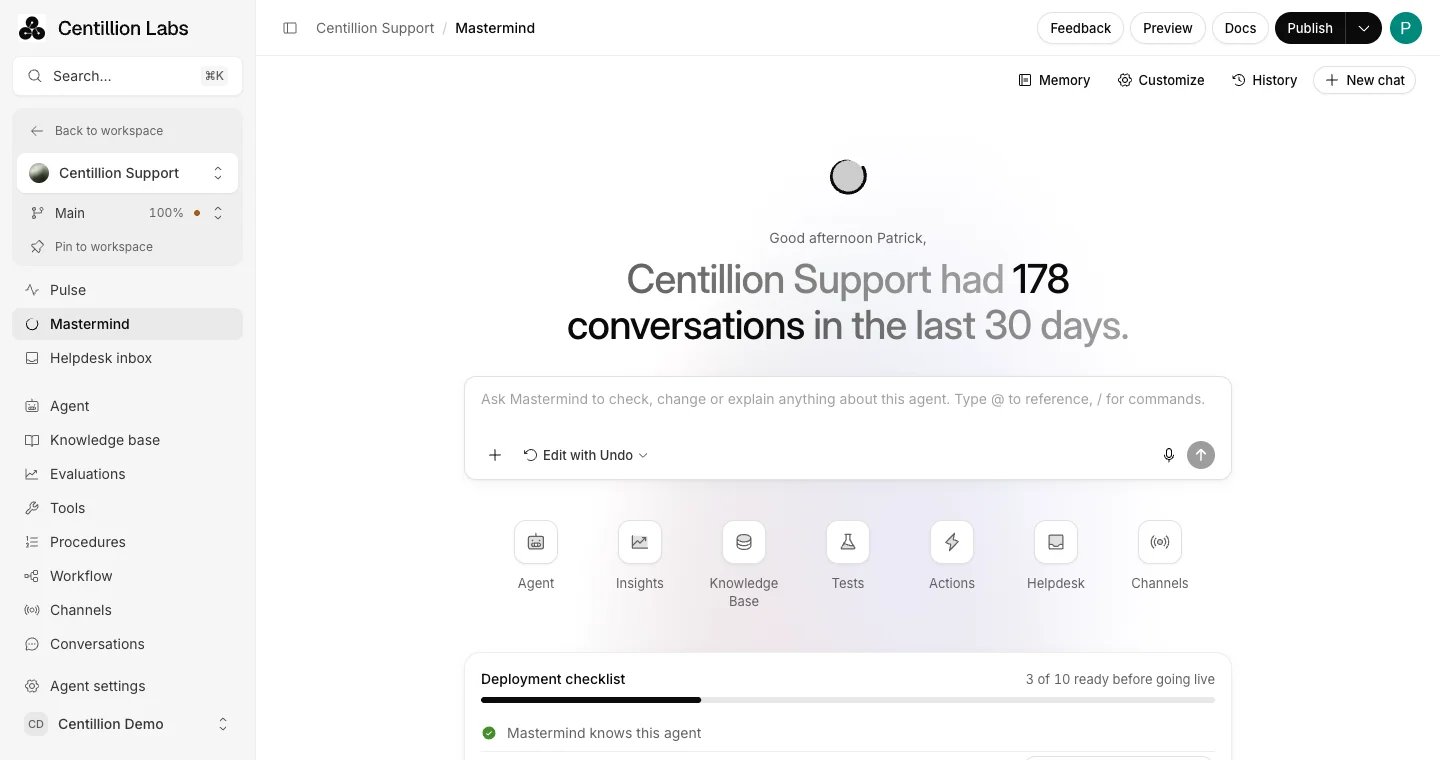
The Mastermind page for one agent: its conversations in the last 30 days, the message box and suggestions.
What it does
- Answers questions about one agent, or across every agent in the workspace, from real data. It reads whole conversations when a question needs them, and says how many it read. Conversation analysis looks back at most 180 days.
- Shows you around Centillion: it checks the help pages, opens the right page, reads what is on it and highlights the next thing to click.
- Drafts changes to instructions, guardrails, model, data sources, the chat widget, actions, tests, procedures and evaluation criteria. Requested reversible changes apply directly and offer Undo.
- Audits your agents and a knowledge base, read-only, and says what to fix first.
- Builds agents from a few questions about purpose and audience, including emotional delivery, voice, greetings, languages and channel behavior.
- Allows each teammate 10 to 300 messages a day depending on the plan, and does not use your workspace’s credits.
What you need
Mastermind is on every plan. Owners and Members can approve changes. Viewers can ask Mastermind about the agent, but it does not propose changes for them. Support Associates do not get Mastermind. See workspace roles. If you are new to the product, start with what Centillion is.Set it up
1
Open Mastermind
Open Mastermind at the top of your agent’s sidebar, or click
Mastermind in the bar at the top of any agent page. The workspace
sidebar has its own Mastermind, for questions across every agent.
2
Tell it about the agent
Open Memory and choose Set up with Mastermind, or type
/setup.
Mastermind asks about the agent’s purpose, customers and tone, one question
at a time, then proposes what to remember.3
Ask your first question
Type a question, pick a suggestion under the message box, or type @ to
point at a specific source, action or conversation.
Use it every day
Where Mastermind opens
From another agent page, Mastermind opens beside the page, with the agent’s name beneath the chat title. The Viewing row names the page Mastermind is using for context, so “which of these sources are out of date?” on Data sources means those sources. The sidebar folds to icons to make room and unfolds when you close Mastermind. Full screen continues the same chat on the Mastermind page and keeps your selected branch. On the Agent page, Build with Mastermind helps configure the agent. It saves your latest edits before starting the chat, and so does Generate. If a request fails, your message stays in the chat. Choose Try again to retry it. If Mastermind already started an answer, choose Continue to resume from its last step. On workspace pages, the same button opens a workspace chat. It reads across every agent: conversations and unanswered questions, sources, credits, the helpdesk and channels. A workspace chat can create a new agent and write your workspace conventions or your preferences, which always wait for your approval. To change an existing agent, it gives you a link to that agent’s Mastermind, where its changes are made. A chat under way stays open when you move between an agent’s pages and workspace pages, and the header keeps naming the agent or workspace it belongs to. New chat starts one for the page you are on. You can also ask from anywhere else in the dashboard:What you can ask
Type @, or choose Reference something under + in the message box, to
point at something specific: a data source, an action, a recent conversation, a
contact, a connected channel, a test, a procedure or another agent. Choose it from
the menu, and Mastermind reads exactly that item. In a workspace chat, @ points
at an agent or an integration. Press Shift+Enter to add a new line to your
message, and hold ⌘. or Ctrl+. to dictate where your browser supports it.
An agent chat can also inspect other agents in the workspace for comparisons and
audits. Changes apply to the agent open in the chat; to change another agent,
follow its Mastermind link in the audit. Helpdesk reads do not change tickets or
message customers.
Get help with Centillion
Ask how to do something, or where something is, and Mastermind takes you there. It checks the help pages, opens the page beside the chat, reads what is on it, such as your plan or what is already set up, and puts a ring around the next control. Mastermind can act on the page only in ways that can’t change anything by themselves:- It reads the page and highlights a control. If it can’t find the control, it says so and describes where to look.
- It can type values you gave it into a text field, so you only review and save. It never submits a form, and never fills in a password, key or card number.
- It can open a tab, a link, a menu or a dialog. It never clicks anything that saves, sends, publishes, pays, invites or deletes.
Start from a suggestion
On a new chat’s Mastermind page, the suggestions under the message box are grouped. For one agent the groups are Agent, Insights, Knowledge Base, Tests, Actions, Helpdesk and Channels. On the workspace page they are Agents, Insights, Helpdesk, Channels and Knowledge Base, followed by Jump back in with the agents that had the latest conversations. Hover over a group to see its suggestions, or click it to keep them open, and hover over a suggestion to preview it in the message box. Choosing one sends it. A suggestion with a blank to fill in, such as “Switch off the action called [action name]”, goes to the message box instead, with the blank selected so you can type over it. In the panel beside a page, a new chat offers questions under Try asking about the page you have open, such as “Which of these sources are out of date or failed?” on Data sources. Choosing one sends it. On workspace pages the questions cover every agent, such as “Which agent needs attention first?”Audits
Audit my agents, under Agents on the workspace Mastermind page, checks every agent in your workspace for missing instructions, guardrails, knowledge sources and tests, plus import and channel connection problems. It checks whether configuration exists; it does not run tests or prove that guardrails work. Each agent has a link to its own Mastermind for further review. Audit my knowledge base, under Knowledge Base, reviews the current agent’s sources, distinguishes failed or incomplete imports from sources awaiting import or training, and looks for gaps in customer questions from the last 30 days. An old update date is a reason to review a source, not proof its facts are wrong. If there are no sources or conversations, Mastermind says what it cannot check. Both audits are read-only. Choose a suggested next step before Mastermind proposes a fix. Add a knowledge source opens Data sources and keeps the same chat beside it. Mastermind asks what you want to add, checks for an existing source and guides you through the next step. Upload documents with Add files on Data sources; the chat does not accept attachments. For Notion, use Add Notion pages there. A saved source may still need importing or training before the agent can use it. See adding knowledge.Deployment checklist
An agent’s Mastermind page lists what the agent should have before it goes live, such as guardrails, trained knowledge, tests, evaluations and a way to hand over to a person. Each row is read from the agent’s real setup. Choose Complete with Mastermind on a row to get help with it, or Mark as done if it doesn’t apply to this agent.How Mastermind works with you
- It asks before it guesses. When a request is open-ended, Mastermind asks one question at a time and offers likely answers as buttons. Click one, or type your own.
- It takes you there. When the next step happens on a page, such as connecting a channel or building an action, Mastermind opens that page and stays open beside it, saying what to do. It doesn’t ask first, because opening a page changes nothing. From the Mastermind page, the chat moves to the panel beside the page it opened.
- It says what it’s doing. Mastermind narrates each step as it works, such as “I’m reading the agent’s data sources”, and ends with what it found or changed and what comes next. Each step is a line under the message, such as Read the agent’s settings; a step that failed says so and opens to what went wrong. Thought for 3s opens what it thought before answering.
- It shows its plan. For longer work, such as a review or an investigation, a todo list above the message box ticks off each step. Fold it away or close it.
- It draws the numbers. Mastermind can answer with headline numbers and line, bar, area or pie charts drawn from your agent’s data. Show as table under a chart lists every value.
- It knows the agent and the page. Each chat starts with a short summary of the agent: its model, this week’s conversations, sources, actions, channels and open tickets. Mastermind also reads the text of the page beside it, so you can ask about a value or chart you’re looking at.
Changes and Undo
Ask for a change directly. Mastermind reads the current configuration and handles the change according to the mode beside the + in the message box. Press Shift+Tab in the message box to move between them. Your choice is remembered in this browser.
Changes from this chat, above the message box, lists every change and where
it stands. Choose one to jump to its card. In every mode, creating an agent,
deleting an action, running tests and changing the traffic split require Approve
and apply. Mastermind can only do what your role allows.
Review changes
A card under Mastermind’s answer shows each change:- Instructions and guardrails as a diff, with the removed and added lines. Side by side shows the whole text before and after.
- Model and temperature as a before-and-after table.
- Data sources to add or remove, with their text and questions, and edits to a text or Q&A source as a diff.
- Chat widget settings, such as colors, theme and greeting, before and after.
- Actions to switch on or off, when an action is used, web search to add, or an action to delete.
- What Mastermind remembers about the agent, and your preferences, as a diff.
- Behavior and voice, including emotion tags with usage descriptions, timezone, languages, channel settings, voice selection and first-message interruption behavior.
- A new agent, with its instructions, guardrails and requested behavior and voice configuration.
- Tests, procedures, custom actions and evaluation criteria, with their proposed configuration. Saved action credentials stay masked.
Branches, proposals and traffic
Ask Mastermind to work on a branch, with/branch, and nothing reaches customers
while you try the change. Once it is published there, Mastermind can open a merge
proposal with a summary, the tests that ran, and what to check, for a teammate to
review. See releases and workflows.
To try a change on real conversations, use /experiment or ask to send a share of
traffic to the branch. The card shows the whole split before and after, and it
always waits for your approval because it reaches live customers. Undo puts
the split back.
After changes apply or are undone, Changes from this chat and the page
update. An open Instructions editor keeps your unsaved fields while showing new
saved values elsewhere; review your draft before saving it.
If someone edited the same setting after Mastermind drafted the change, the
change is not applied and the card says so; ask again so Mastermind starts from
the current version. A newer proposal in the same chat replaces one you have not
decided yet.
Undo on an applied card puts the changes back: settings return to what they
were, added sources are removed, removed sources come back, actions switch back,
and added web search is removed. A setting edited again since is left as it is.
Deleting an action and creating an agent can’t be undone, and the card says so
before you approve them.
Create an agent with Mastermind
Choose Agents → Create a new agent on the workspace Mastermind page, ask Mastermind for one, or type/generate. It asks a couple of quick questions
about the agent’s purpose and audience, one at a time. It skips details you
already supplied, offers tone defaults and accepts that there may be no website.
After asking about any essential missing boundaries, it sums up the plan and
proposes the agent with its instructions, guardrails and requested behavior,
voice, greeting and languages. Voice choices come from your voice library.
Choose Approve and apply to create the agent and open it. Mastermind walks
you through what it built and suggests the next steps, such as adding knowledge,
connecting a channel and testing it in the Playground.
Commands
Type / at the start of a message to see the commands, and keep typing to narrow them down. In a workspace chat the list shows the ones that apply across agents.
Rate any answer with the thumbs under it. Thumbs down asks what went wrong.
Customize Mastermind
Open Workspace settings → Mastermind, or Customize on the Mastermind page. None of this changes how your agents reply.- Agent context lists each agent and whether Mastermind knows its purpose, customers and rules. Set up starts a short interview.
- Organization holds conventions for everyone in the workspace, such as naming or what every change needs before it goes live. Mastermind follows them in every chat. Only workspace owners can change them.
- Your preferences are how you like Mastermind to work with you, for every agent. Only you see them.
- Prompt library keeps prompts you use often. They are private until you turn on Share with the workspace. Run starts a chat with one, and Use a saved prompt under + in the message box puts it in your message.
What Mastermind remembers
Mastermind reads two notes at the start of every agent chat, so you don’t repeat yourself:- This agent: what it is for, who its customers are, its tone and the rules you work by. Everyone in the workspace shares it.
- Your preferences: how you like Mastermind to work with you, such as how to explain changes or when to ask first. They apply to every agent, and only you see them.
History
Click the clock in the panel, or History on the Mastermind page, to see your earlier chats in this workspace and continue one. Each chat is labeled with its agent, or Workspace for a workspace chat, and a chat about another agent opens on that agent’s Mastermind. Each teammate sees their own chats.Limits and good to know
Each teammate can send Mastermind a number of messages a day, depending on the workspace’s plan. The count resets at midnight UTC. When you are down to the last fifth of the day’s allowance, or the last three messages, the message box shows how many are left. Approving, rejecting and undoing do not count, and Mastermind does not use your workspace’s credits.
You can also send up to 10 messages a minute. Other limits:
- Conversation analysis covers at most the last 180 days.
- The chat does not accept file attachments; upload documents on Data sources.
- Audits check that configuration exists. They do not run tests or prove that guardrails work.
- A workspace chat only creates agents. Changes to an existing agent happen in that agent’s Mastermind.
Questions
Does Mastermind change my agent without asking?
Requested reversible changes apply right away with Undo. Read-only questions and audits do not authorize edits. Ask for a review or a plan first when needed. Test runs, deleting an action and creating an agent still wait for your review.Does Mastermind use my message credits?
No. Each teammate has a daily message allowance set by the plan, from 10 on Free to 300 on Enterprise. Test runs it starts use the test allowance unless you allow message credits.Can Mastermind look at all my agents at once?
Yes. Open Mastermind from the workspace sidebar for a workspace chat, or ask an agent chat to audit or compare agents. Changes to an agent still happen in that agent’s own chat.Who can approve Mastermind’s changes?
Owners and Members. Viewers can ask questions, but Mastermind does not propose changes for them, and Support Associates do not have Mastermind.Can I upload a file in the chat?
No. Use Add files on Data sources, and Mastermind keeps the chat open beside the page while you do.What happens if a teammate edited the same setting?
The change is not applied, and the card says so. Ask again so Mastermind drafts the change from the current version.Does what Mastermind remembers change how my agent replies?
No. The agent note and your preferences guide Mastermind only. The agent’s replies come from its instructions, knowledge and settings.Try it
Open Mastermind on one agent and ask what it could not answer in the last 30 days. When a question needs a person, a person takes over from the helpdesk inbox.Start free
Start on the Free plan, or take a seven-day trial of a paid plan. Your agent is live on your site in an afternoon.
Book a demo
Fifteen minutes with the team, on your own use case.
Related
What Centillion is
How the agent, its knowledge and its channels fit together.
Tests
Simulate customer conversations and score them with a judge.
Adding knowledge
Train the agent on your website, documents and Notion pages.